







Free video editing software no watermark options exist, but the best choice depends on export resolution, platform, hardware, format support, privacy, and feature limits. A tool may avoid a visible watermark yet restrict premium stock, effects, codecs, cloud storage, or high resolution export. Test a short duplicate clip before committing an important project.
Quick Answer
Microsoft states in its Microsoft Clipchamp watermark policy that Clipchamp does not add a visual or audio watermark to exported projects. Premium assets or features may prevent export until the required plan is available. This distinction matters. No watermark does not always mean every asset and export option is free.
Understand the Main Limitation
Useful candidates for different users include Clipchamp for accessible Windows editing, Shotcut and Kdenlive for open source desktop workflows, DaVinci Resolve for advanced systems, and iMovie for supported Apple devices. Availability and requirements change, so confirm each product on its official site. Download installers only from the developer or a trusted app store.
Use the Safest Available Method
Compare editors by the work you need to finish. Check the maximum export resolution, frame rate, codec, audio controls, subtitles, transitions, color correction, proxy editing, hardware acceleration, and project portability. A simple editor that opens your camera format reliably may be better than a feature rich tool that struggles on your computer.
Check Permissions and File Locations
Privacy is important for online editors. Determine whether footage uploads to a server, how long assets remain, and whether the service uses media for training or promotion. Desktop software can still include cloud features. Review the privacy policy and account controls before importing confidential client footage.
Avoid Common Risks
A typical user may edit a family video on a laptop with limited memory. A lightweight timeline, proxy media, and modest export settings can be more useful than advanced effects. Keep camera originals on a separate drive, create a project folder, and save incremental versions. The tutorial on edit and crop videos shows how a focused edit can avoid unnecessary conversion.
Typical Scenario
Watermarks can enter a project through stock clips, templates, screen recorder branding, trial effects, or imported samples even when the editor itself adds none. Preview the complete export. Check the first frame, last frame, corners, audio, and credits. Do not cover a watermark when the underlying asset license requires attribution or payment.
Troubleshoot the Result
Quality depends on export choices. Repeated compression can introduce blockiness, banding, and soft text. Keep the original frame rate when possible and avoid multiple export cycles. The guidance on protect video quality explains why some quality loss cannot be reversed. If project assets disappear, consult recover lost editing files before recreating or overwriting the project folder.
Choose the Right Action
| Situation | Recommended Action | Main Risk |
|---|---|---|
| Content remains available in the original service | Use the official save or management control | Confusing a cloud item with a local file |
| A local file exists but fails | Copy it to a healthy drive and test the copy | Overwriting or repeatedly converting the original |
| A local file was deleted | Stop writing to the source and begin recovery | New data overwriting recoverable sectors |
Protect Local Video Files Before Troubleshooting
Browser fixes, editing changes, cache cleanup, and storage moves can affect local files. Create a separate copy of any irreplaceable recording before you change settings. Keep the original file untouched and test edits on a duplicate. If a drive disconnects, reports read errors, or becomes unusually slow, stop using it. A failing device needs imaging or professional help rather than repeated repair attempts.
Check the Recycle Bin, cloud storage, application export folders, and recent project folders first. Search by file type and modification date when the original name is unknown. Do not install recovery software on the partition that held a deleted file. Installation can write new data over recoverable sectors. Save every restored file to another healthy device.
Recover Missing Media with PandaOffice Drecov
PandaOffice Drecov is a Windows data recovery tool for PCs, USB drives, SD cards, memory cards, hard drives, SSDs, and external drives. It supports photos, videos, documents, emails, audio files, and archives. Its read only recovery mode scans the selected source without using that source as the save destination. Quick Scan looks for recently deleted records, while Deep Scan searches more broadly. Preview before recovery helps users check selected results before saving them.
⚠ Warning: Install it on a drive different from the one where your data was lost to prevent overwriting.
Recover Missing Video Files with Drecov
- Step 1: Open PandaOffice Drecov and choose the original location where the video or project asset disappeared. Select the correct PC folder, USB drive, SD card, memory card, hard drive, SSD, or external drive.

- Step 2: Run Quick Scan first when the file disappeared recently through deletion, a failed transfer, an editing error, or an unexpected application close.

- Step 3: Continue with Deep Scan when Quick Scan misses the required file. Deep Scan is more suitable for older deletion, formatting, damaged folder records, or an unclear original path.
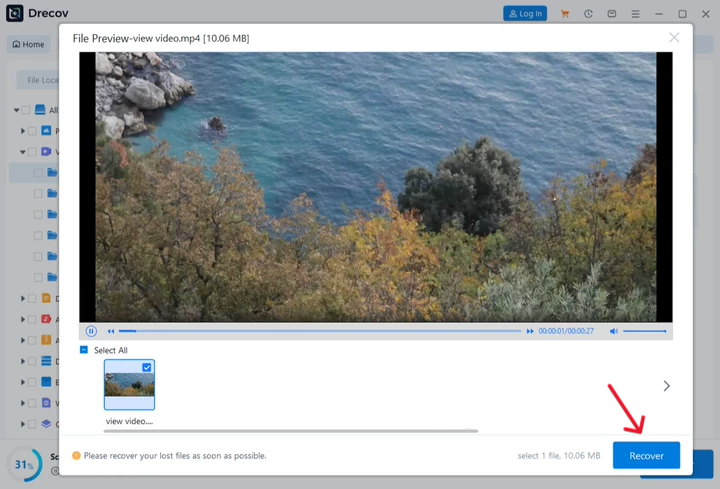
- Step 4: Preview before recovery. Compare the file name, date, size, thumbnail, duration, and playable content so you can select the correct result.
- Step 5: Recover selected files to another healthy drive or external storage device. Never save them to the source location because new writes may overwrite other recoverable data.
- Step 6: Open the destination and verify every restored file. Check the Drecov folder or Recovery folder if the results do not appear in the expected location.
Choose Quick Scan or Deep Scan for Video Recovery
Quick Scan is the best starting point for recent deletion, failed downloads, accidental moves, and interrupted editing. It can return useful results quickly when file system records remain available. Deep Scan searches the selected storage more thoroughly and may locate media after formatting or older loss. Start with Quick Scan, review its results, and continue with Deep Scan only when necessary.
Verify Recovered Files Before Reusing the Source
Open each recovered video from beginning to end. Check the duration, resolution, sound, seek behavior, and final frames. A file that displays a thumbnail may still contain damaged segments. Keep the source device unchanged until essential files pass verification. After verification, create a second backup. Only then should you repair, format, or reuse the original storage device.
Practical Guidance for Free Video Editing Software No Watermark
For free video editing software no watermark, start with the official application control and confirm the destination before changing tools.
Frequently Asked Questions
Can every missing video be recovered
No. Recovery depends on whether the content still exists in a service, a backup, device trash, or unoverwritten local sectors. Physical damage and overwritten data require different expectations. Stop using the affected storage as soon as loss is discovered.
Should I use a third party downloader or repair tool
Use official controls first. Review the developer, permissions, privacy policy, and download source before trusting another tool. Avoid services that request passwords, login codes, broad browser access, or payment before showing a verifiable result.
Where should recovered files be saved
Save them to another healthy drive with enough free space. Do not use the source device because new writes can overwrite other recoverable data. Verify the result before repairing or reusing the source.
Check Export Limits Before Editing
Keep a small record of each change, including the setting, original value, result, and file location. This makes troubleshooting reversible and prevents several changes from hiding the real cause. Restart only the affected application first. Reboot the computer when a driver, browser update, or file lock requires it.
Confirm Stock Media License Rules
Use descriptive file names and a stable folder structure after the task succeeds. Separate originals, working files, and exports. A second copy on another device protects against accidental deletion and hardware failure. Cloud sync can add convenience, but it should not be the only copy of an irreplaceable recording.
Protect Camera Originals and Project Files
Treat unexpected executable files, browser prompts, and login requests as warning signs. A media task should not require an unknown service to control the entire browser or obtain an account password. Cancel suspicious downloads, scan the computer, and return to official application controls.
Compare Hardware and Format Support
When a result differs across devices, compare the account, network, application version, permissions, and storage destination. Change one factor at a time. This method produces a clearer diagnosis than reinstalling several tools or clearing every setting at once.
Verify the Final Export for Watermarks
Confirm available disk space before saving, exporting, or recovering a large video. Low space can interrupt a transfer and leave an incomplete file that still shows a normal name. Keep enough room for the source, temporary processing data, and the final result. Delete temporary material only after the finished file passes verification.
With free video editing software no watermark, keep an untouched original or backup before editing, moving, deleting, or repairing local media.
Conclusion
Start with the official application or browser method, preserve valuable originals, and verify every saved result. When a local file is truly missing, stop writing to its source. PandaOffice Drecov can scan supported Windows storage and recover selected results to another healthy location without promising that every file will return.





