







Pixelated video can appear after a failed transfer, weak download, camera card issue, codec problem, editing mistake, or storage error. The safest answer to how to fix pixelated video is not to repair the only copy first. Protect the original clip, make a working copy, and recover missing or damaged video files before running repair tools.
This guide is written for users who need their video back, not only users who want smoother playback. If a wedding clip, security recording, class video, product demo, or work recording looks blocky or broken, the video data may still be partly recoverable. However, every new save to the same drive can reduce recovery chances. Use the steps below to separate playback issues from real file damage and recover a safer copy with PandaOffice Drecov when needed.
Quick Answer Before You Try Video Repair
First, stop editing the pixelated clip. Copy the file to another healthy drive if it still opens. Then test playback with another media player, check the file size, and compare it with the expected length.
If the video disappeared, became zero bytes, came from a formatted SD card, or was deleted during cleanup, switch to recovery before repair. A repair tool may rewrite the file. Recovery should happen while the original storage is still untouched.
Microsoft notes that video playback problems can involve display settings, codecs, refresh rate conflicts, and app behavior. That means pixelation is not always permanent file damage. It may be a playback or system problem that should be checked carefully before destructive repair.
How to Diagnose Pixelated Video Without Making It Worse
A clear diagnosis helps you choose the safest fix. Pixelation can come from three broad causes: playback, file damage, or source quality.
| Situation | Likely cause | Best first step | Recovery need |
|---|---|---|---|
| Video looks bad in one player only | Codec or playback setting | Test another player | Low |
| Video is blocky in every player | File damage or low quality export | Make a copy first | Medium |
| Video was copied from SD card and now fails | Transfer or card error | Stop using the card | High |
| Video disappeared after editing | Accidental deletion | Check Recycle Bin and backups | High |
| Drive asks to format | File system damage | Scan before formatting | High |
If the file is important, treat the storage device as fragile. Avoid trimming, converting, renaming in bulk, or saving exports back to the same location.
Method 1 Test Playback and Keep a Safe Copy
Start with simple checks because they do not change the source file. This protects the video while you learn whether the problem is playback or damage.
Open the Video in Another Player
Try a different trusted media player. If the video looks normal elsewhere, the issue may be a player setting, codec, or hardware acceleration problem.
Also test the file on another computer if available. If the same clip looks pixelated everywhere, the file itself may be damaged or exported at low quality.
Do not install random codec packs from unknown sites. They can create security risks and may not fix the actual video.
Check the File Size and Duration
Right click the video and check its size. A long video with a tiny file size may be incomplete. A clip that should be several gigabytes but appears as a few megabytes may have been truncated.
Open properties or media details to check duration and resolution. If the duration is wrong, the file may need recovery rather than simple playback changes.
Make a Working Copy
If the clip still opens, copy it to a different drive. Use the copy for tests, conversion, repair, or editing. Keep the original untouched.
This one step matters for how to fix pixelated video because some fixes rewrite the file. If the repair fails, the untouched original gives you another chance.
Method 2 Recover the Original Video with PandaOffice Drecov
PandaOffice Drecov is a professional, read-only data recovery utility designed for Windows users to safely retrieve lost, deleted, or corrupted multimedia files without altering the original storage media. Equipped with advanced deep-scanning algorithms, it specializes in reconstructing missing video streams—such as MP4, MOV, and AVI—from formatted SD cards, unstable USB drives, and corrupted hard drive partitions, ensuring you salvage a clean source file before attempting any software repairs.
If the video was deleted, lost from an SD card, damaged after transfer, or stored on a drive that now behaves strangely, recover the source before repair. PandaOffice Drecov can scan PCs, USB drives, SD cards, hard drives, external drives, and similar storage.
⚠ Warning: Install it on a drive different from the one where your data was lost to prevent overwriting.
- Step 1. Open PandaOffice Drecov and choose the location or path where the files were lost. Select the original drive, card, folder, or partition where the pixelated or missing video was stored.

- Step 2. Start scanning that location. Let Quick Scan look for recently deleted files, then continue with Deep Scan when the loss involves formatting, corruption, RAW errors, or older missing clips.

- Step 3. Filter scan results by video file type, size, date, and original path. Preview files when available so you can identify the best copy before recovery.
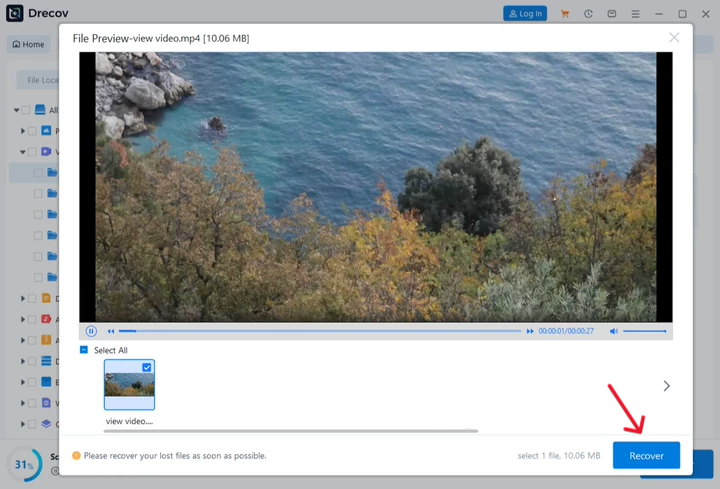
- Step 4. Click Recover and save the selected video files to a different healthy drive.
Do not save recovered files back to the original drive. This can overwrite other recoverable video data.
After recovery, if the files are not restored to the original lost folder, open the selected recovery location. Look for a folder named Drecov or Recovery to find the recovered files.
For broader file loss cases, the file recovery tool guide explains why scanning the original location matters.
Method 3 Fix Pixelation After the Video Is Safe
Once the original or recovered copy is protected, you can try repair steps with less risk.
Use a Clean Export Workflow
If pixelation started after editing, reopen the project and export again. Choose a higher bitrate, a common codec, and a stable output folder.
Use a widely supported format such as MP4 with H.264 video and AAC audio when compatibility matters. Keep the previous export until the new one is verified.
Check Display and Playback Settings
If only playback looks bad, review Windows video playback settings and graphics driver updates. Microsoft explains that refresh rate differences across monitors can cause video display problems in some cases. A playback setting issue may look like file damage even when the file is fine.
Try a Video Repair Copy
Use repair software only on a duplicate. If the repair creates a new file, save it to a healthy drive.
Do not overwrite the source. Do not convert the only recovered file. Keep at least one untouched copy until the final video has been reviewed.
When Pixelated Video Is Actually a Data Recovery Problem
Pixelation becomes a recovery problem when storage behavior changes. Watch for warning signs before you keep testing.
- The video copied from an SD card but will not open.
- The file size changed after transfer.
- The storage device disconnects during copy.
- The drive asks to format before use.
- The video folder disappeared.
- The clip was deleted before you made a backup.
- The video opens with missing frames, frozen sections, or audio only.
If any of these symptoms appear, stop using the device. Run recovery before repair. This gives you a better chance of getting a cleaner source file.
Tips to Improve Pixelated Video Recovery Success
Good recovery habits protect your best remaining copy.
- Stop recording to the same camera card.
- Avoid formatting or disk repair prompts before recovery.
- Do not run CHKDSK on a drive with important missing videos.
- Save recovered videos to a separate drive with enough free space.
- Keep damaged, recovered, and repaired copies in separate folders.
- Tip: Test the recovered video from start to finish.
- Tip: Compare file size, duration, and resolution before deleting duplicates.
- Tip: Keep the Drecov or Recovery folder until the project is complete.
- Tip: Back up the final repaired video in two locations.
Helpful recovery links include deleted file recovery software and recover deleted files. For playback settings, see Microsoft Support on video playback settings.
FAQ About How to Fix Pixelated Video
Can how to fix pixelated video steps recover a deleted clip
No. Playback fixes cannot recover a deleted video. Use Recycle Bin, backups, or recovery software first.
Should I repair the original pixelated video file
No. Make a copy first. Repair the copy and keep the original unchanged.
Why is my video pixelated after copying from an SD card
The transfer may have failed, the card may have errors, or the file may be incomplete. Stop using the card and recover the video before more recording.
Can PandaOffice Drecov fix pixelated video directly
Drecov focuses on recovering lost or deleted video files. After recovery, you can test playback or repair a safe copy.
What if the recovered video still looks pixelated
Try another recovered copy, check playback settings, and review export quality. If the source recording was low quality, repair may be limited.
Conclusion
The safest way to answer how to fix pixelated video is to protect data first. Test playback, make a working copy, and avoid repairing the only file. If the video was deleted, lost from a card, damaged during transfer, or stored on a problem drive, recover it with PandaOffice Drecov before repair.
Pixelated video may be a playback issue, an export issue, or a real data loss problem. Your best chance starts with a calm workflow: stop using the original device, recover to another drive, verify the result, and only then attempt repair.






