







Downloading an OK.ru video is safest when the platform provides a visible download or save control. OK officially supports downloading eligible videos from private messages on supported devices. Public clips may offer a saved or downloaded option depending on the app, account, region, and rights set by the uploader. Avoid unknown downloader extensions that request passwords or broad browser permissions. If a saved video disappears, stop writing to its storage location before attempting recovery.
Quick Answer
The quickest route is to open the message or video, use the available three dot menu, and look for Download, Save to phone, or a similar control. If OK offers only a bookmark or saved list, that action may keep an online reference rather than create a local media file. Confirm the result in Downloads, Gallery, Photos, or the browser download list before closing the session.
Understand the Main Limitation
OK may limit downloading because the uploader controls the work or because a stream is available only inside the service. A missing download button does not mean a third party tool is safe or permitted. Ask the uploader for the original file when possible. Download only media you own or have permission to keep. Never enter an OK password into a downloader site.
Use the Safest Available Method
On a computer, open the relevant OK conversation and inspect the menu beside the video. The official help page describes a download option for eligible message videos. Choose a known folder, wait for the transfer to finish, and scan the completed file with Windows Security. On Android or iPhone, use the app menu and then confirm whether the item appears in Gallery, Photos, Files, or Downloads.
Check Permissions and File Locations
A file that exists but will not play may be incomplete rather than deleted. Compare its size with the expected duration. Try a current media player and copy the file to a healthy local drive before testing. Do not repeatedly rename extensions. An extension change cannot rebuild missing video data. If the download stopped early, repeat the official download from a stable connection.
Avoid Common Risks
A typical situation occurs when a browser reports a completed transfer but the user cannot find the file. The browser may have saved it to a custom directory, a temporary folder, or a synced location. Open the browser download history and use Show in folder. Search Windows by the likely extension and recent date. The guide to safe video download practices explains how to verify the source and destination before trying another tool.
Typical Scenario
For trustworthy platform instructions, consult the official OK video help. It explains when message videos can be saved and how controls differ across devices. Interface labels may change, so rely on visible platform controls rather than instructions that ask you to inspect page code, bypass access controls, or install an unknown package.
Troubleshoot the Result
If the video was downloaded but later deleted, check the Recycle Bin and cloud trash before scanning a drive. The guide to recover lost downloads covers common download locations and recovery limits. You can also use the Windows search methods in find video files on Windows when the file was moved rather than erased.
Choose the Right Action
| Situation | Recommended Action | Main Risk |
|---|---|---|
| Content remains available in the original service | Use the official save or management control | Confusing a cloud item with a local file |
| A local file exists but fails | Copy it to a healthy drive and test the copy | Overwriting or repeatedly converting the original |
| A local file was deleted | Stop writing to the source and begin recovery | New data overwriting recoverable sectors |
Protect Local Video Files Before Troubleshooting
Browser fixes, editing changes, cache cleanup, and storage moves can affect local files. Create a separate copy of any irreplaceable recording before you change settings. Keep the original file untouched and test edits on a duplicate. If a drive disconnects, reports read errors, or becomes unusually slow, stop using it. A failing device needs imaging or professional help rather than repeated repair attempts.
Check the Recycle Bin, cloud storage, application export folders, and recent project folders first. Search by file type and modification date when the original name is unknown. Do not install recovery software on the partition that held a deleted file. Installation can write new data over recoverable sectors. Save every restored file to another healthy device.
Recover Missing Media with PandaOffice Drecov
PandaOffice Drecov is a Windows data recovery tool for PCs, USB drives, SD cards, memory cards, hard drives, SSDs, and external drives. It supports photos, videos, documents, emails, audio files, and archives. Its read only recovery mode scans the selected source without using that source as the save destination. Quick Scan looks for recently deleted records, while Deep Scan searches more broadly. Preview before recovery helps users check selected results before saving them.
⚠ Warning: Install it on a drive different from the one where your data was lost to prevent overwriting.
Recover Missing Video Files with Drecov
- Step 1: Open PandaOffice Drecov and choose the original location where the video or project asset disappeared. Select the correct PC folder, USB drive, SD card, memory card, hard drive, SSD, or external drive.

- Step 2: Run Quick Scan first when the file disappeared recently through deletion, a failed transfer, an editing error, or an unexpected application close.

- Step 3: Continue with Deep Scan when Quick Scan misses the required file. Deep Scan is more suitable for older deletion, formatting, damaged folder records, or an unclear original path.
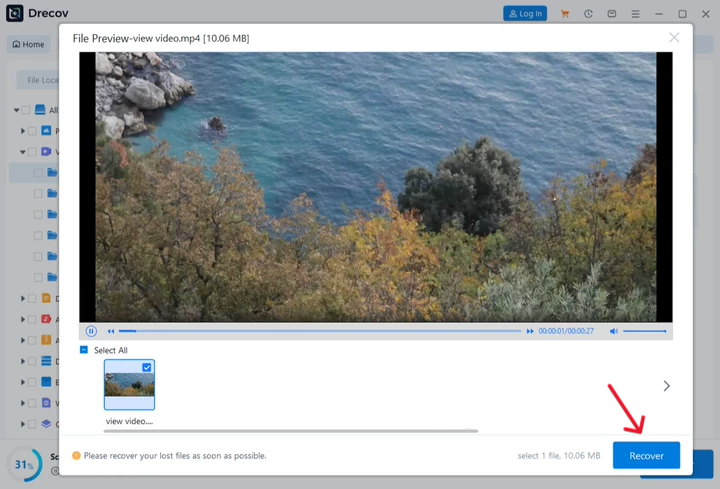
- Step 4: Preview before recovery. Compare the file name, date, size, thumbnail, duration, and playable content so you can select the correct result.
- Step 5: Recover selected files to another healthy drive or external storage device. Never save them to the source location because new writes may overwrite other recoverable data.
- Step 6: Open the destination and verify every restored file. Check the Drecov folder or Recovery folder if the results do not appear in the expected location.
Choose Quick Scan or Deep Scan for Video Recovery
Quick Scan is the best starting point for recent deletion, failed downloads, accidental moves, and interrupted editing. It can return useful results quickly when file system records remain available. Deep Scan searches the selected storage more thoroughly and may locate media after formatting or older loss. Start with Quick Scan, review its results, and continue with Deep Scan only when necessary.
Verify Recovered Files Before Reusing the Source
Open each recovered video from beginning to end. Check the duration, resolution, sound, seek behavior, and final frames. A file that displays a thumbnail may still contain damaged segments. Keep the source device unchanged until essential files pass verification. After verification, create a second backup. Only then should you repair, format, or reuse the original storage device.
Practical Guidance for Download Ok.Ru Videos
For download ok.ru videos, start with the official application control and confirm the destination before changing tools.
With download ok.ru videos, keep an untouched original or backup before editing, moving, deleting, or repairing local media.
During download ok.ru videos, use one troubleshooting change at a time so the result remains clear and reversible.
Before download ok.ru videos, check account access, device permissions, available storage, and network stability before repeating the task.
Frequently Asked Questions
Can every missing video be recovered
No. Recovery depends on whether the content still exists in a service, a backup, device trash, or unoverwritten local sectors. Physical damage and overwritten data require different expectations. Stop using the affected storage as soon as loss is discovered.
Should I use a third party downloader or repair tool
Use official controls first. Review the developer, permissions, privacy policy, and download source before trusting another tool. Avoid services that request passwords, login codes, broad browser access, or payment before showing a verifiable result.
Where should recovered files be saved
Save them to another healthy drive with enough free space. Do not use the source device because new writes can overwrite other recoverable data. Verify the result before repairing or reusing the source.
Verify the OK Video Download Folder
Keep a small record of each change, including the setting, original value, result, and file location. This makes troubleshooting reversible and prevents several changes from hiding the real cause. Restart only the affected application first. Reboot the computer when a driver, browser update, or file lock requires it.
Avoid Unsafe OK.ru Downloader Tools
Use descriptive file names and a stable folder structure after the task succeeds. Separate originals, working files, and exports. A second copy on another device protects against accidental deletion and hardware failure. Cloud sync can add convenience, but it should not be the only copy of an irreplaceable recording.
After download ok.ru videos, avoid unknown services that request passwords, login codes, broad browser access, or unnecessary payment.
Conclusion
Start with the official application or browser method, preserve valuable originals, and verify every saved result. When a local file is truly missing, stop writing to its source. PandaOffice Drecov can scan supported Windows storage and recover selected results to another healthy location without promising that every file will return.





