







Have you ever accidentally deleted an important photo, document, or video from your phone and immediately wondered, where is the recycle bin android? Unlike desktop operating systems, Android does not have a single, system-wide trash folder. Consequently, losing your data can feel like a nightmare. However, you do not have to panic.
While finding the recycle bin on android can be confusing, your deleted files are often still recoverable. This comprehensive guide will show you exactly where is android recycle bin hidden across various apps. Furthermore, we will introduce PandaOffice Drecov data recovery software, a powerful tool designed to rescue your lost data when standard options fail. Let us explore how you can retrieve your files quickly and safely.
Understanding the Basics of the Recycle Bin Android
To manage your files effectively, you must understand how storage works on your device. Android OS does not feature a unified trash bin due to limited mobile storage constraints. Instead, individual applications manage their own temporary storage systems for deleted items.
Why Finding the Recycle Bin for Android Is Challenging
- App-Specific Trash Folders: Google Photos, Samsung Gallery, and File Manager apps each maintain separate trash locations.
- Strict Storage Lifespans: Most app-based bins automatically purge files after 30 days.
- No Desktop Equivalents: There is no desktop-style shortcut on your home screen to access all deleted data at once.
Common Data Loss Scenarios
Many users lose their files through accidental taps, system crashes, or unsuccessful software updates. Meanwhile, others completely empty their app trash folders before realizing they still need a specific file. This is where a professional solution like PandaOffice Drecov data recovery software becomes essential.
Whether you are dealing with a corrupted SD card or a formatted partition, Drecov restores your peace of mind. It acts as the ultimate recycle bin for android users by scanning deep within the storage architecture to piece your files back together.
Solutions to Recycle Bin Android Issues
When you realize a file is missing, you can use several native and professional methods to retrieve it. Below are the most effective ways to solve your data loss problems.
Method 1: Checking Native App Trash Folders
Before using third-party tools, check the built-in trash locations of your individual apps.
- Google Photos: Open the app, tap Collections at the bottom right, and select Trash.
- Samsung Gallery: Open Gallery, tap the three horizontal lines menu, and select Recycle Bin.
- Google Files App: Open Files by Google, tap the hamburger menu at the top left, and choose Bin.
Method 2: Recovery via PandaOffice Drecov Data Recovery Software
If your 30-day window has expired, or if the files were permanently deleted, native options will not work. In this situation, PandaOffice Drecov data recovery software provides the highest success rate for retrieving your data. Drecov specialized scanning technology safely bypasses standard system limitations.
Before starting, ensure you have a compatible computer and a stable USB cable. For more insights on digital recovery techniques, you can explore the Official Google Android Support Page to learn how Android handles system files.
⚠ Warning: Install it on a drive different from the one where your data was lost to prevent overwriting.
Follow these exact steps to recover your files:
Step 1: Connect Your Storage Media
Remove the MicroSD card from your Android device and insert it into a card reader. Connect the card reader to your computer. Launch the Drecov application on your PC.
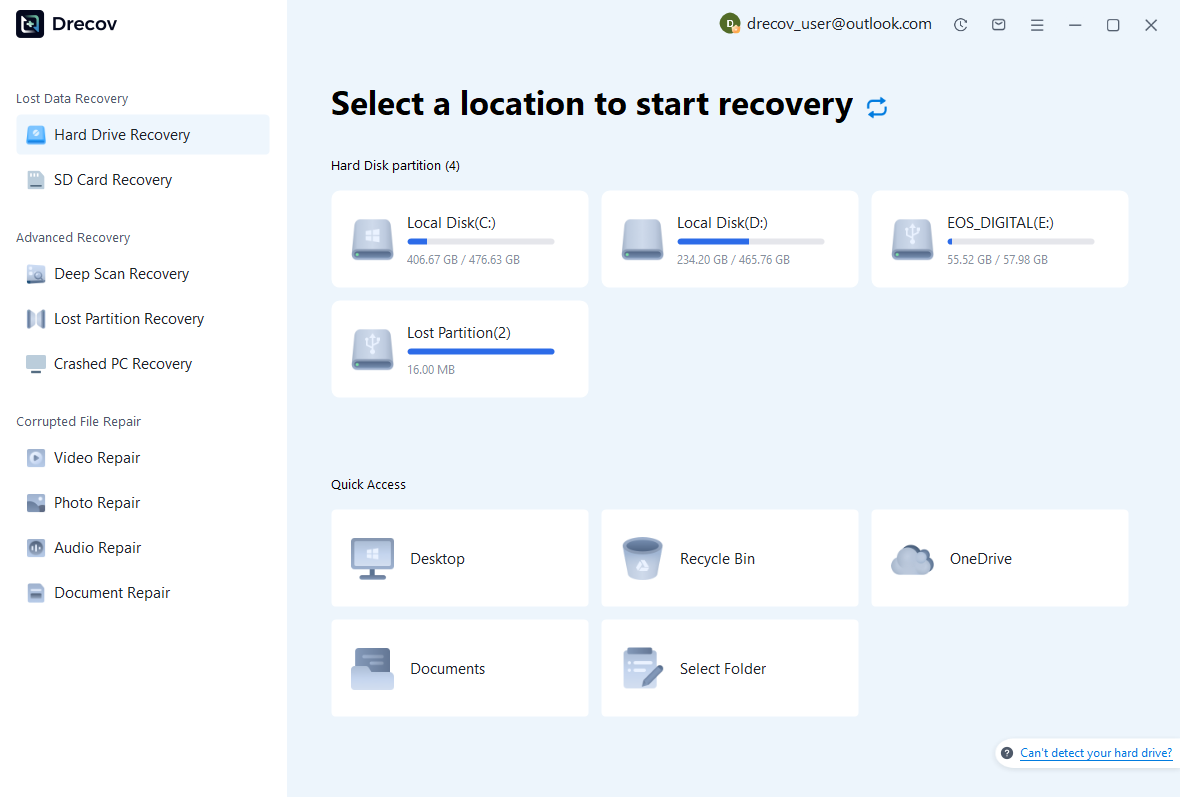
Step 2: Select the Target Location
On the main dashboard, locate the External Devices section. Select your Android SD card from the list of available drives. Click the Scan button to begin the retrieval process.
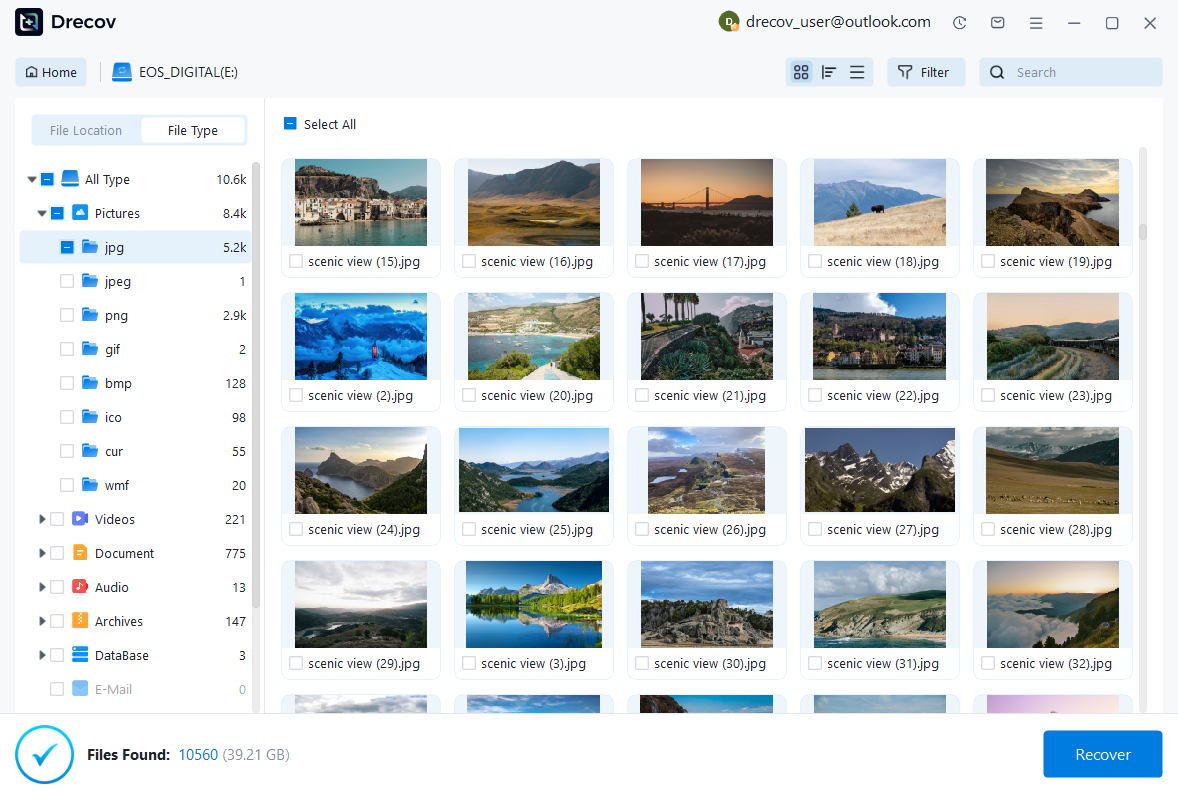
Step 3: Preview and Restore Your Files
Allow the deep scan to finish completely. Browse through the categorized folders like Photos, Video, or Document. Select the specific items you want to save. Click Recover and choose a safe destination path on your computer hard drive.
If you frequently manage data across multiple devices, you might also find these resources helpful:
- Learn how to fix browser issues with this guide on how to get your Google Chrome bookmarks back.
- Clean up your desktop interface by learning how to remove OneDrive from File Explorer step by step.
- Recover files from external PC drives with this complete guide to recover deleted files from a USB flash drive.
⚠ Warning: Install it on a drive different from the one where your data was lost to prevent overwriting.
Alternative or Complementary Methods
Aside from native apps and specialized recovery tools, you can explore other avenues to locate your recycle bin on android.
Cloud Backup Restorations
Many Android devices automatically sync data with cloud platforms. Google Drive, Microsoft OneDrive, and Dropbox keep deleted files in their respective cloud trash bins for 30 days. If your phone synced right before deletion, you can restore the file from any web browser.
Manual Android Debug Bridge Extraction
Advanced users can utilize the Android Debug Bridge tool via a computer command prompt. This developer method requires enabling USB Debugging in your Android Developer Options menu. It allows you to communicate directly with the device file system to pull data blocks manually.
Pros and Cons Comparison
| Recovery Method | Success Rate | Technical Difficulty | Time Required |
| Native App Trash | Low | Very Easy | Less than 2 minutes |
| PandaOffice Drecov | High | Easy | 5 to 10 minutes |
| Cloud Backups | Medium | Easy | 5 minutes |
| Manual Extraction | Medium | Very High | Over 30 minutes |
Tips & Best Practices for Data Safety
Securing your data requires proactive habits. Follow these guidelines to ensure you never lose important files permanently again.
- Stop Using the Device Immediately: When you realize a file is missing, do not download new apps or take new photos. This prevents the system from overwriting the deleted data blocks.
- Enable Automatic Cloud Backups: Configure Google Photos and Google Drive to sync over Wi-Fi daily.
- Keep Storage Space Open: Maintain at least 15 percent free space on your phone internal storage to prevent file system corruption.
- Avoid Unverified Cleaning Apps: Many free cleaner utilities permanently delete temporary trash directories without asking for your permission.
Frequently Asked Questions
Where is android recycle bin located on a Samsung device?
On Samsung devices, you can find the individual bin inside the My Files app or the Samsung Gallery app. Open the app, tap the three-dot menu icon, and select Recycle Bin to view your deleted items.
Can I retrieve files after clearing the recycle bin for android?
Yes. When you empty the bin, the file system only marks the space as available. The actual data remains intact until new files overwrite it. Using PandaOffice Drecov data recovery software during this window allows you to extract the hidden data safely.
Why can I not find a universal recycle bin android on my phone?
Android devices use flash memory storage which operates differently from traditional computer hard drives. A unified trash bin would constantly consume system memory and slow down your phone performance.
How long do files stay in the recycle bin on android apps?
Most major applications like Google Photos and Files by Google store your deleted data for exactly 30 days. After this period, the application triggers an automated system purge.
Is PandaOffice Drecov data recovery software safe for mobile SD cards?
Yes, it is completely safe. The software operates in a read-only mode. This design ensures it will never modify or damage your existing files during the scanning process.
Conclusion
Finding the where is android recycle bin solution depends entirely on acting quickly. While Android lacks a centralized desktop trash bin, your native application folders offer a great first line of defense. However, when files disappear permanently, PandaOffice Drecov data recovery software provides the reliable, professional performance you need to rescue your files. Take control of your digital storage today, back up your files regularly, and keep a trusted recovery tool ready for emergencies.






