







The sudden realization that critical documents or irreplaceable photos have vanished from your thumb drive can trigger an immediate sense of panic. Whether it was an accidental click of the “Delete” button or a sudden system prompt asking to format the drive, the anxiety is real. However, there is no need to despair. In the digital world, recover deleted files from usb flash drive tasks are not only possible but often highly successful if you act quickly.
This comprehensive guide is designed to walk you through the mechanics of data loss and provide a tiered roadmap to getting your data back. From built-in system tools to professional-grade software like PandaOffice Drecov, we will cover the spectrum of solutions available to you in 2026.
Why Data Isn’t Truly “Gone”: The Science of Deletion
Before we dive into the “how,” it is vital to understand the “why.” Why can we recover deleted files from usb flash drive even after they seem to have disappeared?
When you delete a file from a USB flash drive, the Windows or macOS file system doesn’t immediately shred the binary data. Instead, it simply marks the space occupied by that file as “available.” It’s much like a library removing a book’s entry from the catalog but leaving the book on the shelf until a new one arrives to take its place.
Common Causes of Data Loss
Understanding the root cause helps in choosing the right recovery strategy:
- Accidental Deletion: The most common culprit. Files bypassed the Recycle Bin because USB drives are treated as removable storage.
- File System Corruption: Improperly ejecting the drive (the “Yank” method) can corrupt the File Allocation Table (FAT) or exFAT headers.
- Virus or Malware Attacks: Malicious scripts may hide files or alter their attributes to make them invisible.
- Physical Damage: While software can’t fix a snapped connector, it can often handle “logical” errors where the hardware is fine but the data structure is messy.
Solutions: How to Recover Deleted Files from USB Flash Drive
We have categorized these methods from simple system checks to advanced recovery software.
Crucial Tip: Stop using the USB drive immediately. Writing new data to the drive may overwrite the “available” space where your deleted files still reside.
Method 1: Check for Hidden Files
Sometimes, files aren’t deleted; they are just hidden by the system or a minor virus.
- Step 1: Plug your USB drive into your PC.
- Step 2: Open File Explorer and navigate to your drive.
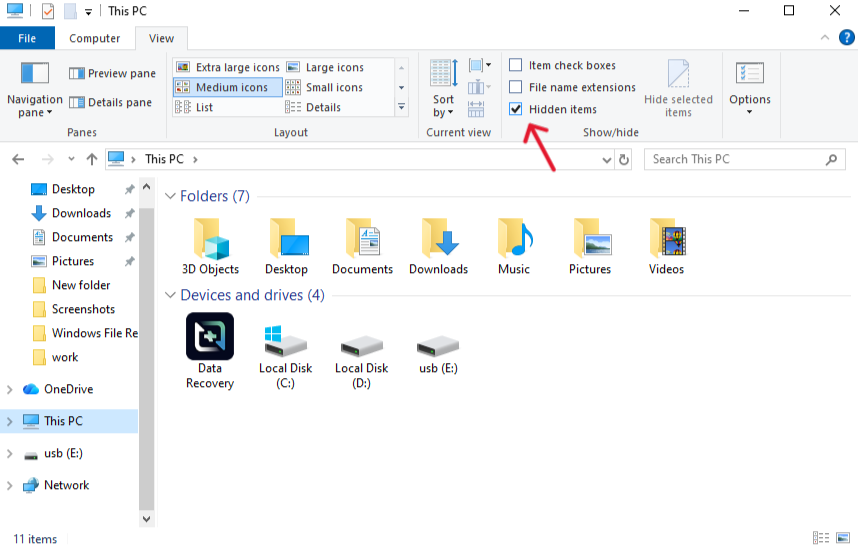
- Step 3: Click the View tab at the top, select Show, and ensure Hidden items is checked.
- Step 4: Look for your files. If they appear slightly translucent, right-click them, go to Properties, and uncheck the “Hidden” attribute.
Method 2: Use Professional Software – PandaOffice Drecov
If the files are truly deleted, you need a tool that can scan the raw sectors of the drive. PandaOffice Drecov is a premier choice for users who need a balance of deep-scanning power and an intuitive interface. It is specifically optimized to recover deleted files from usb flash drive scenarios involving various file formats (DOCX, JPG, MP4, etc.).
Why choose PandaOffice Drecov?
It utilizes an advanced heuristic algorithm that “re-stitches” fragmented files that other free tools might miss. This makes it an indispensable tool for a wide range of data loss scenarios, including:
- Accidental Desktop Deletions: Instantly retrieving files wiped from your local workspace.
- Disk Formatting Errors: Salvaging files from drives that have been completely wiped or reformatted.
- External Media Rescue: Recovering lost data from formatted or corrupted SD cards and USB flash drives.
- Sync Conflict Resolution: Reversing data loss caused by synchronization errors between your PC and the OneDrive cloud.
- Browser Metadata Recovery: Restoring lost Chrome bookmarks and other essential application data.”
Tips: Download and install PandaOffice Drecov on your main hard drive (never install it directly onto the USB you are trying to save).
Step-by-Step Guide for PandaOffice Drecov:
- 1. Select Location: Launch the program. On the main dashboard, you will see a list of drives. Select your USB Flash Drive under the “Removable Drives” section.

- 2. Initiate Scan: Click the Scan button. The software will perform a Quick Scan followed by a Deep Scan to locate every recoverable bit of data.

- 3. Preview and Filter: Once the scan is complete, use the sidebar to filter by file type (e.g., Photos, Documents). You can double-click files to preview them to ensure they aren’t corrupted.

- 4. Recovery: Select the files you wish to restore and click Recover.
Important: Choose a destination folder on your computer’s internal storage, not the USB drive itself.
Method 3: Windows File Recovery (Command Line)
For users comfortable with a bit of coding, Microsoft offers a free command-line utility.
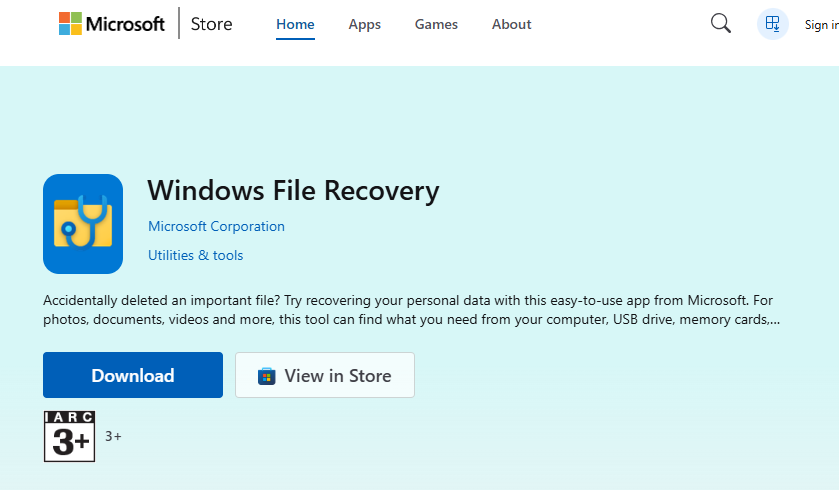
- Step 1: Download “Windows File Recovery” and open the app, which launches a Command Prompt.
- Step 2: Use the syntax:
winfr E: C:\RecoveryDest /regular(Replace E: with your USB drive letter). - Step 3: The tool will attempt to rebuild the directory structure.
Preventing Future Data Loss
While knowing how to recover deleted files from usb flash drive is a great skill, preventing the need for it is even better.
- Enable Cloud Mirroring: Use tools that automatically back up your USB contents to OneDrive or Google Drive when plugged in.
- The “Eject” Habit: Always right-click and select “Eject” before pulling the drive out. This ensures all write operations are finished.
- Write-Protection: If you are using the drive on public computers, use a drive with a physical write-protect switch to prevent virus infections.
- Routine Replacements: Flash memory has a lifespan. If your drive is more than 5 years old, migrate your data to a new one.
Common Questions About USB Recovery
Q: Can I recover files from a formatted USB drive?
A: Yes. A “Quick Format” only clears the address table. Software like PandaOffice Drecov can still find the data. However, a “Full Format” (which wipes sectors to zero) makes recovery nearly impossible.
Q: Why do recovered files sometimes refuse to open?
A: This usually happens due to “overwriting.” If new data was saved to the USB after the deletion, the original file might be partially overwritten, leading to corruption.
Q: Is there a way to recover files without software?
A: Aside from checking the “Hidden” settings or using built-in command-line tools, professional software is usually required because USB drives do not have a native “Recycle Bin.”
Conclusion
Losing data is a stressful experience, but the technology to recover deleted files from usb flash drive has never been more accessible. By understanding that your files remain on the drive until overwritten, you can take the necessary steps—like using PandaOffice Drecov—to retrieve your work. Remember to act quickly, avoid writing new data to the drive, and always keep a secondary backup for the future.





