







“I just spent three years organizing my research folders, and today, they are gone. Chrome updated, my bookmarks bar is empty, and I have no idea how to recover chrome bookmarks. Please help!”
This cry for help is a common sight on Reddit, Google Support forums, and tech communities worldwide. Whether it was an accidental deletion, a browser crash, or a failed sync, losing your bookmarks feels like losing a map in a foreign city. However, there is good news: your data is rarely “gone” instantly.
In this comprehensive guide, we will explore the mechanics of digital storage and walk through the exact steps you need to recover chrome bookmarks and secure your digital library for the future.
Part 1: The Magic of “Invisible” Data – How Recovery Works
To understand how to recover chrome bookmarks, you first need to understand how computers handle “deleting” things.
Imagine your computer’s hard drive is a massive library. When you save a bookmark, the librarian (the Operating System) writes the URL in a book and records its location in a giant index card.
When you delete that bookmark, the librarian doesn’t immediately burn the page or erase the ink. Instead, they simply take a red marker and cross out the entry in the index. The page itself stays exactly where it was, but the librarian now considers that space “empty” and available for new writing.
The Golden Rule of Data Recovery:
As long as you don’t save new files that “overwrite” that specific spot in the library, the old information is still there. This is why, if you want to recover chrome bookmarks, you must stop heavy downloading or installing new apps on your drive immediately to prevent overwriting the hidden data.
Part 2: Step-by-Step Methods to Recover Chrome Bookmarks
Depending on how long ago the bookmarks disappeared, you can choose from the following methods, ranging from simple undo commands to professional recovery software.
Method 1: The “Undo” Trick (For Immediate Mistakes)
If you just accidentally deleted a folder two seconds ago, Chrome has a built-in “oops” button.
- Step 1: Do not close the Chrome browser.
- Step 2: Press
Ctrl + Z(Windows) orCommand + Z(Mac).
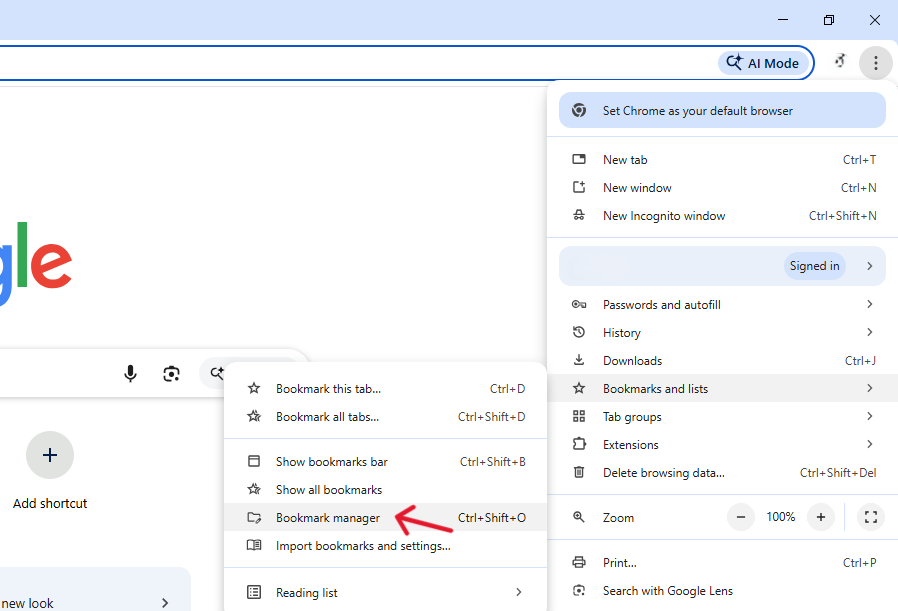
- Step 3: Check your Bookmark Manager (
Ctrl + Shift + O) to see if the folder reappeared.
Method 2: Using PandaOffice Drecov
When the “Undo” trick fails or the file has been missing for days, you need a specialized tool that can scan the “index-less” parts of your drive. PandaOffice Drecov is a premier choice for this because it specifically identifies Chrome database structures.
Advanced Recovery from Broken Systems or Formatted Drives
One of the most painful scenarios is when your Windows OS fails to boot, or you’ve accidentally formatted the entire partition. Normally, your bookmarks would be considered gone forever. However, PandaOffice Drecov’s new technology bypasses the need for a functioning operating system.
- Direct JSON Parsing: The tool can deep-scan raw disk sectors to identify the specific structure of Bookmarks JSON files used by Chromium-based browsers.
- One-Click Extraction: You don’t need to know the complex “AppData” path. The software automatically recognizes browser profile structures and offers a one-click button to extract and export your entire bookmark tree into a readable HTML or JSON format.
- Format Resilience: Even if the file system (NTFS/FAT32) is corrupted, Drecov can reconstruct the bookmark data by identifying the unique file headers associated with Google Chrome’s database.
As a premier data recovery software trusted by global leaders, PandaOffice Drecov maintains partnerships with the Microsoft Store, Trustpilot, and TechBullion; whether you are performing a hard drive recovery or a specialized file restoration, you can trust that your data stays local and private.
Tip: Install it on a USB drive or a different partition to avoid overwriting your lost bookmarks.
- Step 1: Launch the software and select the drive where your Chrome installation resides (usually the
C:drive).

- Step 2: Click on “Deep Scan.” The software will sift through the raw sectors of your disk.

- Step 3: Use the filter or search bar within the tool to look for files named
BookmarksorBookmarks.bak.

- Step 4: Preview the file, select it, and click “Recover” to save it to a safe location.
Why PandaOffice Drecov? Unlike basic tools, it can reconstruct fragmented JSON files (the format Chrome uses), ensuring that your folder hierarchy remains intact during the recovery process.
Method 3: The Chrome Backup File (.bak) Manual Restore
Chrome automatically creates a single backup of your bookmarks file every time you launch the browser.
- Step 1: Close all open Chrome windows.
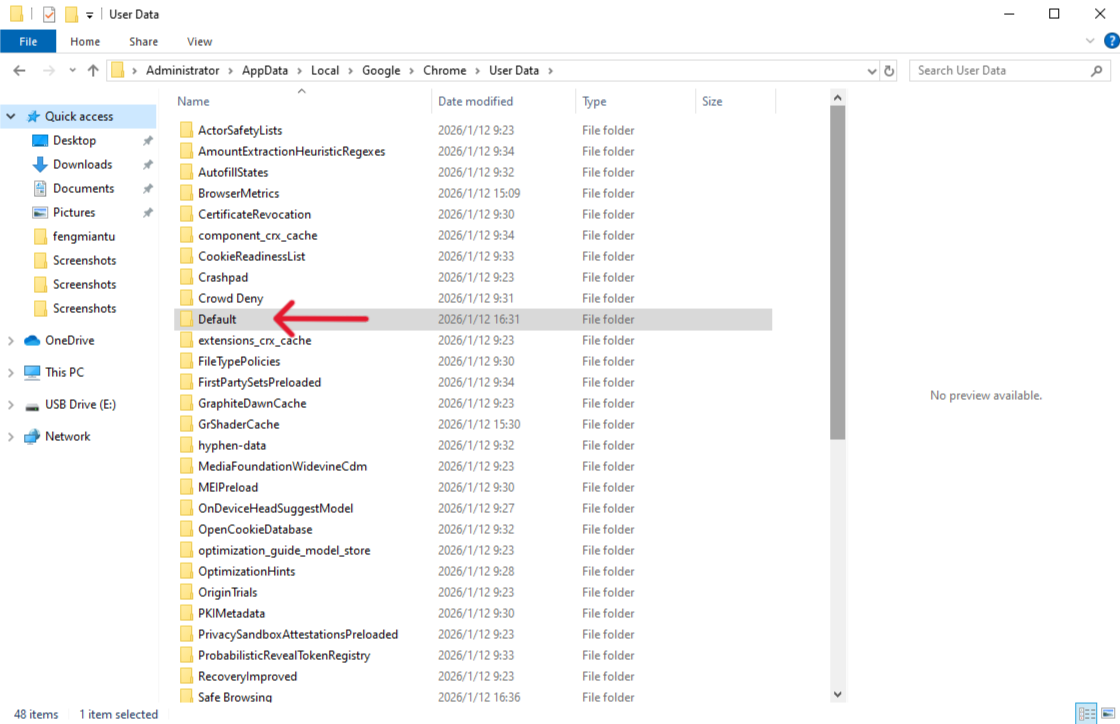
- Step 2: Navigate to the Chrome User Data folder.
- Windows Path:
C:\Users\%Username%\AppData\Local\Google\Chrome\User Data\Default(If you use multiple profiles, “Default” might be “Profile 1”).
- Windows Path:
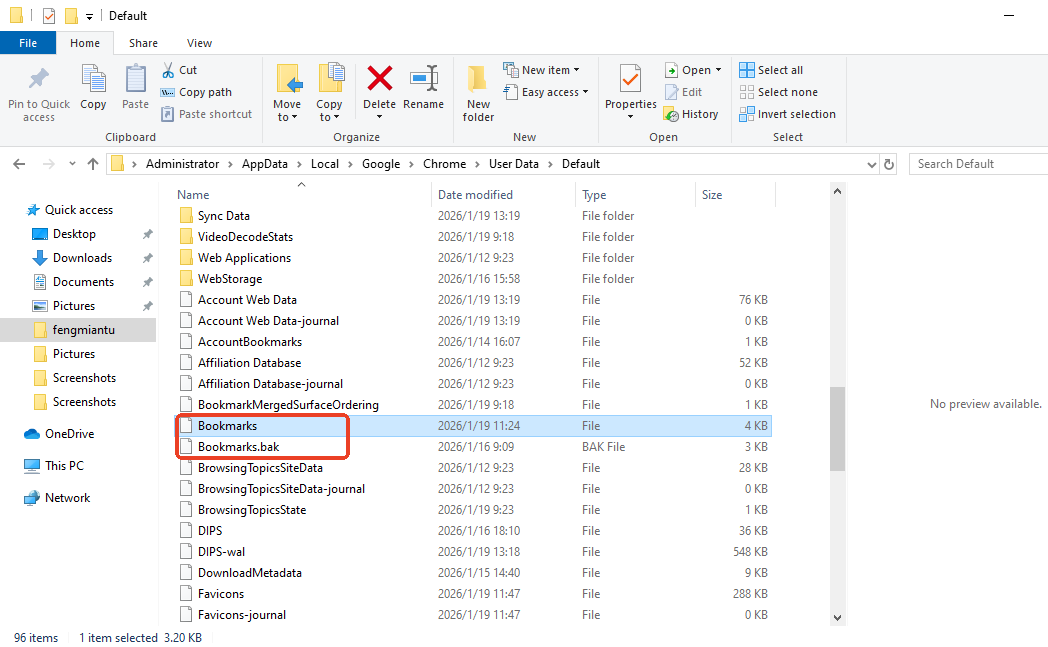
- Step 3: Locate two files:
Bookmarks(current) andBookmarks.bak(backup).
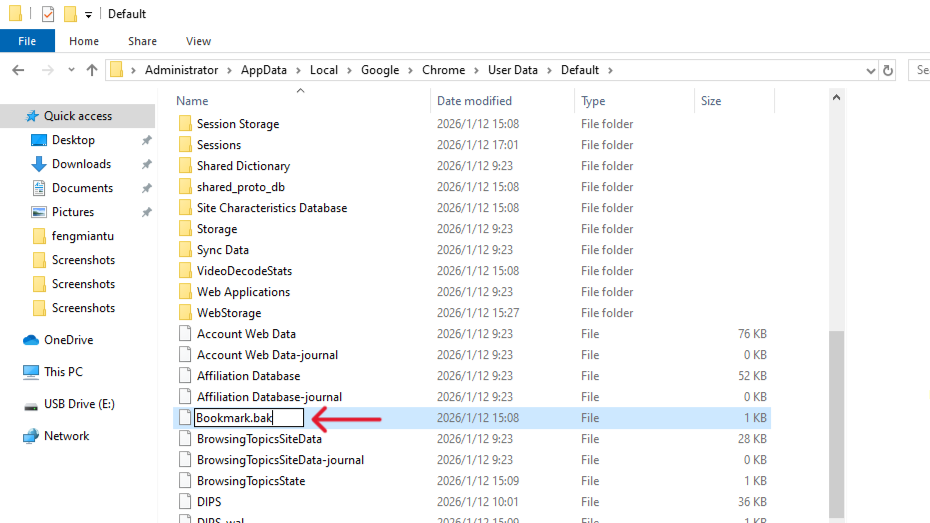
- Step 4: Rename
BookmarkstoBookmarks.old. RenameBookmarks.baktoBookmarks(removing the .bak extension). - Step 5: Reopen Chrome. Your bookmarks from the last time you opened the browser should be back.
Method 4: DNS Cache Recovery (The “Hardcore” Way)
If you recently visited those bookmarked sites, they might still be in your DNS cache. While this doesn’t restore the folders, it helps you find the URLs.
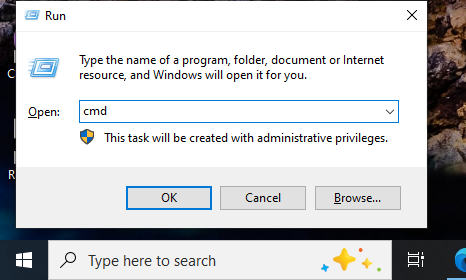
- Step 1: Press
Windows + R, typecmd, and hit Enter.
- Step 2: Type
ipconfig /displaydnsand press Enter.
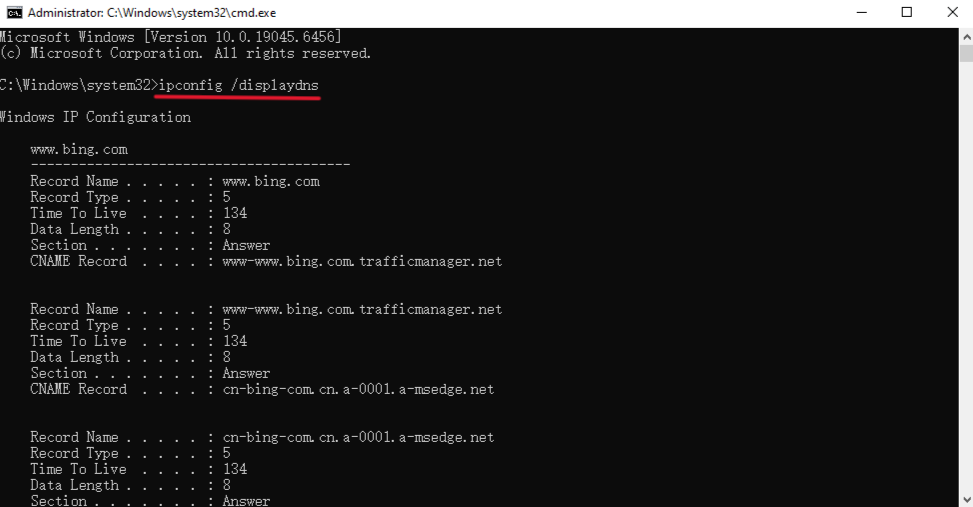
- Step 3: A list of recently accessed websites will appear. You can manually copy these back into your browser.
Part 3: Comparison of Recovery Methods
| Method | Success Rate | Difficulty | Best For… |
| Undo (Ctrl+Z) | Low | Very Easy | Immediate accidental deletions. |
| PandaOffice Drecov | High | Easy | Deeply deleted files, system crashes, or formatted drives. |
| Manual .bak Restore | Medium | Moderate | Recent losses before Chrome was restarted twice. |
| DNS Cache | Low | Hard | Finding URLs when files are totally unrecoverable. |
Part 4: The Proactive Management Approach
The best way to recover chrome bookmarks is to ensure you never have to. By utilizing the built-in bookmarks manager, you can create a failsafe system.
1. Using the Bookmarks Manager for Manual Backups
You should manually export your bookmarks once a month.
- Step 1: Open Chrome and press
Ctrl + Shift + O. - Step 2: Click the three-dot menu in the top-right corner.
- Step 3: Select Export bookmarks. Save the HTML file to a cloud service like Google Drive or Dropbox.
2. Importing Bookmarks
If you ever switch computers or lose data, importing bookmarks is a 10-second process:
- Step 1: Go to the bookmarks manager.
- Step 2: Select Import bookmarks and choose your saved HTML file.
3. Google Sync
Ensure you are signed in to your Google Account.
- Go to Settings > You and Google > Sync and Google Services.
- Turn on Sync everything. This saves your bookmarks to Google’s servers, making them accessible even if your computer explodes.
How to Recover Chrome Bookmarks FAQs
1. Can I recover chrome bookmarks on Android or iPhone?
Mobile recovery is much harder because the file system is locked. Your best bet is to check your Desktop Chrome; if Sync was on, the bookmarks might still be there.
2. I renamed the .bak file, but nothing happened. Why?
You must close Chrome completely (check Task Manager) before renaming the files. If Chrome is running, it will overwrite your changes instantly.
3.Where is the Chrome bookmarks file located on Windows 11?
It is typically stored at: C:\Users\[YourUserName]\AppData\Local\Google\Chrome\User Data\Default.
Conclusion
Losing your digital library is stressful, but the ability to recover chrome bookmarks is within your reach. Whether you use the simple Ctrl+Z shortcut, dig into the .bak files, or use a professional-grade tool like PandaOffice Drecov, your data is usually waiting to be found.
To stay safe in the future, remember to use the bookmarks manager to export your data regularly.






