







In our fast-paced digital world, the web browser serves as the primary gateway to information, productivity, and entertainment. Whether you are conducting deep-dive research, managing an e-commerce business, or simply catching up on the latest news, your browser environment shapes your daily efficiency. Knowing how to set home page in firefox and configuring it to open your most vital tools immediately can save you valuable time. Ultimately, a smooth browsing experience relies on two critical pillars: personalized configuration and robust data protection.
Many users find themselves frustrated when their carefully arranged digital workspaces suddenly vanish due to software crashes, accidental deletions, or unexpected system updates. Imagine launching your computer only to find your custom startup tabs gone and your critical research bookmarks missing. This comprehensive educational guide will bridge the gap between daily browser customization and advanced data rescue techniques. We will explore everything from fundamental browser configuration to executing professional-grade recovery operations.
How to Set Home Page in Firefox: A Simple Walkthrough
Mozilla Firefox remains a top choice for privacy-conscious users worldwide due to its robust security features and deep customization options. If you want to optimize your startup routine, learning how to set home page in firefox is the perfect place to begin. The development team at Mozilla has made this process incredibly intuitive, offering multiple ways to achieve your preferred setup.
Let us explore the standard methodology to configure this setting through the application’s native options panel:
- Step 1: Launch your Mozilla Firefox browser application. Look at the top right corner of the window and click on the Application Menu icon, which resembles three horizontal lines (often called the hamburger menu).
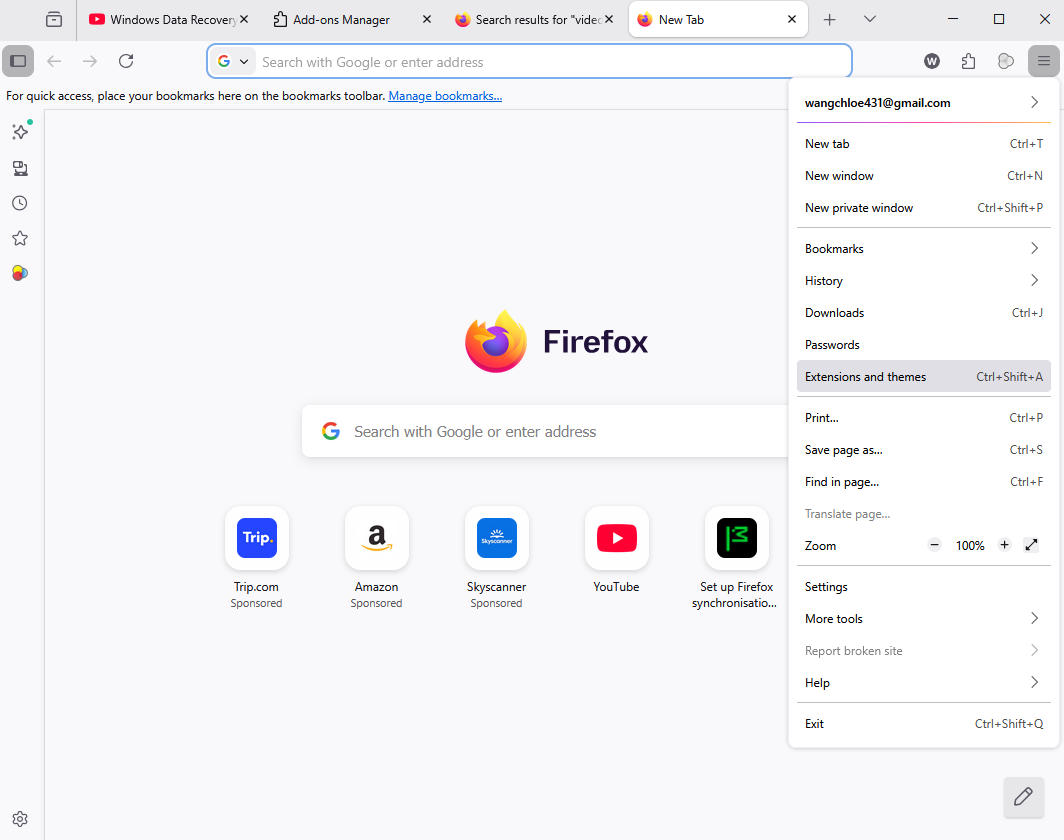
- Step 2: From the drop-down selection menu, click on Settings (on macOS, this may appear as Preferences). This action will immediately open a new tab containing the comprehensive Firefox configuration dashboard.
- Step 3: Navigate to the left-hand sidebar menu and click directly on the Home option. This section handles all behaviors related to new windows, blank tabs, and your primary homepage.
- Step 4: Locate the Homepage and new windows section on the main panel. Click the drop-down menu situated next to the “Firefox Home (Default)” text.
- Step 5: Select Custom URLs… from the choice list. A blank text field will instantly appear beneath the selection box.
- Step 6: Type or paste the exact destination address (for example,
https://www.google.com) into the empty field. Alternatively, if you already have your desired sites open in other tabs, you can click the Use Current Pages button to set multiple homepages simultaneously. - Step 7: Close the Settings tab. Firefox saves your modifications automatically in real-time, meaning there is no need to hunt for a manual save button. You can test your new setup instantly by clicking the Home icon (the house symbol) located on your main navigation toolbar.
Understanding the Mechanics of Data Loss
To successfully recover lost digital assets, one must first comprehend how modern storage media and operating systems handle information. Data loss is rarely as permanent as it initially appears. When you understand the underlying storage principles, you can approach recovery scenarios with calm, analytical precision.
The Myth of Immediate Deletion
When you delete a file from your hard drive or solid-state disk, the operating system does not immediately scrub the actual binary bits from the physical sectors. Instead, the system performs an indexing modification. In simple terms, it marks the space occupied by that file as “available” or “unallocated.”
Think of your storage drive as a massive textbook, and the file system as the index at the back of the book. When you delete a file, the operating system merely erases the entry in the index. The actual content on the page remains perfectly intact until new information overrides it. This critical grace period is the window of opportunity where data recovery professionals and specialized tools perform their work.
Common Catalysts for Browser Data Disappearance
Browser configurations, bookmarks, and session histories are stored in specific database formats on your local drive. Several distinct factors can cause these files to become inaccessible or corrupted:
- Accidental User Deletion: Manually clearing the browser cache, wiping application folders, or uninstalling the browser without backing up local profiles.
- Software Corruption During Updates: When Firefox or your operating system updates automatically, a sudden power interruption or resource conflict can corrupt file structures.
- Malware and Ransomware Attacks: Malicious software can deliberately target user profile folders, encrypting or deleting configuration files to disrupt system stability.
- Hardware Degrades and Failures: Bad sectors developing on a traditional hard drive (HDD) or controller wear on a solid-state drive (SSD) can render specific browser profile blocks unreadable.
Tiered Methods for Restoring Lost Browser Data
When you discover that your bookmarks, settings, or custom configurations—such as knowing how to set home page in firefox—have vanished, do not panic. We have organized the following data recovery solutions by technical complexity, starting from simple built-in options and moving up to advanced system manipulations.
Tier 1: Utilizing the Internal Firefox Backup System
Many users do not realize that Firefox contains an automated internal backup mechanism specifically designed for bookmark protection. If your custom settings or bookmarks disappeared due to a minor application glitch, you can often restore them in seconds without downloading external tools.
- Step 1: Open your Firefox browser window. Press the hotkey combination Ctrl + Shift + O on Windows (or Cmd + Shift + O on Mac) to instantly launch the Library management window.
- Step 2: Look at the top toolbar of the Library window and click on the Import and Backup button (represented by an icon with a star and arrows).
- Step 3: Hover your mouse cursor over the Restore option in the contextual dropdown menu. A submenu will appear displaying a list of automatically generated backups sorted by date.
- Step 4: Select the most recent date entry from the list before your data loss occurred.
- Step 5: A warning dialog box will pop up alerting you that this action will replace all current bookmarks with the backup file. Click OK to confirm and finalize the restoration process.
Tier 2: The Windows Previous Versions Feature
If the internal browser application backup fails or displays an empty list, you can escalate your efforts by utilizing the underlying operating system infrastructure. The Windows operating system features an integrated protection mechanism known as Volume Shadow Copy, which takes periodic snapshots of your files.
- Step 1: Press the Windows Key + R shortcut on your keyboard to activate the Run command dialog box.
- Step 2: Type exactly
%appdata%\Mozilla\Firefox\Profiles\into the open text box and press Enter. This command bypasses hidden folder restrictions and takes you directly to your local Firefox profile storage location. - Step 3: Right-click on your specific profile folder (this folder usually bears a randomized name ending in
.defaultor.default-release) and select Properties from the contextual menu. - Step 4: Click directly on the tab labeled Previous Versions located at the top of the Properties window.
- Step 5: Review the list of available snapshots. Select a folder state captured prior to your data loss event, then click the Restore button to revert the entire folder to its previous condition.
Professional Data Extraction via Specialized Software
When native system restoration points are unavailable, or if severe storage corruption has compromised your drive, manual operating system methods reach their limitations—especially when you are trying to reclaim lost browser settings and need to figure out how to set home page in firefox once again. In these critical scenarios, deploying dedicated data recovery software becomes necessary.
Introducing Advanced File Carving and Reconstruction
When standard file markers disappear, specialized software scans your physical storage sectors looking for distinct signatures. These programs bypass the broken operating system index entries, directly reading the underlying binary code to reconstruct lost structures. To achieve maximum recovery success under these circumstances, we will highlight the deployment of a highly effective solution: PandaOffice Drecov data recovery software.
This advanced platform features optimized scanning algorithms tailored specifically to recover delicate database structures, configuration profiles, and loose file architectures common to web browsers.
⚠ Warning: Install it on a drive different from the one where your data was lost to prevent overwriting.
Step-by-Step Restoration Using PandaOffice Drecov
To ensure a seamless experience, follow this structured procedural guide to recover your profile databases, configuration states, and settings using the PandaOffice Drecov data recovery software platform:
- Step 1: Launch and Target Selection. Launch the program with administrative privileges. On the main user interface dashboard, you will see an orderly map of all connected physical hard drives, logical partitions, and attached external media. Select the specific drive where your browser profiles were stored (typically your primary system partition, Drive C:), and click the primary Scan button.

- Step 2: Advanced Scanning Progression. The application will automatically trigger a rapid initial scan followed immediately by a comprehensive Deep Scan. This process reads individual sector clusters to identify deleted files. You can observe the real-time progress bar at the top of the screen, which provides an estimated time of completion based on your drive size.

- Step 3: Location Targeting and File Filtering. Once the scan concludes, navigating millions of recovered files can feel overwhelming. Fortunately, the interface provides a built-in search filter tool. In the search box located in the upper right corner, input extensions or paths like
bookmarkbackups,places.sqlite, orprofiles. This instantly isolates your lost browser assets from other system files.
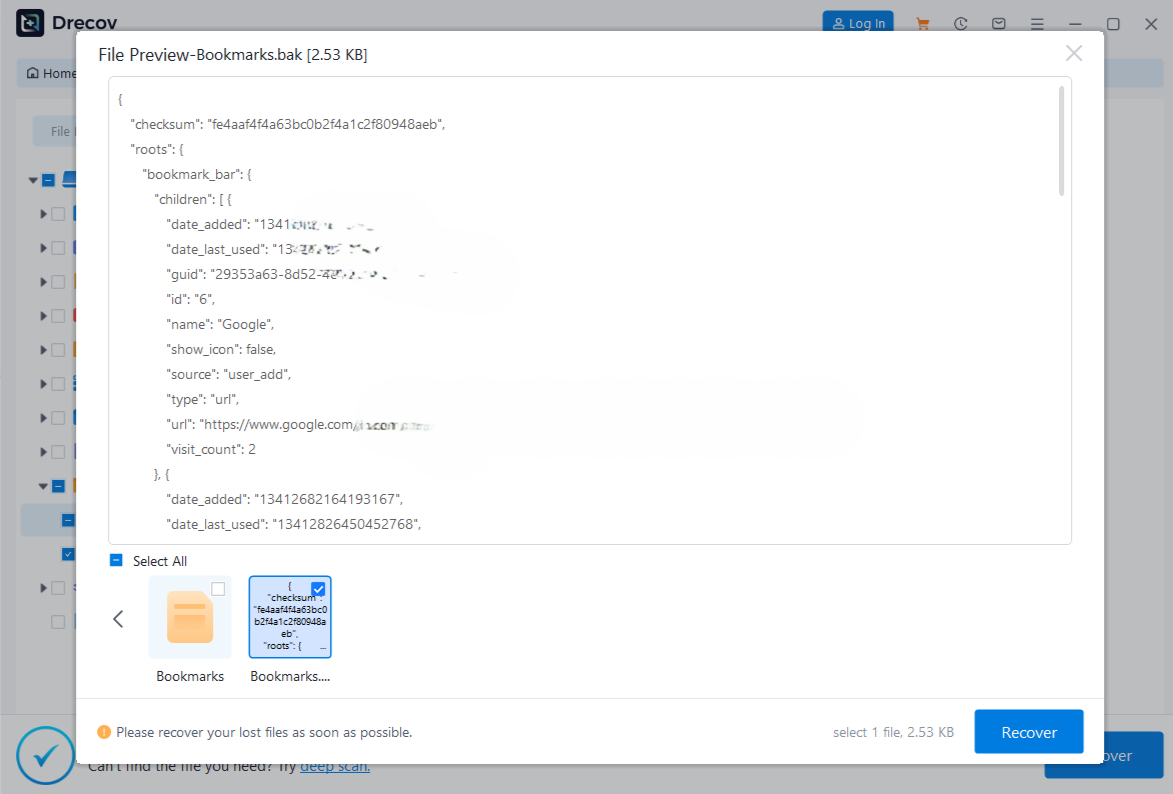
- Step 4: Verifying Integrity via Preview. Click on the identified browser configuration or backup files to view their metadata attributes in the preview pane. Checking file sizes and creation dates ensures that you are restoring valid data rather than empty, corrupted placeholders.
- Step 5: Executing the Safe Recovery Action. Check the tick-boxes next to the profile folders or backup files you wish to reclaim. Click the prominent Recover button situated at the bottom right corner of the window. A prompt will ask you to designate a destination path. Choose a safe location, such as an external hard drive or a secure cloud folder, to complete the process.
Reintegrating Recovered Profiles Back Into Your Browser
Once the PandaOffice Drecov data recovery software successfully saves your files, you must manually re-insert them into the active browser framework to restore your workspace.
- Step 1: Ensure that Firefox is fully closed and not running silently in your system processes.
- Step 2: Open the Run dialog box (Win + R), type
%appdata%\Mozilla\Firefox\Profiles\, and hit Enter. - Step 3: Open your current active profile folder, locate the
bookmarkbackupsfolder inside, and copy the recovered.jsonlz4file directly into it. - Step 4: Restart Firefox, navigate to the Library window via Ctrl + Shift + O, select Import and Backup -> Restore, and choose the specific file you just recovered. Your original configuration, custom home page preferences, and bookmarks will instantly reappear.
Now that you have completed the recovery steps, you can explore specialized guides to address specific scenarios. If you need to recover lost elements from Firefox or another browser platform, check out these helpful resources:
- Learn how to manage browser profiles successfully through this comprehensive guide to Firefox bookmarks recovery.
- If you also use alternative browsing ecosystems, read these steps on how to restore deleted Chrome bookmarks.
- If your Google workspace synchronization fails unexpectedly, review this article on how to get your Google Chrome bookmarks back.
Advanced Registry Adjustments and System Tweaks
Enforcing Browser Homepages via Windows Registry
If you want to ensure that a specific startup page remains completely unalterable by standard user accounts or stubborn adware programs, you can hardcode the configuration directly into the Windows Registry backend.
- Step 1: Press the Windows Key + R shortcut combination to bring up the execution window.
- Step 2: Input
regeditinto the field and hit Enter. Confirm the User Account Control (UAC) security prompt to load the registry interface. - Step 3: Use the hierarchical folder tree in the left pane to navigate to the following path:
HKEY_LOCAL_MACHINE\SOFTWARE\Policies\ - Step 4: Right-click on the Policies key, choose New, select Key, and name this new key entry Mozilla.
- Step 5: Right-click the newly generated Mozilla key, choose New, select Key, and name it Firefox.
- Step 6: Select the Firefox key, right-click on the empty space inside the right pane, choose New, select String Value, and name this entry
HomepageURL. - Step 7: Double-click your new
HomepageURLstring, enter your desired target web address into the Value data field, and click OK.
Plaintext
Registry Path: HKEY_LOCAL_MACHINE\SOFTWARE\Policies\Mozilla\Firefox
Value Name: HomepageURL
Value Type: REG_SZ (String Value)
Value Data: https://www.yourdesiredhomepage.com
This structural modification locks the startup configuration at the system policy level. Even if someone attempts to change the home page settings through the regular Firefox interface, the browser will pull the locked setting from the Windows Registry every time it launches.
Establishing an Absolute Prevention Blueprint
While knowing how to recover data using advanced software tools is an invaluable asset, the ultimate goal of data management is prevention. Implementing a proactive defense strategy minimizes downtime and ensures you never have to deal with data loss anxiety again.
The 3-2-1 Backup Methodology
Data security professionals protect critical assets by adhering to the industry-standard 3-2-1 backup strategy. You can easily adapt this framework to safe-keep your entire web browsing ecosystem:
- 3: Maintain Three Copies of Data: Keep your primary working profile data on your local system drive, along with a minimum of two separate backup copies.
- 2: Utilize Two Different Media Types: Do not store all your backups on the same internal hard disk. Save one copy to an external secondary drive or network-attached storage (NAS) system, and keep another on your main system.
- 1: Store One Backup Offsite: Keep at least one backup copy completely isolated from your physical location by uploading it to a secure cloud storage provider. This safeguards your data against localized physical disasters like fires, floods, or hardware theft.
| Backup Layer | Storage Medium | Update Frequency | Purpose |
| Primary | Internal System SSD (Drive C:) | Continuous (Live) | Daily operations and live configuration |
| Secondary | External USB Flash Drive / Local NAS | Weekly | Rapid local recovery if software corrupts |
| Tertiary | Encrypted Cloud Bucket Storage | Monthly | Ultimate protection against catastrophic loss |
Conclusion
A well-optimized browser environment saves you valuable time every day. Knowing how to set home page in firefox is an excellent first step toward building an efficient workspace. However, digital maintenance is a multi-layered practice. True digital resilience requires combining customization skills with an understanding of file systems and reliable recovery tools.
By implementing consistent backup habits, using integrated system restore options, and keeping advanced tools like PandaOffice Drecov data recovery software in your technical toolkit, you can browse with absolute confidence. Take control of your web environment, back up your configurations regularly, and secure your digital workspace against unexpected system errors.






