







Imagine opening Firefox one morning to find your carefully curated bookmarks—academic resources, work tools, favorite blogs, and hard-to-find websites—vanished. For Sarah, a freelance designer who relied on Firefox for over a decade, this nightmare became reality in 2025. “I had over 300 bookmarks organized by project and client,” she recalled. “Losing them felt like losing a part of my work process.”6
Sarah’s story is not unique. Firefox bookmarks disappear for countless reasons—browser updates, accidental deletions, profile corruption, or service shutdowns like the 2025 Chinese edition closure . For long-time Firefox users, bookmarks are more than just links; they’re digital memories and productivity lifelines. This is where firefox bookmarks recovery becomes crucial. Whether you’re a casual user or a professional dependent on organized bookmarks, this guide will demystify the recovery process, break down actionable methods, and help you avoid future losses.
Part 1: Understanding Firefox Bookmarks Recovery
Before diving into recovery methods, it’s essential to grasp how Firefox stores bookmarks and why they disappear. This knowledge will not only make recovery easier but also help you prevent future losses.
How Firefox Bookmarks Are Stored: A Simple Analogy
Think of your Firefox browser as a digital library. Your bookmarks are like index cards that point to specific books (websites). Instead of physical cards, Firefox stores bookmarks in two key locations:
- Local Storage: A file named places.sqlite in your Firefox profile folder. This is the primary “database” for bookmarks, history, and downloads. It’s like the library’s main index—all bookmarks are recorded here unless synced to the cloud.
- Cloud Sync: For users with a Firefox account, bookmarks sync to Mozilla’s servers. This is like having a backup of your index cards in a remote library.
When you “delete” a bookmark or it goes missing, Firefox doesn’t immediately erase the data—instead, it marks the space as “available” for new information. This is similar to hiding an index card in the library instead of burning it. Data recovery tools and methods work by finding these “hidden” entries before they’re overwritten by new data. This is the core principle of firefox bookmarks recovery: recovering access to data that’s still present but no longer visible to the user.
Common Scenarios of Firefox Bookmarks Loss
Bookmarks don’t vanish randomly. Here are the most frequent causes users face:
- Service Shutdowns or Sync Issues: The 2025 closure of Firefox China’s services deleted all cloud-synced bookmarks for Chinese users . Similarly, old Sync service discontinuations (like the 2015 shutdown of Firefox’s legacy Sync) can lead to data loss if not migrated .
- Accidental Deletion: Clicking “Delete” on a bookmark folder, or using keyboard shortcuts like Ctrl+Shift+O (bookmark manager) and accidentally removing entries.
- Profile Corruption: Firefox profiles can become corrupted due to crashes, power outages, or faulty updates. A corrupted profile often hides or deletes bookmarks stored in places.sqlite.
- Browser Updates or Reinstalls: Major Firefox updates may reset profiles, while reinstalling the browser without backing up data can erase local bookmarks.
- Malware or Virus Attacks: Malicious software may modify or delete browser files, including bookmark databases.
- Disk Formatting or Partition Loss: Accidentally formatting the hard drive partition where Firefox stores its profile (usually the C: drive on Windows) leads to permanent loss unless recovered quickly.
Understanding these scenarios helps you choose the right firefox bookmarks recovery method—for example, cloud sync issues require different solutions than profile corruption.
Part 2: Step-by-Step Firefox Bookmarks Recovery Methods
We’ve organized the following methods by technical complexity, starting with the simplest (no tools required) and moving to more advanced solutions. All steps include precise details like paths and shortcuts.
Method 1: Recover from Firefox’s Built-in Backup
Firefox automatically creates backups of your bookmarks—you just need to find them. This method works for accidental deletions, profile glitches, or recent updates.
- Step 1: Locate your Firefox Profile Folder
- Windows: Press Win+R, type %APPDATA%\Mozilla\Firefox\Profiles\, and press Enter. You’ll see a folder named like abc123.default-release (your profile ID will vary).
- Mac: Open Finder, press Cmd+Shift+G, type ~/Library/Application Support/Firefox/Profiles/, and click Go.
- Linux: Open File Manager, navigate to ~/.mozilla/firefox/Profiles/.
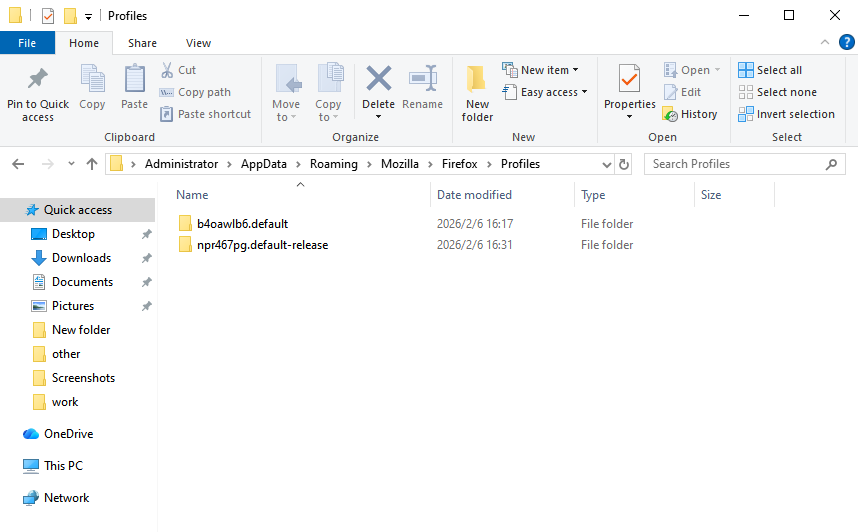
- Step 2: Find Bookmark Backup Files
- Inside your profile folder, look for files named bookmarks-YYYY-MM-DD.jsonlz4 (e.g., bookmarks-2025-02-01.jsonlz4). These are automatic daily backups.
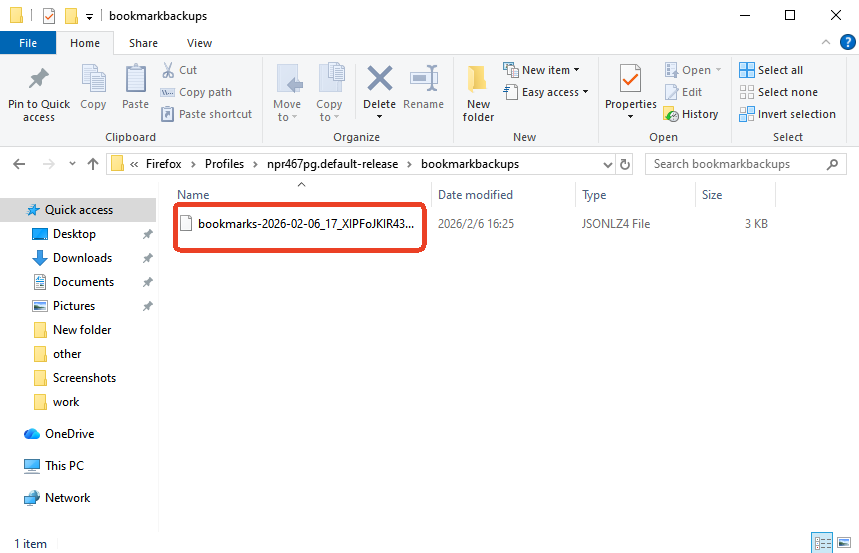
- Step 3: Restore the Backup
- Open Firefox and press Ctrl+Shift+O (Windows/Linux) or Cmd+Shift+O (Mac) to open the Bookmark Manager.
- Click the three dots (⋮) in the top-right corner and select “Import and Backup” > “Restore”.
- Choose “Choose File” and select the most recent bookmarks-YYYY-MM-DD.jsonlz4 file from your profile folder.
- Click “Open”—Firefox will restore your bookmarks immediately.
Critical Note: Always restore the most recent backup before the loss occurred. If you don’t see backup files, Firefox may have stopped creating them.
Method 2: Use PandaOffice Drecov for Advanced Firefox Bookmarks Recovery
PandaOffice Drecov is a user-friendly data recovery tool designed for office and browser data, including Firefox bookmarks. It excels at recovering lost or corrupted places.sqlite files (the core bookmark database) and works even if built-in backups are missing.
Why Choose PandaOffice Drecov?
- Supports recovery from formatted disks, corrupted profiles, and deleted files.
- Works with all Firefox versions.
- No technical expertise required—intuitive interface with step-by-step prompts.
- Preserves bookmark folders, tags, and sorting order.
- Step 1: Select the Recovery Mode
- Open PandaOffice Drecov and select “Browser Data Recovery” from the main menu.

- Step 2: Scan for Lost Bookmarks
- Choose “Quick Scan” for recent losses (faster) or “Deep Scan” for older or more complex cases (recommended for formatted disks or corrupted profiles).
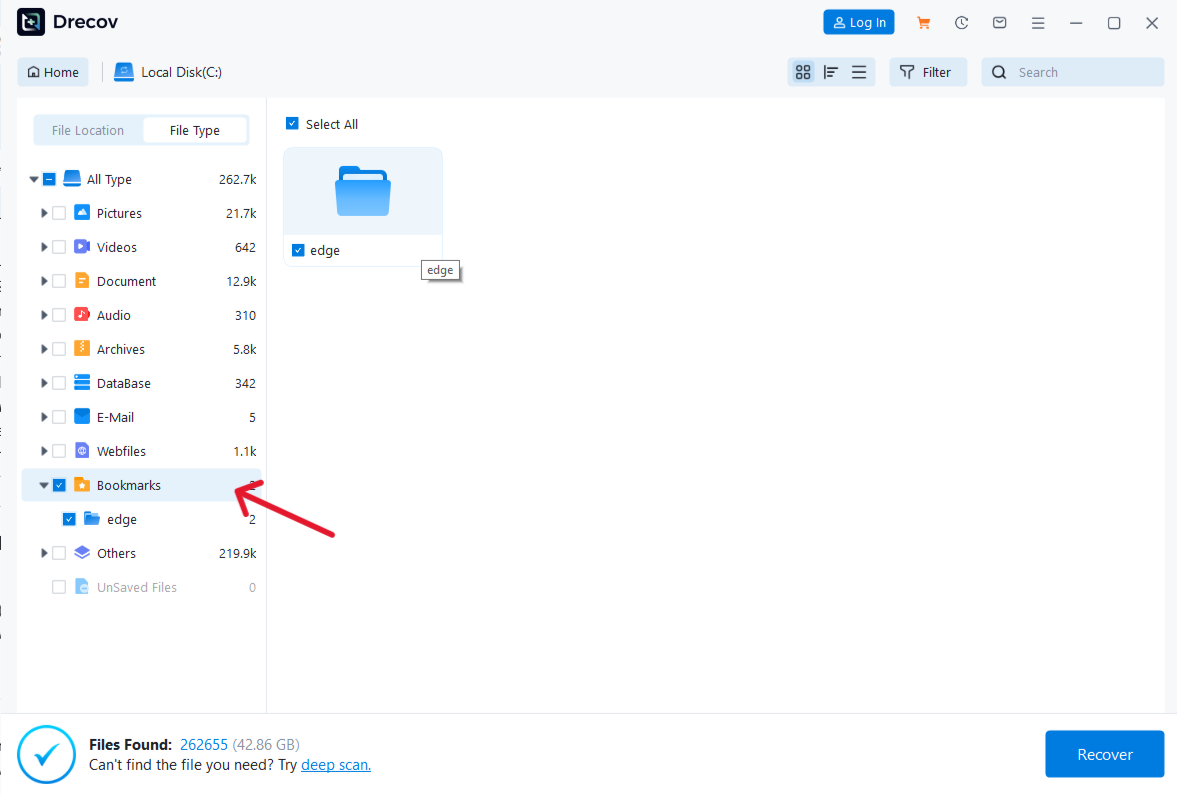
- Step 3: Preview and Recover Bookmarks
- After scanning, PandaOffice Drecov will display all recoverable bookmarks with their folder structure and creation dates.
- Preview bookmarks by clicking on them (you can check if URLs are intact).
- Select the bookmarks or folders you want to recover (use “Select All” for full recovery).
- Click “Recover” and choose a save location—never save to the same drive as your Firefox profile (this risks overwriting data). Save to an external hard drive or a different partition instead.
- Step 4: Import Recovered Bookmarks to Firefox
- The recovered bookmarks will be saved as a bookmarks-recovered.jsonlz4 file.
- Open Firefox’s Bookmark Manager (Ctrl+Shift+O/Cmd+Shift+O), click “Import and Backup” > “Import Data from File”.
- Select the bookmarks-recovered.jsonlz4 file and click “Open”—your bookmarks will be restored.
Warning: Stop using Firefox immediately after noticing bookmark loss. Continued browsing creates new data that may overwrite the lost bookmarks, reducing recovery chances.
Method 3: Restore from System Restore Points (Windows Only)
If your Firefox bookmarks disappeared due to a system crash, malware attack, or faulty update, Windows System Restore can revert your computer to a state where bookmarks were intact.
- Step 1: Open System Restore
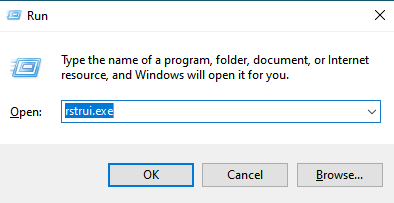
- Press Win+R, type rstrui.exe, and press Enter.
- Click “Next” and select a restore point from before the bookmark loss (look for dates labeled “Firefox Update” or “System Checkpoint”).
- Step 2: Start the Restore Process
- Select the restore point and click “Next”.
- Confirm the restore (note: this will not delete your personal files, only revert system settings and software changes).
- Click “Finish”—your computer will restart and restore to the selected point.
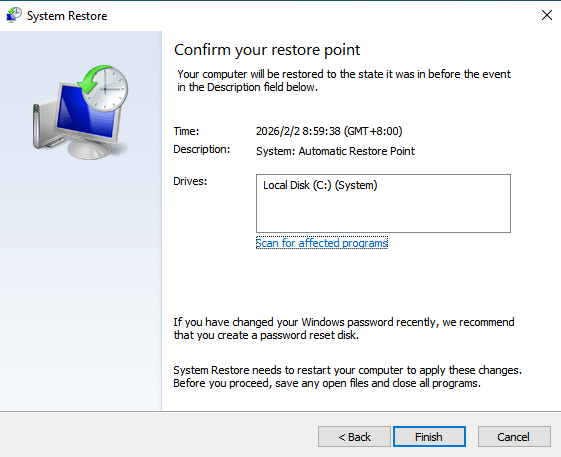
- Step 3: Verify Bookmarks
- After restarting, open Firefox and check if your bookmarks are restored. If not, try a different restore point (choose an earlier date).
Limitation: System Restore only works if you have enabled it beforehand (Windows enables it by default on the C: drive). It also won’t recover bookmarks lost due to disk formatting.
Method 4: Recover from Cloud Sync
If you use the international version of Firefox, your bookmarks may still be synced to your Firefox account. This method works if you lost bookmarks due to a local profile corruption.
- Step 1: Sign in to Your Firefox Account
- Open Firefox and click the profile icon (top-right corner).
- Select “Sign in” and enter your Firefox account credentials (create an account at https://accounts.firefox.com if you don’t have one).
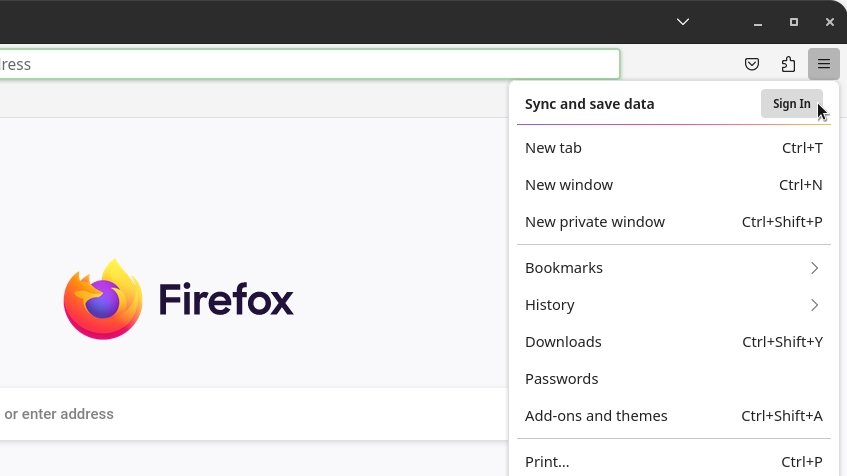
- Step 2: Sync Bookmarks
- After signing in, click the profile icon again and select “Sync Settings”.
- Ensure “Bookmarks” is checked under “What to sync”.
- Click “Sync Now”—Firefox will download your cloud-synced bookmarks to your local profile.
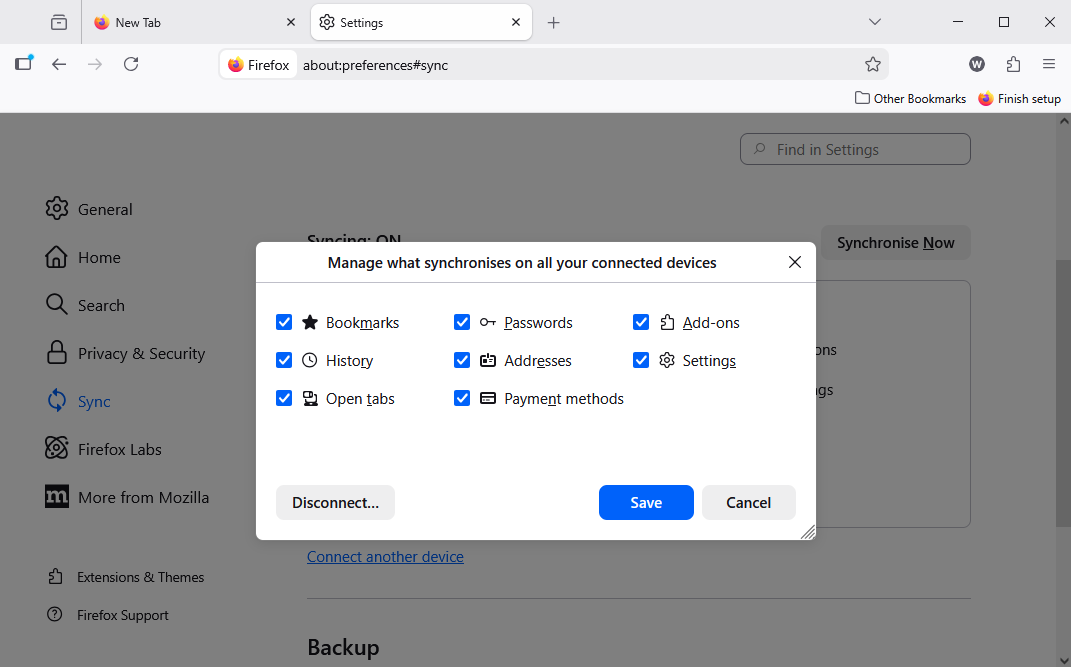
Method 5: Manually Repair Corrupted places.sqlite File
If your bookmarks are missing because the places.sqlite file (Firefox’s bookmark database) is corrupted, you can repair it using Firefox’s built-in database tool.
- Step 1: Close Firefox Completely
- Ensure Firefox is not running (check the taskbar or Task Manager for background processes).
- Step 2: Locate and Backup places.sqlite
- Navigate to your Firefox Profile Folder (Method 1, Step 1).
- Find the file named places.sqlite and make a copy (right-click > Copy > Paste to another folder). This backup ensures you can revert if the repair fails.
- Step 3: Repair the Database
- Download the SQLite Database Browser (free from https://sqlitebrowser.org/).
- Open SQLite Database Browser and click “Open Database”.
- Select the places.sqlite file from your Firefox Profile Folder.
- Click “Execute SQL” and paste the following command:
PRAGMA integrity_check;- Click “Run”—if errors appear, click “Tools” > “Compact Database” to repair.
- Save the repaired file (File > Save Database) and close SQLite Database Browser.
- Step 4: Restart Firefox
Open Firefox and check if your bookmarks are restored. If not, replace the repaired places.sqlite with your backup and try Method 2.
Comparison of Firefox Bookmarks Recovery Methods
| Method | Pros | Cons | Best For |
| Built-in Backup Restore | Free, no tools needed, fast | Only works if backups exist, recent losses | Accidental deletions, minor glitches |
| PandaOffice Drecov | High recovery rate, supports all scenarios, user-friendly, preserves folder structure | Paid (free trial available) | Formatted disks, corrupted profiles, no backups |
| System Restore | Restores entire system state, free | Windows-only, requires pre-enabled restore points | System crashes, malware attacks |
| Cloud Sync Restore | Automatic, syncs across devices | Only for international Firefox editions, no Chinese special edition support | Local profile corruption (international users) |
| Manual places.sqlite Repair | Free, fixes database corruption | Technical steps, risk of data loss if done wrong | Corrupted bookmark database |
Key Advantage of PandaOffice Drecov: Unlike other methods, it works in all loss scenarios (formatted disks, no backups, corrupted profiles) and requires no technical knowledge. Its deep scan feature recovers bookmarks that other tools miss, and it preserves the original folder structure—critical for organized users.
Prevention Measures: Avoid Firefox Bookmarks Loss Forever
The best firefox bookmarks recovery is prevention. Follow these steps to protect your bookmarks:
- Step 1: Enable Automatic Bookmarks Backups
- Open Firefox and go to about:config (type in the address bar and press Enter).
- Search for browser.bookmarks.autoExportHTML and set it to true.
- Firefox will now create daily HTML backups of your bookmarks in your profile folder (look for bookmarks.html).
- Step 2: Backup Your Firefox Profile Regularly
- Locate your profile folder (Method 1, Step 1).
- Copy the entire profile folder to an external hard drive or cloud storage (Google Drive, Dropbox).
- Schedule monthly backups (use Windows Task Scheduler or Mac Automator for automation).
- Step 3: Use Reliable Cloud Sync (International Edition)
- Sign up for a Firefox account at https://accounts.firefox.com.
- Enable bookmarks sync (Settings > Sync > Check “Bookmarks”).
- Periodically verify sync by logging into your account on another device.
- Step 4: Export Bookmarks to HTML
- Press Ctrl+Shift+O/Cmd+Shift+O to open the Bookmark Manager.
- Click “Import and Backup” > “Export Bookmarks to HTML”.
- Save the file to multiple locations (external drive, cloud, email).
- Step 5: Avoid Common Pitfalls
- Never format the drive containing your Firefox profile without backing up.
- Disable suspicious browser extensions (some may corrupt bookmarks).
- Update Firefox only when you have a recent backup (major updates can cause profile issues).
- Use a password manager to store critical URLs alongside passwords (redundancy).
Firefox Deleted Bookmarks Recovery FAQs
1.How long do I have to recover lost Firefox bookmarks?
Act within 72 hours. After that, new data may overwrite the lost bookmarks, reducing recovery chances.
2.Can I recover bookmarks if I reinstalled Firefox?
Yes—if you didn’t delete your profile folder, use Method 1 (built-in backup) or Method 2 (PandaOffice Drecov) to recover from places.sqlite.
3.Why are my Firefox bookmarks missing after an update?
Updates may reset your profile. Use Method 1 (restore from backup) or Method 4 (cloud sync) to recover.
4.Can I recover bookmarks from a formatted hard drive?
Yes—use PandaOffice Drecov’s Deep Scan feature (Method 2) to recover places.sqlite from formatted drives.
5.How do I transfer Firefox bookmarks to another browser?
Export bookmarks to HTML (Prevention Step 4) and import into Chrome, Edge, or Safari using their bookmark managers.
Conclusion
Firefox bookmarks recovery doesn’t have to be a stressful process. Whether you lost bookmarks due to the 2025 Chinese edition shutdown, accidental deletion, or profile corruption, the methods outlined in this guide—from simple built-in backups to advanced tools like PandaOffice Drecov—cover every scenario.
The key takeaways are:
- Act fast: Recover bookmarks within 72 hours to avoid data overwriting.
- Prioritize PandaOffice Drecov for complex scenarios (formatted disks, no backups) due to its high recovery rate and user-friendly design.
- Prevent future loss: Enable automatic backups, sync to the cloud (international edition), and export bookmarks regularly.
By following these steps, you can retrieve your lost Firefox bookmarks and ensure they stay safe. Remember—prevention is always easier than recovery, but with the right tools, even the most devastating bookmark loss can be reversed.






