







Have you ever archived an email in Gmail, only to later realize you can’t remember where it went? You’re definitely not alone. Gmail’s archive feature is incredibly useful for cleaning up cluttered inboxes, but it doesn’t work like traditional “archive folders” where everything is neatly grouped in one place. This guide is designed to walk you through exactly how to find archived emails in gmail — whether you’re using Gmail on a desktop browser or a mobile app. By the end of this article, you’ll know exactly where to look and how to use Gmail’s powerful search and labeling features to locate any archived message quickly and efficiently.
What Does “Archived” Mean in Gmail?
In Gmail, archiving an email doesn’t remove it permanently — it simply removes the Inbox label from that message. That’s why it often feels like your email “vanished” into thin air. Unlike other email services where archived messages go into a separate folder, Gmail keeps everything in one place and just hides it from your main inbox. Understanding this distinction is the first step in mastering how to find archived emails in gmail.
When you click that archive button, you aren’t deleting data; you are simply changing its visibility status. This is a form of soft data management that keeps your workspace clean without the risks associated with permanent deletion.
Why Archive Emails?
Archiving is one of the smartest ways to organize email without losing important content. Instead of deleting messages that might still matter later, Gmail lets you store them out of your main inbox view. This keeps your inbox clean while preserving important emails for future reference, and without consuming additional storage. For professionals handling hundreds of communications daily, knowing how to find archived emails in gmail ensures that no critical information is ever truly lost, even if it is out of sight.
How Gmail Handles Archived Emails
When you archive an email, several things happen simultaneously behind the scenes. First, the message is no longer visible in the Inbox. However, it doesn’t disappear from your Gmail account. Instead, it is stored in “All Mail,” which contains every email except those in Trash and Spam.
Unlike deleting, archiving retains the message forever until you manually move or delete it. This makes it a primary “safe” action for users who suffer from “inbox anxiety” but fear losing historical data. Because the data remains on Google’s servers, the process of how to find archived emails in gmail is usually a matter of filtering rather than true forensic recovery.
Where do you find archived emails in gmail?
So where do you find archived emails in gmail? This is the most common question users ask when their screen suddenly goes blank after a cleanup session. Gmail doesn’t create a separate “Archive” folder. Instead, all archived emails remain in the All Mail label — essentially Gmail’s master list of every message.
To see this in action, you can look at the official Gmail Help Center which explains the archive process in detail. Essentially, the “All Mail” view is your library, while the “Inbox” is just the “New Arrivals” shelf.
Understanding Labels vs. Folders in Gmail
Gmail’s organizational system is based on labels, not traditional folders. This is a crucial concept for anyone trying to learn how to find archived emails in gmail. When you archive an email, Gmail removes the “Inbox” label but doesn’t assign a new one unless you choose to. That’s why sometimes it seems tricky to find previously archived messages: they’re still there, just not labeled as “Inbox.”
Think of labels like tags on a piece of luggage. An archived email is like a suitcase that had its “Priority” tag removed but is still sitting in the warehouse. It hasn’t moved to a different room; it just doesn’t have the bright red tag anymore.
Method 1: Using “All Mail” to Find Archived Emails
This is the most direct manual method. If you are wondering how do i see archived email in gmail without using complex search queries, the All Mail folder is your best friend.
Desktop (Web Browser)
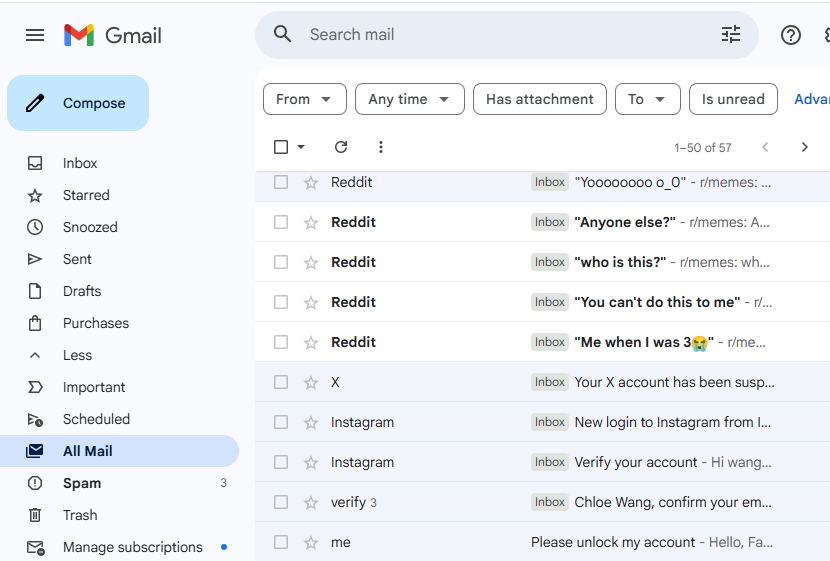
The most straightforward way to locate archived messages on a PC or Mac:
- Open Gmail in your preferred web browser.
- On the left-hand sidebar, you will see labels like Inbox, Starred, and Sent.
- Click More at the bottom of that list to expand the hidden options.
- Click All Mail.
- Scroll through the list — every archived message is here, interspersed with your current inbox items.
Mobile App (Android & iPhone)
If you are on the go and need to know how to find archived emails in gmail via your smartphone:
- Launch the Gmail app.
- Tap the hamburger menu (three horizontal lines) in the top left corner.
- Scroll down the list of labels and tap All Mail.
- Browse through your emails. You will notice that archived emails lack the “Inbox” label next to the subject line.
Method 2: How do i see archived email in gmail?
The search bar is often the fastest tool to find archived emails — especially if you remember anything about the message. Although there’s no special “Archive” label, you can search using terms related to the email to find it quickly.
Basic Search
If you are asking how to find archived emails that were sent by a specific person, just type their name or a keyword from the subject line into the search bar at the top of Gmail. Because the search function scans “All Mail” by default, your archived messages will appear in the results alongside your live inbox messages.
Advanced Search Filters
For those with thousands of emails, a basic search might not be enough. To master how to read archived emails gmail, you should use the advanced filters:
- Click the Show search options icon (the sliders icon) on the right side of the search bar.
- Enter specific details like From, To, Subject, or Has the words.
- Select a Date within range to narrow down when you might have archived the message.
- Click Search.
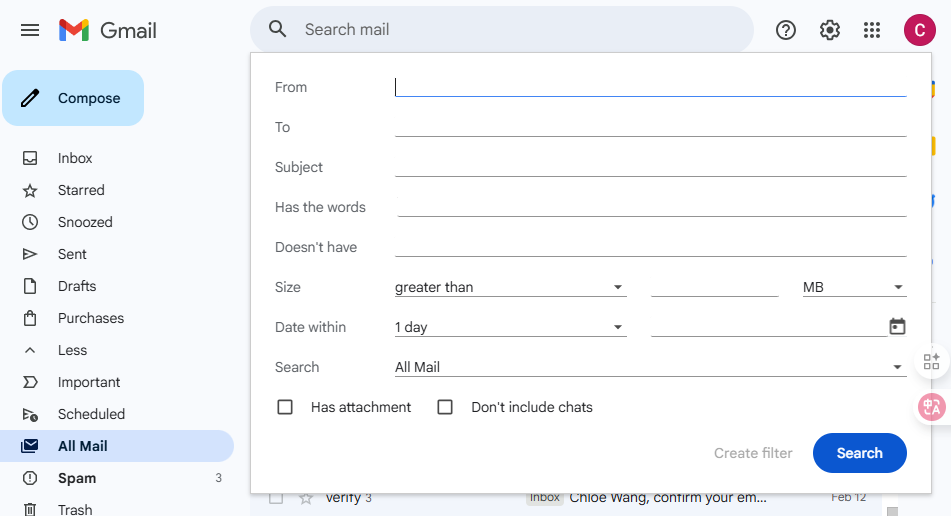
This method is highly effective for data recovery when you know the approximate timeline of the communication.
Method 3: How to find archived emails using Search Operators
If you want to only show archived emails via search and exclude everything currently in your inbox, you need to use search operators. This is a “pro-level” way to solve the puzzle of how to find archived emails in gmail.
Exclude Inbox
To see only archived messages, type the following into the search bar:
-label:inbox -label:sent -label:draft
This operator tells Gmail to show you every email that is NOT in the inbox, NOT sent, and NOT a draft. What remains is primarily your archived content.
Search with Keywords
You can combine the exclusion operator with keywords for precision. For example:
-label:inbox "invoice"
This will show you every archived email that contains the word “invoice.” This is the most efficient answer to how to find archived emails when you are looking for specific documentation.
How to Tell if an Email Is Archived
Once you find a message in All Mail, how do you verify its status?
- Check the labels: If the message is missing the grey “Inbox” tag next to the subject line (on desktop) or doesn’t show “Inbox” in the message headers, it is archived.
- Search status: If the email only appears when you browse “All Mail” but is absent from your “Inbox” view, it is definitely archived.
Identifying the status is a key part of how to read archived emails gmail because it tells you whether the email needs to be “unarchived” or if it’s already where it needs to be.
Retrieving an Archived Email
Finding an archived email is one thing — bringing it back to your primary view is another. If you’ve figured out how to find archived emails in gmail and want to move one back:
- On Desktop: Open the email and click the Move to Inbox icon (a small box with a downward arrow) in the top toolbar.
- On Mobile: Open the message, tap the three dots (menu) in the top right corner, and select Move to Inbox.
The email will instantly reappear in your main inbox as if it never left.
Advanced Data Recovery: Using PandaOffice Drecov
While Gmail’s archive feature handles “hidden” emails, sometimes data loss goes deeper. What if you accidentally deleted the email instead of archiving it, and then emptied the trash? Or what if your local offline mail backup (like a PST or OST file) became corrupted?
This is where professional data recovery tools like PandaOffice Drecov become essential. PandaOffice Drecov is a powerful data recovery product designed to retrieve lost files, including local email databases, from your computer’s hard drive.
⚠ Warning: Install it on a drive different from the one where your data was lost to prevent overwriting.
Step-by-Step Recovery with PandaOffice Drecov
If you have lost local copies of your emails or other important documents while trying to manage your Gmail account, follow these steps:
Step 1: Select the Location
Launch the software. You will see a list of drives and specific locations (like Desktop or Recycle Bin). If you are looking for local email fragments, select the C: drive or the specific folder where your mail client (like Outlook or Thunderbird) stores data.

Step 2: Initiate the Scan
Click the Scan button. PandaOffice Drecov will perform a “Quick Scan” followed by a “Deep Scan.”

Warning: The Deep Scan may take some time depending on your disk size. Do not interrupt the process, as this is when the software reconstructs complex file structures.
Step 3: Filter and Preview
Once the scan completes, use the filter sidebar to look for specific file types (e.g., .pst, .ost, .eml). You can preview many files directly within the PandaOffice Drecov interface to ensure they are the correct items.
Step 4: Recover and Save
Select the files you wish to restore and click Recover.
Key Point: Always save your recovered data to an external drive or a cloud storage service initially to ensure the integrity of the original disk remains intact.
Tips for Managing Archived Emails
Now that you know how to find archived emails in gmail, here are some best practices to keep your account organized:
- Label before archiving: If you apply a label (like “Taxes 2024”) before hitting archive, you can find the email by clicking that label in the sidebar instead of hunting through “All Mail.”
- Use Stars: Star important archived messages so they stand out in the All Mail list.
- Routine Checks: Periodically check your All Mail folder to see if there are items that should be permanently deleted to save storage.
Common Mistakes When Finding Archives
- Looking for an “Archive” folder: As we’ve discussed, this folder does not exist in Gmail’s native structure.
- Confusing Archive with Delete: If you delete an email, it goes to the Trash for 30 days and is then gone forever. Archiving is permanent storage.
- Ignoring the Search Bar: Many users try to manually scroll through thousands of emails instead of using the simple
in:anywheresearch command.
Where do you find archived emails in gmail? Troubleshooting Search Issues
If you still can’t find your emails after following the steps for how to find archived emails in gmail, consider these troubleshooting tips:
- Check Trash and Spam: Sometimes we think we archived something when we actually deleted it or it was filtered as spam. Use the search operator
in:anywhereto include these folders in your search. - Verify Filters: Check your Gmail settings to see if you have any active filters that are automatically archiving or moving your mail to specific labels.
- Sync Issues: If you are on mobile, ensure your app has synced recently. A poor internet connection can prevent archived messages from appearing in “All Mail.”
How to read archived emails gmail: Mobile vs. Desktop
The experience of how to read archived emails gmail varies slightly by platform. On a desktop, the interface is wider, making it easier to see labels and use the advanced search grid. On mobile, the interface is streamlined, focusing on the search bar. However, the underlying logic remains the same: “All Mail” is the destination for all non-deleted content.
More Data Recovery and Security Resources
Managing your digital life doesn’t stop at Gmail. Understanding how to manage your operating system’s permissions is just as important for data security. If you are looking to secure your local environment further, check out these guides:
- How to Change Administrator on Windows 10: Protect Your Data
- How to Change Administrator on Windows 11: A Step-by-Step Guide
Properly managing administrator rights ensures that unauthorized users cannot delete your local email backups or mess with your synchronization settings.
Archived Emails and Storage Limits
It is a common misconception that archiving emails saves space. It does not. Archived emails count toward your 15GB (or more) Google One storage quota. If you are hitting your storage limit, you should look into deleting large attachments rather than just archiving them. You can find large emails by typing has:attachment larger:10M in the search bar.
Key Gmail Search Tricks for Archived Messages
To wrap up your mastery of how to find archived emails in gmail, remember these specific operators:
has:nouserlabels– Shows emails that have no labels at all (often these are the “lost” archived emails).before:2023/01/01– Finds old archived messages from a specific time.from:Amazon– Quickly finds all receipts or notifications you might have archived.
How To Find Archived Emails FAQs
1. Does Gmail have a separate “Archive” folder?
No—archived emails live in All Mail, not a dedicated archive folder. This is the most common point of confusion for new users.
2. Will archived emails still show up in search?
Yes! Gmail’s search index includes archived messages by default. In fact, searching is often the fastest way to find them.
3. How do I move archived email back to inbox?
Open the message and use the Move to Inbox option located in the top menu bar or the three-dot sub-menu.
4. Can I find archived mail on mobile?
Yes — use the All Mail label in the Gmail app sidebar or use the search bar at the top of the app.
5. Do archived emails count toward storage?
Yes, they count toward your Google storage quota. To save space, you must delete emails permanently rather than archiving them.
6. What is the difference between Mute and Archive?
Archiving removes a single message or thread from your inbox until a new reply arrives. Muting keeps the thread out of your inbox even if new replies are added to the conversation.
7. Can PandaOffice Drecov recover emails I deleted years ago?
It depends on whether that sector of your hard drive has been overwritten. For local files, the sooner you use PandaOffice Drecov after a loss, the higher the chance of recovery.
Conclusion
Finding archived emails in Gmail doesn’t have to be frustrating. Once you understand that Gmail doesn’t use separate archive folders — and that archived messages live in All Mail — everything becomes much easier. Whether you choose to browse the All Mail label, use the powerful search bar, or deploy advanced search operators, you now have the tools to locate any “lost” message.
Furthermore, by utilizing tools like PandaOffice Drecov for your local data needs and following best practices for Gmail management, you can ensure your digital information remains safe, organized, and accessible whenever you need it. No more panicking over a missing thread—you are now an expert in how to find archived emails in gmail!






