







Navigating the administrative landscape of a PC can feel like holding the keys to a digital kingdom. Whether you are repurposing an old work laptop or simply organizing a family computer, knowing how to change administrator on windows 10 is a fundamental skill. However, system-level changes often come with a hidden risk: data loss. One wrong click in the User Accounts menu can lead to orphaned files or locked profiles.
In this comprehensive guide, we will explore the precise methods for managing administrative rights, altering account identities, and—most importantly—how to use PandaOffice Drecov to rescue your files if a system transition goes south.
Understanding User Privileges and Data Integrity
Before we dive into the technical “how-to,” we must address why administrator status matters. An administrator has full access to the system, meaning they can install software, modify security settings, and access all files on the hard drive.
When you learn how to change administrator on windows 10, you aren’t just changing a name; you are shifting the permissions that govern how Windows interacts with your data. If these permissions become corrupted during a transition, you may find yourself unable to open your own documents. This is where professional data recovery expertise becomes invaluable.
How to Change the Administrator on Windows 10 via Settings
The most user-friendly method for managing accounts is through the modern Settings interface. This is the recommended starting point for most users because it provides a visual, guided experience.
Step-by-Step Transition
- 1. Open Settings: Press the Windows Key + I simultaneously.
- 2. Navigate to Accounts: Click on the “Accounts” icon.
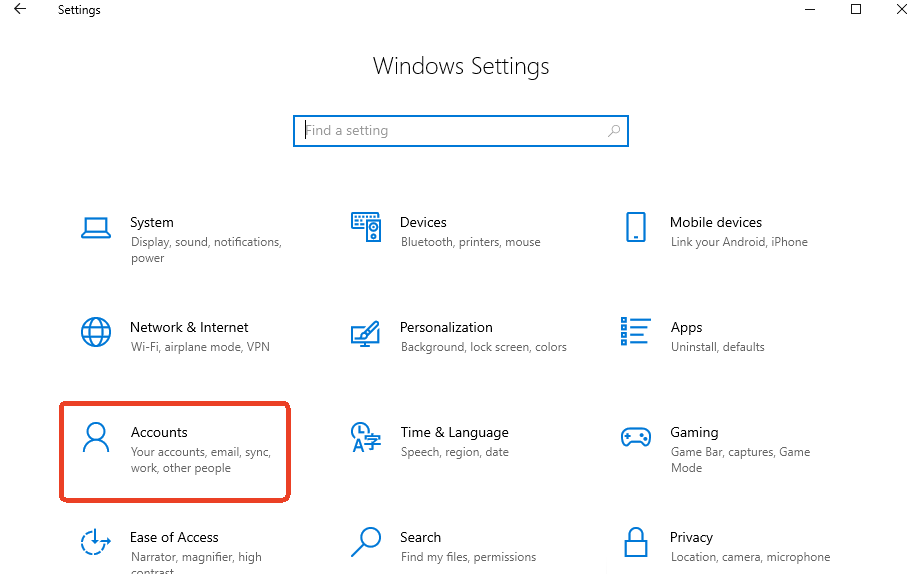
- 3. Family & Other Users: On the left-hand sidebar, select “Family & other users.”
- 4. Select the Target Account: Under the “Other users” section, click on the account name you wish to elevate.
- 5. Change Account Type: Click the button labeled “Change account type.”
- 6. Set to Administrator: In the pop-up window, change the dropdown menu from “Standard User” to “Administrator.”
- 7. Confirm: Click OK and restart your computer to apply the changes.
Warning: Always ensure you have at least one active administrator account on the system. If you demote your only admin account to a standard user, you may lock yourself out of critical system functions.
How Do I Change the Administrator on Windows 10 Using Control Panel?
If you prefer the classic Windows feel or find the Settings app to be unresponsive, the Control Panel remains a powerful ally. Many long-time users ask, “how do i change the administrator on windows 10 without using the new interface?” The answer lies in the User Accounts applet.
The Classic Procedure
- 1. Access Control Panel: Type “Control Panel” in the Windows search bar and hit Enter.
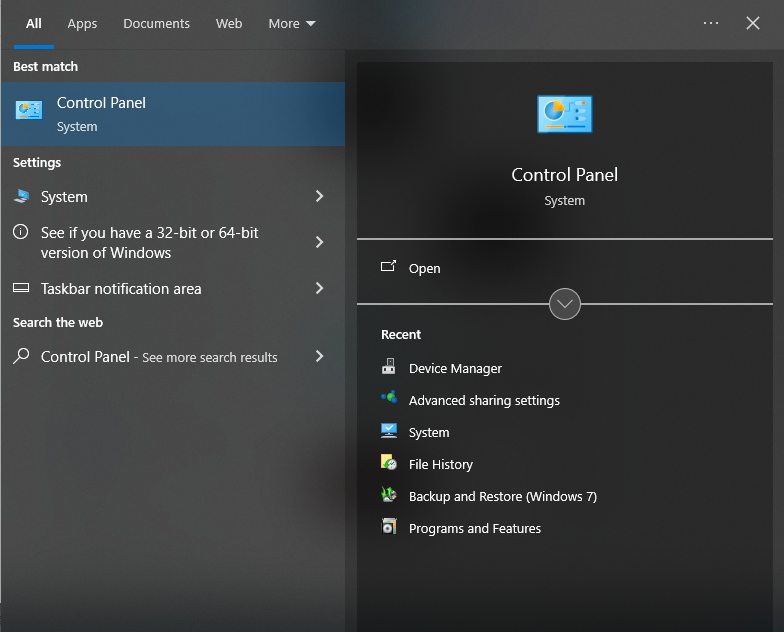
- 2. User Accounts: Click on “User Accounts” (you may need to click it twice depending on your view settings).

- 3. Manage Another Account: Select the link that says “Manage another account.” This requires current administrative privileges.
- 4. Choose User: Click on the specific user profile you want to modify.
- 5. Change Account Type: On the left side, select “Change the account type.”
- 6. Toggle Admin Status: Select the Administrator radio button and click “Change Account Type.”
This method is often more reliable if the Settings app hangs or fails to load specific user metadata. It is a direct route to the Windows account database.
How to Change Administrator Name on Windows 10 for Personalization
Sometimes, the goal isn’t to change who has power, but what that person is called. Users frequently search for how to change administrator name on windows 10 to fix a typo or update a profile after a legal name change.
Renaming a Local Account
If you are using a local account (not linked to a Microsoft email), follow these steps:
- Open the Control Panel.
- Go to User Accounts > User Accounts > Manage another account.
- Select the Administrator account you want to rename.
- Click Change the account name.
- Enter the new desired name and click Change Name.
Renaming a Microsoft-Linked Account
If your Windows login is tied to an email (e.g., @outlook.com), the process is different. Windows pulls this name from the cloud. To change it:
- Go to Settings > Accounts > Your info.
- Click the link “Manage my Microsoft account.”
- Your browser will open. Sign in, go to “Your info,” and select “Edit name.”
- Once saved, restart your PC. It may take a few minutes for the sync to reflect the new name on your login screen.
For more official documentation on account management, you can visit the Microsoft Support page for Windows Accounts.
Advanced Method: Using Netplwiz for Power Users
For those who want to skip the menus and get straight to the “Advanced User Accounts” panel, the netplwiz command is the fastest shortcut.
- Press Windows Key + R to open the Run dialog.
- Type
netplwizand press Enter.
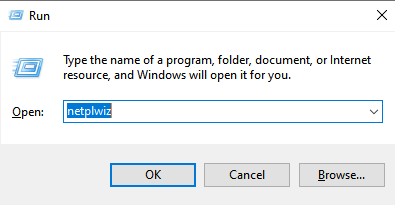
- In the Users tab, select the user you want to change.
- Click Properties.
- Navigate to the Group Membership tab.
- Select Administrator and click Apply.
The Hidden Danger: Data Loss During Account Migration
Why does an SEO and data recovery expert care about how to change administrator on windows 10? Because user profile corruption is a leading cause of “missing” files. When you toggle administrator roles or change account names, Windows modifies the registry paths pointing to your Desktop, Documents, and Pictures folders.
If the system encounters an error during this write process, you might log in to find a “Temporary Profile” or, worse, an empty desktop. Your files aren’t gone, but the “map” Windows uses to find them is broken.
Recovering Lost Data with PandaOffice Drecov
If you attempted to change your administrator settings and discovered that your files have vanished, do not panic. PandaOffice Drecov is a professional-grade data recovery tool designed to handle partition errors, profile corruption, and accidental deletions.
Why Choose PandaOffice Drecov?
- Deep Scan Technology: It looks beyond the file system to find raw data fragments.
- Preview Functionality: You can see your photos and documents before committing to a recovery.
- Safety: It operates in a read-only mode, ensuring no further damage is done to your drive.
⚠ Warning: Install it on a drive different from the one where your data was lost to prevent overwriting.
How to Recover Your Files: A Step-by-Step Guide
Step 1: Select the Location
On the main dashboard, you will see a list of available drives and locations. Select the drive where your User Profile was located (usually the Local Disk C:). If you lost files specifically from the desktop, you can select the “Desktop” shortcut for a faster scan.

Step 2: Initiate the Scan
Click the “Scan” button. PandaOffice Drecov will first perform a “Quick Scan” to find recently deleted files. It will then automatically transition into a “Deep Scan,” which meticulously reconstructs files lost due to account permission errors or registry corruption.

Step 3: Filter and Preview
Once the scan is complete, use the sidebar to filter by file type (e.g., .docx, .jpg, .pdf). Double-click any file to preview its content. This ensures the file is intact and not just a corrupted remnant.

Step 4: Recover and Save
Select the checkboxes for the files you wish to retrieve. Click the “Recover” button.
Critical Warning: Never save the recovered files back to the same partition where they were lost. Choose an external hard drive or a cloud storage folder to prevent overwriting.
Proactive Data Management and Troubleshooting
Mastering how to change the administrator on windows 10 also involves knowing how to troubleshoot when things go wrong. If you find that the “Change account type” button is greyed out, it usually means you are not currently logged in as an administrator. You cannot grant power if you do not already possess it.
In such cases, you may need to boot into Safe Mode. Safe Mode allows you to access the “Built-in Administrator” account which is hidden by default. Once inside, you can fix the permissions of your primary account.
Common Administrative Errors and Fixes
| Issue | Potential Cause | Solution |
| Button Greyed Out | No Admin Rights | Log in as a different Admin or use Safe Mode. |
| Name Won’t Change | Sync Issue | Check internet connection for Microsoft Accounts. |
| Files Missing | Profile Corruption | Use PandaOffice Drecov immediately. |
Expanding Your Data Recovery Knowledge
Successfully managing your Windows environment is just the first step in digital literacy. As you continue to optimize your system, you may encounter other common hurdles. For instance, many users who reorganize their accounts find that their OneDrive settings become cluttered or redundant. Knowing how to manage these integrated services is vital for a clean system.
If you are looking to streamline your workspace after changing administrators, you might find this guide on 3 ways to forcefully delete OneDrive on Windows 10 incredibly helpful.
Furthermore, we often delete files in a hurry while cleaning up old user profiles. If you’ve emptied your bin and realized you needed those files, don’t worry—the data is likely still on your disk. Learn the secrets of the pros in our article on how to recover empty recycle bin on Windows 10 in minutes.
Mastering Windows 10 Administration and Data Safety FAQs
This is a common frustration when users try to figure out how to change the administrator on windows 10. The button is usually greyed out because you are currently logged into the account you are trying to modify, or you are logged into a Standard User account that lacks the authority to elevate others.
The Solution: You must log out and sign in with a different account that already has Administrator privileges. If you are the only user and have lost admin rights, you will need to boot Windows 10 into Safe Mode with Command Prompt and enable the built-in hidden administrator by typing net user administrator /active:yes.
2. Will I lose my files if I change my administrator name on Windows 10?
When you look up how to change administrator name on windows 10, you might worry about your documents. Changing the display name is generally safe. However, changing the user folder name (the folder located at C:\Users\YourName) is much riskier.
Windows does not automatically rename this folder when you change your display name. If you attempt to rename the folder manually in the registry, you risk “breaking” the path to your data. If your files appear to vanish after a name change, launch PandaOffice Drecov immediately to scan the C:\Users directory and recover the orphaned data.
3. How do I change the administrator on Windows 10 if I forgot my password?
If you are locked out, you can’t reach the Settings menu. You will need to use a Windows 10 Installation Media (USB) to access the Recovery Environment.
- Step 1: Boot from the USB.
- Step 2: Select “Repair your computer” > “Troubleshoot” > “Command Prompt.”
- Step 3: Use the
net usercommand to reset the password or promote a new user. - Warning: Modern encryption like BitLocker may prevent this. If you lose access due to encryption issues, PandaOffice Drecov can often help recover raw data from partitions that haven’t been fully overwritten.
4. Is there a difference between a Local Admin and a Microsoft Account Admin?
Yes, and it affects how do i change the administrator on windows 10.
- Local Account: The credentials live only on your PC. It is easier to recover and rename using the Control Panel.
- Microsoft Account: Your identity is synced with Microsoft’s servers. To change the administrator name, you must do it via the Microsoft web portal.
- Data Tip: Microsoft accounts often sync data to OneDrive. If you are switching administrators, ensure you sign out of OneDrive to prevent your files from being deleted or synced to the new admin’s cloud storage.
5. Can I have multiple administrators on one Windows 10 PC?
Absolutely. In fact, for data redundancy, it is often a “pro move” to have two administrator accounts. If one profile becomes corrupted—a common reason people need to use PandaOffice Drecov—you can log into the second admin account to repair the first one.
To add a second admin:
- Go to Settings > Accounts > Other Users.
- Add a new user and follow the steps in our guide to change administrator on windows 10 to “Administrator” for that new user.
Conclusion
Learning how to change administrator on windows 10 is more than just a technical chore; it is about taking ownership of your digital environment. By following the steps outlined—whether through Settings, Control Panel, or netplwiz—you can ensure your PC is configured exactly how you need it.
However, always remember that the underlying file structure of Windows is delicate. Shifts in user permissions can occasionally lead to unexpected data behavior. By keeping a tool like PandaOffice Drecov in your utility belt, you can perform these administrative changes with the confidence that your precious memories and important documents are protected.






