







Navigating the vast ocean of the internet requires a reliable set of digital anchors. Whether you are conducting deep academic research, managing complex work projects, or simply keeping track of your favorite recipes, knowing how to save favorites on Firefox is a fundamental skill. In the world of Mozilla, “favorites” are officially known as bookmarks, and mastering their creation, organization, and recovery is essential for any power user.
This guide provides an exhaustive look at managing your digital library. We will move from basic saving techniques to professional-grade data recovery using PandaOffice Drecov data recovery software, ensuring that your curated collection of web wisdom is never lost to system crashes or accidental deletions.
What Are Favorites in Firefox?
Favorites vs Bookmarks Explained
If you’ve ever used a web browser, you’ve probably heard both terms—favorites and bookmarks—and wondered if they’re different. In Firefox, the official term is bookmarks, but many users still call them favorites, especially if they’ve come from browsers like Internet Explorer or Microsoft Edge. The good news? They mean the same thing. When you’re learning how to save favorites on Firefox, you’re really learning how to create bookmarks that let you revisit websites quickly.
Think of favorites as digital sticky notes you place on the internet. Instead of memorizing long URLs or searching again, you just click once and—boom—you’re back. Over time, this simple habit can save hours of effort. Imagine trying to relocate a specific article or tool you found weeks ago without bookmarking it. It would feel like searching for a needle in a haystack.
What makes Firefox stand out is how flexible and powerful its bookmarking system is. You’re not just saving links; you’re building a structured, searchable library of your online world. According to Mozilla’s official documentation, bookmarks allow you to save a page’s address so you can visit it again with a single click.
Why Saving Favorites Matters
Saving favorites isn’t just about convenience—it’s about control. The internet is vast, constantly changing, and sometimes overwhelming. By bookmarking your favorite pages, you create a curated space tailored to your needs. Whether it’s work tools, study materials, or entertainment sites, everything becomes instantly accessible.
There’s also a productivity angle here. Studies on digital behavior suggest that users who organize their browsing habits can reduce time spent searching by up to 30%. That’s a significant gain, especially if you rely on the web daily. Furthermore, memory isn’t perfect. You might remember a great article vaguely but forget its title or source. A saved favorite acts as a safety net, ensuring you never lose valuable content again.
How to Save Favorites on Firefox (Basic Method)
Using the Star Icon
The most intuitive way to learn how to save favorites on Firefox involves the star icon located in the address bar.
- Step 1: Navigate to the website you wish to save.
- Step 2: Look at the right side of the address (URL) bar for a hollow star icon.
- Step 3: Click the star once. The star will turn blue, indicating the page has been successfully bookmarked.
- Step 4: A menu will pop up allowing you to name the bookmark or select a specific folder. Click Done to finalize.
Editing Bookmark Details
Saving a favorite is just the first step. To truly master bookmarking, you need to customize it. After clicking the star, the “Edit Bookmark” panel appears. Here, you can change the Name to something more descriptive and assign Tags. Tags are incredibly useful because they allow you to find a bookmark by typing a keyword into the address bar later, even if you forget the site’s title.
Alternative Ways to Save Favorites
Keyboard Shortcut Method
For those who prefer speed, Firefox offers a universal hotkey. Simply press Ctrl + D (on Windows/Linux) or Command + D (on Mac). This opens the bookmarking dialog immediately, allowing you to save the page without taking your hands off the keyboard. It is the fastest way to build your library during a heavy research session.
Drag-and-Drop Bookmarking
You can also save a favorite by clicking the Padlock icon (or the “i” in a circle) to the left of the URL and dragging it directly onto your Bookmarks Toolbar. This is a tactile, visual way to prioritize your most important links for instant access.
Where Are Firefox Favorites Stored?
To understand data recovery, you must first answer: where are firefox favorites stored? Unlike some browsers that save each bookmark as an individual file, Firefox uses a specialized database system.
Your bookmarks, along with your browsing history, are stored in a file named places.sqlite. This file resides within your Firefox Profile folder. To find this folder manually on Windows, you can navigate to the following path:
C:\Users\[YourUsername]\AppData\Roaming\Mozilla\Firefox\Profiles\
Inside this profile folder, you will also see a folder named bookmarkbackups. Firefox automatically creates compressed .jsonlz4 backups here every day. Knowing this location is vital if your browser profile becomes corrupted and you need to manually move your data to a new installation.
Advanced: How to Export Favorites from Firefox
If you are moving to a new computer or another browser, you need to know how to export favorites from firefox to ensure your data remains portable.
- Step 1: Press Ctrl + Shift + B to open the Library window.
- Step 2: Click on the Import and Backup button at the top of the window.
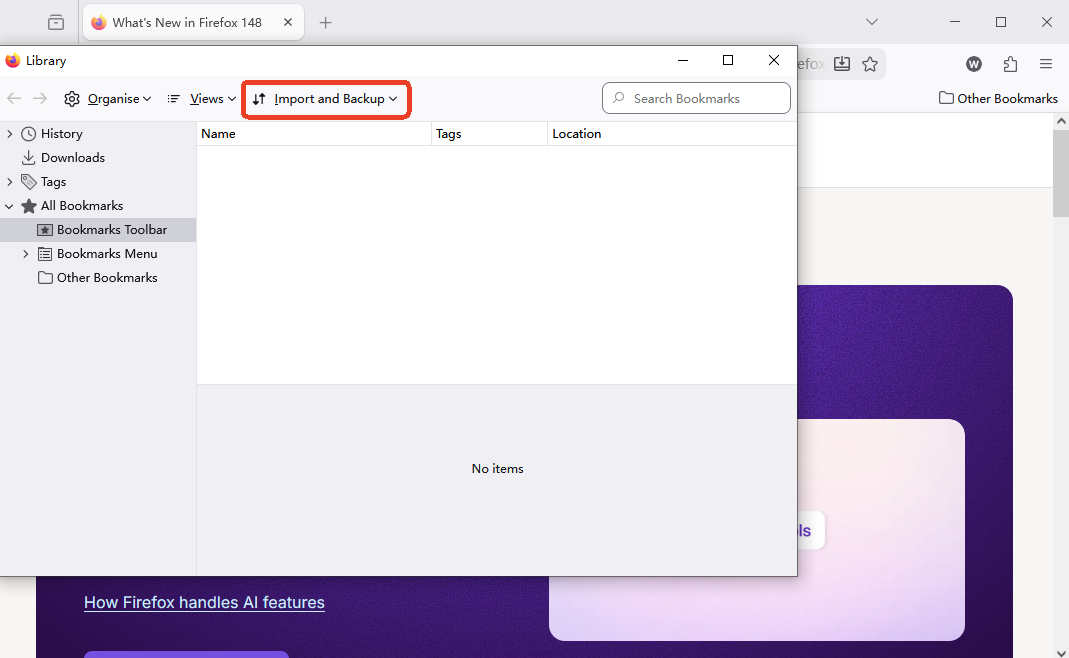
- Step 3: Select Export Bookmarks to HTML….
- Step 4: Choose a destination (like a USB drive or Desktop) and click Save.
This creates a universal HTML file that can be read by Chrome, Edge, or even mobile browsers. It is the gold standard for manual backups.
Data Recovery: Using PandaOffice Drecov Data Recovery Software
What happens if you accidentally format your hard drive or delete your Firefox profile? Standard browser tools cannot help you if the files are physically gone from your disk. In these critical moments, you need PandaOffice Drecov data recovery software.
This professional-grade utility is designed to scan the “raw” sectors of your storage device to find the places.sqlite database or the bookmarkbackups folder even after they have been deleted from the recycle bin.
⚠ Warning: Install it on a drive different from the one where your data was lost to prevent overwriting.
Step-by-Step Recovery with PandaOffice Drecov
- Step 1: Select the Drive. Launch PandaOffice Drecov data recovery software and select the local disk (usually the C: drive) where your Firefox profile was located.

- Step 2: Deep Scan. Click the Scan button. The software will perform a deep analysis of the file system to locate traces of SQLITE and JSONLZ4 files.

- Step 3: Filter Results. Use the search bar in the top right of the software interface. Type
places.sqliteorbookmarkbackups.

- Step 4: Preview and Recover. Once the files are found, select them and click Recover. Choose an external drive or a different partition to save the recovered data.
- Step 5: Restoration. Copy the recovered places.sqlite file back into your active Firefox profile folder to see your favorites return.
Links for Further Recovery Assistance
If you have successfully recovered your files but need help with specific Firefox data management tasks, explore these resources:
- Detailed guide on where bookmarks are stored on your PC
- How to recover bookmarks deleted within the last 5 minutes
- 5 proven methods to get back lost Firefox bookmarks
How to Organize Favorites in Firefox
Creating Folders
Saving bookmarks without organizing them is like throwing papers into a drawer. Eventually, it becomes chaos.
- Right-click on the Bookmarks Toolbar or within the Library window.
- Select New Folder.
- Name it (e.g., “Work,” “Shopping,” “Learning”).This simple step ensures that your favorites are always just two clicks away.
Using Tags and Naming Conventions
When you save a page, use the Tags field. For example, if you save a tech article, tag it with “SEO,” “Guide,” and “2026.” Later, you can type “SEO” into your address bar, and Firefox will display all relevant bookmarks. This metadata-driven approach is what separates beginners from power users.
How to Sync Favorites Across Devices
Setting Up Firefox Sync
Firefox Sync allows you to access your favorites on your smartphone, tablet, or laptop simultaneously.
- Step 1: Click the Firefox Account icon in the toolbar.
- Step 2: Sign in or create an account.
- Step 3: Select Bookmarks in the “Choose What to Sync” settings.
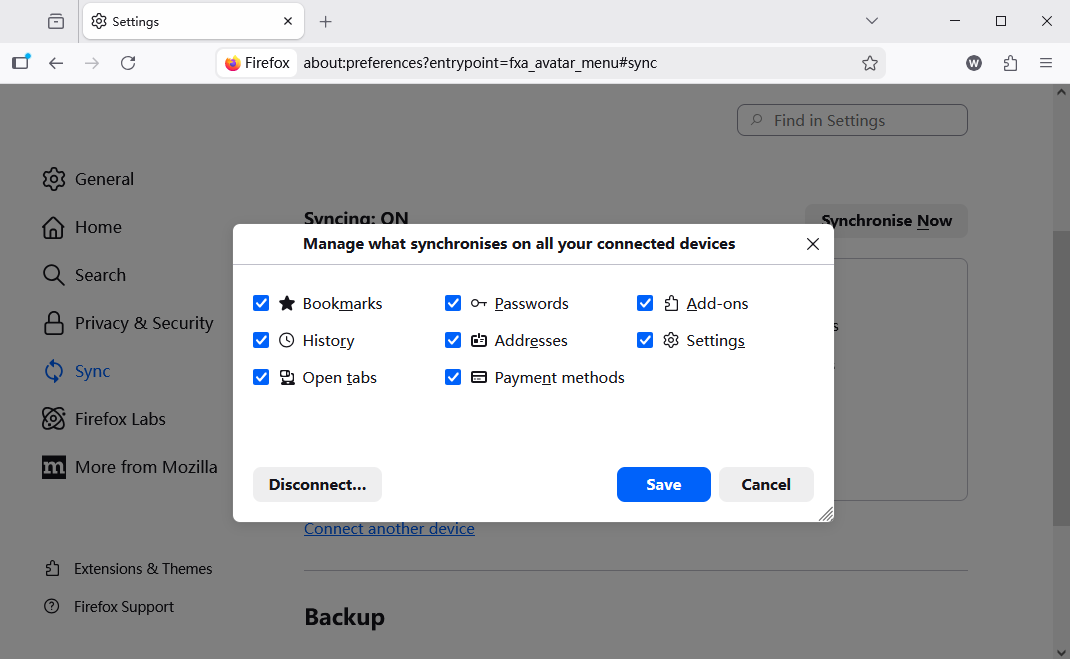
- Step 4: Sign in on your other devices, and the data will populate automatically.
Managing Sync Settings
You can choose what to sync—bookmarks, passwords, history. This flexibility ensures you only share what you need. It also serves as a “cloud backup,” though it is not a substitute for a physical HTML export, as a sync error can occasionally lead to data conflicts.
Troubleshooting Bookmark Issues
Missing Favorites
If your favorites suddenly disappear, the first thing to check is whether you are in the correct Firefox Profile. Type about:profiles into the address bar to see if another profile exists that might contain your data. If you recently refreshed Firefox, look for a folder on your desktop named “Old Firefox Data.”
Duplicate or Broken Links
Over time, sites go offline. Periodically review your bookmarks. Extensions like “Bookmarks Clean Up” can help find duplicate entries or broken links, keeping your library lean and functional.
Save Favorites on Firefox FAQs
1. Is saving favorites the same as bookmarking in Firefox?
Yes. While browsers like Internet Explorer popularized the term “Favorites,” Firefox uses the term “Bookmarks.” They perform the exact same function of saving a URL for future use.
2. Can I save favorites on mobile Firefox?
Absolutely. Tap the three-dot menu on the Android or iOS version of Firefox and tap the star icon to save the page to your mobile bookmarks folder.
3. How many bookmarks can Firefox store?
Firefox can theoretically store hundreds of thousands of bookmarks. However, having an extremely large places.sqlite file (over 100MB) can sometimes slow down the browser’s startup time.
4. Can I recover deleted bookmarks without software?
Yes, if the deletion was recent. Use the Import and Backup > Restore menu in the Library window to select a dated backup created automatically by Firefox.
5. Are bookmarks synced automatically?
Only if you have a Firefox Account and have enabled the Sync feature. Once enabled, changes made on one device will reflect on all others within seconds.
Conclusion
Learning how to save favorites on Firefox is the first step toward a more organized digital life. By moving beyond the simple star icon and embracing manual exports, synced accounts, and the recovery power of PandaOffice Drecov data recovery software, you ensure that your internet “treasure chest” is always accessible and protected.
The key to a great browsing experience is proactive management. Save what matters, organize it immediately, and always keep a backup. Whether you are migrating to a new PC or recovering from a system failure, the tools and methods outlined here will ensure your favorites are always right where you need them.






