







Imagine opening your browser to finish a research project or revisit a saved recipe, only to find your carefully curated library of links has vanished. The sinking feeling in your chest is real—the anxiety of losing months or even years of digital organization is a common modern frustration. Whether it’s due to a sudden system crash, an accidental click, or a botched browser update, the need to delete bookmarks from firefox recovery or restore them becomes a high-priority mission.
If you are currently staring at an empty bookmark bar, take a deep breath: your data is likely still there, hidden within the depths of your computer’s storage. This guide is designed to walk you through the process of reclaiming your lost links. From built-in browser features to professional-grade recovery software, we will explore various strategies to ensure your digital library returns to its rightful place.
Why Did They Vanish? Understanding the Causes
Before we dive into the “how,” it is essential to understand the “why.” Pinpointing the cause of data loss can help you choose the most effective recovery method and prevent future mishaps.
1. Accidental Deletion
Human error is the most frequent culprit. You might have intended to delete bookmarks from firefox recovery files or clear out old folders, only to realize you removed the wrong directory. Firefox doesn’t have a “Trash” for individual bookmarks, making accidental clicks feel permanent.
2. Browser Updates and Sync Errors
Firefox regularly updates its architecture. While these updates are usually seamless, they can sometimes lead to profile corruption. Furthermore, if you use Firefox Sync across multiple devices, a conflict in the cloud can occasionally overwrite your local data with an empty set.
3. Software Crashes and Profile Corruption
If your computer loses power or Firefox crashes while it is writing to the database, the places.sqlite file (where bookmarks are stored) can become corrupted. When this happens, the browser might fail to load your links, appearing as if they were deleted.
4. Operating System Issues
Malware, hard drive failure, or OS “cleanup” utilities might inadvertently target the application data folders where Firefox keeps its backups.
Solution 1: Using the Built-In Firefox Library
Firefox is smarter than most people give it credit for. It automatically creates daily backups of your bookmarks. This should always be your first stop.
- Step 1: Open the Library
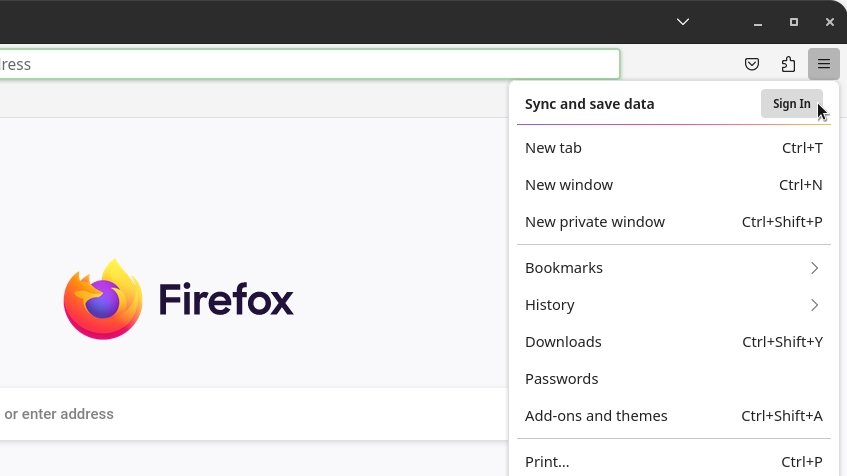
Launch Firefox and click the Library icon (or the hamburger menu > Bookmarks). Select Manage Bookmarks at the bottom, or simply press Ctrl + Shift + O on your keyboard.
- Step 2: Access the Import and Backup Tool
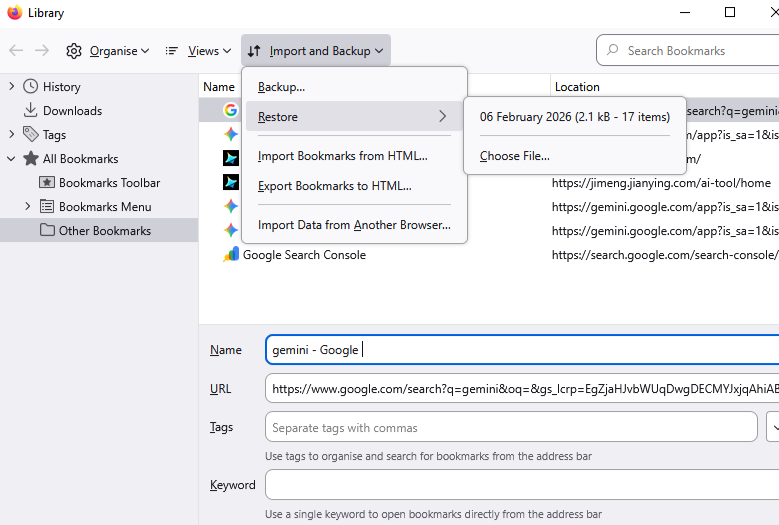
In the Library window, look for the Import and Backup button on the top toolbar. Click it and select Restore.
- Step 3: Choose a Date
A list of dates will appear. These represent the automatic backups Firefox has created. Select a date from just before your bookmarks disappeared.
- Step 4: Confirm the Restoration
A warning will pop up stating that this will replace your current set of bookmarks. Click OK. Your bookmarks should instantly reappear in your browser.
Solution 2: Firefox Bookmarks Recovery with PandaOffice Drecov
If the built-in backups are missing or the file system itself has been compromised, you need a more powerful tool. PandaOffice Drecov is a professional data recovery utility designed to scan your hard drive for deleted or lost fragments of database files.
Why use PandaOffice Drecov?
When you delete bookmarks from firefox recovery folders or lose files due to a disk error, the data isn’t immediately erased. It is marked as “free space.” PandaOffice Drecov specializes in finding these marked sectors before they are overwritten by new data.This makes it an indispensable tool for a wide range of data loss scenarios, including:
- Accidental Desktop Deletions: Instantly retrieving files wiped from your local workspace.
- Disk Formatting Errors: Salvaging files from drives that have been completely wiped or reformatted.
- External Media Rescue: Recovering lost data from formatted or corrupted SD cards and USB flash drives.
- Sync Conflict Resolution: Reversing data loss caused by synchronization errors between your PC and the OneDrive cloud.
- Browser Metadata Recovery: Restoring lost Chrome bookmarks and other essential application data.”
Install it on a drive different from the one where your Firefox data was located to avoid overwriting the lost bookmarks.
Step-by-Step Recovery:
- Step 1: Select the Location
Open the program and select the drive where your OS is installed (usually the C: drive). Firefox stores its data in the AppData folder, so scanning the system drive is crucial.

- Step 2: Deep Scan for SQLite and JSON Files
Click Scan. Use the file filter to look specifically for .json or .sqlite extensions. Firefox stores bookmarks in bookmarks-YYYY-MM-DD.jsonlz4 files and places.sqlite.

- Step 3: Preview and Recover
Once the scan is complete, browse the results. PandaOffice Drecov allows you to see the file names and original paths. Select the relevant Firefox backup files and click Recover. Save them to an external drive or a safe folder.

- Step 4: Manually Import
Go back to the Firefox Library (as seen in Solution 1), click Import and Backup > Restore > Choose File…, and select the file you just recovered with PandaOffice Drecov.
Solution 3: The “Old Firefox Data” Rescue (Manual Restoration)
Sometimes, when Firefox performs a “Refresh” to fix performance issues, it creates a folder on your desktop called “Old Firefox Data.” Many users ignore this folder, not realizing it contains their entire digital history.
- Step 1: Locate the Folder
Look on your desktop for a folder named Old Firefox Data. If you see it, you are in luck!
- Step 2: Find Your Profile
Open the folder. You will see a subfolder with a name like randomstring.default-release. This is your old profile.
- Step 3: Copy the Bookmark Backups
Inside that profile folder, find a folder named bookmarkbackups. Copy the most recent .jsonlz4 file found inside.
- Step 4: Restore via Firefox
Open Firefox, go to the Library (Ctrl + Shift + O), click Import and Backup > Restore > Choose File…, and paste the file you copied. This will effectively undo the “refresh” for your bookmarks.
Bonus Tips: Future-Proofing Your Bookmarks
Recovering data is stressful. Preventing data loss is simple. Follow these tips to ensure you never have to delete bookmarks from firefox recovery lists again:
- Enable Firefox Sync: Sign in to a Firefox account. This mirrors your bookmarks on Google’s or Mozilla’s servers, providing a cloud-based safety net.
- Manual Exporting: Once a month, go to the Library and select Export Bookmarks to HTML. Save this file to a cloud service like Dropbox or Google Drive.
- Check Disk Health: Sometimes bookmark loss is a symptom of a dying hard drive. Run a disk check (chkdsk) to ensure your hardware is stable.
- Avoid Registry Cleaners: Some “PC Speed Up” tools are too aggressive and may delete the “old” files Firefox uses for restoration.
Firefox deleted bookmarks recovery FAQs
Q: Can I recover bookmarks if I never signed up for Firefox Sync?
A: Yes. Firefox creates local backups on your hard drive regardless of whether you have an account. You can use the Library Restore feature or PandaOffice Drecov to find them.
Q: I see the backups, but they are all from today (after the loss). What do I do?
A: This happens if the browser has been open for a while after the loss. In this case, use PandaOffice Drecov to scan for deleted versions of those backup files from previous days.
Q: Does “Refreshing” Firefox delete my bookmarks?
A: Firefox Refresh is designed to remove add-ons and settings but save bookmarks. However, bugs happen. Always check your desktop for the “Old Firefox Data” folder if things look empty.
Q: How do I permanently delete bookmarks from Firefox recovery files for privacy?
A: To delete bookmarks from firefox recovery for security, you must navigate to your profile folder and delete the bookmarkbackups folder and the places.sqlite file. Be careful, as this is irreversible without a tool like PandaOffice Drecov.
Conclusion
Losing your Firefox bookmarks can feel like losing a map in a vast wilderness, but as we have explored, the data is rarely truly gone. Whether you utilize the built-in restoration tools within the Firefox Library, leverage the deep-scanning power of PandaOffice Drecov, or manually scavenge through Old Firefox Data folders, there is almost always a path back to your saved links.
The key to success is acting quickly—the more you use your computer after a data loss, the higher the chance that the lost files will be overwritten. By combining these recovery methods with a solid backup strategy like Firefox Sync, you can browse with confidence knowing your digital library is secure.






