







Losing an important video can feel like a disaster, whether it is a treasured family memory or a critical project for work. Fortunately, learning how to restore deleted videos on pc is entirely possible if you act quickly. When a file is removed, your operating system simply marks its storage space as available rather than immediately destroying the data.
To safely reclaim your files, you need a reliable method to handle the process. PandaOffice Drecov data recovery software offers a powerful, streamlined solution designed to scan your drive and reconstruct lost media files efficiently. This guide will walk you through the exact steps for how to restore deleted videos from computer storage systems safely and effectively.
Understanding the Basics of How to Restore Deleted Videos on PC
When you explore how to restore deleted videos on pc, understanding file system mechanics helps optimize your success rate. Your computer relies on a pointer system to locate files on your Hard Disk Drive or Solid-State Drive.
The Core Challenges of Video Recovery
Video files are uniquely challenging to retrieve due to their size and structure:
- Fragmentation: Large video files are rarely stored in one continuous block on a drive. Instead, they are scattered across multiple sectors.
- Overwriting Risks: If you continue using your PC, new data will write over those scattered sectors, ruining your chances of a successful video restore.
- SSD TRIM Commands: Modern SSDs use a command called TRIM to clear deleted data blocks automatically, making rapid intervention essential.
Why Choose PandaOffice Drecov?
PandaOffice Drecov data recovery software addresses these challenges by using advanced deep-scanning algorithms. It pieces fragmented video files back together even if the index pointers are missing. You can utilize this software across several common scenarios:
- Accidentally clearing files via
Shift + Delete. - Formattings an external drive or memory card by mistake.
- Losing video clips due to a sudden system crash or power outage.
If you are dealing with other storage hitches, you might also want to learn how to go to recently deleted recover files on all devices to keep your local folders organized.
⚠ Warning: Install it on a drive different from the one where your data was lost to prevent overwriting.
Solutions to Your Video Recovery Issues
Different scenarios require different technical approaches. Below are three verified methods on how to restore deleted videos on computer environments, categorized from beginner to advanced.
Method 1: Recycle Bin Check
Before attempting complex software solutions, check the primary storage repository for deleted items.
- Step 1: Double-click the Recycle Bin icon on your Desktop.
- Step 2: Use the search bar in the top right corner to look for your video file extension (e.g.,
.mp4,.mov,.mkv). - Step 3: Right-click the video file and select Restore. The file will automatically return to its original folder path.
Method 2: PandaOffice Drecov Data Recovery Software
When files bypass the Recycle Bin completely, specialized software is your best option for a complete video restore.
- Step 1: Launch the application, select the specific drive or folder where your videos were stored, and click Scan.

- Step 2: Browse the detected files using the filter sidebar.
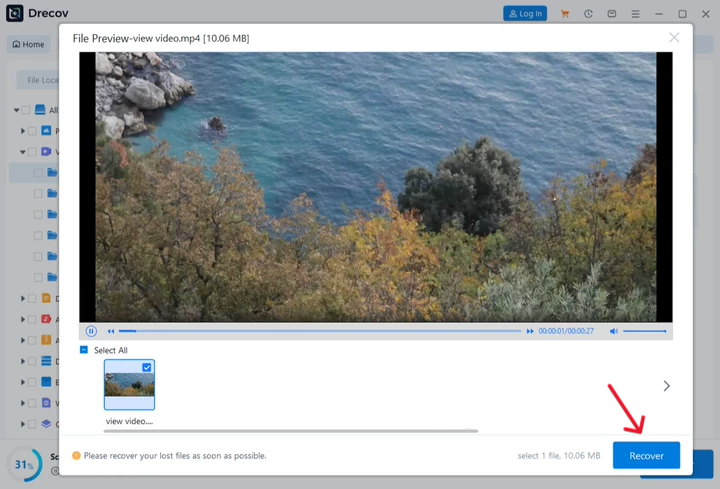
- Step 3: Preview the recovered video to ensure it plays correctly, select it, and click Recover to save it to a secure external storage device.
Important Warning: Never save recovered video files back to the exact same drive partition they were lost from, as this action can permanently corrupt the remaining unrecovered data sectors.
Method 3: Windows File History
If you previously configured the built-in backup tools in Windows 10 or Windows 11, you can use File History to revert your folder state.
- Step 1: Press the Windows Key, type Control Panel, and press
Enter. - Step 2: Navigate to System and Security > File History.
- Step 3: Click Restore personal files in the left-hand menu.
- Step 4: Browse the timeline backups, locate your missing video, select it, and click the green Restore button.
Method 4: Command Prompt & Shadow Copies
Advanced users can leverage Volume Shadow Copies via the Command Prompt (cmd) to pull older versions of directories.
- Step 1: Press
Win + Xand select Terminal (Admin) or Command Prompt (Admin). - Step 2: Type
vssadmin list shadowsto see if your system saved a backup state of your drive volume. - Step 3: If shadow copies exist, right-click the parent folder where your video lived, select Properties, navigate to the Previous Versions tab, pick a timestamp, and click Restore.
Alternative or Complementary Methods
Aside from dedicated local recovery, manual system tweaks and alternative storage management solutions can assist you. For example, knowing how to clean up cloud integration issues can prevent automated syncs from deleting local media. If you struggle with cloud file conflicts, learning how to remove OneDrive from File Explorer can streamline your local system directory behavior.
Comparison of Recovery Techniques
| Recovery Method | Success Rate | Technical Difficulty | Cost | Best Used For |
|---|---|---|---|---|
| Recycle Bin | High | Beginner | Free | Recent accidental deletions |
| PandaOffice Drecov | Very High | Beginner | Commercial | Formatted drives, permanent Shift+Del deletions |
| File History | Medium | Intermediate | Free | Users with active external backup drives |
| Shadow Copies | Low to Medium | Advanced | Free | System-driven automated restore points |
Furthermore, if your videos were originally sourced from online streams, you can look into browser cached files or check tutorials on how to download video from browser Firefox to re-acquire online content safely instead of attempting deep drive scans.
Tips & Best Practices for Successful Video Recovery
To maximize your success rates when mastering how to restore deleted videos on pc, follow these strict operational rules:
- Stop Using the PC Instantly: Avoid browsing the web, downloading files, or running heavy apps. These activities write temporary data to your drive, which might overwrite your lost video segments.
- Isolate Your Drive: If you lost data on an external hard disk or SD card, safely unplug it immediately until you are ready to scan it with PandaOffice Drecov data recovery software.
- Beware of Fake Repair Tools: Do not download unverified “video repair fixes” that promise instant recovery; these often contain malware that could further damage your storage partition. For authoritative guidance on file system structures and partition safety, refer to the Microsoft Support Documentation.
- Run Regular Backups: Always employ the 3-2-1 backup rule—keep three copies of your data, across two different types of media, with one copy stored completely off-site.
Frequently Asked Questions
Can I recover videos after emptying the Recycle Bin?
Yes. Emptying the Recycle Bin removes the file’s directory entry, but the actual video data remains on the disk sectors until new files overwrite it. Employing a tool like PandaOffice Drecov data recovery software can scan these raw sectors to achieve a successful video restore.
How to restore deleted videos from computer storage if it’s an SSD?
SSD recovery is highly time-sensitive due to the internal TRIM optimization feature. You must shut down your system immediately and run a recovery scan before the operating system executes its scheduled background command block deletions.
Why do some recovered videos fail to play?
This problem happens due to data fragmentation or partial overwriting. If the computer overwrites even a tiny fraction of a large video file’s header, the media player will not recognize the file format.
Is it possible to learn how to restore deleted videos on computer without software?
Yes, but only if you have pre-existing backups. You can use Windows File History, System Restore points, or cloud backups like OneDrive. However, if no backup exists, specialized software is mandatory.
Conclusion
Mastering how to restore deleted videos on pc requires a blend of fast action and the right tools. Whenever data loss occurs, immediately stop using the affected drive to safeguard the unallocated sectors. Afterward, rely on a dependable utility like PandaOffice Drecov data recovery software to safely locate and reconstruct your missing files. By practicing proactive data management and maintaining routine backups, you can protect your valuable digital videos from permanent loss.






