







Losing critical cloud documents due to an accidental click or an unexpected sync error is a stressful experience. Fortunately, learning how to restore deleted onedrive files is easier than you might think. Whether you accidentally cleared an entire folder on your desktop or a background process caused a synchronization mismatch, your data is rarely truly gone.
While Microsoft offers built-in safety nets, these native features often come with strict time limits and version constraints. Consequently, many users find themselves facing permanent data loss once those grace periods expire. This is precisely where specialized tools become essential. PandaOffice Drecov data recovery software provides a highly reliable, unrestricted solution designed to retrieve lost cloud data directly from your local hardware storage. This comprehensive guide walks you through every available method to restore deleted onedrive files, detailing everything from native cloud recycles to advanced physical disk recovery.
Understanding the Basics of How to Restore Deleted OneDrive Files
When you manage your cloud storage, understanding how files are indexed and synchronized across your local machine and Microsoft’s servers is crucial.
How Cloud Deletion Works
When you erase a item from your computer’s synchronized folder, that command instantly transmits to the cloud server. However, Microsoft does not immediately erase the binary structure. Instead, the system marks the data for removal and routes it through a multi-stage retention system.
Common Challenges in Cloud Recovery
- The 30-Day Expiration Wall: For personal Microsoft accounts, items sent to the cloud recycle bin are completely purged after 30 days.
- The 93-Day Corporate Limit: Work or school accounts extend this window to 93 days, after which data is permanently wiped.
- Online-Only File Restrictions: Files configured as “Online-Only” (which use the Windows Files On-Demand feature) do not bypass to your local hardware Recycle Bin when erased.
- The Ransomware Threat: Advanced malware attacks can systematically corrupt your entire cloud library, making standard restoration tools completely ineffective.
Where PandaOffice Drecov Saves the Day
Meanwhile, if your cloud files were once fully downloaded or cached on your PC, their local remnants remain on your physical hard drive (HDD or SSD). When Microsoft’s cloud-side window expires, PandaOffice Drecov data recovery software can scan your local system cache and underlying storage sectors to rebuild and restore deleted onedrive files effortlessly.
⚠ Warning: Install it on a drive different from the one where your data was lost to prevent overwriting.
Solutions to OneDrive Restore Deleted Files Issues
The following step-by-step solutions are organized by technical difficulty, beginning with basic built-in options and advancing to deep hardware scanning.
Method 1: Check the Native Windows Recycle Bin
If you deleted a file directly inside your local synced folder, it usually moves to your operating system’s local storage safety net first.
- Step 1: Double-click the Recycle Bin icon on your Windows desktop. Alternatively, use the hotkey combination
Win + Dto clear your screen and locate it quickly. - Step 2: Locate the file or folder you need. Right-click the item and choose Restore.
Important Warning: If your file was configured as “Free up space” (Online-Only), it will completely bypass this local container. Furthermore, clearing this container requires more advanced measures. If you have already emptied this folder, you can follow these strategies on how to restore deleted files from recycle bin.
Method 2: Use PandaOffice Drecov Data Recovery Software
When cloud storage clocks expire, or if you have permanently emptied your local recycle bin, a dedicated physical drive scan is your absolute best path to success. PandaOffice Drecov data recovery software can bypass file system restrictions to rebuild broken cloud fragments from your physical drive.
⚠ Warning: Install it on a drive different from the one where your data was lost to prevent overwriting.
- Step 1: Launch the application. On the main interface, select your primary system drive (typically
C:\) where your local cloud cache folder resides.

- Step 2: Click Scan. The program will perform a rapid directory search followed automatically by a sector-by-sector deep scan.

- Step 3: Browse the results using the search filter. Look for the local path:Plaintext
C:\Users\[YourUsername]\OneDrive

- Step 4: Select your target files, click Recover, and choose a secure external storage location to save them.
Method 3: Retrieve via the Web-Based Cloud Recycle Bin
If the local operating system path yields no results, you must look directly inside Microsoft’s cloud-side retention layout.
- Step 1: Open your web browser and navigate to the official OneDrive Web Interface. Log in using your Microsoft credentials.
- Step 2: In the left-hand navigation menu, select Recycle bin.
- Step 3: Browse the list or use the search bar at the top of the interface. Check the box next to the files you want to retrieve.
- Step 4: Click the Restore button located on the top command bar.
Method 4: Time-Travel via Files Restore
For Microsoft 365 subscribers facing massive corruption, file overwrites, or ransomware infections, you can roll back your entire document library to an exact historical state.
- Step 1: Log into your account via your web browser. Click on the Settings (Gear) Icon in the upper-right corner.
- Step 2: Choose Options, and select Restore your OneDrive from the left navigation panel.
- Step 3: On the utility page, choose a specific historical marker from the dropdown menu (e.g., Yesterday, One week ago, or Custom date and time).
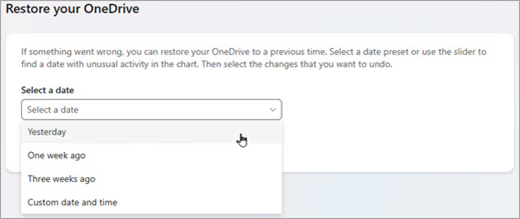
- Step 4: Examine the interactive activity chart to pinpoint the exact time the data corruption or mass deletion occurred.
- Step 5: Click Restore to completely revert your cloud space back to that exact minute.
Alternative or Complementary Methods
For complex enterprise environments or specific version tracking problems, alternative native recovery tools can provide additional options.
Version History Recovery
If you accidentally saved over an existing file, you do not need to pull a full system backup. Instead, right-click the file inside Windows File Explorer and select Version history. This presents a complete chronological timeline of saved states, allowing you to quickly download or overwrite the current file with an older copy.
The Second-Stage Admin Bin
Corporate or educational users benefit from a hidden safety layer known as the Site Collection Recycle Bin. When an enterprise user empties their standard cloud trash, the file moves into a secondary admin storage tier for the remainder of its 93-day cycle.
| Feature / Method | Retrieval Window | Success Rate for Cleared Trash | Ideal For |
| PandaOffice Drecov | Unlimited (Until disk sector is overwritten) | High | Empty trash bins, expired time limits, local drive wipes |
| Web Recycle Bin | 30 to 93 Days | Zero | Quick accidental desktop deletions |
| Files Restore | 30 Days Max | Zero | Ransomware attacks, extensive directory corruption |
| Admin Second-Stage | 93 Days Total | Zero | Institutional or corporate management recovery |
Tips & Best Practices
To maximize your chances of a successful data rescue and prevent future cloud storage mishaps, incorporate these professional habits into your workflow.
- Stop Using Your Device Immediately: If you notice a file is missing and realize you must restore deleted onedrive files, minimize your computer use. Writing new data to your hard drive can permanently overwrite the physical sectors where the old files are stored.
- Configure Files On-Demand Wisely: Keep your most critical operational directories set to “Always keep on this device”. This ensures a full physical copy stays on your hard drive, allowing local data extraction tools to assist you if cloud synchronization fails. For detailed setup advice, review the Official Microsoft OneDrive Support Documentation.
- Decouple Your Local Backups: Cloud synchronization is not a true standalone backup strategy. If ransomware encrypts your local drive, it will instantly sync those broken files to the cloud. You can find useful tips on how to handle these situations in our guide on how to turn off OneDrive backup.
- Secure Web Apps Separately: Remember that browser configurations need distinct safeguards too. If you run into cloud productivity application issues, make sure to read our companion troubleshooting guide explaining how to get your Google Chrome bookmarks back.
Conclusion
In conclusion, knowing how to restore deleted onedrive files gives you a major advantage when unexpected data loss strikes. While Microsoft’s cloud safety nets are helpful for quick, immediate fixes, they cannot protect you against permanent deletion after their time windows close.
When native cloud solutions fall short, PandaOffice Drecov data recovery software bridges the gap. By scanning your local hard drive’s sectors directly, it provides a powerful backup option to retrieve your valuable files when cloud options expire. For the best data security, combine proactive cloud maintenance with a reliable local data extraction tool so you are always prepared for any technical emergency.






