







Losing important files—whether it’s a treasured photo, an urgent work document, or hours of project work—can feel like a digital nightmare. Fortunately, if you use Microsoft OneDrive, the system includes robust architecture to help you recover deleted file, undo unwanted changes, and restore your account to a previous state. In this comprehensive guide, we’ll walk you step-by-step through how OneDrive handles deletions, the best ways to recover deleted items, and what to do when files seem gone forever.
Whether you’re using OneDrive with a personal Microsoft account or through Microsoft 365 at work or school, we’ve got you covered with the latest and most accurate methods available in 2026.
Understanding OneDrive’s File Deletion System
First things first—when you delete a file in OneDrive, it isn’t immediately erased from existence. Instead, OneDrive uses a tiered recycling system designed to catch accidents. This safety net exists because cloud storage automatically syncs changes across your devices. If you delete a file on your PC or mobile, OneDrive mirrors that action in the cloud.
However, you should not confuse this with your local computer’s Recycle Bin. While synced files may appear in your device’s bin when deleted locally, “online-only” files will not. Therefore, you always need to check OneDrive’s own web-based Recycle Bin first. This layered system dramatically increases your chance of recovery, provided you act within the retention windows.
Where Deleted Files Go in OneDrive
- The OneDrive Recycle Bin (First Stage): This is the immediate holding area for any deleted item.
- Second-Stage Recycle Bin: Specifically for work or school accounts, this acts as a “safety net for the safety net.” If you empty the first bin, the files move here for a final period before permanent erasure.
How Long Deleted Files Stay Available
The “timer” for onedrive recover deleted file depends entirely on your account type:
- Personal Accounts: Files stay in the bin for 30 days. If the bin exceeds your total storage limit, Microsoft may purge older items sooner.
- Work/School Accounts: Items are typically kept for 93 days across both stages of the bin.
How to Recover Deleted Files OneDrive via Native Tools
The most straightforward way to bring back lost data is through the official OneDrive interface. Because Microsoft prioritizes user experience, these steps are designed to be intuitive.
Step 1: Recovering via the Web Interface
This is the most reliable method because it shows the “truth” of what is currently in the cloud, regardless of what your local PC sync status says.
- Navigate to the official OneDrive website and sign in with your Microsoft credentials.
- On the left-hand navigation pane, select Recycle bin.
- Browse the list or use the search bar to find your missing data.
- Select the checkboxes next to the files and click Restore at the top of the page.

Step 2: How to Recover Deleted Pictures on OneDrive via Mobile
If you are on the go, the mobile app (iOS or Android) is equally capable.
- Open the OneDrive app on your smartphone.
- Tap the Me icon (or your profile picture) and select Recycle Bin.
- Find your photos or documents.
- Tap the three dots (…) next to the file or long-press to select multiple, then tap the Restore icon.
Advanced OneDrive Undelete Files: Using “Restore Your OneDrive”
Sometimes, a simple restore isn’t enough—especially if a ransomware attack encrypted your files or you accidentally deleted thousands of items at once. For these scenarios, Microsoft 365 subscribers can use a “time machine” feature.
Step-by-Step Account Rollback
- Log in to OneDrive on the web.
- Click the Settings (gear icon) at the top right and select Options.
- On the left menu, click Restore your OneDrive.
- On the restoration page, verify your identity if prompted.
- Select a date from the dropdown (e.g., “Yesterday,” “One week ago,” or a “Custom date and time”).
- Use the activity chart to identify exactly when the mass deletion occurred.
- Click Restore to roll your entire library back to that specific second.
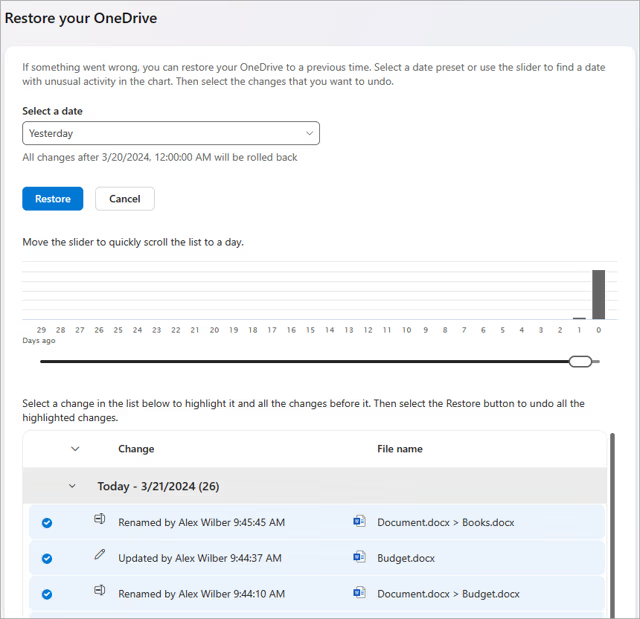
Warning: This method is “destructive” for newer data. Any files you created after the restore point will be moved to the Recycle Bin. Ensure you have copies of your most recent work before performing a full account rollback.
Recovering Permanently Deleted Data with PandaOffice Drecov
If you have emptied your Recycle Bin, or if the 30/93-day retention period has passed, Microsoft’s native tools will no longer show your files. In this situation, the files are marked as “unallocated space” on your local hard drive (if they were ever synced). To onedrive recover deleted file that have been purged, you need a professional data recovery suite like PandaOffice Drecov.
PandaOffice Drecov is a high-performance recovery tool designed to scan your local storage sectors for remnants of OneDrive files that were once cached or synced to your Windows.
⚠ Warning: Install it on a drive different from the one where your data was lost to prevent overwriting.
Step 1: Select the Local OneDrive Folder
Launch the software. On the main interface, you will see a list of drives and specific locations. Since OneDrive usually stores local copies in C:\Users\[YourUsername]\OneDrive, select the C: Drive or use the “Select Folder” option to target the specific OneDrive path.

Step 2: Run the Deep Scan
Click Scan. PandaOffice Drecov will first perform a “Quick Scan” to find recently deleted pointers, followed automatically by a “Deep Scan.” The Deep Scan looks at the raw data structure, which is essential for onedrive undelete files operations where the file system reference is gone.

Step 3: Filter and Preview
Once the scan is complete, use the file type filter. If you are looking for photos, use the “how to recover deleted pictures on onedrive” logic by filtering for .jpg, .png, or .heic formats. Drecov allows you to preview the images before recovery to ensure they aren’t corrupted.

Step 4: Execute Recovery
Select the files you need and click Recover. Choose a destination—ideally an external hard drive or a USB flash drive—to save the recovered files.
Key Operation Point: If you realize files are missing, stop using your computer immediately. Writing new data to the disk (even browsing the web) can overwrite the “deleted” files, making them unrecoverable by any software.
Using Version History to Restore Changed Files
Sometimes the file isn’t “deleted,” but it has been saved over with incorrect information. Version history is a lifesaver for document management.
- Open File Explorer on your PC.
- Right-click the file in question within your OneDrive folder.
- Select Version history.
- A list of previous timestamps will appear. Click the three dots next to the version you want and select Restore.
This is the most effective way to recover deleted files onedrive logic applied to internal data rather than the file entry itself.
Data Management and Prevention Tips
Recovery is great, but prevention is better. To avoid future panics regarding onedrive recover deleted file, consider these expert configurations:
- Check Your Sync Settings: Ensure that “Files On-Demand” is configured to your liking. If you turn it off, all files are downloaded to your PC, giving you a local “buffer” for recovery.
- Enable Personal Vault: For extremely sensitive documents, use the Personal Vault. It has its own recycling rules and added encryption.
- Secondary Backups: Follow the 3-2-1 backup rule: 3 copies of your data, on 2 different media, with 1 copy off-site (OneDrive is your off-site copy; keep a local external drive as your second).
If you are looking to change how you interact with the service or are troubleshooting sync issues that lead to data loss, you may find these resources helpful:
- How do I disable OneDrive 2026 Step-by-Step Guide
- How to get rid of OneDrive without losing your files 2026 Guide
- How to remove OneDrive from Windows 11 2026 Updated
OneDrive recover deleted files FAQs
1. If I delete a file on my synced PC while offline, can I still recover deleted files OneDrive later?
Yes. OneDrive tracks changes locally even when you are offline. Once your device reconnects to the internet, the deletion command is sent to the cloud, and the file is moved to the online OneDrive Recycle Bin. You can then follow the standard web recovery steps. If the file was stored locally (not “online-only”), you might also find it in your Windows Recycle Bin or Mac Trash before the next sync cycle completes.
When a shared file is deleted, it goes into the Recycle Bin of the person who owned the file. If you were the recipient and deleted a file shared with you, it won’t appear in your bin; you must ask the original owner to restore it. However, if you had “Edit” permissions and deleted a file in a shared folder you own, you can restore it normally from your own Recycle Bin, and it will reappear for all collaborators.
3. Does “Emptying the Recycle Bin” on my PC permanently delete my OneDrive cloud files?
Not necessarily. If you delete a “locally available” file, it goes to your PC’s Recycle Bin. Emptying that bin only removes the local copy. The master version in the cloud stays in the OneDrive Web Recycle Bin for the standard 30-day (personal) or 93-day (work) retention period. To truly onedrive undelete files after a local purge, always check the web interface at onedrive.live.com.
4. Can I recover a file if I accidentally hit “Delete” inside the OneDrive Personal Vault?
Yes, but with extra security. Items deleted from the Personal Vault are moved to the OneDrive Recycle Bin like any other file. However, to recover deleted files onedrive specifically from the Vault, you will be prompted to re-authenticate (via fingerprint, PIN, or MFA code) before the system allows you to view or restore those specific items from the bin.
5. Why can’t I find the “Restore your OneDrive” option in my settings?
The “Restore your OneDrive” (Files Restore) feature is a premium benefit. It is only available for Microsoft 365 Personal, Family, Business, or School subscribers. If you are using the free 5GB tier, you are limited to the standard Recycle Bin. For free users, if a file is purged from the bin, using a local recovery tool like PandaOffice Drecov on the original syncing PC is the only viable alternative.
Conclusion
While the prospect of losing data is daunting, Microsoft has built-in several layers of protection to ensure you can onedrive recover deleted file with minimal effort. Whether you use the standard Recycle Bin, the “Restore Your OneDrive” rollback feature, or third-party professional tools like PandaOffice Drecov, your data is rarely truly “gone” if you act within a reasonable timeframe.
Stay calm, follow the steps logically—starting from the easiest (Web Recycle Bin) to the most advanced (Data Recovery Software)—and you will likely see your files again.






