







If you’re wondering how to logout from OneDrive, you’re not alone. Maybe you’re switching accounts, using a shared computer, or simply want to stop syncing files for a while. Whatever your reason, signing out of OneDrive is straightforward once you know where to look. The process differs slightly depending on your device, but the good news is that you can log out in just a few clicks.
OneDrive, developed by Microsoft, is deeply integrated into Windows and widely used across Mac, Android, iPhone, and web browsers. That integration makes file syncing seamless—but it can also make logging out slightly confusing. In this comprehensive guide, we will break down the process step by step, device by device, while also exploring how to protect your data using professional tools like PandaOffice Drecov.
Understanding OneDrive and Why You Might Need to Log Out
OneDrive is a cloud storage service that automatically syncs your files across devices. Think of it as a digital bridge connecting your phone, laptop, tablet, and web browser. When you save a file in your OneDrive folder, it appears everywhere you’re logged in. While this is incredibly convenient, there are several scenarios where you might need to sever that connection.
Common Reasons People Sign Out
People usually choose to log out of OneDrive for practical and security-related reasons. Some users need to switch between personal and business accounts to keep their professional life separate from their private files. Others need to secure their sensitive data when using a shared or public computer, such as at a library or a coworking space.
In corporate environments, logging out of OneDrive can prevent accidental data exposure. Furthermore, users often find that the syncing process consumes too much bandwidth or CPU power, leading them to sign out to improve system performance. Sometimes, the logout process serves as a troubleshooting step. If OneDrive is stuck syncing or showing constant errors, signing out and back in can act like a reset button, clearing the cache and re-establishing a clean connection.
Difference Between Signing Out and Unlinking
Here’s where many people get confused. Signing out of OneDrive via a web browser is not the same as unlinking your PC or Mac from the OneDrive application. When you perform a OneDrive logout on a web browser, you are simply ending that specific session. However, when you “Unlink” a device, the background synchronization process stops entirely for that machine.
Unlinking is a more “permanent” form of logging out for desktop users. Local files remain on the hard drive, but any subsequent changes you make will not upload to the cloud, and changes made on other devices will not download to that computer. Understanding this distinction is vital for maintaining data integrity and ensuring you don’t accidentally lose access to important documents.
How to Logout from OneDrive on Windows
Windows users often find the process slightly elusive because OneDrive runs as a background service. You won’t find a giant “Log Out” button on your desktop or in the Start menu. Instead, the control center for how to logout from OneDrive is tucked away in the system tray.
Using the System Tray Method
The system tray is the collection of icons located at the bottom-right corner of your screen, near the clock. Follow these steps to initiate a logout:
- Locate the Icon: Look for the small blue or white cloud icon. If you don’t see it, click the upward-pointing arrow to show hidden icons.
- Open Settings: Click the cloud icon once. A small status panel will appear. Click the Gear Icon (Settings) in the top-right corner of this panel.
- Access Account Tab: From the menu, select Settings. A new window will pop up. Navigate to the Account tab on the left-side or top navigation bar.
- Finalize Logout: Here, you will see your account information. To effectively log out of OneDrive, you must click the link that says Unlink this PC.
Unlinking Your PC from OneDrive
Once you click Unlink account, a confirmation box will appear. Confirm your choice, and the OneDrive setup screen will reappear, asking you to sign in. At this point, you have successfully completed the logging out of OneDrive process on Windows.
Warning: Unlinking does not delete your files from the Microsoft cloud servers. However, if you chose the “Files On-Demand” feature, some files may appear as “Online-only” (marked with a blue cloud icon). These files will become inaccessible once you log out until you sign back in. Always ensure important files are “Always keep on this device” before unlinking if you need immediate offline access.
How to Logout from OneDrive on Mac
The process on macOS is very similar to the Windows experience, though the interface follows Apple’s design language. If you are a Mac user looking for how to logout of OneDrive, follow these instructions.
Accessing OneDrive Settings
- Menu Bar: Look at the top-right corner of your Mac’s screen. You will see the OneDrive cloud icon in the menu bar.
- Settings Menu: Click the icon, then click the Gear Icon and select Settings (or Preferences in older versions).
- Account Management: Go to the Account tab within the Preferences window.
Removing Your Account from Mac
To finish the OneDrive logout on Mac, click the Unlink this Mac button. A dialog box will ask for confirmation. Once confirmed, the application will stop syncing, and your account will be removed from the local client.
For more advanced troubleshooting regarding Mac sync issues, you may find this resource helpful: How to Reset OneDrive and Fix Sync Errors Fast.
How to Logout from OneDrive on Android
On mobile devices, the workflow is much more app-centric. Since Android is a Google-led platform, Microsoft’s OneDrive operates as a standalone app that manages its own credentials.
Signing Out Through App Settings
- Open App: Launch the OneDrive app on your Android smartphone or tablet.
- Profile Icon: Tap the Me icon (represented by a person silhouette or your profile picture) located at the bottom-right or top-left of the screen.
- Settings: Tap on Settings.
- Account Selection: Tap on the specific account name you wish to sign out of.
- Log Out: Scroll to the bottom and tap Sign Out.
Once you confirm, the app will clear its local cache for that account. Note that any files you marked for “Offline” use may be removed from the device’s local storage to save space, but they remain safe in your cloud storage.
How to Logout from OneDrive on iPhone and iPad
The iOS version of the app provides a very clean interface for logging out of OneDrive.
Removing Your Account in iOS App
- Navigate to Settings: Open the OneDrive app and tap your profile picture in the top-left corner.
- Select Account: Tap on Settings, then tap the account you want to remove.
- Sign Out: You will see a Sign Out option. Tap it and confirm.
This process ensures that your personal data is no longer accessible via the app on that specific iPhone or iPad. If you are planning to give your phone to someone else, this is a critical security step.
How to Logout from OneDrive via Web Browser
If you are accessing your files via a web browser (Chrome, Safari, Edge) on a public or shared computer, how to logout from OneDrive becomes a matter of ending the web session.
Signing Out from OneDrive Online
- Visit the Portal: Go to the official OneDrive Login Page.
- Profile Menu: Click on your profile picture or initials in the top-right corner of the browser window.
- Sign Out: Select Sign out from the dropdown menu.
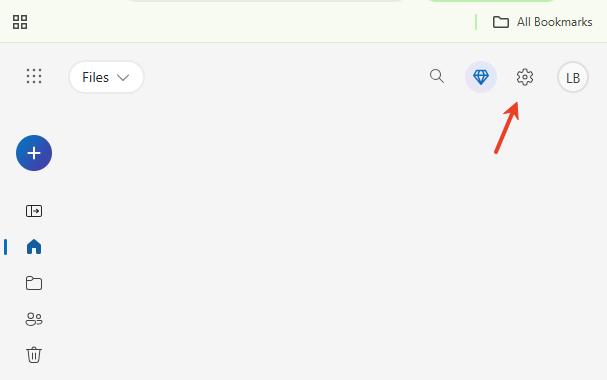
Security Tip: When using a public computer, simply closing the tab is often not enough. Always use the “Sign out” button and consider clearing the browser’s history and cookies to ensure the next user cannot access your account.
What Happens After You Log Out?
Understanding the aftermath of a OneDrive logout is essential for data safety. Many users fear that logging out will delete their hard work, but that is generally not the case.
File Sync Behavior
Once you have successfully completed the steps for how to logout of OneDrive, the “heartbeat” between your device and the cloud stops. If you edit a Word document on your computer while logged out, those changes will not appear on your phone. Conversely, if you upload a new photo from your phone, it won’t appear in your PC’s OneDrive folder until you log back in.
Access to Local Files
The files that were already fully downloaded to your computer stay on your computer. They are located in the C:\Users\[Username]\OneDrive folder by default on Windows. However, they are now just standard local files. If you need to clean up your device after logging out, you might need to manually delete these folders. To learn more about managing these local folders without losing data, check out: How to Disable a Folder from OneDrive and Recover Lost Files.
Advanced Data Recovery: Using PandaOffice Drecov
Sometimes, the process of logging out of OneDrive or unlinking a PC leads to accidental file loss. Perhaps you thought a file was synced when it wasn’t, or you accidentally deleted the local OneDrive folder after unlinking. This is where a professional tool like PandaOffice Drecov becomes indispensable.
PandaOffice Drecov is a high-performance data recovery solution designed to retrieve lost, deleted, or formatted files from Windows and Mac systems. If your OneDrive files have vanished during a logout or unlinking procedure, follow these steps to recover them.
⚠ Warning: Install it on a drive different from the one where your data was lost to prevent overwriting.
Step-by-Step Data Recovery with PandaOffice Drecov
Step 1: Select the Location
Launch the program. On the main interface, you will see a list of drives and specific locations. Select the drive where your OneDrive folder was located (usually the C: drive) and click Start.

Step 2: Scan for Deleted Files
The software will perform a Quick Scan followed by a Deep Scan. Key Point: Let the Deep Scan complete if you are looking for files deleted a long time ago or after a logout session. You can see the files appearing in real-time.

Step 3: Preview and Filter
PandaOffice Drecov allows you to preview files (photos, documents, etc.) before recovering them. Use the search bar to look for specific filenames that were in your OneDrive folder.

Step 4: Recover Your Data
Select the checkboxes next to the files you wish to restore. Click the Recover button.
Warning Prompt: Always save the recovered files to an external hard drive or a different partition to ensure the recovery process is 100% successful.
Troubleshooting OneDrive Logout Issues
Sometimes, clicking “Sign out” or “Unlink” doesn’t work as expected. Here is how to handle common roadblocks.
OneDrive Not Responding
If the OneDrive icon is grayed out or spinning indefinitely, the application might be frozen. In Windows, press Ctrl + Shift + Esc to open the Task Manager. Find “Microsoft OneDrive,” right-click it, and select End Task. Restart the app from the Start menu and try the logout process again.
Account Still Syncing After Logout
If you see sync icons (blue arrows) on your files even after you thought you performed a OneDrive logout, you may need to check your Windows “Email & accounts” settings.
- Go to Settings > Accounts > Email & accounts.
- Find the Microsoft account and ensure it isn’t set to “Sign in to all apps automatically.”
If you decide that the app is simply too much trouble and want to remove it entirely, refer to this guide: How to Uninstall OneDrive on Windows and Mac.
Security Tips Before Logging Out
Before you finalize how to logout from OneDrive, consider these security best practices to keep your data safe.
- Check Sync Status: Ensure the cloud icon shows “Your files are synced” before logging out. If you log out while an upload is at 50%, that file will be corrupted or incomplete in the cloud.
- Clear Local Cache: On Windows, after unlinking, navigate to the OneDrive folder. If the device is public, delete the folder and empty the Recycle Bin.
- Two-Factor Authentication (2FA): Even if you log out, your account is only as safe as your password. Enable 2FA on your Microsoft account to prevent unauthorized logins from other locations.
- Use Private Windows: If you must use a browser to check OneDrive on a public PC, use Incognito or InPrivate mode. This automatically logs you out and clears history when you close the window.
Logging out of OneDrive FAQs
1. Does logging out of OneDrive delete my files?
No, your files stay safe in the cloud. Only the link between your current device and the cloud is broken. Local copies remain unless you delete them manually.
2. Can I log out of OneDrive without uninstalling it?
Yes. By using the “Unlink this PC” option on Windows or Mac, you perform a OneDrive logout while keeping the software installed for future use.
3. What is the difference between “Sign out” and “Quit OneDrive”?
“Quit OneDrive” simply closes the app; it will likely restart when you reboot your computer and continue syncing. “Sign out” or “Unlink” removes your account credentials entirely.
4. How do I log out of OneDrive if my computer is stolen?
You can log out remotely. Go to your Microsoft Account security page online, look for “Devices,” and select “Remove” or “Sign out” for the stolen machine.
5. Can I recover files if I deleted them after logging out?
Yes, if the files were stored locally, you can use PandaOffice Drecov to scan your hard drive and recover the deleted data even after the OneDrive app is disconnected.
Conclusion
Mastering how to logout from OneDrive is a fundamental skill for anyone using the Microsoft ecosystem. Whether you are moving between devices, troubleshooting sync errors, or securing your data on a shared computer, the steps are quick and effective. Remember that while logging out of OneDrive stops access, unlinking is the preferred method for stopping the background synchronization process on PCs and Macs.
Data management is a balance of convenience and security. By following the steps outlined above, you ensure that your files remain where they belong—under your control. And should anything go wrong during the process, tools like PandaOffice Drecov provide a reliable safety net to bring your lost data back to life. Stay vigilant, sync responsibly, and always double-check your account status before walking away from a shared device.






