







Losing precious memories due to accidental deletion or SD card formatting can be frustrating. Fortunately, deleted SD card photo recovery is possible using both system-level tools and specialized software. Whether you need deleted photo recovery Android, memory card deleted photo recovery, or deleted photo recovery iPhone, understanding the causes and recovery methods will significantly improve your chances of restoring lost images. In this tutorial, we’ll guide you through practical, step-by-step methods to recover deleted photos from SD cards, USB drives, and other storage devices, highlighting free solutions and professional software options. By following this guide, even beginners can confidently attempt SD memory card deleted photo recovery while avoiding common mistakes that could permanently overwrite valuable data.
Understanding SD Card Photo Loss
Accidental deletion, formatting, or corruption of SD cards can lead to sudden photo loss. Users often assume their photos are gone forever, but most deleted files remain on the device until overwritten. This section explains common causes of lost photos and how to prevent permanent damage.
Common Causes of Photo Loss
- Accidental Deletion: Pressing “Delete” without a backup can remove files instantly.
- SD Card Formatting: Quick or full formatting erases directory pointers but may leave data recoverable.
- Corruption: File system errors or improper ejection can make photos inaccessible.
- Virus or Malware: Malicious software can delete or hide images.
- System Crashes: Power outages or app errors can interrupt file saving, resulting in lost photos.
⚠️Warning: Continuing to save new files on the affected SD card can overwrite deleted photos, making recovery difficult or impossible.
How Deletion Works
When you delete a photo, most devices only remove the file’s reference from the system. The actual image data stays on the card until new data overwrites it. Understanding this mechanism is key to successful recovery.
Free Methods for SD Card and Memory Card Photo Recovery
Several free methods allow users to attempt recovery before considering paid solutions. These approaches range from built-in system tools to reliable free software.
Method 1: Recycle Bin / Trash Retrieval
For computers, deleted photos often first go to the Recycle Bin (Windows) or Trash (Mac).
Step-by-Step Instructions:
- Open Recycle Bin (Windows) or Trash (Mac).
- Search for the missing photo by name or date.
- Right-click the file and select “Restore” (Windows) or drag it back to its original folder (Mac).
Usage Tips:
- Check recently deleted folders immediately for the best chance of recovery.
- Avoid emptying the bin before checking.
Precautions:
⚠️Warning: Once emptied, this method cannot recover files—use software-based recovery instead.
Method 2: System-Level Recovery Tools
Modern operating systems offer built-in recovery features to restore deleted or previous versions of files.
Windows (File History / Previous Versions):
- Navigate to the folder where the photo was stored.
- Right-click and select Properties → Previous Versions.
- Choose a version before deletion and click Restore.
Mac (Time Machine Backup):
- Connect the backup drive.
- Open the folder containing the missing photo.
- Launch Time Machine and browse past snapshots.
- Select the desired photo and click Restore.
Usage Tips:
- Enable automatic backups to avoid permanent loss in the future.
- Check external drives if the photo was saved there.
Precautions:
⚠️Warning: Recovery may fail if the system backup was not configured before deletion.
Method 3: Free Photo Recovery Software
If system tools fail, free recovery software designed for memory cards can help. This method supports SD card deleted photo recovery, deleted photo recovery iPhone, and deleted photo recovery Android.
Step-by-Step Instructions:
- Download trusted free recovery software.
- Connect the SD card, USB drive, or device to your computer.
- Launch the program and perform a scan for deleted images.
- Preview recoverable photos and select those you want to restore.
- Save recovered photos to a different drive to prevent overwriting.
Usage Tips:
- Use a separate storage device for recovered files.
- Avoid scanning the SD card multiple times unnecessarily, which may reduce recovery chances.
Precautions:
⚠️Warning: Free tools often have file size limits or restricted features—be aware of these before starting.
Professional Deleted Photo Recovery Software
For permanently deleted photos or formatted SD cards, professional software provides a higher success rate. PandaOffice Drecov is a reliable solution for photo recovery programs for memory cards, supporting Android, iPhone, and SD cards.
Why Choose Drecov
- Supports memory card deleted photo recovery across various file formats.
- User-friendly interface suitable for beginners.
- Quick scanning and selective recovery of photos.
3-Step Recovery Process with Drecov
- Connect Device: Insert your SD card, USB drive, or connect your phone to the computer.
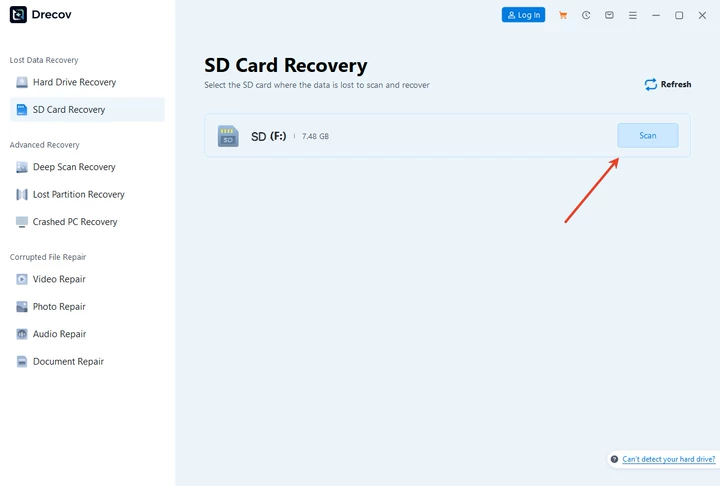
2. Scan for Deleted Photos: Open Drecov and select the drive or device. Click Scan to detect deleted images.

3. Recover and Save: Preview recoverable photos, select desired files, and save them to a different storage location.

Usage Tips:
- Avoid saving recovered photos to the original SD card to prevent overwriting.
- Perform recovery immediately after deletion for best results.
Precautions:
⚠️Warning: Do not interrupt the scanning process to ensure all recoverable photos are detected.
Comparison of Recovery Methods
| Method | Pros | Cons | Best For |
|---|---|---|---|
| Recycle Bin / Trash | Quick, built-in, no software needed | Only works if files not permanently deleted | Recent accidental deletion |
| System Backup Tools | Restores previous versions, integrated | Requires prior backup setup | Windows/Mac users with backups |
| Free Recovery Software | Supports SD card, USB, Android/iPhone | Limited features, file size restrictions | Users without backups |
| Professional Software (Drecov) | High recovery success, supports multiple devices | Paid, requires installation | Formatted SD cards, permanently deleted files |
Common Mistakes During Photo Recovery
- Continuing to use the SD card after deletion.
- Saving recovered files to the same device.
- Ignoring system backups or failing to check free recovery methods first.
- Using untrusted software that may damage data further.
Tips to Prevent Future Photo Loss
- Regular Backups: Use cloud storage or local backup drives.
- Safely Eject Devices: Prevent corruption by ejecting SD cards properly.
- Use Reliable Storage: Invest in high-quality SD cards with wear-leveling technology.
- Enable Automatic Recovery: iPhone and Android devices often have built-in recently deleted folders.
FAQs
Q1: How can I perform deleted photo recovery iPhone?
Use iPhone’s Recently Deleted album, system backups, or recovery software like Drecov for permanent deletion.
Q2: Is there deleted photo recovery software for iPhone that works with formatted SD cards?
Yes, professional software like Drecov supports iPhone permanently deleted photo recovery from external storage, memory cards, and internal storage.
Q3: Can I recover memory card deleted photos without software?
Yes, check system tools, recycle/trash bin, or backup solutions. For advanced recovery, professional software increases success.
Q4: What is the best way for deleted photo recovery Android?
Free methods include checking Google Photos trash, SD card recovery apps, and system-level backups. For formatted cards, software like Drecov is recommended.
Q5: How does SD memory card deleted photo recovery work?
Deleted files remain on the card until overwritten. Recovery software scans for these files and restores them to a safe location.
Conclusion
Losing photos can be stressful, but deleted SD card photo recovery is possible with the right approach. Start with system tools and free methods to recover recently deleted images. For more complex cases, such as formatted SD cards or permanently deleted files, professional solutions like PandaOffice Drecov offer the highest success rate with a simple three-step process. By understanding causes, taking precautions, and following step-by-step instructions, users can effectively restore lost memories while minimizing the risk of permanent data loss.






