







Losing your Google contacts can be stressful, whether it happens due to accidental deletion, sync errors, or device changes. Understanding how to google contacts restore is critical to ensure access to your essential personal or business connections. Google provides native recovery tools via contacts.google.com recovery, but sometimes contacts are permanently deleted or inaccessible. In these cases, professional recovery software like Pandaoffice Drecov can help recover lost contacts from local storage or synced devices.
This guide explains step-by-step how to restore contacts from Google, recover deleted entries, and implement preventive strategies to avoid future loss. Additionally, it covers how to manage backups and utilize versioning to retrieve your information efficiently.
⚠️Warning: Acting quickly increases the chances of successful recovery. Delays may result in permanent loss if contacts are overwritten or sync conflicts occur.
Understanding Google Contacts and Recovery Options
Before attempting a my Google contacts restore, it is important to understand how Google manages contacts. Contacts are stored in the cloud and synced across devices using your Google account. When a contact is deleted, Google retains it in a temporary state for up to 30 days for personal accounts, providing a window for recovery.
Key Features of Google Contact Management
- Cloud-based synchronization across devices.
- Automatic backup of contacts when signed in to Google account.
- Version history to restore previously deleted contacts.
- Access through both web and mobile apps.
Using these features, users can restore contacts Google efficiently. However, for contacts deleted beyond the retention period or corrupted during sync, professional tools like Pandaoffice Drecov offer deep scanning capabilities to recover lost data.
⚠️Warning: Do not add new contacts or sync changes immediately after deletion, as this may overwrite recoverable entries.
Method 1: Restore Google Contacts via Contacts.Google.com
The primary method to recover contacts is using Google’s built-in interface at contacts.google.com recovery. This tool allows users to retrieve contacts deleted within the last 30 days.
Steps
- Log in to your Google account.
- Navigate to Contacts or directly visit contacts.google.com.
- Click Trash on the left-hand menu.
- Select the contacts you want to restore.
- Click Recover or Restore.
These contacts will return to your main contacts list and sync automatically across devices. This method is ideal for users who want a quick recovery of recently deleted entries.
⚠️Warning: Items in the Trash are automatically deleted after 30 days, making prompt action essential.
Method 2: Restore Contacts Using Google Account Settings
Google allows users to restore all contacts to a previous state within the past 30 days, useful for bulk recovery after accidental mass deletions.
Steps
- Sign in to your Google account and open Contacts.
- Click Settings → Undo changes.
- Select a time frame: 10 minutes, 1 hour, yesterday, or a custom date.
- Confirm the restore action.
This restores all contacts to the chosen state, effectively undoing recent deletions or incorrect edits. Restore contacts from Google using this method is especially helpful for accidental mass deletions.
⚠️Warning: Choosing a restore point overwrites current contacts, so be cautious if you recently added new contacts you want to keep.
Method 3: Recover Contacts Using Gmail
Contacts in Gmail can sometimes be recovered if synced properly. Access Gmail’s interface to locate missing contacts for recovery.
Steps
- Open Gmail and log in to your account.
- Click the Google Apps icon → Contacts.
- Navigate to More → Undo changes.
- Select the appropriate time frame and click Confirm.
Using this approach, users can recover contacts that were accidentally deleted from the Gmail interface and restore them to their main contacts list.
⚠️Warning: Gmail only retains deleted contacts for a limited period. Act promptly to prevent permanent loss.
Method 4: Using Mobile Device Sync for Recovery
If contacts are missing on a mobile device, sometimes they still exist in the cloud. Ensuring proper sync can restore them without further tools.
Steps
- Open Settings on your mobile device.
- Navigate to Accounts → Google → Sync Contacts.
- Ensure contacts sync is enabled.
- Wait for synchronization to complete.
This method can recover contacts that were not showing on the mobile device but exist in your Google account. It is crucial for users who manage contacts primarily via mobile.
⚠️Warning: Avoid disabling sync for extended periods, as this may prevent contacts from updating across devices.
Method 5: Advanced Recovery Using Pandaoffice Drecov
For contacts deleted beyond Google’s 30-day recovery window or lost due to device corruption, Pandaoffice Drecov provides advanced recovery options.
Key Features
Selecting the right recovery software is essential when unexpected data loss occurs. Pandaoffice Drecov provides a powerful, secure, and efficient solution designed to handle a wide range of storage failure scenarios across different devices.
Advanced Recovery for SD Cards and Hard Drives
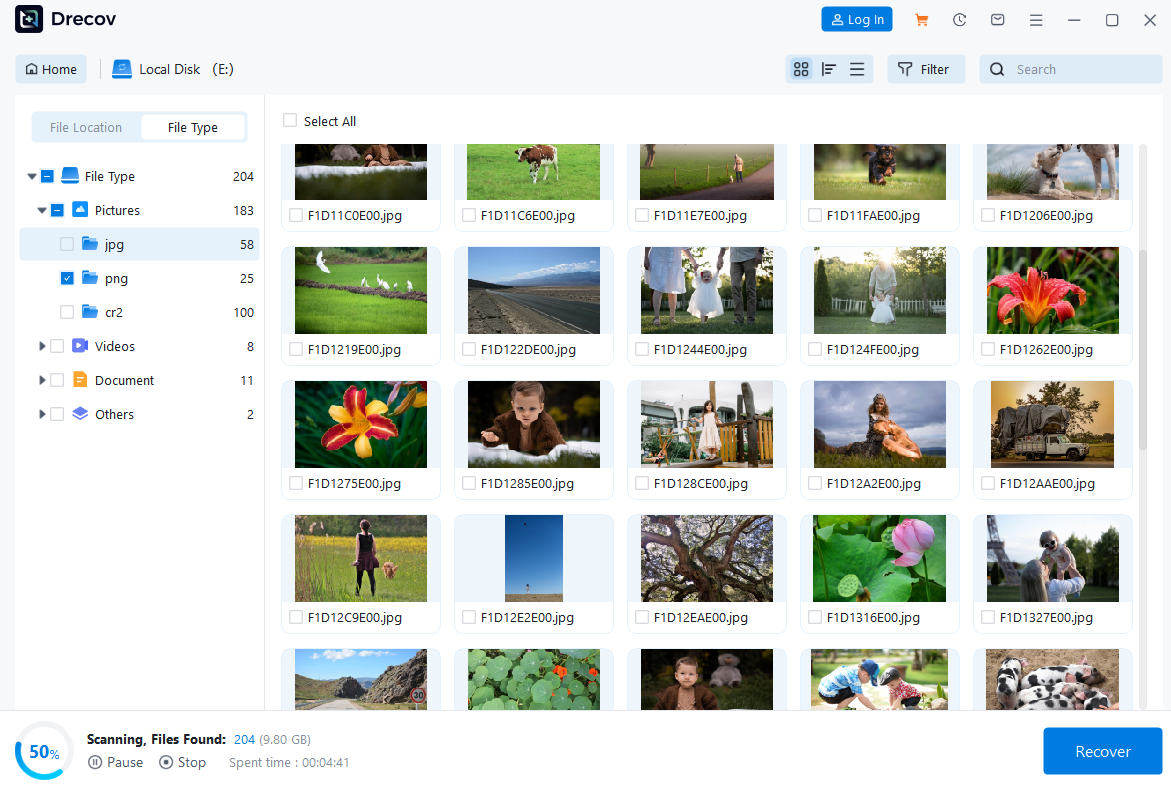
Pandaoffice Drecov supports recovering photos from an SD card as well as performing professional hard drive recovery. Whether files were accidentally deleted, a storage device was formatted, or data was lost due to corruption, its deep scan technology thoroughly analyzes storage sectors to locate recoverable content. The software is compatible with internal drives, memory cards, and various file systems, ensuring flexible recovery options in different environments.
Reliable Support for Recovering External Hard Drives
The software also specializes in recovering external hard drives that become inaccessible due to accidental formatting, partition loss, or file system damage. It automatically detects connected devices and performs comprehensive scans without altering original data, helping improve recovery success rates.
Efficient Recovery of Deleted Photos
One of its strongest capabilities is recovering deleted photos, even after permanent deletion from the Recycle Bin. The built-in preview feature allows users to verify files before restoration, ensuring accurate and controlled recovery.
With strong scanning performance, broad device compatibility, and an intuitive interface, Pandaoffice Drecov offers a dependable and professional solution for modern data recovery needs.
Steps
Download Drecov- Install Pandaoffice Drecov on a safe drive.
- Select the device or backup folder containing synced contacts.
- Run a deep scan for lost or deleted contacts.
- Preview and restore contacts to a secure location or directly to Google account.
This ensures users can recover contacts even if contacts.google.com recovery fails or data is permanently deleted.


⚠️Warning: Install recovery software on a different drive than the one containing lost contacts to avoid overwriting recoverable data.
Step 6: Preventive Measures for Google Contacts
Prevention is always better than recovery. Users can take several steps to ensure contacts remain safe.
Best Practices
- Enable regular sync between devices and Google account.
- Backup contacts to a local file or external drive periodically.
- Use version history or “Undo changes” feature regularly.
- Consider Pandaoffice Drecov as a backup safety net for critical contacts.
- Avoid bulk deletions without prior backup.
These measures reduce the risk of data loss and make recover contacts Google easier in the future.
⚠️Warning: Relying solely on cloud storage without backup may result in permanent data loss in case of sync errors or account issues.
Method 7: Recover Contacts from Old or Secondary Devices
Contacts may sometimes be lost due to device changes, factory resets, or accidental deletion. Old devices or secondary devices that previously synced with Google may contain recoverable data.
Steps
- Locate any old devices that were synced with your Google account.
- Ensure the device is not performing any new sync to avoid overwriting deleted contacts.
- Use Pandaoffice Drecov to scan local storage for previously synced contacts.
- Export or restore contacts to the current Google account.
This method is especially useful for users who manage multiple devices or have recently switched phones. It ensures that even contacts deleted from the cloud can be retrieved.
⚠️Warning: Avoid factory resetting devices before attempting recovery, as this can overwrite recoverable contact data.
Method 8: Bulk Restoration of Google Contacts
For users with large contact lists, restoring contacts individually can be time-consuming. Both Google’s Undo changes feature and Pandaoffice Drecov allow bulk restoration.
Steps
- Access Google Contacts via contacts.google.com.
- Use the Undo changes option for bulk recovery within 30 days.
- For older or permanently deleted contacts, scan using Pandaoffice Drecov.
- Preview and select multiple contacts for batch restoration.
Bulk restoration saves time and ensures that critical contacts are recovered efficiently, maintaining continuity in personal and business communications.
⚠️Warning: Always preview contacts before restoring in bulk to prevent accidental duplication or errors.
Method 9: Recover Contacts Using Google Takeout Backup
Google Takeout allows users to export their data, including contacts, for backup purposes. This feature can be useful for my Google contacts restore when other recovery methods fail.
Steps
- Log in to your Google account and visit Google Takeout.
- Select Contacts and export the file in vCard or CSV format.
- Use this backup to import contacts back into Google Contacts.
- Optionally, use Pandaoffice Drecov to restore contacts that are missing or corrupted in the backup file.
Using Google Takeout ensures users have an additional layer of safety for their contacts, especially for bulk or long-term archival purposes.
⚠️Warning: Exported backup files may not include contacts deleted prior to the export date. Always maintain multiple backups.
Method 10: Mobile Recovery and Sync Troubleshooting
Mobile devices often serve as the primary interface for Google Contacts. Missing or unsynced contacts can be restored by troubleshooting sync issues.
Steps
- Open Settings on the mobile device.
- Navigate to Accounts → Google → Sync Contacts.
- Force sync by toggling the switch off and back on.
- Check the Google Contacts app to ensure all contacts appear.
- For permanently missing contacts, scan local mobile storage using Pandaoffice Drecov.
This approach ensures that contacts missing on mobile are recovered and synced across all devices.
⚠️Warning: Avoid adding new contacts before sync is complete, as this may create conflicts or overwrite recoverable entries.
Preventive Strategies for Google Contacts
Maintaining contact safety requires both cloud and local backup strategies.
Best Practices
- Enable automatic syncing across all devices.
- Periodically export contacts via Google Takeout or CSV files.
- Use Undo changes or version history for quick restoration.
- Implement Pandaoffice Drecov for permanent recovery of deleted contacts.
- Avoid bulk deletions without creating backups first.
Following these strategies ensures users can recover contacts efficiently and reduces the risk of permanent data loss.
⚠️Warning: Relying solely on Google’s cloud without local backups increases risk during sync failures or account issues.
Frequently Asked Questions
Q1: How do I see my contacts in Google?
A: Log in to contacts.google.com or open the Google Contacts app on your device.
Q2: How do I restore contacts that have been deleted?
A: Use the Trash or Undo changes feature in Google Contacts, or scan local backups with Pandaoffice Drecov.
Q3: How to recover contacts from Gmail?
A: Access Google Contacts through Gmail and use the Undo changes feature, or export and restore via Takeout.
Q4: How do I restore contacts from Google if they are permanently deleted?
A: Use Pandaoffice Drecov to scan local or synced devices to retrieve contacts not available in the cloud.
Final Thoughts on Restoring Contacts from Google
Recovering deleted or lost contacts from Google requires a combination of cloud tools and professional recovery software. Using built-in methods such as contacts.google.com recovery, Trash, Undo changes, and Google Takeout allows users to recover most contacts efficiently. For contacts permanently deleted or lost due to device corruption, Pandaoffice Drecov provides deep scanning and recovery capabilities.
By combining these tools with preventive strategies like regular backups, mobile sync, and version history, users can ensure that their contacts remain safe and recoverable. Understanding how to recover contacts from Gmail or Google Contacts, maintaining backups, and using professional recovery software creates a comprehensive safety net for personal and professional data.






