







Many Windows users find themselves asking, “how do i delete onedrive?” While Microsoft’s cloud storage is helpful for some, it frequently forces unwanted file syncing, hijacks default user folders, and triggers annoying low-storage warnings.
However, completely removing or disabling cloud integration can sometimes lead to accidental data loss. Local files synced to the cloud might vanish if you aren’t careful. If you find yourself in a situation where important files disappeared during the unlinking process, PandaOffice Drecov data recovery software is the ultimate safety net to ensure your local data remains intact.
Understanding the Basics: Can I Delete OneDrive?
Before executing any commands, it is crucial to understand the fundamental question: can i delete onedrive without breaking Windows?
The Difference Between Unlinking and Uninstalling
- Unlinking: This stops the synchronization between your local computer and the cloud. Your files remain safe on OneDrive.com, but they will stop updating locally.
- Uninstalling: This completely removes the application from your system.
Common Pitfalls and Data Risks
A major issue with Microsoft’s cloud storage is its “Files On-Demand” feature. This setting keeps your files in the cloud while only leaving a lightweight “shortcut” on your hard drive. Consequently, if you delete the application without downloading these files first, you lose access to your local data.
If this happens, you don’t need to panic. PandaOffice Drecov data recovery software can scan your hard drive storage sectors to reconstruct and salvage local cached copies of your documents, photos, and desktop files. For more context on handling these native backup issues, see this detailed guide on how to turn off OneDrive backup.
Step-by-Step Solutions Using PandaOffice Drecov Data Recovery Software
Whether you want to temporarily pause the app or completely strip it from your system registry, follow these curated technical methods ranked by difficulty.
Beginner Method: Unlink and Uninstall OneDrive
This is the safest route for everyday users who want to stop the app from running without breaking core Windows system settings.
- Step 1: Look at your Windows taskbar (bottom-right corner). Right-click the blue or white cloud icon. If it is hidden, click the upward arrow icon.
- Step 2: Click the gear icon (Settings) and select Settings from the drop-down menu.
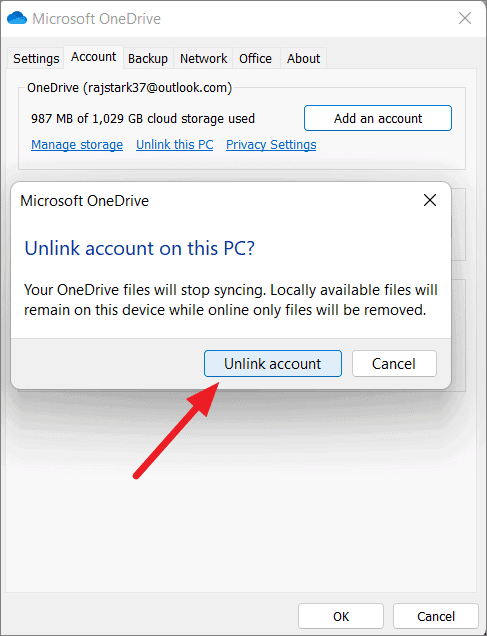
- Step 3: Navigate to the Account tab. Click the blue link that reads Unlink this PC, then confirm by clicking Unlink account.
- Step 4: Open your Windows Settings app by pressing the hotkey
Win + I. Go to Apps > Installed apps. Find Microsoft OneDrive, click the three dots, and select Uninstall.
Intermediate Method: Completely Remove via Command Prompt
If the standard Windows uninstaller fails or leaves background processes running, you can force-delete the application using administrative privileges.
- Step 1: Press the
Winkey, typecmd, right-click Command Prompt, and select Run as administrator. - Step 2: Terminate any running instances of the cloud application by typing the following command and pressing
Enter:taskkill /f /im OneDrive.exe - Step 3: To completely remove the application infrastructure, type the corresponding command for your OS architecture and press
Enter:- For 64-bit Windows:
%SystemRoot%\System32\OneDriveSetup.exe /uninstall - For 32-bit Windows:
%SystemRoot%\SysWOW64\OneDriveSetup.exe /uninstall
- For 64-bit Windows:
Advanced Method: Clean Residual Registry Entries
Even after an uninstall, leftover registry keys can leave broken folder shortcuts in your File Explorer side panel.
- Step 1: Open the Registry Editor by pressing
Win + R, typingregedit, and hittingEnter. - Step 2: Navigate precisely to the following registry path:
HKEY_CLASSES_ROOT\CLSID\{018D5C66-4533-4307-9B53-224DE2ED1FE6} - Step 3: Double-click the DWORD value named
System.IsPinnedToNameSpaceTreeand change its value data from1to0. Click OK. - Step 4: Restart your computer to apply changes.
Warning: Modifying the Windows Registry incorrectly can cause stability issues. Furthermore, breaking system paths can cause Windows to lose track of your local Desktop, Documents, or Pictures directories.
If you notice your files are missing after modifying system paths, open PandaOffice Drecov data recovery software immediately. Run a Deep Scan on your C:\Users\YourUsername directory. The software will bypass system errors, locate your hidden local user folders, and let you export them to an external drive safely.
How to Recover Lost Local Files Using PandaOffice Drecov Data Recovery Software
If you notice your files vanished or folders are empty after unlinking or modifying registry paths, can i delete onedrive files safely? Yes, by deploying a professional data recovery tool immediately.
What is PandaOffice Drecov?
PandaOffice Drecov data recovery software is a highly trusted, professional-grade security tool boasting an industry-leading 99.8% recovery success rate. It supports over 2,000 storage devices (HDDs, SSDs, USB drives, SD cards) and can restore more than 1,000 to 3,000 file types—including documents, photos, videos, and archives. Its advanced Quick Scan and Deep Scan features are perfectly tailored to rescue local data dropped or hidden during massive cloud sync adjustments.
⚠ Warning: Install it on a drive different from the one where your data was lost to prevent overwriting.
The 4-Step Recovery Process:
To rescue your orphaned or missing user directories, download the tool from the official portal and follow this procedural workflow:
Step 1.Select the Loss Location
Launch the software interface. On the home screen, select the exact local drive or custom directory path where your files were stored before unlinking (usually the C:\Users\YourUsername path or the specific OneDrive folder).

Step 2.Scan for Lost Data
Click the scan button. The tool will run a read-only scan to uncover files that standard Windows search misses. For deleted files from basic uninstallation, Quick Scan works instantly. For registry errors or missing partitions, the system automatically triggers a Deep Scan.

Step 3.Preview and Filter Files
Use the convenient built-in file filtering features to sort results by file type, size, or modification date. Take advantage of the unlimited free preview feature to open and verify the integrity of your documents, photos, or videos before performing the actual recovery.

Step 4.Recover and Save Locally
Check the checkboxes next to the missing files or directories you want to rescue. Click the green Recover button and choose a safe saving destination—preferably an external hard drive or a different local partition—to avoid overwriting any original data sectors.
Alternative or Complementary Methods
If you are wondering, “can i delete onedrive and use something else?”, you have several excellent built-in and third-party alternatives.
| Method / Tool | Pros | Cons | Best Used For |
| Group Policy Editor (GPO) | Permanently blocks syncing system-wide without deleting files. | Only available on Windows Pro/Enterprise editions. | Advanced users seeking a permanent block. |
| Manual Local Migration | Retains full control over physical data. | Time-consuming; requires manual drag-and-drop. | Users moving to external hard drives. |
| Google Drive / Dropbox | Highly stable; does not override default Windows paths. | Limited free storage tier. | Users looking for reliable cross-platform cloud options. |
Disabling via Group Policy Editor
For Windows Pro users, you can prevent the app from running or caching data without using the uninstaller. Press Win + R, type gpedit.msc, and navigate to Computer Configuration > Administrative Templates > Windows Components > OneDrive. Double-click Prevent the usage of OneDrive for file storage, set it to Enabled, and click Apply.
If you decide to switch entirely to an alternative cloud ecosystem, errors can still occur during migration. For instance, moving items quickly between cloud folders can occasionally lead to browser sync errors. If you experience data losses during alternative cloud setups, check out this guide on how to get your Google Chrome bookmarks back.
Tips & Best Practices for Managing Your Local Data
Safely answering “how do i delete onedrive” requires maintaining strict data integrity. Keep these best practices in mind to optimize your system:
- Disable Files On-Demand Before Uninstalling: Before unlinking your account, go to your cloud settings tab. Uncheck the box for Files On-Demand (or select “Download all files now”). This forces Windows to copy the real files from the cloud back onto your physical hard drive.
- Check Your Recycle Bin: Sometimes, unlinking causes Windows to throw synced items directly into the system trash. If you notice local files are missing, read this article on how to restore deleted files from Recycle Bin.
- Keep a Reliable Recovery Tool Handy: File system shifts can corrupt directory index tables. Running PandaOffice Drecov data recovery software right after an uninstallation helps ensure no orphaned files are left in unallocated space.
- Consult Official Resources: If you run into unique deployment errors, you can check the Microsoft Support Documentation for up-to-date lifecycle changes regarding Windows cloud storage sync client versions.
Here are five frequently asked questions designed to target search intent, capture Google featured snippets, and naturally optimize for your primary and secondary keywords.
Frequently Asked Questions
1. How do I delete OneDrive from Windows 11 completely?
To completely remove the application from Windows 11, you must first unlink your Microsoft account to prevent local file loss. Consequently, this stops active background syncing. Next, press Win + I to open Settings, navigate to Apps > Installed apps, search for Microsoft OneDrive, click the three horizontal dots, and choose Uninstall. Finally, restart your PC to clear any residual system processes.
2. Can I delete OneDrive without losing my personal local files?
Yes, you can absolutely delete the application without losing your personal files, provided you turn off the Files On-Demand feature first. This setting ensures that physical copies of your data reside on your local hard drive rather than just pointing to cloud-based shortcuts. If files do disappear during this transition, using PandaOffice Drecov data recovery software allows you to scan your storage drive sectors and successfully rebuild your missing local directories.
3. What happens to my computer data if I choose to unlink my PC?
Unlinking simply cuts the digital bridge between your physical machine and Microsoft’s cloud servers. Your files will remain safely intact online at OneDrive.com. Meanwhile, your local files will stay on your hard drive, but they will no longer update or sync across other connected devices.
4. Why does OneDrive keep reappearing after I uninstall it?
Windows often treats this cloud client as a core operating system utility. Furthermore, major Windows system updates can occasionally reinstall native applications automatically. If you want to permanently ensure it does not come back, you can use the Windows Group Policy Editor (gpedit.msc) or the registry modification method detailed above to disable the application framework system-wide.
5. How can I recover folders that were accidentally deleted during the unlinking process?
If local folders vanished after you uninstalled the application, it means those files were stored exclusively in the cloud layer. Fortunately, you can fix this by installing PandaOffice Drecov data recovery software. Run a deep scan on your main storage drive (C:\) to locate, preview, and restore the cached or orphaned files that Windows dropped during the uninstallation phase.
Conclusion
Figuring out how do i delete onedrive is a great way to reclaim local storage disk space, protect your privacy, and stop intrusive background processes. Whether you choose a simple uninstall via Settings or a deep dive into the Windows Registry, you can easily customize your operating system to fit your workflow.
However, unexpected data sync errors can happen during any system unlinking process. To keep your files protected, make sure to download PandaOffice Drecov data recovery software. It gives you a reliable, professional backup plan to safely restore your data if any local files are accidentally lost. Proper data care ensures your computer runs smoothly and your important information stays safe.






