







This comprehensive guide is designed to help you navigate the stressful moment when your digital library seems to have vanished. As an SEO and data recovery specialist, I’ve seen countless cases where users believe their data is gone forever, only to find it was simply displaced. By following these steps, you can restore bookmarks Firefox users often fear are lost and ensure your browsing environment is stable.
Understanding Why Firefox Bookmarks Suddenly Disappear
Imagine opening your browser one morning only to find that years of saved websites, research pages, tutorials, and favorite online stores are suddenly gone. It can feel like someone erased a digital diary you carefully built over time. When firefox bookmarks disappeared, the situation may seem catastrophic at first. But in many cases, the bookmarks are not actually lost—they are simply hidden, moved, or temporarily disconnected from your current profile.
The key thing to understand is that browsers like Firefox rely on internal databases and user profiles to manage bookmarks. These databases are stored locally on your computer and include files that record bookmark titles, URLs, folders, and icons. If the browser loads a different profile or encounters a glitch, it might appear as though everything vanished. According to official Mozilla Support, Firefox automatically stores multiple backup copies of bookmarks and keeps up to 15 recent backups in the profile folder, which can be restored if something goes wrong.
In other words, your bookmarks are often still sitting somewhere on your system, waiting to be recovered. Think of it like losing your keys in your house—they’re rarely gone forever; they’re just not where you expected them to be. Understanding how Firefox organizes and stores bookmarks is the first step toward recovering them and preventing future losses.
Temporary Glitches vs Permanent Data Loss
Many users panic immediately when bookmarks disappeared in firefox, assuming they have been permanently deleted. In reality, a large number of cases involve temporary glitches, especially after browser updates or system crashes. Sometimes the browser loads a default configuration, which gives the impression that your bookmarks were erased.
A temporary glitch can happen when Firefox fails to load the correct profile during startup. Profiles contain personal browsing data such as bookmarks, history, extensions, and saved settings. If Firefox accidentally starts with a newly created profile, you might only see the default bookmarks that come with a fresh installation. The original bookmarks are still intact but stored in the original profile folder.
How Firefox Stores Your Bookmarks
Firefox stores bookmarks in a database file called places.sqlite, located inside your Firefox profile folder. This file works alongside other data files that keep track of icons, metadata, and backup copies. If you imagine your browser as a library, this database acts like a catalog system that organizes every bookmarked page.
The browser also creates automatic backup files stored in the bookmarkbackups folder. These backup files are created regularly and contain snapshots of your bookmarks at specific points in time. When firefox bookmarks vanished, restoring one of these backups can often bring everything back instantly.
Common Reasons Firefox Bookmarks Disappear
When bookmarks vanish, the cause often comes down to a handful of common issues. Understanding these causes makes troubleshooting much easier. Instead of blindly trying random fixes, you can focus on the most likely explanation for your situation.
Firefox Profile Changes
One of the most common causes of missing bookmarks is a profile switch. Firefox profiles are separate containers that store browsing data. If the browser launches using a new or different profile, it will look like all your firefox bookmarks gone. Users may encounter this issue after reinstalling the browser or installing multiple versions of Firefox on the same system.
Browser Updates or Crashes
Software updates occasionally introduce unexpected behavior. A Firefox update may sometimes trigger a profile reset or temporarily disrupt access to bookmark data. Likewise, a browser crash during startup or shutdown can corrupt the bookmark database, causing bookmarks to disappear.
Sync Issues Between Devices
Firefox Sync allows users to share bookmarks across multiple devices. While this feature is convenient, it can also introduce problems if synchronization conflicts occur. For example, if bookmarks are accidentally deleted on one device, that change might sync across all connected devices, leading to a situation where firefox bookmarks disappeared globally.
Quick Checks Before Trying Advanced Fixes
Before diving into advanced recovery techniques, it’s worth checking a few basic settings. These simple steps solve a surprising number of bookmark disappearance cases.
Enable the Bookmarks Toolbar
The bookmarks toolbar sits beneath the address bar. If it’s disabled, your bookmarks might appear to be gone even though they still exist.
- Step 1: Right-click an empty space near the address bar.
- Step 2: Select Bookmarks Toolbar.
- Step 3: Choose Always Show.
Check the Bookmarks Library
Press Ctrl + Shift + O to open the Library window. If your bookmarks appear there, the issue is simply a display setting.
How to Restore Firefox Bookmarks from Backup
If the basic checks fail, the built-in restoration tool is your best friend. This process is designed to restore bookmarks firefox users have lost due to minor database corruption.
Restore Using Automatic Backups
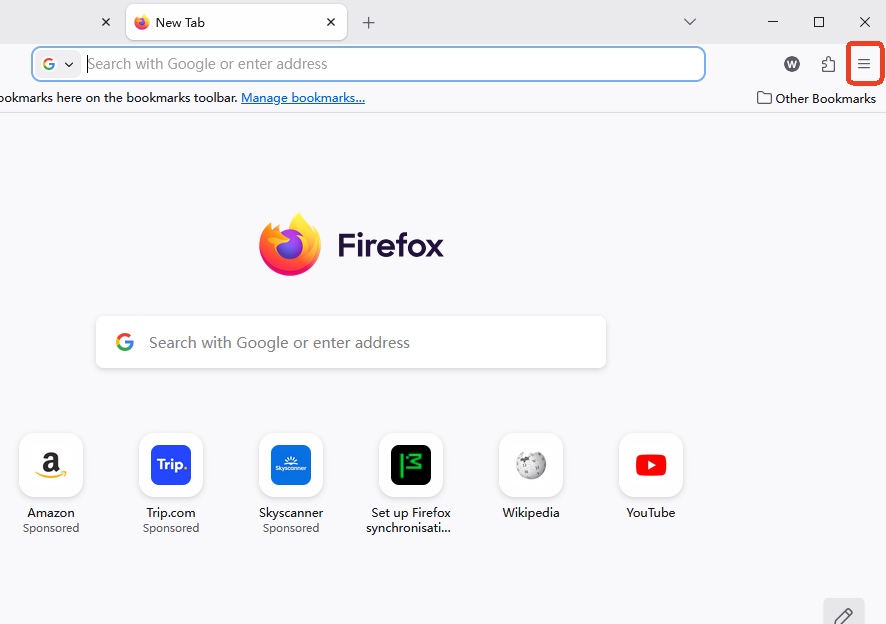
- Step 1: Click the menu button (three horizontal lines) in Firefox.
- Step 2: Go to Bookmarks → Manage Bookmarks.
- Step 3: In the Library window, click the Import and Backup button.
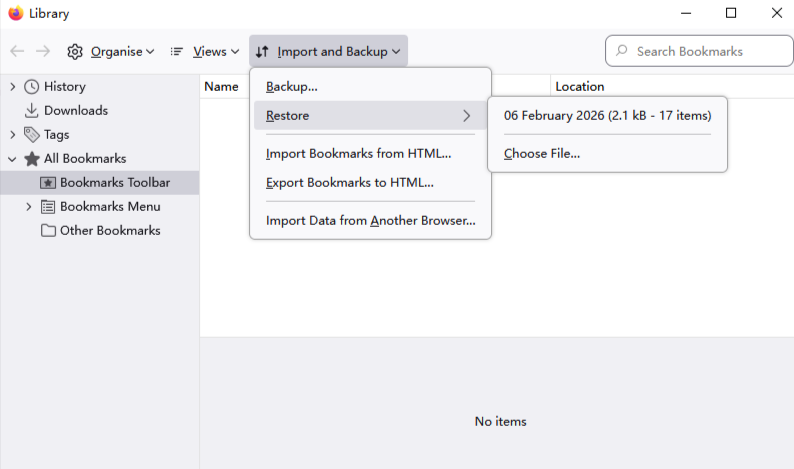
- Step 4: Select Restore and choose a backup date from the list provided.
- Step 5: Confirm the action. Firefox will replace the current (empty) set with the chosen backup.
Warning: Restoring a backup will replace your current set of bookmarks with the data from the backup file.
Restore from a Manual Backup File
If you have a .json or .html file saved externally:
- Step 1: Open the Library window (Ctrl + Shift + O).
- Step 2: Click Import and Backup.
- Step 3: Choose Restore from File… or Import Bookmarks from HTML….
- Step 4: Navigate to your file and click Open.
Recovering Lost Data with PandaOffice Drecov
If you find that your profile folder is empty, or the places.sqlite file was deleted during a system crash or accidental formatting, built-in browser tools won’t help. In these critical scenarios, you need a professional data recovery solution like PandaOffice Drecov. This tool scans your hard drive at a binary level to find fragments of deleted files.
⚠ Warning: Install it on a drive different from the one where your data was lost to prevent overwriting.
Step-by-Step Recovery with PandaOffice Drecov
- Step 1: Select the Scan Location. Choose the drive (usually C:) where your Windows user profile is located.

- Step 2: Filter for Database Files. Since Firefox stores bookmarks in
.sqlitefiles and backups in.jsonlz4files, use the search filter in PandaOffice Drecov to look for these specific extensions.

- Step 3: Execute the Deep Scan. Let the software perform a thorough scan. This might take some time depending on your disk size, but it is necessary to find older versions of the firefox bookmarks vanished files.

- Step 4: Preview and Recover. Once the scan is complete, browse the results. Look for files named
places.sqliteor those within abookmarkbackupsfolder path. Select them and click Recover. - Step 5: Reintegration. Place the recovered files back into your active Firefox profile folder while the browser is closed.
Key Prompt: Always save recovered files to an external drive first to ensure the integrity of the data.
Recover Bookmarks from an Old Firefox Profile
Sometimes, a major update moves your data to a “safety” folder.
Finding the Old Firefox Data Folder
Check your desktop for a folder named “Old Firefox Data”. If it exists, Firefox created it during a “Refresh.”
- Step 1: Open the Old Firefox Data folder.
- Step 2: Enter the subfolder (usually a string of random characters ending in .default).
- Step 3: Copy the
bookmarkbackupsfolder. - Step 4: Paste it into your new, active Firefox profile (found via
about:supportin the URL bar).
Fix Firefox Sync Problems
If your bookmarks disappeared in firefox after logging into a new device, Sync might be the culprit.
- Step 1: Click your account icon and select Sync Settings.
- Step 1: Ensure Bookmarks is checked.
- Step 3: If bookmarks are still missing, try clicking Sync Now. If this fails, sign out of all devices and sign back into the device that originally had the correct bookmarks first.
Prevent Firefox Bookmarks from Disappearing Again
To avoid the “my firefox bookmarks gone” panic in the future, implement these maintenance habits:
- Manual HTML Exports: Once a month, export your bookmarks to a cloud drive (Google Drive/Dropbox).
- Monitor Browser Health: Issues like memory leaks can cause crashes that corrupt databases. Learn how to stop the Firefox memory leak to keep your browser stable.
- Hardware Stability: Sometimes, hardware issues cause UI glitches. If your browser feels “off,” you might need to disable hardware acceleration in Firefox.
- Extension Awareness: Be careful with “Bookmark Manager” extensions, as they can sometimes overwrite native data.
Firefox Bookmarks Vanished FAQs
1. Why did all my Firefox bookmarks suddenly disappear?
Usually, this is due to Firefox switching to a new, empty profile or the bookmarks toolbar being hidden. It is rarely a case of permanent deletion on the first occurrence.
2. Can I recover deleted Firefox bookmarks?
Yes. Use the Restore feature in the Bookmarks Library or use PandaOffice Drecov if the underlying profile files were deleted from the hard drive.
3. Where are Firefox bookmarks stored on Windows?
They are located in: %APPDATA%\Mozilla\Firefox\Profiles\[profile-name]\. The main file is places.sqlite.
4. How many bookmark backups does Firefox keep?
Firefox typically maintains 15 compressed backups in the bookmarkbackups folder.
5. Will reinstalling Firefox delete my bookmarks?
No, the installer typically leaves your profile folder untouched, but it may create a new profile path, making it look like the data is gone.
Conclusion
While seeing your firefox bookmarks disappeared is a jarring experience, the architecture of modern browsers is built with redundancy in mind. From the hidden “Library” settings to the robust automatic backup system, your data is usually just a few clicks away. For more severe cases involving file deletion, tools like PandaOffice Drecov provide a professional-grade safety net.






