







If your browser feels sluggish, keeps crashing, or randomly flickers like a broken neon sign, there’s a good chance hardware acceleration is the culprit. Many users of Mozilla Firefox experience performance hiccups that seem mysterious at first. Pages stutter. Videos lag. Tabs freeze. And you’re left wondering, “Is my computer dying?” The reality is that while modern web browsers are incredibly powerful, they are also deeply reliant on the underlying hardware of your machine. When you firefox disable hardware acceleration, you are essentially telling the software to stop trying to be “smart” with your graphics card and instead stick to the basics. In this in-depth guide, we’re going to break down what hardware acceleration actually does, why it sometimes causes problems, and how you can disable it properly.
What Is Hardware Acceleration in Firefox?
Hardware acceleration sounds fancy, right? It basically means your browser uses your computer’s GPU (graphics processing unit) instead of relying entirely on your CPU (central processing unit). Think of your CPU as the brain handling logic and calculations, while your GPU is the artist specialized in visuals. When firefox hardware acceleration is active, it hands over graphic-heavy tasks like video playback, 3D animations, and complex page rendering to the GPU.
How Hardware Acceleration Works
When you open a high-definition video on YouTube or scroll through a complex webpage full of parallax animations, Firefox sends visual rendering tasks to your GPU. Instead of the CPU calculating every single pixel change—which can be exhausting for a processor also trying to manage background apps—the GPU handles graphical instructions directly.
This division of labor is intended to make everything smoother. The process relies heavily on an application programming interface (API) like DirectX on Windows or Metal on macOS. However, the success of this process depends on the “handshake” between the browser and your graphics drivers.
Why Browsers Use GPU Acceleration
Modern websites are heavy. They are packed with high-resolution images, 4K videos, WebGL elements, and dynamic interfaces that require constant refreshing. Without hardware acceleration firefox, your CPU would struggle under a constant, heavy load. This could lead to your cooling fans spinning at maximum speed just because you have a few tabs open.
Why You Might Need to Disable Hardware Acceleration
So why would you turn off hardware acceleration firefox if it’s meant to improve performance? Because sometimes, the “artist” (the GPU) and the “brain” (the CPU) stop communicating effectively.
Common Performance Issues
If Firefox freezes randomly or becomes unresponsive when streaming videos, hardware acceleration might be the trigger. Some users notice increased memory usage or sudden CPU spikes even though acceleration is enabled. This paradox happens when the browser spends more energy trying to fix rendering errors than it would have spent just doing the work on the CPU in the first place.
Compatibility Problems with Drivers
Graphics drivers are often the root cause of the need to firefox disable hardware acceleration. Windows updates, macOS updates, or specific GPU driver versions can create compatibility conflicts. Firefox may attempt to use features your GPU doesn’t fully support or that the driver hasn’t optimized yet. Consequently, you get crashes, flickering, or full browser shutdowns. For more official technical documentation on this, you can visit the Mozilla Support Page.
Signs Hardware Acceleration Is Causing Problems
Not sure if this setting is your issue? Look for these specific symptoms. If you encounter them, knowing how to turn off hardware acceleration firefox will be your best fix.
Screen Flickering or Black Screens
Does your screen flash black when switching tabs? Do videos briefly disappear or show green artifacts? These visual glitches are classic hardware acceleration conflicts. It feels like the browser is blinking uncontrollably because your GPU is misfiring while trying to draw the interface.
Browser Freezing or Crashing
If Firefox crashes especially during video playback or heavy animation use, that’s another red flag. You might also see temporary system-wide lag where even your mouse cursor stutters. If these problems disappear after you firefox disable hardware acceleration, you’ve found your culprit.
How to Disable Hardware Acceleration in Firefox (Desktop)
Now let’s get practical. If you are experiencing any of the issues mentioned above, follow these steps to regain stability.
Step-by-Step Instructions
- Step 1: Open your Firefox browser.
- Step 2: Click the Menu button (the three horizontal lines) in the top-right corner of the window.
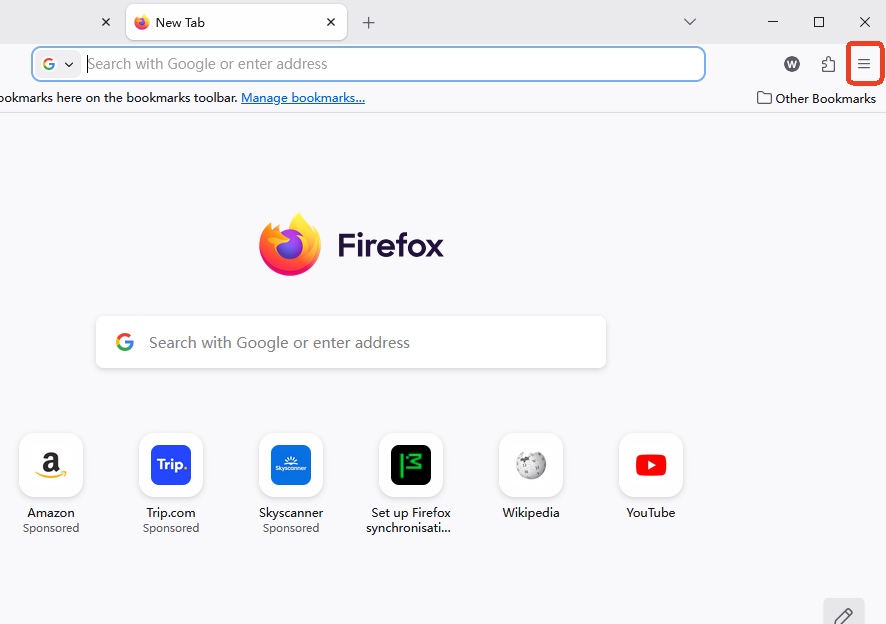
- Step 3: Select Settings from the dropdown menu.
- Step 4: On the General panel, scroll down until you reach the Performance section.
- Step 5: Uncheck the box that says “Use recommended performance settings.” Once you do this, additional options will appear.
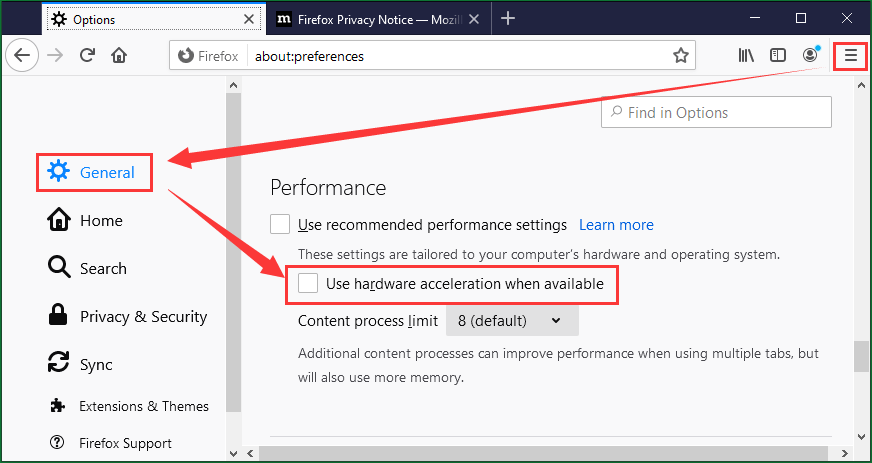
- Step 6: Uncheck the box for “Use hardware acceleration when available.”
- Step 7: To ensure the changes take effect, you must restart Firefox.
Restarting Firefox Properly
Closing and reopening a window isn’t always enough if background processes are still active. To do a clean restart:
- Close all Firefox windows.
- On Windows, press Ctrl + Shift + Esc to open Task Manager and ensure no “firefox.exe” processes are running.
- On macOS, press Command + Option + Esc to Force Quit if necessary.
- Relaunch the browser.
How to Disable Hardware Acceleration in Firefox via Advanced Settings
If the standard menu doesn’t work or if you prefer a deeper level of control, you can use the hidden configuration editor. This is the most “hardcore” way to firefox disable hardware acceleration.
Using about:config
- Step 1: In the Firefox address bar, type
about:configand press Enter. - Step 2: You will see a warning screen saying “Proceed with Caution.” Click Accept the Risk and Continue.
- Step 3: In the search preference name box at the top, type
layers.acceleration.disabled. - Step 4: You will see a boolean value. If it is set to
false, double-click it (or click the toggle button) to set it to true. - Step 5: Search for
webgl.disabledand set it to true if you are still having issues with 3D elements. - Step 6: Restart Firefox completely.
Firefox Hardware Acceleration on Windows vs macOS
While the menu options are the same, the underlying tech differs by OS. On Windows systems, firefox hardware acceleration relies heavily on DirectX. If you have an older NVIDIA or AMD card, driver updates are frequent, and a single bad update can break your browser’s stability.
On macOS, Firefox utilizes Apple’s Metal framework. While Apple generally keeps these frameworks very stable, older Macs (pre-2015) often struggle with the sheer volume of data modern browsers push through the GPU. In both cases, if you notice the fans spinning up the moment you open a browser, it’s time to turn off hardware acceleration firefox.
Pros and Cons of Disabling Hardware Acceleration
Before you decide to keep it off forever, consider this comparison table:
| Feature | Hardware Acceleration ON | Hardware Acceleration OFF |
| Video Playback | Smoother on high-end GPUs | Uses more CPU; may drop frames |
| Stability | Can cause crashes on old drivers | Extremely stable for most users |
| CPU Usage | Generally lower | Significantly higher |
| Battery Life | Better (GPU is more efficient) | Slightly worse on laptops |
| Visual Quality | Best for 3D/WebGL | Standard 2D rendering |
Does Disabling Hardware Acceleration Improve Performance?
The answer is: It depends on your machine.
On high-end systems with a dedicated graphics card (like an RTX 40-series), disabling it may actually reduce performance slightly because the CPU has to work harder. However, on older laptops, “budget” PCs, or systems with integrated Intel HD graphics, the GPU often lacks the “horsepower” to handle modern browser rendering. In these cases, to firefox disable hardware acceleration is the single best thing you can do for speed.
Performance isn’t just about raw frames per second; it’s about consistency. A slightly slower browser that never crashes is infinitely better than a lightning-fast one that freezes every ten minutes.
When You Should Keep Hardware Acceleration Enabled
You should probably leave the setting alone if:
- Your graphics drivers are fully up to date from the manufacturer’s website (e.g., NVIDIA or AMD).
- You use a modern computer with a dedicated GPU.
- You frequently stream 4K video or use browser-based video editors.
- You haven’t noticed any flickering or “Black Screen of Death” issues.
Troubleshooting After Disabling Hardware Acceleration
If you have completed the steps to firefox disable hardware acceleration and you are still facing issues, the problem might not be the GPU. You should try the following:
- Update Firefox: Ensure you are on the latest version by going to Help > About Firefox.
- Clear Cache: Sometimes corrupted temporary files cause the same “lag” as hardware issues.
- Disable Extensions: Ad-blockers or heavy scripts can sometimes conflict with page rendering.
- Refresh Firefox: Use the “Refresh Firefox” feature to reset the browser to its default state while keeping your bookmarks.
Data Recovery: What to Do if a Crash Causes Data Loss
While we are on the topic of browser stability, we must address the “nightmare scenario.” Sometimes, a severe browser crash—often triggered by hardware acceleration conflicts—can lead to the loss of important data. This could be downloaded files that disappeared, corrupted profile folders, or lost session data.
When standard browser fixes fail and you realize your local Firefox data (like history or downloaded work) has been wiped during a crash, you need a professional tool. This is where PandaOffice Drecov comes in. It is a specialized data recovery product designed to deep-scan your hard drive for lost browser profiles and deleted files.
⚠ Warning: Install it on a drive different from the one where your data was lost to prevent overwriting.
Recovering Firefox Data with PandaOffice Drecov
If a crash has led to missing files, follow these steps using PandaOffice Drecov:
- Step 1: Launch the software and select the drive where Firefox was installed (usually the C: drive on Windows).

- Step 2: Click Scan. The tool will perform a deep dive into your file system to find “orphaned” files.

- Step 3: Once the scan is complete, use the search filter to look for “Firefox” or “.sqlite” files (which are the database files Firefox uses for bookmarks and history).

Warning: Before proceeding, ensure you have an external drive or a different partition ready to save the recovered files. Never recover files back to the same location they were lost from.
- Step 4: Select the relevant files and click Recover.
More Data Recovery Tips for Firefox Users
Recovering from a browser disaster involves more than just toggling settings. If you’ve successfully handled the firefox hardware acceleration issue but still need to restore your digital life, check out these specialized guides:
- If you’ve lost your saved sites, follow the Firefox bookmarks recovery: 5 proven methods to get back lost data.
- Need to find where your data is stored manually? See Where is the Firefox bookmarks location? Find your data instantly.
- If you are cleaning up after a bad install, learn how to delete Firefox browser plug-ins when Firefox is deleted.
- For persistent stability issues beyond just GPU settings, read The ultimate 2026 guide: What to do if Firefox keeps crashing.
Turn Off Hardware Acceleration Firefox FAQs
1. Is it safe to disable hardware acceleration in Firefox?
Yes, it is completely safe. It simply shifts graphical tasks back to your CPU. It won’t damage your computer or your browser.
2. Will disabling hardware acceleration slow down Firefox?
On powerful, modern systems, you might notice a slight decrease in the smoothness of scrolling or animations. However, on older systems, it often makes the browser feel faster because it stops the freezing.
3. Does hardware acceleration affect video streaming quality?
It doesn’t change the resolution (like 1080p vs 4K), but it can affect the frame rate. If your CPU is weak, you might see “dropped frames” in high-res videos if acceleration is off.
4. Why does Firefox crash when hardware acceleration is enabled?
The most common reason is an outdated or “buggy” graphics driver that cannot properly translate the browser’s requests into visual data.
5. Can I re-enable hardware acceleration later?
Absolutely. If you update your graphics drivers or upgrade your PC, just go back to the Performance settings and check the “Use hardware acceleration when available” box again.
6. How do I know if my GPU supports hardware acceleration?
Most GPUs made in the last 15 years support it. The question is usually whether the drivers are stable enough for Firefox to use them without crashing.
7. Does disabling this help with battery life?
Actually, hardware acceleration is usually better for battery life because the GPU is more efficient at rendering visuals than the CPU. You should only disable it if you are having stability problems.
Conclusion
To firefox disable hardware acceleration is not a sign of a “weak” computer; it is a smart troubleshooting step to ensure a stable browsing environment. This feature was designed to make the web feel faster by leveraging the power of your GPU, but due to the infinite combinations of hardware and drivers, it isn’t always perfect.
If your browser flickers, crashes, or freezes during video playback, turning off this setting is the quickest way to get back to work. By following the steps outlined—from the basic settings menu to the advanced about:config editor—you can tailor Firefox to run exactly how your hardware needs it to. And remember, if a crash ever results in lost data, tools like PandaOffice Drecov are there to help you pick up the pieces.






