







If you’ve ever noticed Mozilla Firefox consuming more and more RAM over time — even when only a few tabs are open — you might be wondering whether you are dealing with a firefox memory leak. Such resource mismanagement happens when the browser allocates system memory but fails to release it properly, gradually consuming available RAM, slowing down your computer, and sometimes leading to sudden freezes or crashes.
It is a topic that regularly surfaces in user discussions and bug reports. Although Mozilla continually improves its engine, these internal memory accumulation issues still crop up often enough that users are right to want answers. In this guide, we will explore why this browser instability happens, how to fix it, and crucially, how to recover any data lost when a resource-starved application crashes.
What Is a Memory Leak?
At its core, a memory leak is a specific type of software bug. It occurs when an application requests memory (RAM) from your system, uses it to perform a task, but then fails to return it to the “pool” of available resources when it is no longer needed.
Because the system thinks the memory is still in use, it won’t give it to other programs. Over time, these unreleased memory blocks accumulate. This causes the application’s total memory footprint to balloon. In typical operation, modern programs should release unused memory back to the operating system or reuse it internally.
Memory Management in Modern Browsers
Browsers are among the most complex applications you’ll ever use. They juggle multiple processes, dozens of open tabs, background tasks like service workers, and dynamic content from countless websites. To handle all this efficiently, Firefox uses advanced memory management techniques. These include “garbage collection” and a multi-process architecture designed to isolate different browsing components. However, even with these safeguards, a firefox memory leak can bypass the system’s ability to clean up.
How Memory Leaks Occur
Leaks happen when data structures or browser processes retain references to memory that is no longer needed. This could be due to a bug in the browser’s engine, an extension holding onto outdated data, or poorly written scripts on a webpage that keep requesting memory without freeing it.
Why Firefox Memory Behavior Matters
It isn’t just a technical curiosity; it has a tangible impact on your productivity and hardware health.
User Experience Impacts
When it causes the browser to use more memory than it should, you’ll notice sluggish performance. You might experience delayed tab responses, “stuttering” while scrolling, or even full system freezes. On devices with limited RAM, this behavior can mean the difference between smooth browsing and an unusable computer.
System Resource Constraints
Your computer has finite memory. When Firefox consumes a large portion of RAM due to a firefox memory leak, other programs like Word, Photoshop, or Spotify must compete for the leftovers. This competition forces the operating system to use “Swap” space on your hard drive, which is significantly slower than RAM, leading to a system-wide slowdown.
Firefox’s Memory Architecture
To effectively troubleshoot a firefox memory leak, we must understand how the browser is built to handle data.
Electrolysis (E10S) Multi-Process Model
Years ago, Firefox adopted a multi-process architecture known as Electrolysis (E10S). In this model, the UI runs in one process while web content runs in others. While this improves stability (so one crashing tab doesn’t kill the whole browser), it makes identifying a firefox memory leak slightly harder because the “leak” might be hidden in one of many firefox.exe processes in your Task Manager.
Role of Garbage Collection
Firefox uses a process called Garbage Collection (GC) to automatically reclaim memory. Think of it as a digital janitor. If the janitor misses a room, that’s where the firefox memory leak begins. If scripts on a website are too complex, the GC might get “confused” and leave the memory occupied.
Real-World Cases of Firefox Memory Leak
Memory leak reports are not just theoretical; they are documented frequently in the tech community.
Theme-Related Leak Issues
At times, specific Firefox themes — especially animated or dynamic ones — have triggered a firefox memory leak when a window is minimized or hidden. For example, Mozilla has previously confirmed issues where memory usage climbed rapidly simply because a specific visual theme failed to “pause” its resource consumption when the browser wasn’t visible.
User Reports on Reddit
Firefox community forums and Reddit threads are filled with user reports describing unexpected RAM growth. Some users report that after 48 hours of uptime, a firefox memory leak causes the browser to consume over 10GB of RAM with only two tabs open. These real-world cases prove that while Firefox is excellent, it is not immune to resource bloat.
Common Firefox Memory Leak Triggers
Identifying the trigger is the first step toward a permanent fix.
Extensions and Themes
Third-party extensions are the primary suspects in most firefox memory leak investigations. If an extension is poorly coded, it may request data every few seconds but never delete the old data. If you suspect a firefox memory leak, your first step should always be testing the browser with add-ons disabled.
Heavy Web Pages and Scripts
Websites that use heavy JavaScript, constant video streaming, or long-running background scripts (like real-time crypto tickers or social media feeds) can cause a firefox memory leak. These sites often hold onto memory longer than necessary, making the browser look like the culprit when the website’s code is actually at fault.
Memory Leak Detection Tools
Firefox provides built-in “X-ray” tools to see exactly what is happening inside your RAM.
Built-In Firefox Debug Tools
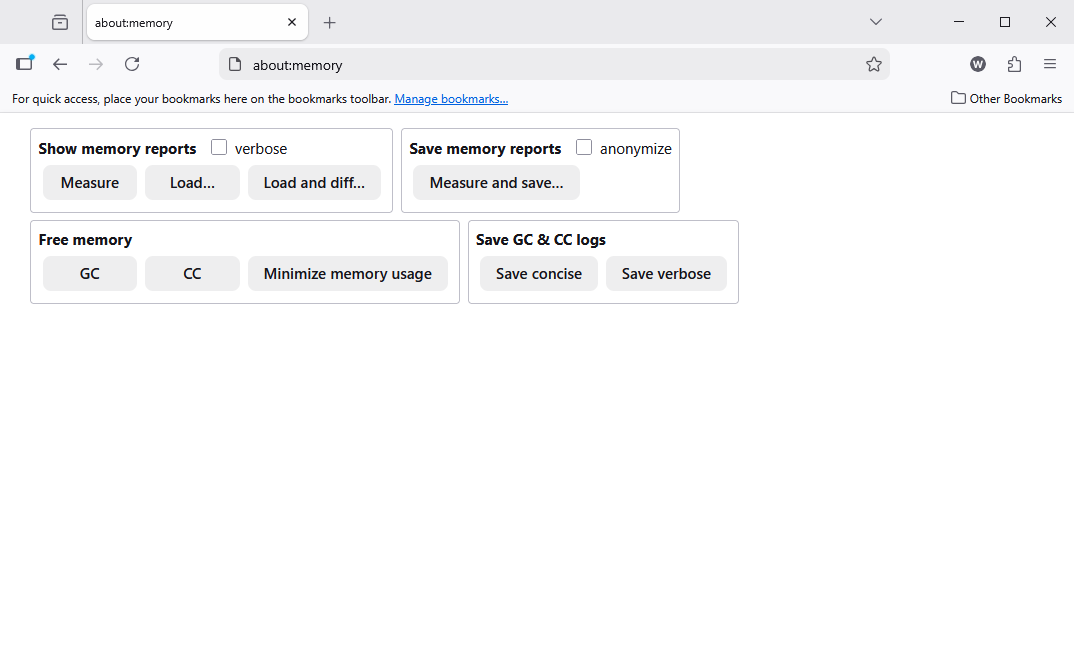
By typing about:memory into your address bar, you can access a detailed report of your current usage. This page allows you to “Minimize memory usage” manually, which can temporarily alleviate a firefox memory leak without restarting the browser.
Developer Tools (DMD & Heap Scan)
For the tech-savvy, Firefox’s Dark Matter Detector (DMD) helps profile memory that the browser has “lost track of.” This is the gold standard for proving a firefox memory leak exists rather than just high normal usage.
How Firefox Handles Memory Internally
Mozilla has built-in safety nets to prevent a firefox memory leak from crashing your whole PC.
about:memory and Memory Pressure
When your system RAM gets low, Firefox receives a “memory pressure” signal. It then attempts to aggressively run its garbage collector to fix any potential firefox memory leak. You can monitor this in real-time by checking the “Free memory” buttons on the about:memory page.
Memory Restart Mechanism
In extreme cases, Firefox can perform a “memory restart.” This happens when the browser realizes its footprint is too large (often 70% of available RAM). It will attempt to refresh content processes to kill the firefox memory leak and prevent a “Blue Screen of Death” or a hard system crash.
Misconceptions About Firefox RAM Usage
“Firefox Is Just Using Too Much RAM”
High RAM usage is not always a firefox memory leak. Modern browsers want to use RAM because it is the fastest way to load pages. If you have 32GB of RAM and Firefox is using 4GB, that is often normal. A leak is only present if that number keeps going up even when you aren’t doing anything.
The Difference Between Leak & Usage
Usage is functional (storing images for the page you are looking at). A firefox memory leak is dysfunctional (storing images for a page you closed three hours ago).
How to Diagnose a Memory Leak
If you want to confirm a firefox memory leak, follow these diagnostic steps.
Step 1: Monitoring with about:processes
Open Firefox and type about:processes in the URL bar. This internal Task Manager shows you exactly which tab or extension is responsible for the firefox memory leak.

Step 2: Use the Windows/Mac Task Manager
Compare the internal Firefox numbers with your OS Task Manager. If the OS shows 5GB used but Firefox claims it is only using 2GB, you have a “ghost” firefox memory leak occurring in the background processes.
Ultimate Solution: Recovering Data After a Firefox Crash
When a firefox memory leak becomes too severe, the browser will eventually crash. This often leads to the loss of open tabs, unsaved form data, or even corrupted profile files. If you find that your bookmarks or history have vanished after a memory-related crash, you need a professional data recovery solution.
This is where PandaOffice Drecov comes into play. It is a specialized data recovery product designed to retrieve lost browser files, databases, and session data that standard undos cannot reach.
⚠ Warning: Install it on a drive different from the one where your data was lost to prevent overwriting.
How to Use PandaOffice Drecov for Firefox Recovery
If a firefox memory leak caused your browser to shut down and lose your important data, follow these steps to get it back:
Step 1: Select the Scan Location
Select the drive where Firefox is installed (usually the C: drive). PandaOffice Drecov will perform a deep scan to find remnants of places.sqlite (bookmarks/history) and sessionstore.jsonlz4 (open tabs).

Step 2: Filter for Firefox Files
Use the search bar in PandaOffice Drecov to filter for “.sqlite” or “.jsonlz4” files. This targets the specific databases corrupted by the firefox memory leak crash.

Step 3: Preview and Recover
Select the most recent versions of these files. Click “Recover” and save them to an external drive.
Warning Prompt: Always close Firefox completely before attempting to replace recovered profile files. If Firefox is running, it may overwrite your recovered data immediately.
Tips to Prevent Memory Bloat
To avoid dealing with a firefox memory leak in the future, follow these best practices:
Best Practices for Tabs
Don’t keep 100 tabs open. Use “Auto Tab Discard” extensions which put inactive tabs to sleep. This effectively cuts off a firefox memory leak before it can grow.
Managing Extensions
Audit your extensions once a month. If you haven’t used an add-on in 30 days, remove it. Every active extension is a potential source of a firefox memory leak.
When to Report a Memory Leak Bug
If you have cleared your cache, removed extensions, and updated your drivers, but the firefox memory leak persists, it’s time to tell Mozilla. Visit Bugzilla and submit your about:memory report. This helps the engineers improve the browser for everyone.
Mozilla’s Ongoing Leak Mitigation Efforts
Mozilla is constantly fighting the firefox memory leak through its “Quantum” and “Fission” projects. These updates aim to isolate sites even further so that a leak in one tab cannot “poison” the memory of the entire browser. By keeping Firefox updated to the latest version, you ensure you have the newest anti-leak patches.
More on Data Recovery and Firefox Troubleshooting
Recovering from a firefox memory leak crash is only one part of maintaining a healthy browser. To learn more about managing your Firefox data and ensuring your information is never lost, explore our expert guides:
- Where Are Your Saved Links? If a crash wiped your library, find out where are firefox bookmarks stored on your pc to recover them manually.
- Clean Up Post-Uninstall: If you decide to reinstall to fix a persistent leak, learn how to delete firefox browser plug when firefox is deleted to ensure no corrupted files remain.
- Stability Masterclass: For those tired of technical glitches, check out the ultimate 2026 guide: what to do if firefox keeps crashing.
Conclusion
A firefox memory leak can be frustrating and hard to pin down, but understanding its causes — from extensions to complex web scripts — helps you manage it better. While a firefox memory leak can lead to data loss during a crash, tools like PandaOffice Drecov ensure that your history and bookmarks are never truly gone. By combining proactive memory management with the right recovery tools, you can enjoy a fast, stable browsing experience in 2026 and beyond.






