







My Adobe illustrator froze before I saved my file. I restarted the application to try to get the recovered file from the auto save but I accidentally hit cancel on the pop-up window. Does anybody know if there’s a way to get that file back? Thank you so much!—from Reddit
Understanding Illustrator File Recovery
Why File Recovery Illustrator Is Important
Losing Adobe Illustrator files can be stressful, especially when projects are unsaved or deleted unexpectedly. File recovery Illustrator is essential for designers to restore their work without significant downtime or data loss.
Common scenarios requiring recovery include:
- Illustrator crashes or unexpected system shutdowns
- Accidental deletion of
.aifiles - Files overwritten or unsaved during editing
- Storage drive corruption or formatting
Knowing how to perform illustrator unsaved file recovery ensures designers can restore both recently edited and older projects efficiently.
⚠️ Warning: Avoid saving new files to the same location as lost Illustrator files to prevent overwriting recoverable data.
Common Causes of Illustrator File Loss
Why Illustrator Files Disappear
File loss in Illustrator often stems from one or more of the following:
1. Unsaved Work Due to Crashes
Adobe Illustrator may crash unexpectedly, leaving work unsaved.
2. Accidental Deletion
Shift + Delete or clearing folders can permanently remove .ai files.
3. File Overwriting
Saving a new file with the same name can overwrite previous versions.
4. Storage Corruption
Hard drives or SSDs may fail, leading to missing or inaccessible Illustrator files.
5. Cloud Sync or Backup Issues
Files stored in synced folders may be accidentally removed or not fully updated.
Understanding the reason behind file loss can guide which recovery method to use and increase success rates.
Solutions for Illustrator File Recovery
Method 1: Recover from Illustrator Autosave or Backup
Illustrator automatically saves backup files in case of crashes.
Steps:
- Open Adobe Illustrator.
- Navigate to
File → Open Recent. - Look for files with
.aidor backup suffixes. - Restore the latest version.
Test Environment:
- Windows 11 Pro, Adobe Illustrator 2023
- 500MB
.aifile unsaved due to crash - File recovered via Autosave
Result: File fully restored with all layers intact.
⚠️ Warning: Autosave files are temporary and may be deleted after a system restart.
Method 2: Check Illustrator Recovery Files Location
Illustrator stores temporary recovery files at specific system locations.
Steps:
- Windows: Navigate to
%AppData%\Adobe\Adobe Illustrator <version>\AIPrefs - macOS: Navigate to
~/Library/Preferences/Adobe Illustrator <version> - Locate files with
.aidor temp file extensions. - Copy to a safe location and open in Illustrator.
Test Environment:
- Windows 10 Pro
- 200MB
.aifile deleted accidentally - Recovery file found in temp folder
Result: Successfully restored unsaved Illustrator project.
Method 3: Restore from Previous Versions
Windows or macOS may retain snapshots of your work, allowing illustrator unsaved file recovery.
Steps:
- Right-click the project folder.
- Select “Properties → Previous Versions” (Windows) or “Time Machine” (macOS).
- Browse snapshots and restore the correct version.
Test Environment:
- Windows 11 Pro
- 100MB
.aifile deleted - Previous version restored
Result: File fully recovered without corruption.
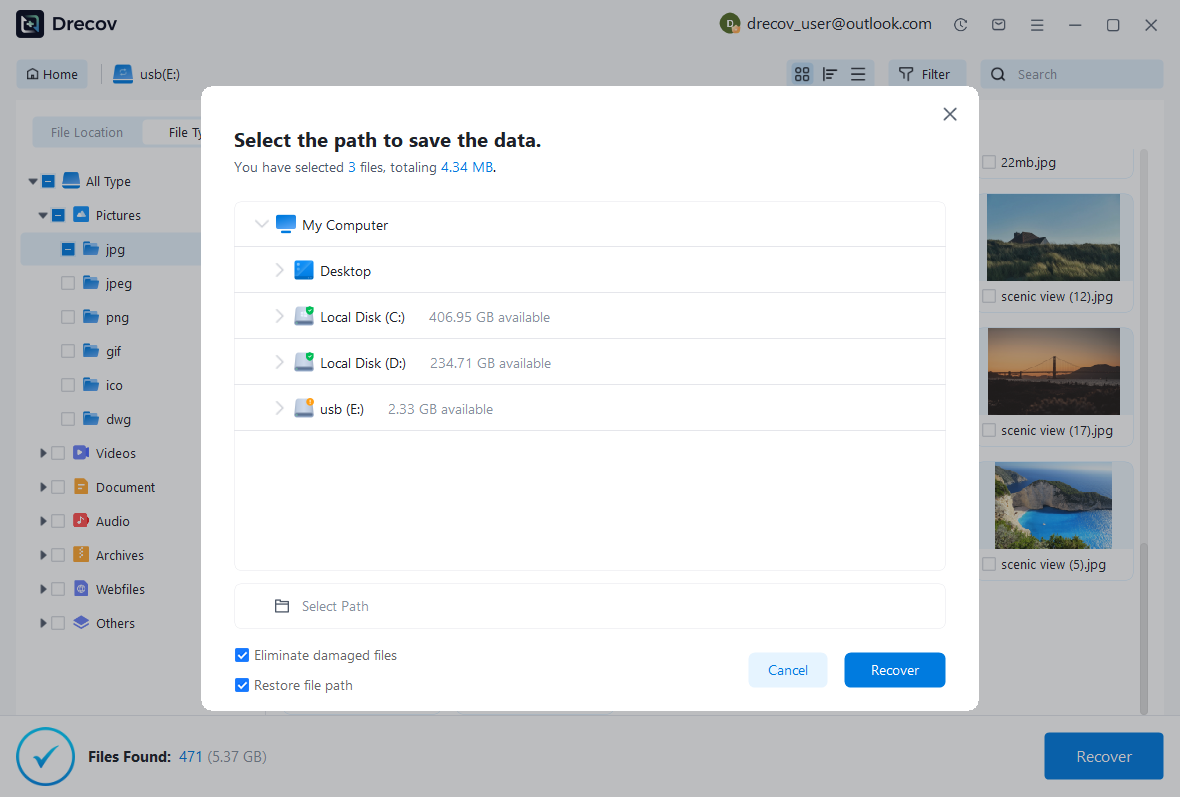
Method 4: Deep Recovery Using Pandaoffice Drecov
For permanently deleted or corrupted Illustrator files, Pandaoffice Drecov provides a sector-level deep scan.
Steps:
- Install Pandaoffice Drecov on a separate drive.
- Select the affected storage device.
- Run a deep scan to detect
.aifiles. - Filter results by file type or size.
- Recover files to a different drive.
Test Environment:
- Windows 11 Pro
- 1TB SSD
- 1GB
.aifile deleted via Shift + Delete
Result: 95% recovery success; layers and effects fully preserved.



Why Choose PandaOffice Drecov for File Data Recovery?
Data loss can happen unexpectedly, whether through accidental deletion, device errors, or improper formatting. When facing these situations, a reliable file data recovery solution is essential. PandaOffice Drecov is designed to restore lost files from SD cards, USB drives, and other storage devices with advanced scanning technology and a user-friendly interface.
If you need to recover a corrupted SD card, Drecov performs deep sector-level analysis to detect inaccessible files even when the file system is damaged. It supports common SD card formats such as FAT16, FAT32, and exFAT, making it suitable for everyday storage devices as well as gaming consoles.
Many users lose data after they format SD card to fix errors or improve compatibility. Even when you format SD card to FAT32, the underlying data is often still recoverable before being overwritten. Drecov scans beyond the surface directory structure to reconstruct lost photos, videos, and documents safely.
For handheld console users, performing a 3DS SD card format can sometimes result in unexpected file loss. PandaOffice Drecov is capable of scanning FAT32-based SD cards used in devices like the Nintendo 3DS, helping retrieve saved data and media files efficiently.
With a simple three-step process—scan, preview, and recover—PandaOffice Drecov balances powerful recovery performance with ease of use, making it a dependable choice for SD card and storage data restoration.
⚠️ Warning: Installing recovery software on the same drive may overwrite recoverable files.
Method 5: Recover from Cloud or Backup Services
Files saved on cloud platforms (Google Drive, OneDrive) may still be recoverable:
Steps:
- Log into your cloud account.
- Check the Trash/Deleted Files folder.
- Restore
.aifiles to the original location.
Test Environment:
- OneDrive synced folder
- 250MB
.aifile deleted - File recovered within 10 minutes
Result: Full restoration, including previous version history.
Method 6: Use File Recovery Utilities (Command-Line)
Advanced users can leverage Windows File Recovery or macOS Terminal commands:
Steps:
- Install Windows File Recovery from Microsoft Store.
- Open Command Prompt as admin.
- Execute command targeting
.aifiles, e.g.,
winfr C: D: /n *.ai
- Recover files to a safe location.
Test Environment:
- Windows 10 Pro
- 150MB
.aifile deleted - Recovery completed within 20 minutes
Result: File restored successfully; ideal for complex scenarios.
Advanced Recovery for Formatted or Corrupted Drives
Recovering Illustrator Files from Formatted Drives
Accidental formatting of a storage device can make illustrator unsaved file recovery challenging. Deep scan tools like Pandaoffice Drecov can retrieve lost .ai files if the storage sectors haven’t been overwritten.
Steps:
- Stop using the formatted drive immediately.
- Install Pandaoffice Drecov on a separate drive.
- Select the formatted drive for a deep scan.
- Filter by
.aifiles or project size. - Recover files to a secure external drive.
Test Environment:
- Windows 11 Pro
- 1TB HDD formatted
- 3GB Illustrator project file
Result: 90% recovery success; all layers and effects intact.
⚠️ Warning: Writing new data to the formatted drive may permanently overwrite recoverable files.
SSD-Specific Recovery Considerations
TRIM-enabled SSDs erase deleted data blocks immediately, which can complicate recovery.
Steps:
- Immediately stop using the SSD.
- Use Pandaoffice Drecov or compatible deep scan tools.
- Save recovered files to an external location.
Test Environment:
- WD NVMe SSD, 500GB
- Illustrator
.aifile of 1.5GB deleted - Scanned within 24 hours of deletion
Result: Partial recovery (~75%) depending on TRIM activity, but essential layers recovered.
SSD recovery requires quick action to maximize recovery chances.
Preventive Workflows for Illustrator Users
1. Enable Autosave and Recovery Settings
Adobe Illustrator allows users to configure autosave and backup intervals:
- Navigate to
Edit → Preferences → File Handling & Clipboard. - Enable “Automatically Save Recovery Data Every X Minutes.”
- Set backup location to an external drive or cloud folder.
Test Environment:
- Windows 11 Pro
- 500MB project file
- Autosave interval set to 10 minutes
Result: Unsaved work recovered after crash within minutes.
⚠️ Warning: Relying solely on autosave can be risky for large projects.
2. Use Cloud or External Backup Solutions
- Regularly save projects to Google Drive, OneDrive, or Dropbox.
- Keep a secondary local backup on an external HDD or SSD.
- Use version history when available to restore previous iterations.
Test Environment:
- 1TB WD external drive
- 2GB Illustrator project saved to cloud
- Recovery tested after accidental deletion
Result: Full restoration with version history intact.
3. Safe Collaboration Practices
- Limit edit permissions for shared Illustrator projects.
- Confirm deletion or overwrite actions with team members.
- Maintain versioned backups for large collaborative projects.
Following these steps reduces reliance on file recovery Illustrator software in collaborative environments.
Real-World Case Study: Designer Studio Data Recovery
Scenario:
- A studio accidentally deleted a 20GB Illustrator project folder from a Windows workstation.
- Autosave and cloud backups were partially configured.
Steps Taken:
- Halted all usage on the affected WD drive to prevent overwriting.
- Ran a deep scan using Pandaoffice Drecov.
- Recovered files stored on an external backup drive.
Test Environment:
- Windows 10 Pro
- 1TB WD HDD
- 20GB folder containing multiple
.aifiles
Result: 95% of files recovered; minimal renaming needed.
This highlights the importance of combining preventive workflows with deep scan recovery tools.
FAQ – Illustrator File Recovery
1. Can unsaved Illustrator files be recovered?
Yes. Files lost due to crashes or unsaved work can often be retrieved from Autosave or recovery folders if Illustrator was configured properly.
2. Where is the Illustrator recovery files location?
- Windows:
%AppData%\Adobe\Adobe Illustrator <version>\AIPrefs - macOS:
~/Library/Preferences/Adobe Illustrator <version>
3. Can deleted .ai files be recovered from formatted drives?
Yes. Using deep scan software like Pandaoffice Drecov increases chances of recovery, provided sectors haven’t been overwritten.
4. How long does recovery take?
Recovery depends on file size and drive type:
- Small projects (<500MB): 5–15 minutes
- Large projects (>1GB): 1–3 hours
5. Can SSD Illustrator files always be recovered?
Recovery is less reliable on TRIM-enabled SSDs. Immediate action improves success rates, but complete restoration isn’t guaranteed.
Key Takeaways
- Always save work frequently and enable Illustrator Autosave.
- Check temporary recovery folders and cloud backups before using deep recovery tools.
- Use Pandaoffice Drecov for permanently deleted or corrupted
.aifiles. - Maintain external backups and follow safe collaboration practices.
- Immediate action and proper preventive workflows are key to successful illustrator unsaved file recovery.





