







Losing critical files is a digital nightmare that almost everyone faces at some point. Whether a sudden power outage corrupted your thesis, an accidental click emptied the Recycle Bin, or a system crash wiped out a week of work, the panic is real. Fortunately, modern technology makes computer data recovery not only possible but highly accessible.
When unexpected data loss strikes, you need a reliable, efficient solution to retrieve your files before they are overwritten permanently. This comprehensive guide will walk you through the mechanics of data retrieval and introduce you to PandaOffice Drecov data recovery software—a premier solution engineered to restore your digital life seamlessly.
Understanding the Basics of Computer Data Recovery
To successfully rescue your files, it helps to understand how computers handle data deletion. When you delete a file, the operating system does not immediately erase it from the hard drive storage sectors. Instead, it simply marks that space as “available” for new data.
Meanwhile, the original file remains intact but invisible until new data overwrites it. This window of opportunity is where effective data recovery computer strategies come into play.
Common Data Loss Scenarios
- Accidental Deletion: Pressing
Shift + Deletebypasses the Recycle Bin entirely. - Formatting Errors: Accidentally formatting a drive partition wipes the file system index.
- Malware and Crashes: Viruses can corrupt file directories, making data inaccessible.
- Hardware Instability: Failing drives can cause files to disappear or become unreadable.
Furthermore, attempting a computer file recovery requires immediate action. The more you use the affected drive, the higher the risk of permanently destroying the recoverable files.
Meet PandaOffice Drecov: Your Go-To Recovery Solution
For users looking for an automated, highly secure option, PandaOffice Drecov data recovery software provides an enterprise-grade scanning engine wrapped in an intuitive interface. It scans storage sectors at a granular level to reconstruct fragmented or lost files across various storage devices, including SSDs, HDDs, and USB drives.
When to Use PandaOffice Drecov
- System Upgrades & Cleanups: If files vanish after modifying your operating system environment, such as when you remove OneDrive from File Explorer, Drecov can scan the local directories to ensure no local data was accidentally cached and deleted.
- Browser and Download Cache Loss: If web resources or videos vanish from your temporary browser storage, knowing how to manage your browser files is key. For instance, if you regularly save media, following a Firefox video download guide ensures proper storage paths, but if those files disappear, Drecov can target and restore specific browser download caches instantly.
- Emptied Recycle Bins: When standard OS recovery options fail, Drecov bypasses system restrictions to pull data directly from the storage hardware.
⚠ Warning: Never download or install the software onto the exact same drive partition where the lost files were stored. Doing so can overwrite the data sectors you are trying to save.
Solutions for Computer Data Recovery Step-by-Step
Depending on your technical expertise and how the data was lost, you can approach computer file recovery using a variety of methods. We have categorized these solutions from beginner to advanced levels.
Method 1: Checking System Built-In Defaults
Before utilizing advanced software, always check the native operating system temporary storage areas.
- Step 1: Double-click the Recycle Bin icon on your desktop.
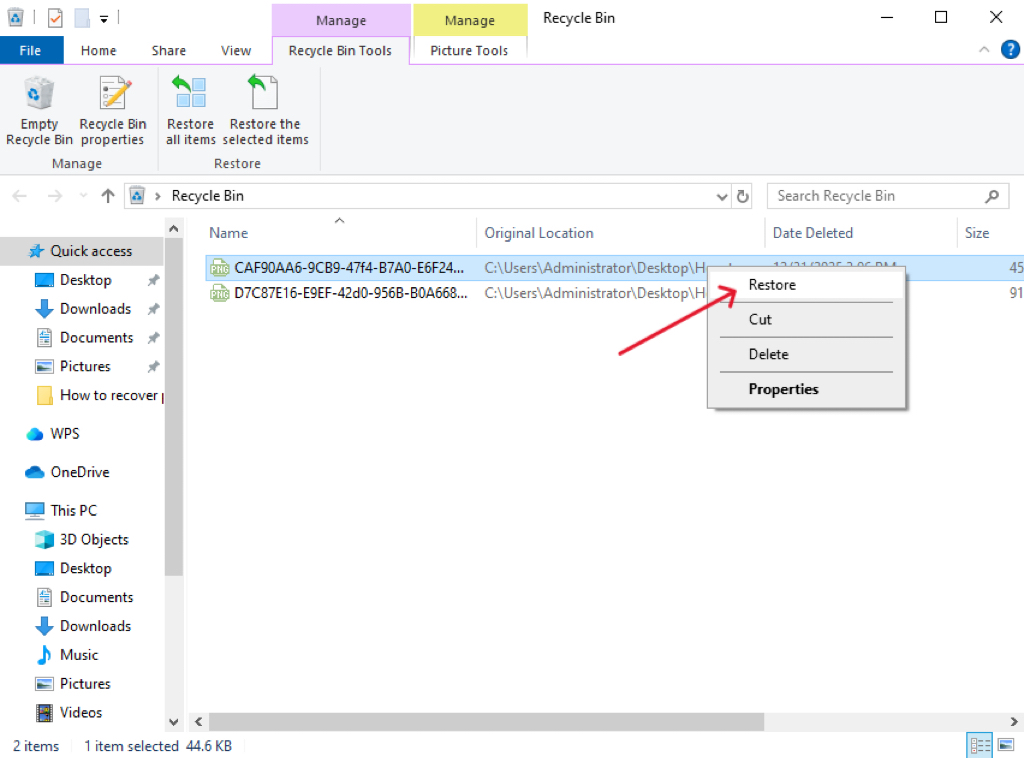
- Step 2: Locate your deleted file, right-click it, and select Restore.
- Step 3: For external devices or cloud-integrated setups, specific steps exist to navigate to recently deleted files across all devices to check localized trash caches.
Method 2: Using PandaOffice Drecov Data Recovery Software
When files are bypassed or emptied from the Recycle Bin, dedicated software is necessary. Follow these precise steps to achieve optimal recovery results using PandaOffice Drecov.
Crucial Warning: Never download or install the software onto the exact same drive partition where the lost files were stored. Doing so can overwrite the data sectors you are trying to save.
- Step 1: Select the Target Location. Launch the application. On the main dashboard, select the specific drive, folder, or external storage device where the data loss occurred.

- Step 2: Run the Scan. Click the Scan button. The software will initiate a Quick Scan followed automatically by a Deep Scan to piece together deeply buried file headers.

- Step 3: Filter and Preview. Browse through the categorized list. Select a file to view its real-time preview to verify integrity before recovery.

- Step 4: Recover and Save. Check the boxes next to your desired files, click Recover, and choose a safe saving destination on a completely different storage disk.
Method 3: Restoring via Windows Registry and File History
If a system update or registry corruption caused your files to go missing, you can look into built-in administrative tools.
- Step 1: Press
Windows Key + Rto open the Run dialog box. - Step 2: Type
regeditand pressEnterto access the Registry Editor. - Step 3: Navigate precisely to the following path to check user shell folder paths:
HKEY_CURRENT_USER\Software\Microsoft\Windows\CurrentVersion\Explorer\User Shell Folders - Step 4: Ensure the string values for your Personal folders point to the correct drive routing.
- Step 5: Alternatively, open Control Panel > System and Security > File History and click Restore personal files from a previously configured external backup drive.
Alternative or Complementary Methods
While specialized software provides the highest success rates, alternative approaches can complement your computer data recovery efforts.
Manual System Restore Points
Windows automatically creates snapshots of your system state before major updates or software installations.
- Pros: Completely free; requires no internet connection; restores system settings alongside files.
- Cons: Will revert any system modifications made after the restore point was created; does not track individual personal file changes reliably.
Data Recovery Comparison Table
| Feature / Method | Built-in OS Backups | Manual Command Prompt | PandaOffice Drecov Software |
| Ease of Use | Moderate | Low | High |
| Success Rate | Depends on prior setup | Low | Exceptionally High |
| Risk Factor | Low | Moderate | Zero Risk |
| Time Required | 15–30 minutes | Variable | 5–15 minutes |
Tips & Best Practices for Maximizing Recovery Success
Executing a computer file recovery software free download is only half the battle. To guarantee that your data is cleanly restored without corruption, adhere to these professional guidelines:
- Stop Drive Activity Immediately: The moment you realize a file is missing, cease downloading files, browsing the web, or running heavy applications.
- Clone Faulty Drives First: If you suspect your hard drive is physically failing (clicking noises, frequent freezes), create a sector-by-sector disk image before running scan tools.
- Maintain the 3-2-1 Backup Strategy: Keep 3 copies of your data, across 2 different types of media, with 1 copy stored off-site or in secure cloud infrastructure. For details on industry standards for media longevity, you can consult the NIST Guidelines on Storage Media for data retention.
Frequently Asked Questions
Can I perform a computer data recovery for free?
Yes. Many operating system tools and trial versions of specialized utilities offer complimentary scans. Users looking for a comprehensive tool often search for a computer file recovery software free download to evaluate the efficiency and file preview capabilities of the tool before committing to full data restoration.
Why are some files unreadable after a data recovery computer process?
This happens when file sectors have been partially overwritten by new system activity. In such cases, the software might recover the file structure, but the internal contents remain corrupted. Consequently, early scanning is imperative.
Does PandaOffice Drecov data recovery software support SSDs?
Yes, it fully supports SSDs. However, please note that if the TRIM command is active on your SSD, the operating system may wipe deleted data blocks quickly, making immediate software deployment vital.
Is it safe to use third-party data recovery software?
Using reputable, read-only software like PandaOffice Drecov is completely safe. It reads the drive signatures without modifying or writing anything back to the source sectors, keeping your remaining data fully secure.
Conclusion
In conclusion, encountering data loss is highly stressful, but understanding the foundations of computer data recovery shifts the control back into your hands. By acting quickly, avoiding unnecessary disk writes, and employing professional tools like PandaOffice Drecov data recovery software, you can retrieve lost memories and critical business documents with absolute confidence. Do not wait for a critical crash to occur—protect your digital ecosystem by downloading a reliable recovery tool and establishing an automated backup routine today.






