







When photos, videos, or documents suddenly disappear from an SD card, most users panic and assume the data is gone forever. In reality, with the right data recovery software top tools and correct steps, it is often possible to recover data from a corrupted SD card safely. Whether the issue is accidental deletion, file system corruption, or an error that forces you to format SD card storage, modern SD card recovery software can help restore valuable files before permanent loss occurs. This guide is written for beginner to intermediate users and explains why SD cards fail, how to fix SD memory card corrupted issues at the system level, and how to choose the best sd memory card recovery software for different scenarios. By following a clear, step-by-step approach, you can significantly improve your chances of successfully recovering data from a corrupted SD card.
Understanding SD Card Corruption and Data Loss
SD card corruption is one of the most common storage problems for cameras, smartphones, drones, and laptops. Corruption usually means the file system structure is damaged, making stored files unreadable even though the data still exists physically. In many cases, the operating system will display messages such as “You need to format the disk” or “SD card is not accessible.” These warnings do not always mean the files are destroyed. Instead, they indicate logical damage that data recovery software for corrupted SD card issues can often handle.
Common causes of corruption include unsafe removal, sudden power loss during data transfer, virus infections, bad sectors, and incompatible file systems. For example, using the same SD card across cameras, Android phones, and Chromebooks can increase the risk of errors. Understanding the root cause helps you choose the right recovery path and avoid actions that could overwrite recoverable data. Before attempting any fix, stop using the card immediately. Continued writing can permanently overwrite files, reducing the success rate of recovering data from a corrupted SD card.
Signs Your SD Card Is Corrupted
Recognizing early warning signs can prevent further damage and improve recovery success. One clear sign is when files suddenly disappear or show up as zero bytes. Another is when the SD card prompts you to format SD card storage before use. In some cases, the device may not recognize the card at all, or the card may appear as “RAW” in Windows Disk Management.
Additional symptoms include frequent read/write errors, extremely slow access speeds, and error messages on cameras or phones. On Chromebooks, users may see mounting errors that indicate file system incompatibility, prompting searches for how to fix a corrupted SD card on Chromebook. These symptoms usually suggest logical corruption rather than physical failure. Logical issues are ideal candidates for SD card recovery software, whereas physical damage often requires professional services. Identifying the symptoms early helps you choose the correct recovery method and avoid unnecessary formatting.
What Not to Do After SD Card Corruption
One of the biggest mistakes users make is formatting the SD card immediately. While formatting may restore access, it also rewrites file system structures and reduces the effectiveness of sd memory card recovery software. Another common mistake is repeatedly reinserting the card into different devices, which can trigger automatic repairs that overwrite data.
Avoid running multiple repair tools in sequence without understanding their effects. For example, system repair utilities may fix file system errors but also remove directory entries needed for recovery. Installing recovery software directly onto the affected SD card is another critical error, as it overwrites lost files. The safest approach is to stop all write operations, remove the card, and prepare a separate computer for recovery. These precautions dramatically increase the success rate when using data recovery software top solutions.
System-Level Fixes Before Using Recovery Software
Before jumping into third-party tools, some system-level checks can help in minor corruption cases. On Windows, the built-in Check Disk (CHKDSK) utility can sometimes repair logical file system errors. This method is useful if the SD card is recognized but inaccessible. However, CHKDSK should be used cautiously, as it may delete corrupted entries rather than restore them.
On macOS, Disk Utility’s First Aid function can detect and repair basic errors. Chromebook users often search for how to fix SD memory card corrupted issues, but options are limited. ChromeOS primarily supports FAT32 and exFAT file systems, so incompatibility may appear as corruption. In such cases, system tools rarely recover files, making data recovery software for corrupted SD card problems the safer choice. System fixes are best viewed as preliminary steps, not full recovery solutions.
How SD Card Data Recovery Software Works
Modern SD card recovery software scans storage devices at a low level to locate lost files based on file signatures and remaining directory information. Unlike system tools, these programs do not rely solely on the existing file system. This allows them to recover data even after accidental deletion or corruption.
There are generally two scan modes: quick scan and deep scan. A quick scan searches recently deleted entries and is faster, while a deep scan examines the entire card sector by sector. Deep scans are essential when recovering data from a corrupted SD card that appears as RAW or unformatted. The effectiveness of recovery depends on factors such as card usage after corruption, file types, and storage condition. Understanding how these tools work helps users set realistic expectations and choose the right data recovery software top option.
Key Features to Look for in SD Card Recovery Software
Not all recovery tools are equal. When evaluating sd memory card recovery software, consider compatibility, supported file types, scan depth, and preview functionality. A good tool should support common photo and video formats used by cameras and smartphones. Preview features allow you to verify recoverable files before restoring them, saving time and effort.
Ease of use is critical for beginners. Clear instructions and guided recovery steps reduce the risk of user error. Advanced users may value customizable scans and filtering options. Performance also matters; deep scans can take hours on large cards, so efficiency is important. Finally, ensure the software supports your operating system, whether Windows, macOS, or Chromebook via external recovery workflows. These criteria help narrow down the data recovery software top choices effectively.
Comparing Popular SD Card Data Recovery Solutions
There are many tools available, each with strengths and limitations. Some free tools offer basic recovery but limit file size or scan depth. Paid options typically provide deeper scans, better file recognition, and higher success rates. Free solutions are suitable for minor deletions, while serious corruption requires professional-grade software.
When comparing options, look at recovery success rate, supported file systems (FAT32, exFAT), and customer support. Avoid tools that aggressively push formatting as a solution. A balanced comparison focuses on usability, transparency, and reliability rather than marketing claims. This comparison stage is essential before committing to a solution, especially when dealing with valuable data and complex corruption scenarios.
Step-by-Step Guide: Recover Data from a Corrupted SD Card
- Power off the device using the SD card immediately.
- Remove the card safely and connect it to a computer via a card reader.
- Install trusted SD card recovery software on your computer, not on the card.
- Launch the software and select the SD card as the target device.
- Run a deep scan to locate lost and corrupted files.
- Preview recoverable files to confirm integrity.
- Restore files to a different storage location, never back to the same SD card.
Following these steps reduces the risk of overwriting data and maximizes recovery success. This process applies to most data recovery software for corrupted SD card scenarios and is suitable for both beginners and intermediate users.
Recommended Solution: Recover SD Card Data with Drecov
After following the basic recovery steps, system-level tools may still fail to restore files when the SD card is seriously corrupted. In these cases, using a dedicated SD card data recovery software provides a higher success rate. Drecov is designed specifically for data loss scenarios such as accidental deletion, file system corruption, and situations where the system asks you to format SD card storage before access.
Unlike built-in repair utilities, Drecov performs a read-only deep scan that does not rely on the original file system structure. This allows it to recover data from a corrupted SD card even when the device appears as RAW or is not accessible through normal system tools. It supports common SD card file systems such as FAT32 and exFAT and is optimized for recovering photos and videos from cameras, drones, and mobile devices.
For users with limited technical experience, Drecov’s guided interface reduces the risk of mistakes and makes the recovery process more approachable.
How to Recover Files from an SD Card Using Drecov (3 Steps)
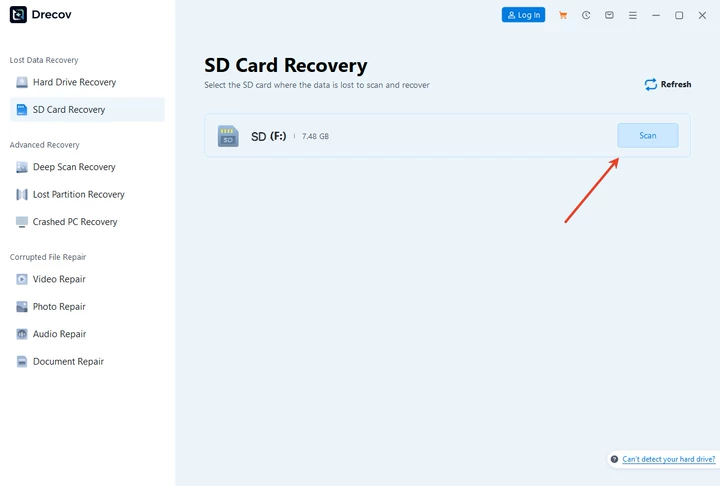
Download DrecovStep 1: Connect the SD Card and Start Scanning
Insert the corrupted SD card into a computer using a card reader. Launch Drecov and select the SD card as the target device. When the card shows errors or requests formatting, choose the deep scan mode for more thorough results.
Step 2: Preview and Select Recoverable Files
Once the scan is complete, Drecov displays recoverable files organized by type and folder structure. Users can preview photos, videos, and documents to verify file integrity before recovery

Step 3: Recover Files to a Safe Location
Select the files you want to restore and save them to a different storage device, such as a computer hard drive or external disk. Avoid recovering files back to the same SD card to prevent data overwriting

Advantages of Using Drecov for SD Card Data Recovery
- Powerful deep scan technology that works even when the SD card is inaccessible or marked as RAW
- User-friendly interface suitable for beginner and intermediate users
- File preview support to confirm recoverability before restoring
- Optimized for photo and video recovery, especially from cameras and portable devices
- Read-only recovery process that minimizes the risk of further data damage
Overall, when system repair methods are not sufficient, Drecov serves as a reliable data recovery software for corrupted SD card situations. It offers a balanced combination of safety, usability, and recovery effectiveness for users who need to recover data from a corrupted SD card without unnecessary risk.
Preventing Future SD Card Data Loss
Prevention is as important as recovery. Always safely eject SD cards before removal. Avoid using the same card across too many devices, especially those with different file system requirements. Regularly back up important data to cloud storage or external drives. Replace SD cards showing early signs of failure, such as slow speeds or frequent errors.
Formatting SD cards periodically in the device they are used in can also reduce corruption risk, but only after backing up data. These habits significantly lower the chances of needing recovering data from a corrupted SD card solutions in the future.
Final Recommendation and Conclusion
Choosing the right data recovery software top solution is critical when dealing with SD card corruption. System-level fixes may help in minor cases, but they are limited and risky for serious data loss. Dedicated SD card recovery software offers deeper scans, better file recognition, and safer recovery workflows. By acting quickly, avoiding unnecessary formatting, and using a reliable recovery tool as the final step, users can successfully recover data from a corrupted SD card in many situations. A cautious, methodical approach combined with the right software provides the best balance between safety and recovery success.





