







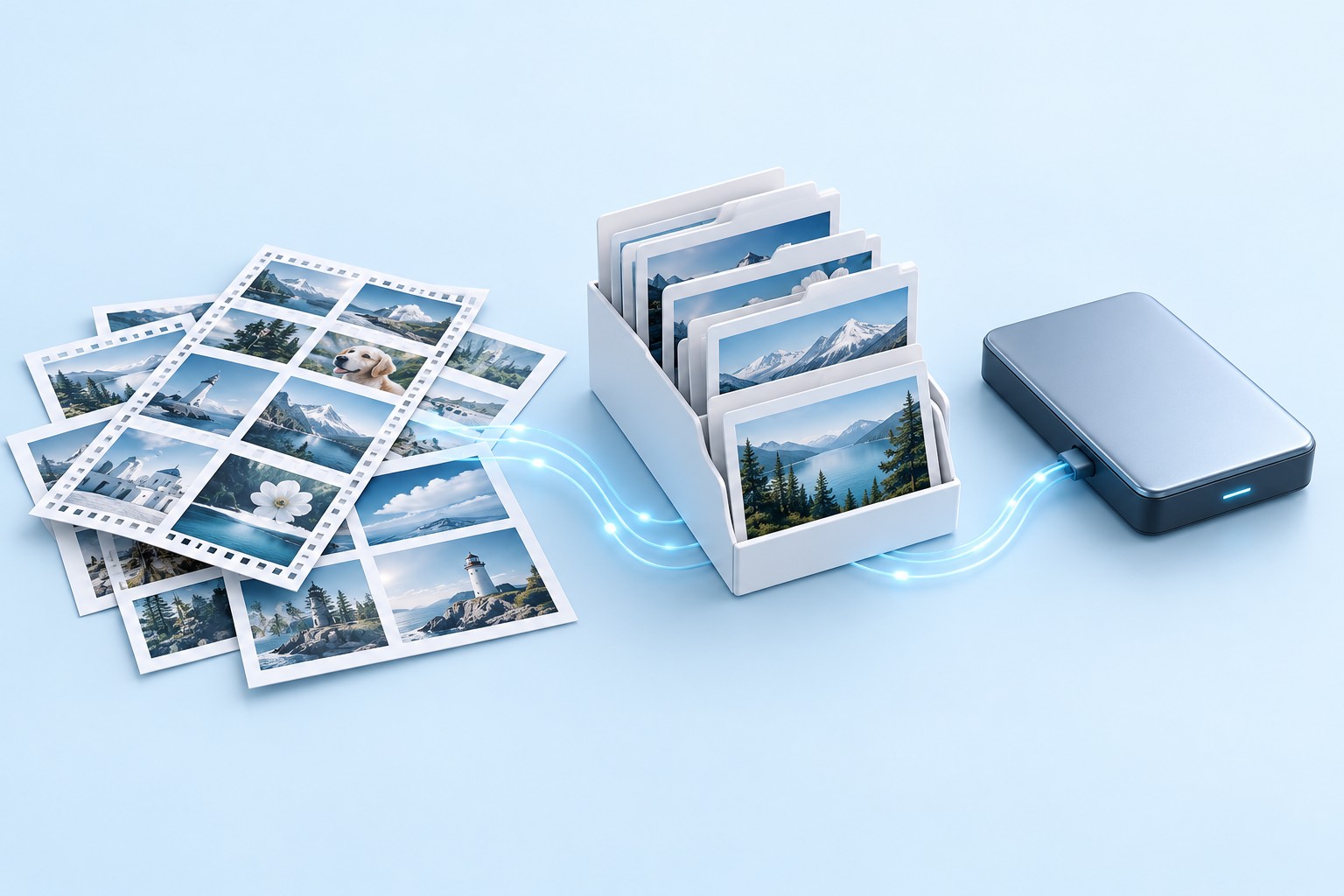
Lightroom Classic can display a photograph even when the original image is missing, because its catalog and previews serve different purposes from the photo files. Likewise, a missing catalog does not necessarily mean your photographs disappeared. Start by identifying whether you lost the catalog, the original images, or the links between them. Then choose a recovery route that preserves both the editing work and the best available image quality.
Quick answer: reconnect existing originals before scanning
If Lightroom Classic shows missing-photo icons, use Locate or Find Missing Folder to reconnect verified originals that still exist. For an incorrectly opened catalog, select the actual working catalog. If that catalog is damaged or absent, inspect an existing catalog backup. When the original image files are genuinely gone, recover them separately from a photo archive or supported storage. A catalog backup does not automatically contain all referenced photographs.
These native operations require no additional recovery utility for an existing Lightroom Classic user. However, they cannot turn a thumbnail into the original raw capture. Also, restoring a catalog from an earlier date can omit later editing decisions. Define whether you need original pixels, recent adjustments, collections, or all three. This keeps a successful relink from masking the fact that a different part of the project still needs recovery.
Identify the missing component
Catalog, original, preview, or sidecar?
The LRCAT holds catalog information and editing state, while original photographs normally remain separate. Preview folders support browsing and offline work, but they are not automatically equivalent to original captures. XMP sidecars can preserve some metadata and adjustments for applicable workflows, yet they do not replace the image pixels. Preserve all related material before deciding that one surviving component can substitute for the others.
Also retain a matching LRCAT-DATA file where the project uses one. Lightroom Classic can store important edit-related information there, including data associated with some AI features. Keep the catalog set together and avoid mixing companions from unrelated versions. Record the catalog name, folder, and last known working date. This makes it easier to compare a working catalog, an upgraded copy, and a backup without confusing their roles.
Determine whether the originals still exist
Inspect the last known photo path shown by Lightroom Classic. Then check the actual folder in Windows and confirm whether the expected image files are present. An offline disk, changed drive letter, moved folder, or renamed parent directory can break links without deleting photographs. Therefore, investigate the path before running a deleted-file scan. Also verify that a nearby image with the same filename is the correct capture.
Use a few identifying details together: capture time, camera, dimensions, visible subject, and file type. Repeated camera filenames can occur across different cards and years. A wrong relink may look plausible in a small thumbnail while pointing to another photograph. Preserve the original catalog candidate before broad relinking, especially when you have several folders with similar names. A controlled one-photo test can prevent a large matching error.
Free route 1: reconnect an existing missing photograph
- Open a preserved working catalog and inspect the missing-photo indicator.
- Use Locate to view the last known path and select the verified original.
- Enable nearby matching only when the surrounding folder genuinely belongs to the same set.
- Check the reconnected photograph at full size and test a suitable export.
Locate repairs the catalog’s reference when the original still exists. It does not restore a deleted file or improve a low-resolution substitute. Therefore, choose the intended original rather than a small export that happens to share the name. Compare the image’s identity and dimensions. After relinking, inspect a representative group before allowing a broad search to reconnect many neighboring photographs automatically.
Validate adjustments after reconnecting
Check the crop, orientation, exposure, local adjustments, and any project-specific edit that matters. Also compare the image with an approved export if one exists. A successful link can reveal that you opened an older catalog rather than the current editing state. Keep that possibility separate from the question of whether the original pixels survived. You may need the correct catalog and the correct original to restore the intended result.
Next, test an export at the required output size. A catalog preview can support browsing while the original remains unavailable, so the ability to view an image is not enough. Inspect export dimensions and detail. If Lightroom reports a missing original or uses an unexpected source, keep investigating. Record the reconnected path so you can later confirm that the recovered project no longer depends on a temporary search folder.
Free route 2: reconnect an entire moved folder
- Confirm that the expected photo folder exists in its new location.
- In Lightroom Classic’s Folders panel, select the missing folder and use Find Missing Folder.
- Choose the verified replacement folder without moving or renaming its contents again.
- Inspect several photographs across the folder and review remaining missing-photo indicators.
Folder-level relinking can restore many references efficiently after a deliberate move. However, it assumes the selected folder contains the intended originals. Compare the hierarchy and representative captures first. If a parent folder moved, reconnecting at an appropriate level may preserve more structure than relinking images individually. Avoid creating a confusing mixture of old and new folder roots while you investigate.
Avoid reimporting as the first response
Reimporting existing originals into a different catalog does not automatically restore the old catalog’s collections, flags, history, or full editing context. It can also make duplicates harder to understand. First try reconnecting the existing catalog entries. If you deliberately create a new catalog for reconstruction, label that project clearly and preserve the old one. This keeps a path repair from becoming an unnecessary catalog rebuild.
Also avoid using Windows to keep rearranging folders while relinking. Establish one verified destination structure, then connect it consistently. Afterwards, use your normal Lightroom workflow for managed moves when appropriate. A stable folder structure makes future backups and recovery simpler. It also helps another photographer understand which originals the accepted catalog uses without following several temporary drive-letter changes.
Free route 3: open the correct working catalog
- Record the current catalog’s name and location before changing anything.
- Use File, Open Catalog or the startup catalog selection interface.
- Open a plausible existing catalog copy and compare recent imports, collections, and edits.
- Preserve the correct catalog separately and reconnect its originals if necessary.
A preference reset or migration can cause Lightroom Classic to open an older or different catalog. The resulting missing imports and edits may look like data loss even while the current catalog remains on disk. Compare the actual project contents rather than relying only on similar catalog names. Also distinguish upgraded copies and archived catalogs from the version you used most recently.
Compare catalog identity systematically
Check the latest shoot, a known collection, several keywords, and one recently edited photograph. This provides a quick identity test across candidate catalogs. Record each result and path. If the current catalog contains all the edits but shows missing originals, keep it and relink the photographs. Do not switch to an older catalog solely because its paths happen to work automatically on the present workstation.
Preserve the catalog’s related files together when the application is closed. Do not casually remove journal material or mix companions to make a folder look tidy. Follow current Adobe guidance for the specific version and state. A clear preserved catalog set supports further troubleshooting, while arbitrary cleanup can remove useful evidence and make it harder to distinguish an opening problem from a missing editing component.
Free route 4: restore an existing catalog backup
- Locate the actual catalog backup folder, including any custom location.
- Copy and extract a suitable backup into a separate recovery workspace.
- Open the restored catalog and compare its editing milestone.
- Reconnect verified originals, then save and back up the accepted recovered catalog.
A catalog backup preserves catalog information from a particular point. It does not automatically include every referenced original photograph. Therefore, inspect both the backup date and the availability of the image archive. If the backup predates an important shoot, it may not contain those imports or edits. Keep the current catalog candidate so you can compare complementary information instead of replacing it immediately.
Verify matching catalog companions
Where the backup includes related data such as LRCAT-DATA, preserve the matching set. Missing edit-related data can affect some adjustments even when the main catalog opens. Inspect important local and AI-based edits rather than assuming the photograph’s overall appearance proves completeness. Also keep a known output reference where available. It can reveal differences that a small grid preview hides.
After opening the restored catalog, inspect collections, keywords, ratings, virtual copies, and recent adjustments relevant to the project. Then test representative exports. A successful catalog launch proves only that Lightroom can read that candidate. It does not establish that the backup matches the latest delivery or that every original remains accessible. Document the recovery point and any later work that you must reconstruct.
Free route 5: rebuild selected edits from existing XMP
- Preserve the original photographs, sidecars, and current catalog candidates.
- Identify matching XMP files that already existed before the loss.
- In a separate reconstruction workflow, read the available metadata through Lightroom’s supported interface.
- Compare adjustments and document catalog information that the sidecars do not restore.
Existing XMP can help preserve some metadata and adjustments when the catalog is unavailable. However, its usefulness depends on what the workflow wrote before the incident and which file types use sidecars or embedded metadata. Do not enable XMP writing after the loss and expect earlier edits to appear. Also avoid reading or writing metadata over the only candidate without understanding which state will replace which.
Understand what XMP cannot replace
Sidecars do not contain the original raw pixels and do not reproduce every catalog feature. Collections, complete history, and other organizational details may need a catalog backup or reconstruction. Therefore, label an XMP-based rebuild accurately. It can restore useful editing information while leaving the broader library incomplete. Keep the sidecars and originals paired by identity rather than by filename alone, especially when repeated camera names exist.
If you have both a catalog backup and newer XMP, compare them on copies before combining states. The newer date may not always represent the intended edit. For example, an accidental reset followed by metadata writing can produce a recent sidecar with an unwanted state. Use approved exports and project notes as evidence. A controlled comparison protects useful older adjustments from an automatic overwrite.
Example: restore a wedding shoot after a folder move
Suppose a photographer moves a wedding folder to a new disk and later resets Lightroom preferences. The opened catalog lacks the final collection, while previews still show some photographs. First identify the actual working catalog by its latest collection and edits. Then reconnect the moved folder through Find Missing Folder. Scanning the disk for deleted photos would add work without addressing the broken references.
Next, inspect representative raw files, crops, local adjustments, and export dimensions. Check the final delivery selection against the approved list. If one original is genuinely absent, recover that photograph separately from the photo archive or supported storage while preserving the catalog entry. Finally, back up the accepted catalog set and the originals independently. This restores the editing context without confusing previews, backups, and actual captures.
Compare catalog candidates with a library checklist
Identify the actual working catalog
Choose several distinctive milestones: the latest imported shoot, a named delivery collection, a recent crop, and a known keyword change. Check them across catalog candidates and record the results. A catalog filename or modification date can help organize the search, but its actual contents establish which editing state it represents. Also note whether the candidate needs an upgrade before testing it, and preserve the pre-upgrade copy separately.
Avoid making a backup catalog your permanent working catalog by accident. Once you identify the accepted candidate, save or place the recovered set in a clear working location and establish a new backup baseline. Keep the source backup untouched. This prevents later confusion about whether a dated backup folder contains the original snapshot or a catalog you have continued editing since recovery.
Distinguish missing imports from missing files
If a photograph does not appear in the catalog at all, first check whether you opened the wrong catalog or applied a filter that hides it. If the entry appears with a missing-original warning, investigate the path. These symptoms lead to different actions. Reimporting everything before checking catalog identity can create duplicates while leaving the original editing context unresolved.
Use a few representative photographs to classify the problem before applying a broad change. For example, compare one recent import, one older image, and one delivery selection. If only one moved folder is affected, a folder relink may solve the main issue. If entire recent shoots and collections are absent, another catalog candidate deserves attention. A small diagnostic sample can prevent a large unnecessary library rebuild.
Validate image identity during relinking
Repeated filenames across shoots
Camera-generated names often repeat. Compare capture time, subject, dimensions, and camera information where available before selecting an original. A wrong file can share the expected name and still produce a plausible thumbnail. Start with a controlled one-photo relink, then inspect neighboring matches. Do not enable broad automatic matching until you confirm that the folder actually belongs to the intended shoot.
Preserve the original folder hierarchy when recovering photographs from an archive or scan. Flattening several cards into one folder can create collisions and obscure capture context. Keep a source note for each recovered group. This makes it easier to reconnect the catalog reliably and helps another photographer understand why the selected image is the correct original rather than a similarly named export or duplicate.
Raw captures versus rendered exports
A JPEG or TIFF export can preserve an edited appearance while lacking the original raw capture’s flexibility. Compare the file type and dimensions before relinking. Do not substitute an export merely because it makes the missing-photo warning disappear. If the raw is genuinely unavailable, keep the export as a limited salvage and document that the original source remains missing.
Also distinguish a high-resolution export from a catalog preview. Their practical value can differ substantially. Test the available file at the size required for delivery and inspect detail, crop, and color. A usable web image may not meet a print requirement. State what the salvage supports rather than using a single complete recovery label for every surviving visual representation.
Recent local and AI-based adjustments
Inspect important masks and local edits after restoring a catalog set. An image can retain its overall exposure and crop while a more specific adjustment needs recomputation or reconstruction. Keep matching catalog companions together and compare against an approved export. Also check the actual application messages. Do not infer that a successful catalog open proves every edit-related component survived.
If you rebuild an adjustment, record that work in the recovery note. A visually close reconstruction can still differ from the original settings, which may matter for a consistent series. Review several images from the same shoot rather than only one hero photograph. This helps catch inconsistent masking or color treatment that a single-image test would miss.
Use XMP and backups without overwriting a better state
Compare before reading or writing metadata
Metadata operations can change which editing state the catalog or file uses. Preserve copies before applying them. If a backup catalog and an XMP sidecar disagree, compare recognizable adjustments and approved output rather than trusting the later date automatically. A recent sidecar may reflect an accidental reset or an earlier synchronization mistake. The intended result remains the acceptance criterion.
Test uncertain combinations in a separate reconstruction catalog or copy. Keep the original catalog set and sidecars untouched until you understand the outcome. Also document which source supplied the accepted adjustments. This makes the recovery traceable and prevents another user from repeating a metadata operation that replaces a useful state with an inferior one.
Rebuild only the organizational information you need
If originals and useful XMP survive but the catalog does not, a new catalog may restore practical editing access while losing collections or other organization. Prioritize the current delivery selection, essential keywords, and the workflow’s immediate needs. Use existing contact sheets and delivery lists as references. Do not describe a newly imported library as an exact restoration of every historical catalog feature.
Keep the original recovery evidence in case a better catalog candidate appears later. Meanwhile, give the reconstructed library a clear name and document its limits. A useful partial reconstruction can support ongoing work without pretending that complete history survived. This also helps estimate the remaining organizational work honestly rather than leaving it hidden behind a successful import count.
Establish a reliable recovered archive
Test catalog and photo backups together
After acceptance, copy the catalog set and original photographs independently to the appropriate backup locations. Then test a representative restore: open a catalog copy and confirm that it can find verified image originals. Export several photographs with important edits. This checks the relationship that matters in practice, rather than merely confirming that a backup folder contains files with familiar extensions.
Keep the accepted catalog, originals, sidecars, and delivery references associated by project. Retain damaged candidates until review finishes. For future shoots, preserve a verified image archive before reusing recording media and maintain meaningful catalog recovery points. These protections address different losses and give the next recovery several valid paths: original pixels, editing context, and a visible record of the intended final result.
When PandaOffice Drecov may help
A storage scan may help when a catalog or original image is genuinely missing from supported media. PandaOffice Drecov does not restore Lightroom editing context automatically or turn previews into full-resolution captures. Check current support for the missing file type and inspect available results. Also keep catalog recovery and photo recovery as separate tasks, because each can succeed while the other remains incomplete.
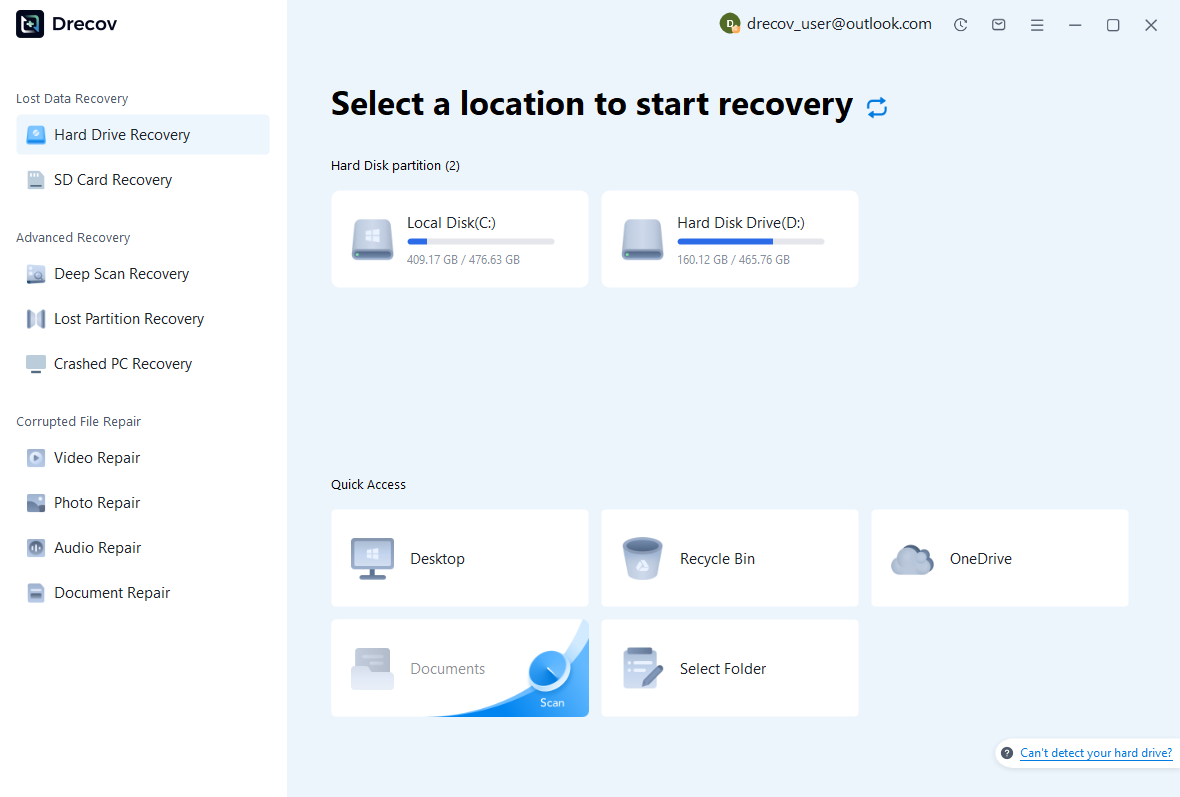
Step 1: select the source that held the missing component
The catalog, originals, and camera-card copies may live on different devices. Identify the relevant supported source before scanning. Avoid importing new shoots or writing exports onto the affected storage. If a device becomes unstable, stop repeated software attempts and assess its condition. A healthy catalog on another disk cannot supply original pixels that never existed there.
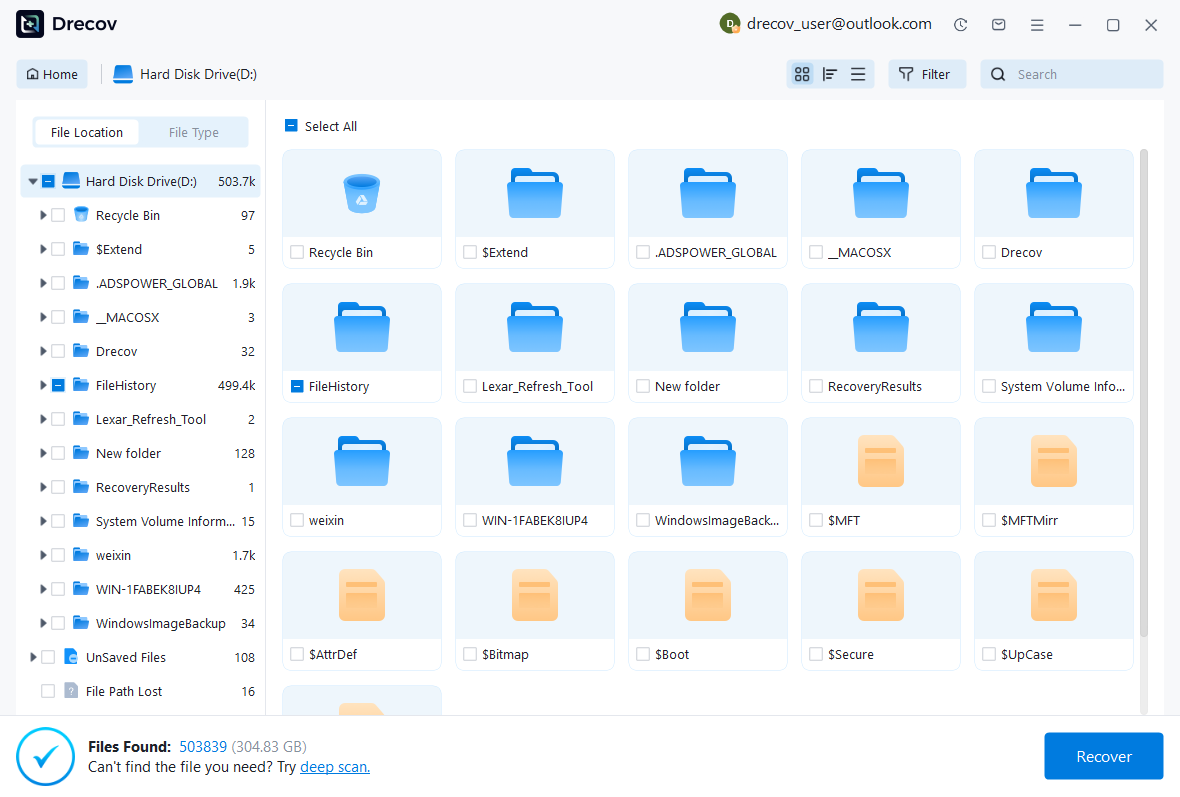
Step 2: compare original-image and catalog candidates
Use available path, date, name, and format filters. For photographs, compare actual capture identity and dimensions where preview allows it. For catalogs, preserve multiple plausible versions and their matching companion files. A familiar thumbnail or large file size does not prove the correct revision. Keep source notes so you can reconnect the accepted catalog with the right originals during validation.
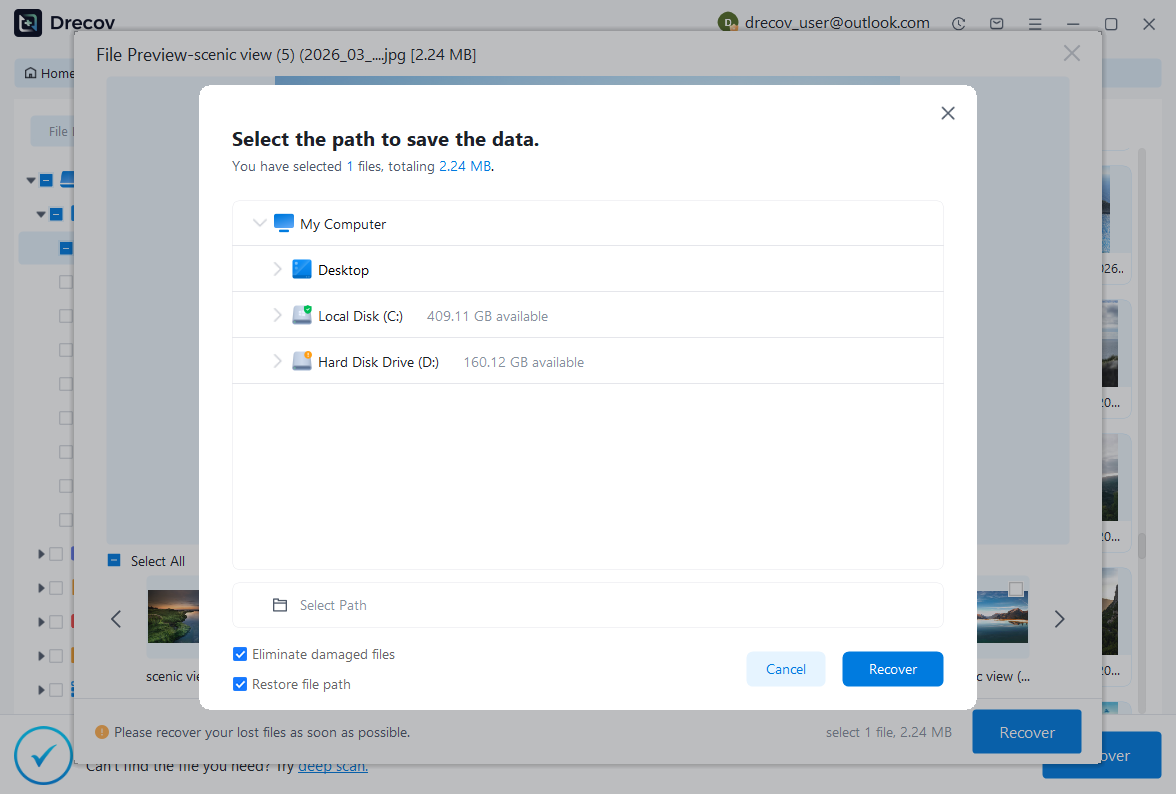
Step 3: recover elsewhere and reconnect deliberately
Save useful candidates to a different healthy physical disk. Review current licensing and preview limits before purchasing. Then open catalog copies in Lightroom and relink verified image originals. Test important adjustments and representative full-resolution exports. If the tool cannot preview a proprietary catalog, acknowledge that limitation. The useful result is a working library with accessible originals, not merely an LRCAT filename in a scan.
Validate the library before resuming edits
Check recent imports, missing-photo counts, collections, keywords, ratings, crops, local adjustments, and the expected original paths. Open representative images at useful detail and export at the required dimensions. Then close and reopen the accepted catalog. Keep a short note of any missing originals or reconstructed edits. This makes the recovery status understandable to anyone who later continues the project.
Preserve the original candidates, accepted catalog set, sidecars, and photo archive until review finishes. Afterwards, maintain independent backups of both catalog information and original captures. Also test that a restored catalog can find the photo archive. A backup routine that protects only one side of that relationship can leave either the editing work or the image pixels unavailable when you need them most.
Related recovery resources
Explore the relevant recovery options: Memory card recovery, Hard drive recovery, External hard drive recovery.
For another recovery case and its practical checks, read the related recovery guide.
Check the vendor guidance for the installed version: official recovery documentation 1, official recovery documentation 2, official recovery documentation 3, official recovery documentation 4.





