







The SOS Moment: “I Just Wiped My Entire Album!”
👨User Post: Help! My Entire Vacation Is Gone!
“I’m desperate. I had just finished my two-week trip, and my camera’s micro sd card was full of photos and 4K videos. I was trying to transfer them to my PC, but I accidentally hit ‘Format’ instead of ‘Eject.’ Now the card is empty! Is there any hope for Micro SD Card Data Recovery? I need those memories back! What should I do first? Which recovery tool is the best?”
This is a common, terrifying moment. Whether you’ve faced accidental deletion, a sudden card corruption, or an erroneous format, the question remains: Can I get my files back from my micro sd card?
The short answer is yes, and this guide will walk you through the principles, critical steps, and methods to maximize your chances of successful data recovery for micro sd card.
Unlocking the Secret: How File Deletion Really Works
Before we dive into the recovery process, understanding the underlying mechanism is crucial. When you delete a file from your micro sd card, the data itself doesn’t vanish immediately.
🧠 The “Virtual Deletion” Mechanism
Think of your micro sd card’s storage as a hotel with a reservation system.
- The Data (Your File): A guest peacefully occupying a room.
- The File System: The hotel’s front desk reservation ledger.
When you “delete” a file, the operating system doesn’t immediately evict the guest and demolish the room. Instead, the front desk crosses the guest’s name off the ledger and places a “Vacant/Ready for Next Guest” sign on the room door.
This means:
- The data still exists: The file’s content remains physically on the micro sd card (the guest is still in the room).
- The space is now considered free: The system marks the location as available for future writing operations (the sign says the room is available).
Therefore, as long as a “new guest” (new data) hasn’t checked into that “reserved” spot, specialized data recovery for micro sd card tools can bypass the damaged ledger, peek inside the room, and restore the file!
🔐 Critical Takeaway: Any new write operation (taking new photos, saving new files) will check a “new guest” into that room, permanently overwriting the old data. Time is the single most important factor in micro sd card file restoration.
The Golden Rules, Warnings, and 5 Reliable Recovery Methods
Your success in data recovery for micro sd card hinges on how quickly and carefully you act.
⚠️ Maximize Recovery Success
| Focus | Action | Risk Explanation |
| Stop Writing | Immediately stop using the micro sd card and eject it safely. | OVERWRITING DATA: Continuing to use the card writes new data, which permanently destroys the underlying lost files, making recovery impossible. |
| Physical Damage | If the card is cracked, warped, or makes strange noises (for full-sized SD/HDD), do not attempt DIY recovery. | INCREASED DAMAGE: Running software on a physically failing card can further damage the fragile internal components, rendering the data unrecoverable even by professionals. |
| Installation Path | When using recovery software, install it on your PC’s main drive, not the affected micro sd card. | SELF-DESTRUCTION: Installing software directly onto the card will utilize “free” space, immediately overwriting the very data you are trying to recover. |
| Recovery Destination | Always choose a NEW, SEPARATE destination (like your computer’s hard drive) for the recovered files. | CRITICAL OVERWRITE: Saving recovered files back onto the source micro sd card can simultaneously overwrite other files that have not yet been recovered. |
🔍 5 Practical Methods for Data Recovery
We present these methods logically, starting with simple internal fixes and moving toward professional solutions.
Method 1: Check Hidden Files and Basic Hardware
Sometimes, the issue is not data loss but a simple display problem or a weak connection.
- Step 1: Insert the micro sd card into your PC.
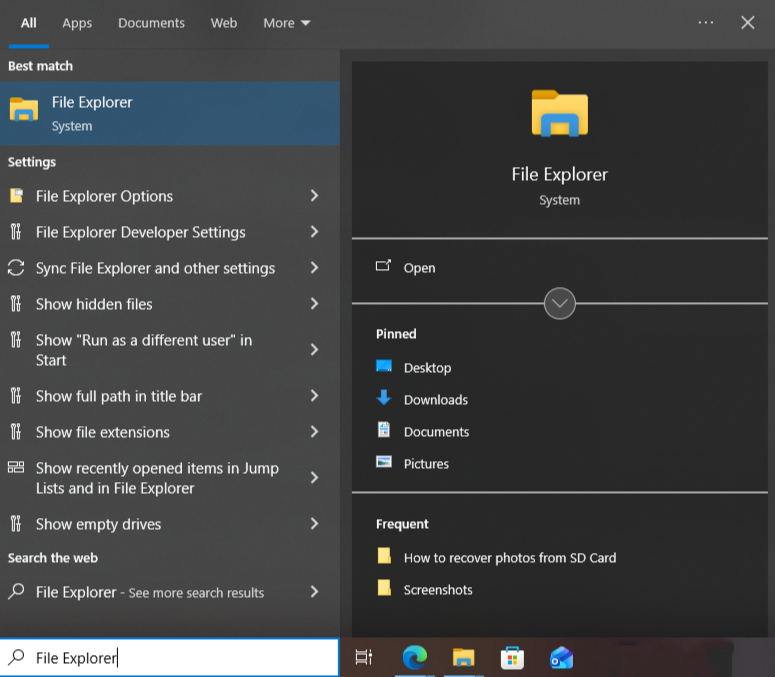
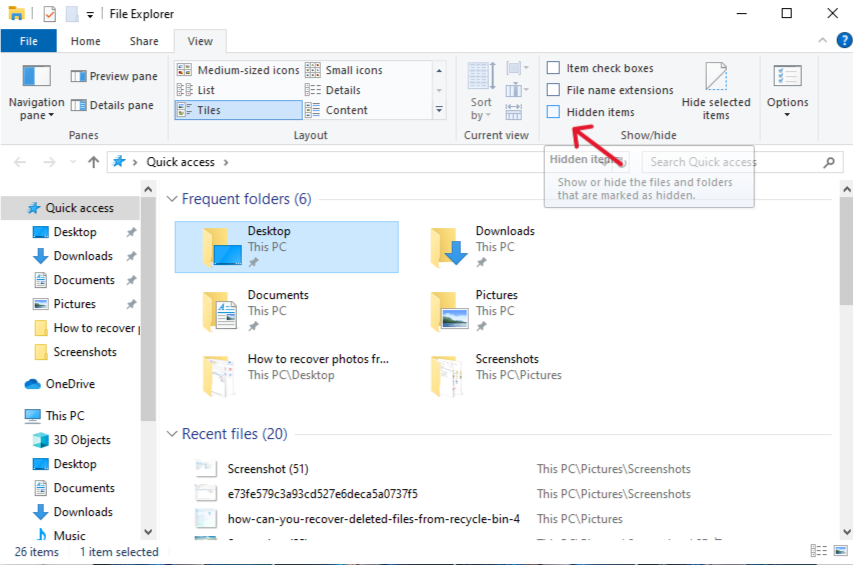
- Step 2: Open File Explorer, navigate to the micro sd card drive, and click on the View tab.
- Step 3: Check the box next to Hidden items (or go to Options > View and select “Show hidden files, folders, and drives”). Malware sometimes hides files.
- Step 4: If the card appears empty, try inserting it into a different card reader or a different USB port on your computer to rule out faulty hardware connections.
Method 2: Repair File System Errors with CHKDSK
Corruption in the file system—often the cause of the “needs formatting” error—can sometimes be fixed. Windows’ built-in CHKDSK utility attempts to repair these logical errors.
- Step 1: Determine the drive letter assigned to your micro sd card (e.g., G:).

- Step 2: Press the
Win+Skeys, typecmd, right-click on “Command Prompt,” and select Run as administrator.
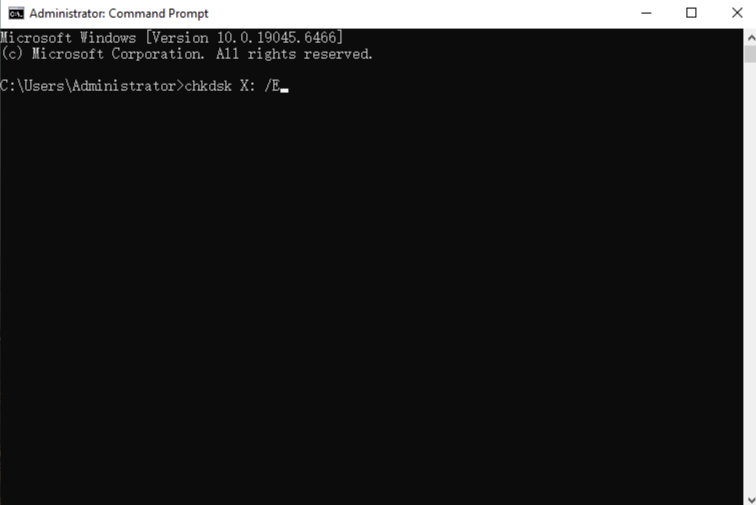
- Step 3: In the command window, type the command
chkdsk X: /f(ReplaceXwith your micro sd card‘s drive letter, e.g.,chkdsk G: /f). - Step 4: Press Enter. The utility will scan the card’s file system and attempt to repair its directory structure. After completion, try accessing the files again.
Method 3: Utilizing PandaOffice Drecov Data Recovery Software
When files have been deleted, lost due to formatting, or are severely fragmented, a professional data recovery for micro sd card tool is the most powerful solution. We recommend PandaOffice Drecov Data Recovery Software for its deep scanning capability.
- Step 1: Install and Launch: Download and install PandaOffice DRecov Data Recovery Software on your PC’s main hard drive. Launch the application and Select Drive. Carefully select your micro sd card (identified by its drive letter or volume size).

- Step 2: Scan: Click the “Scan” button. Start with a Quick Scan; if that fails, immediately run a Deep Scan to search for file signatures across every sector of the card.
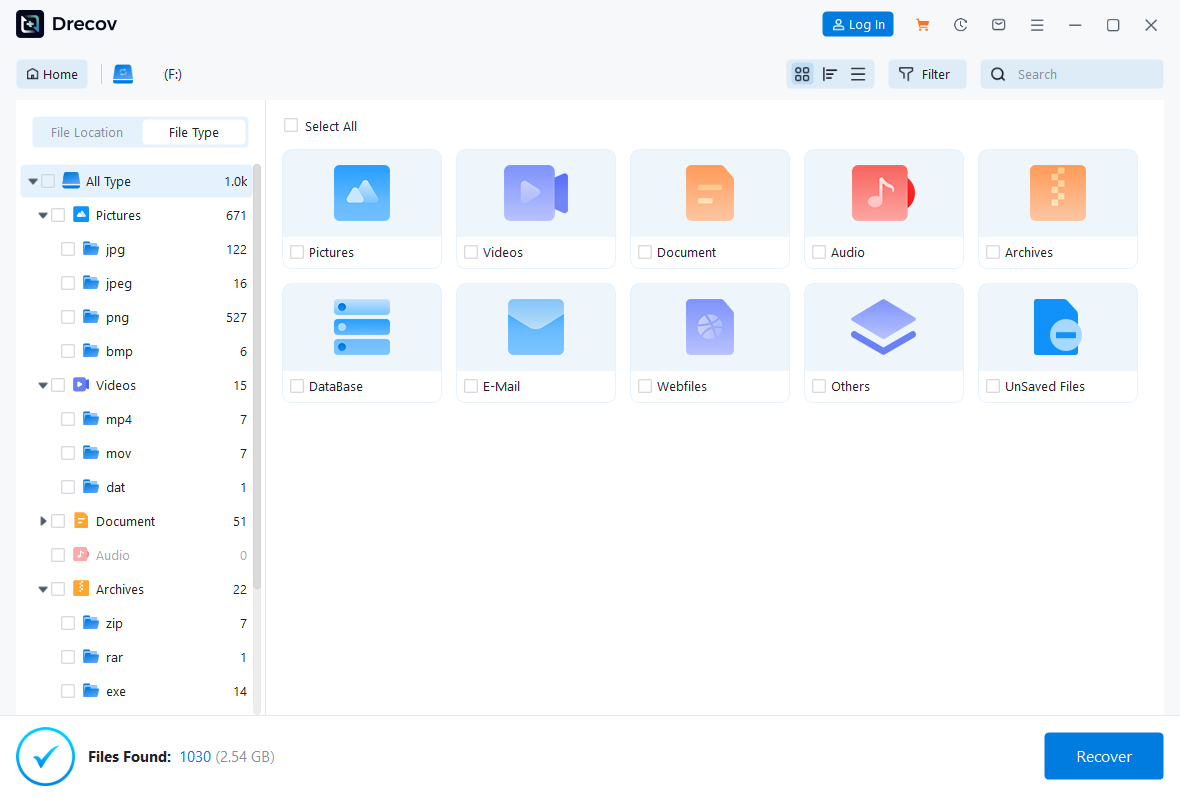
- Step 3: Preview and Filter: Once the scan finishes, browse the results. Utilize the Filter function to quickly find specific file types (e.g.,
.jpgor.mp4). Preview files to verify they are intact.
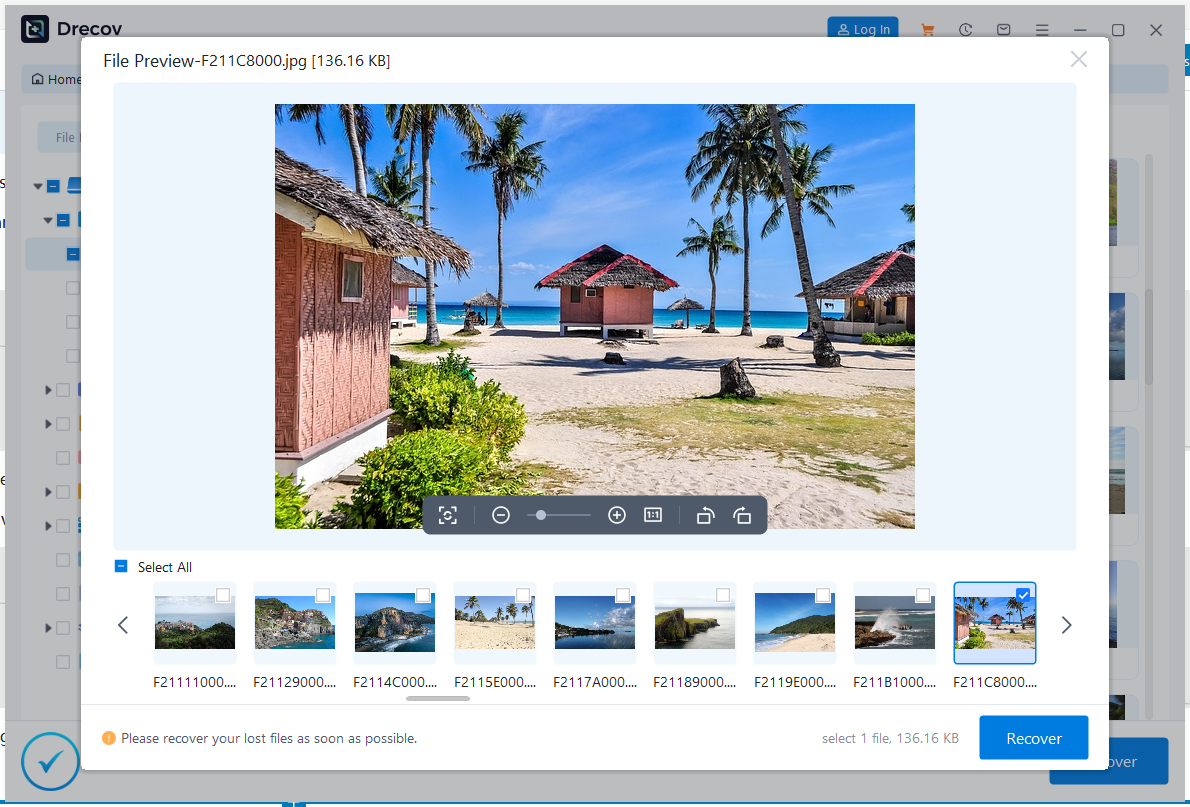
- Step 4: Recover Safely: Select the file you wish to restore, click “Recover,” and choose a NEW destination (like your computer’s SSD) to save the recovered data.
Method 4: Recovering with File History or Previous Versions
For Windows users who previously backed up system data, the “File History” feature may have captured a copy of the data before it was lost from the micro sd card.
- Step 1: Ensure you have configured File History to include the contents of your micro sd card or its previous storage location.

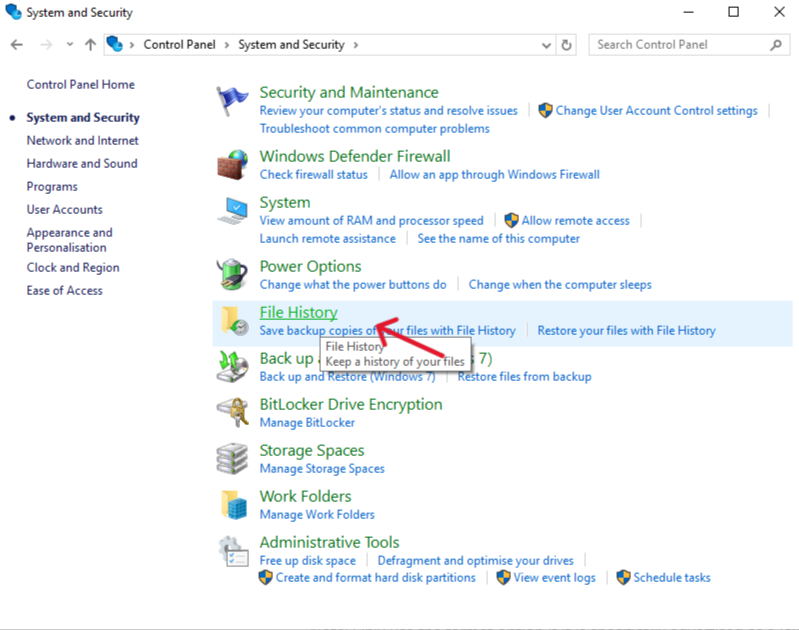
- Step 2: Open the Control Panel and navigate to System and Security > File History.
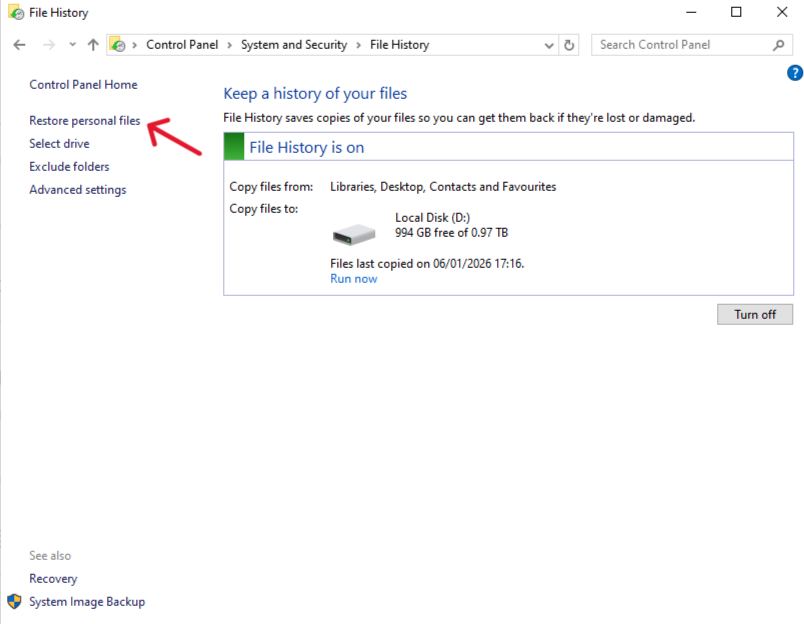
- Step 3: Click Restore personal files and use the timeline interface to navigate back to a point in time before the data was lost.
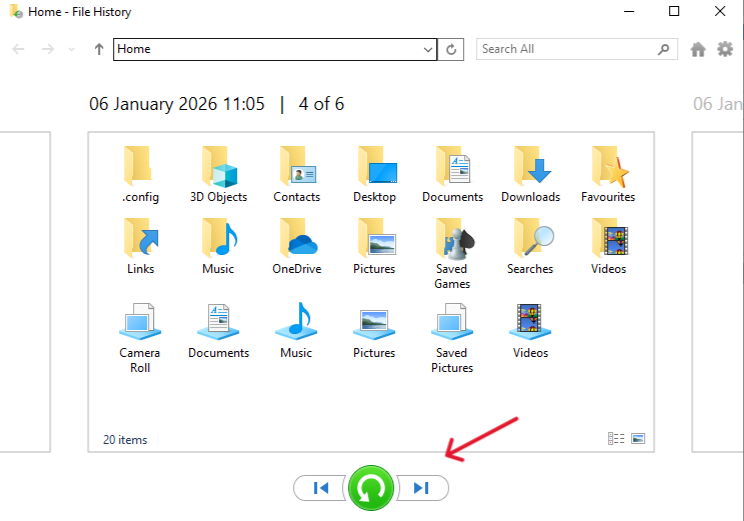
- Step 4: Select the desired files or folders and click the green Restore button to save them to a safe location.
Method 5: Using Micro SD Card Official Repair Tools
Leading micro sd card manufacturers often provide dedicated utilities to address common card errors, especially those related to minor firmware corruption or formatting issues.
- Step 1: Visit the official support website of your micro sd card’s manufacturer (e.g., SanDisk ).Download and install the software.
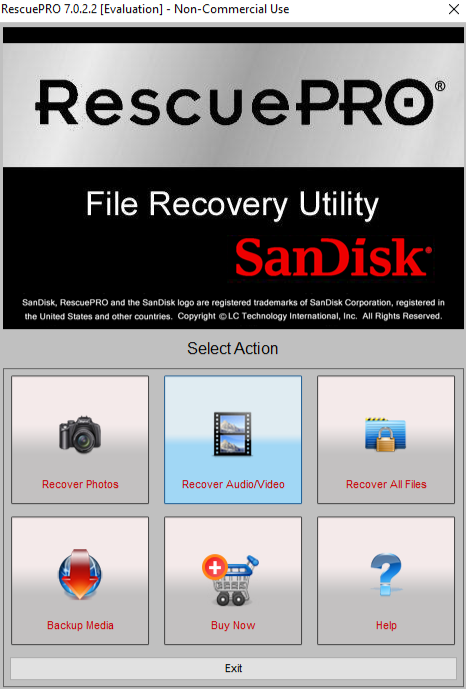
- Step 2: Choose Recovery Type. Choose the type of data you wish to recover (e.g., Images, Videos, or All Files). Select the relevant option.
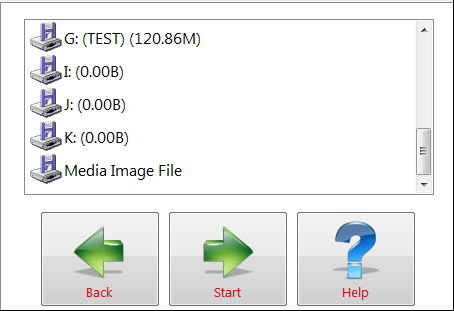
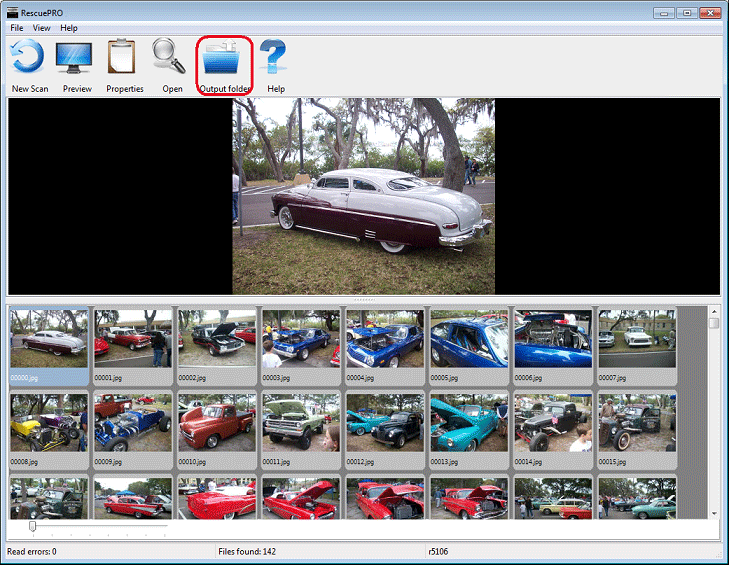
- Select the Drive and Start. Identify your flash drive from the list of removable media and start the scan.
Common Micro SD Card Data Recovery FAQs
| ❓ Frequently Asked Questions | ✅ Expert Answers |
| Can I perform data recovery for micro sd card after a full format? | Yes, often. A Quick Format only clears the file table. However, if the format was a Secure Erase or if you’ve since written new data to the card, recovery chances are significantly lower. |
Why are my recovered files showing up with random names (e.g., file001.jpg)? | This is a result of File Carving (Deep Scan). The software restored the content, but the original file name and directory structure were too corrupt to recover. You will need to manually sort these files by content and date. |
| How critical is it to save the files to a different location? | Extremely critical. If you save the recovered data back onto the source micro sd card, you risk overwriting the remaining lost data, thereby permanently destroying other files you still intended to recover. |
| My card is not showing up with a drive letter. What should I do? | If the card is completely undetectable by the operating system, it usually indicates physical damage to the controller chip. Stop immediately and contact a professional data recovery lab. Software cannot help here. |
Conclusion
Successfully executing data recovery for micro sd card is highly time-sensitive. By immediately halting all activity on the card and using reliable, structured methods like PandaOffice Drecov Data Recovery Software, you dramatically increase the likelihood of restoring your precious photos, videos, and documents. Remember: Don’t panic, stop writing, and start scanning!






