







Knowing how to format SD card Mac correctly is essential for MacBook and iMac users who rely on SD cards for cameras, drones, phones, and external storage. An SD card format can fix unreadable cards, remove file system errors, and prepare a card for use with specific devices. Many users encounter messages such as “The disk you inserted was not readable by this computer” or find that their SD card works on a camera but not on macOS. In these cases, learning how to format SD card on Mac safely is often the fastest and most reliable solution.
Formatting an SD card erases all existing data and rebuilds the file system. macOS provides built-in tools that make this process straightforward, even for beginners. However, choosing the wrong format or skipping precautions can result in accidental data loss. This guide explains why SD cards need formatting, common causes of data loss, and step-by-step solutions using Mac system tools and software-based methods. By the end, you will understand how to format SD card Mac safely and how to recover data if formatting goes wrong.
Why You May Need to Format an SD Card on Mac
There are many practical reasons to perform an sd card format on Mac, especially when dealing with compatibility or performance issues. SD cards are frequently moved between devices such as cameras, Windows PCs, and Android phones. Each system may write data differently, which can confuse macOS over time.
Fixing File System Errors
SD cards often develop file system errors due to improper ejection, power loss, or sudden removal from a device. macOS may show error messages or mount the card as “read-only.” Formatting the SD card removes corrupted file structures and restores normal read and write access.
Improving Compatibility
Some devices require specific file systems. For example, many cameras and older devices prefer FAT32, while others use exFAT. Formatting ensures the SD card matches the target device’s requirements and avoids recognition issues.
Preparing a New or Used SD Card
New SD cards may come preformatted, but not always in the ideal format for your workflow. Similarly, a used card may contain hidden partitions or incompatible settings. A fresh format creates a clean, predictable storage environment.
⚠️ Warning: Formatting permanently deletes all files on the SD card. Always back up important data before proceeding.
Common Causes of Data Loss During SD Card Formatting
Many users search for how to format SD card on MacBook only after realizing they have lost important files. Understanding how data loss happens helps you avoid costly mistakes.
Formatting Without Backup
The most common cause of data loss is formatting an SD card without copying photos or videos elsewhere. This often happens when macOS repeatedly prompts users to format a card due to errors.
Choosing the Wrong File System
Using an incompatible file system can make files inaccessible on other devices. For example, formatting an SD card as APFS or Mac OS Extended may work on Mac but fail on cameras or Windows PCs.
Interrupting the Formatting Process
Disconnecting the SD card during formatting can damage the file system and increase the risk of permanent data loss.
⚠️ Warning: If you accidentally format an SD card, stop using it immediately. Continued use may overwrite recoverable data blocks.
How to Format SD Card on Mac Using Disk Utility
Disk Utility is the safest and most common way to format SD card Mac. It is built into macOS and offers clear options for beginners and intermediate users.
Step-by-Step Guide: Disk Utility Method
- Insert the SD card into your Mac or an external card reader.
- Open Disk Utility (Applications → Utilities → Disk Utility).
- In the sidebar, select the SD card (not just the volume).
- Click Erase at the top.
- Choose a Format:
- MS-DOS (FAT) for FAT32
- exFAT for larger cards
- Choose Scheme: Master Boot Record.
- Click Erase and wait for completion.
This method works for most users and ensures compatibility with cameras, Windows PCs, and other devices.
Pros
- Simple and built-in
- Reliable for most SD cards
Cons
- Limited advanced repair options
⚠️ Warning: Do not select your internal Mac drive by mistake. Double-check the SD card name before erasing.
Alternative Methods to Format SD Card from Mac
In some cases, Disk Utility may fail or show errors. When that happens, alternative methods can help.
Format SD Card on Mac Using Terminal
Terminal provides more control for advanced users.
- Open Terminal.
- Type
diskutil listto identify the SD card. - Note the disk identifier (e.g., disk2).
- Run:
diskutil eraseDisk FAT32 SDCard MBRFormat /dev/disk2 - Press Enter and wait.
This method can resolve stubborn formatting issues but requires careful attention.
When to Use Third-Party Formatting Tools
Third-party tools are helpful if:
- Disk Utility fails repeatedly
- The SD card appears as RAW or unrecognized
- You need to force FAT32 on large-capacity cards
⚠️ Warning: Use only trusted software to avoid further damage.
Recovering Data After Formatting an SD Card on Mac
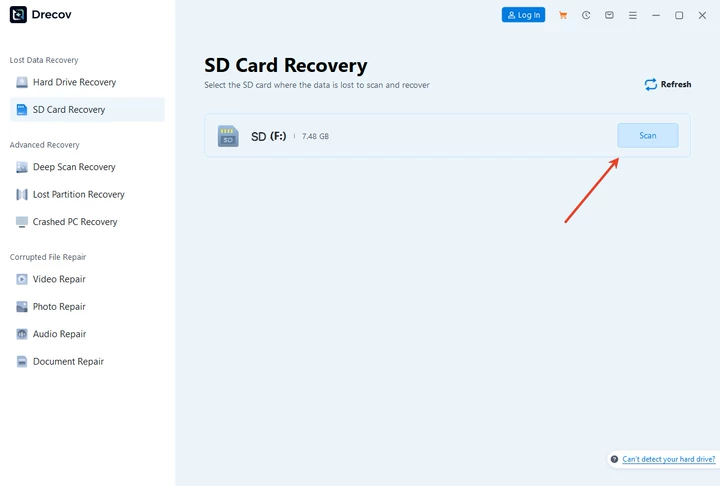
Accidental formatting is common, but data recovery is often possible if you act quickly. PandaOffice Drecov is a reliable solution for recovering data from a formatted SD card on Mac.
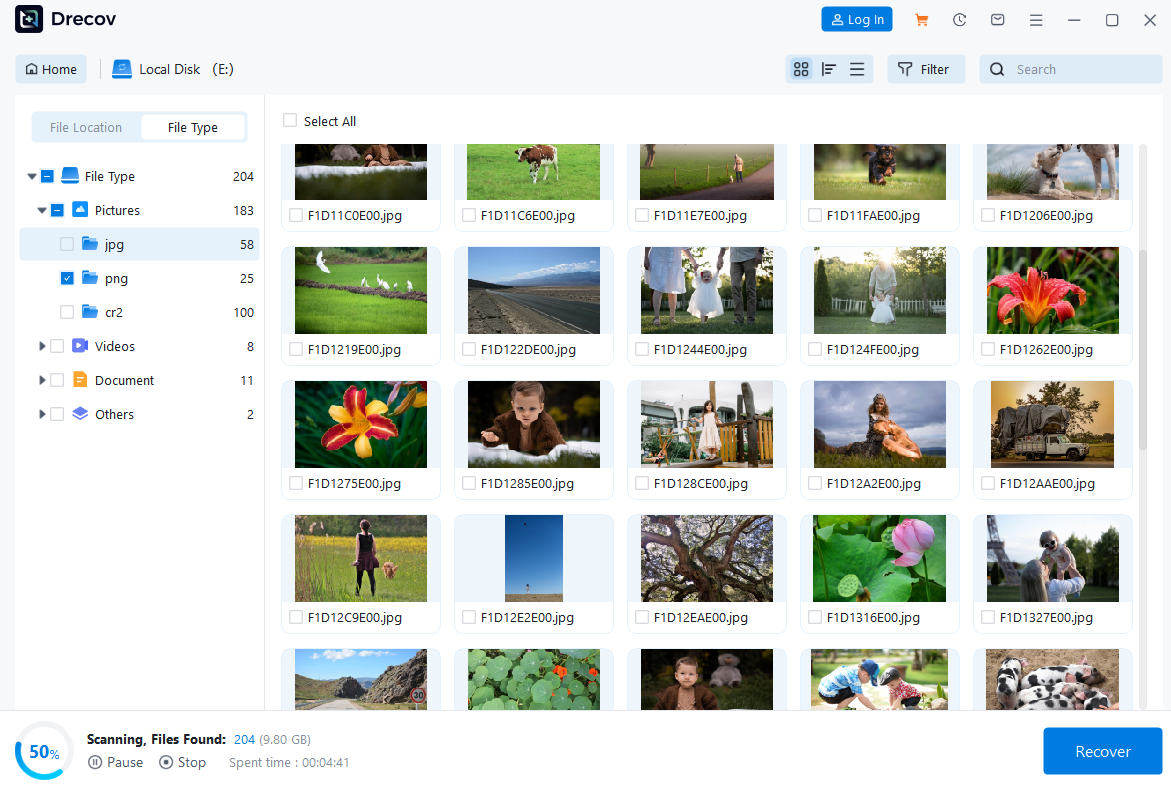
3 Steps to Recover Data with PandaOffice Drecov
Download Drecov- Scan – Connect the formatted SD card and scan for lost files.
2. Preview – Preview photos, videos, and documents before recovery.
3. Recover – Restore selected files to a safe location on your Mac.
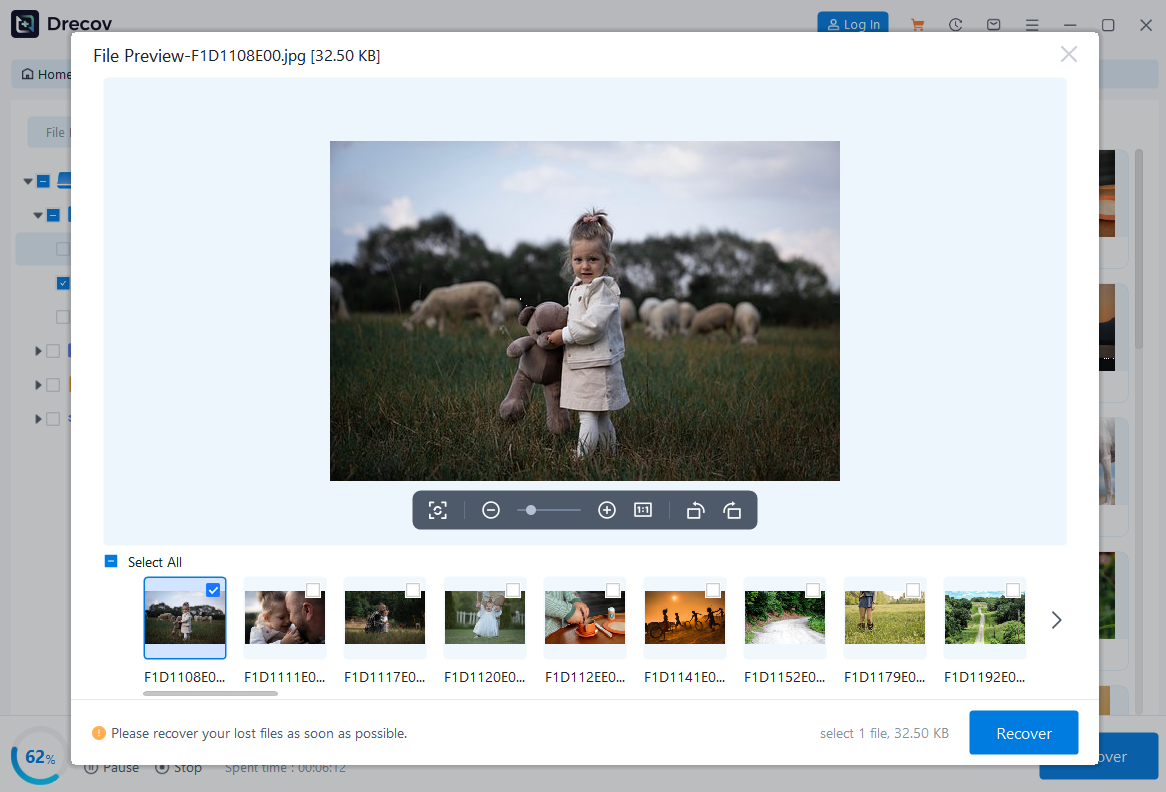
This approach is beginner-friendly and supports common camera file formats.
⚠️ Warning: Never save recovered files back to the same SD card. Always use a different storage device.
Comparison: Mac Formatting Methods vs Recovery Software
| Method | Best Use Case | Pros | Cons |
|---|---|---|---|
| Disk Utility | Standard formatting | Easy, built-in | Limited repair |
| Terminal | Advanced control | Powerful | Risky for beginners |
| Recovery Software | After data loss | Restores files | Requires installation |
Choosing the right method depends on whether you are formatting for reuse or recovering lost data.
FAQs
Q1: How to format SD card on MacBook safely?
Use Disk Utility, select MS-DOS (FAT) or exFAT, and back up data before erasing.
Q2: How to format SD card Mac for camera use?
Choose MS-DOS (FAT) with Master Boot Record for maximum compatibility.
Q3: How to format SD card from Mac if it’s not readable?
Try Disk Utility first, then Terminal if needed. Use recovery software if data is important.
Q4: How to format SD card Mac without losing data?
Back up files first. If formatted by mistake, use PandaOffice Drecov to recover data.
Q5: How to format SD card on MacBook when Disk Utility fails?
Use Terminal commands or trusted third-party tools for advanced formatting.
Conclusion
Learning how to format SD card Mac correctly helps prevent errors, improve compatibility, and maintain reliable storage performance. Whether you use Disk Utility, Terminal, or software tools, always take precautions to protect your data. Remember that format SD card on Mac permanently erases files, so backups are essential. If data loss occurs, PandaOffice Drecov offers a practical three-step recovery solution. With the right approach, you can safely manage SD cards on macOS and avoid unnecessary data loss.





