







Formatting an SD card on a Mac is a routine task for many users, whether preparing a new card or resolving issues with an existing one. SD cards, including SD, SDHC, and SDXC types, are widely used in cameras, smartphones, and other digital devices. Despite their convenience, SD cards can sometimes become corrupted, unreadable, or formatted incorrectly. Knowing how to safely format your SD card and recover lost data is essential for every Mac user.
Proper preparation is key before starting the formatting process. One critical step is ensuring that your important files are backed up. Without backup, formatting will erase all existing content, which may result in permanent data loss. In cases where SD cards become inaccessible due to corruption or accidental deletion, Pandaoffice Drecov can help recover files efficiently. This software supports SD card recovery Mac and allows users to restore lost or deleted files without overwriting existing data.
Formatting an SD card can be accomplished through built-in Mac tools such as Disk Utility or Terminal. Disk Utility offers a graphical interface ideal for most users, while Terminal provides command-line control for advanced users. Regardless of the method, the goal is the same: reset the SD card’s file system so it can function properly again.
I got a new 256 GB V30 Sandisk Extreme SD card for shooting video. I formatted it in camera as I always do, but that caused errors. The camera said the card was full, then froze and I had to manually reset it by removing the battery. This happened repeatedly in both card slots, and I can’t reformat in camera.—from apple store
Preparations Before Formatting an SD Card on Mac
Before formatting, it’s crucial to assess the data on your SD card. SD card data recovery Mac becomes far easier if you take preventative steps. Begin by identifying critical files that must be saved. You can manually copy these files to your Mac’s internal storage, an external hard drive, or cloud services such as iCloud.
For SD cards that are damaged or inaccessible, directly transferring files may not be possible. In such scenarios, sd card recovery software Mac like Pandaoffice Drecov is essential. It allows users to perform mac SD memory card recovery and restore files from corrupted or formatted SD cards safely. Pandaoffice Drecov supports recovery of images, videos, documents, and other file types with a simple scanning process.
It is also important to verify the type of SD card you are formatting. Some devices may only support SDHC or SDXC cards. Confirming compatibility prevents formatting errors and ensures the card functions optimally after reset. By taking these precautions, you safeguard your data while preparing the card for a fresh start.
How to Format SD Card on Mac Using Disk Utility
Disk Utility is the most common and user-friendly method for formatting an SD card on Mac. Begin by connecting your SD card to your Mac using the appropriate slot or adapter. Open Disk Utility, which is located in the Applications > Utilities folder.
Once open, select your SD card from the list of available drives. Click the Erase button, which opens formatting options. Here, you can choose a file system such as Mac OS Extended, exFAT, or FAT32 depending on your needs. Assign a descriptive name to the SD card to make it easily identifiable.
Before confirming, double-check that any vital data has been backed up. If files were lost or accidentally deleted, use sd card recovery Mac tools like Pandaoffice Drecov to recover files before formatting. After confirming, the SD card will be erased and formatted according to your chosen file system.
After formatting, your SD card is ready for use with cameras, smartphones, or storage expansion. By following this process carefully, you minimize the risk of data loss while ensuring your SD card functions efficiently.
How to Format SD Card on Mac Using Terminal
For users comfortable with command-line operations, Terminal provides a powerful method to format SD cards. First, insert your SD card and launch Terminal from Applications > Utilities. You need to identify the SD card’s disk number using the command diskutil list.
Once identified, use the command diskutil eraseDisk FILE_SYSTEM DISK_NAME /dev/diskX, replacing FILE_SYSTEM with the desired format (e.g., exFAT), DISK_NAME with the SD card’s new name, and diskX with the disk number. This command will erase and reformat the SD card.
Terminal formatting is especially useful for advanced users needing precise control over partitions or file systems. However, as with Disk Utility, it is critical to back up important files. If any files were lost, recover SD card Mac software like Pandaoffice Drecov can restore deleted content quickly. Using the Terminal method allows technical users to handle complex scenarios, such as partially corrupted SD cards or customized partition schemes.
Common SD Card Issues on Mac and How to Handle Them
SD cards can encounter a range of problems on Mac, including not being recognized, showing as RAW, or failing to mount. Often, these issues result from improper ejection, file system errors, or physical damage. SD card data recovery Mac tools can resolve most software-related issues without hardware replacement.
For instance, if your SD card is corrupted and cannot be accessed, Pandaoffice Drecov provides sd card recovery software Mac to scan and recover files safely. Users can restore images, videos, or documents that were lost due to formatting, deletion, or corruption. Regularly scanning and maintaining SD cards can prevent unexpected failures.
It is also advisable to format SD cards periodically to refresh the file system, which enhances stability and compatibility across devices. Following these best practices ensures the longevity of your SD card and prevents permanent data loss.
Recovering Deleted Files from an SD Card on Mac
Accidental deletion is one of the most common causes of data loss on SD cards. Whether you mistakenly formatted your SD card or deleted files individually, all hope is not lost. Using sd card recovery Mac software like Pandaoffice Drecov, you can efficiently recover lost or deleted files. This tool scans your SD card thoroughly and restores files without overwriting existing data.
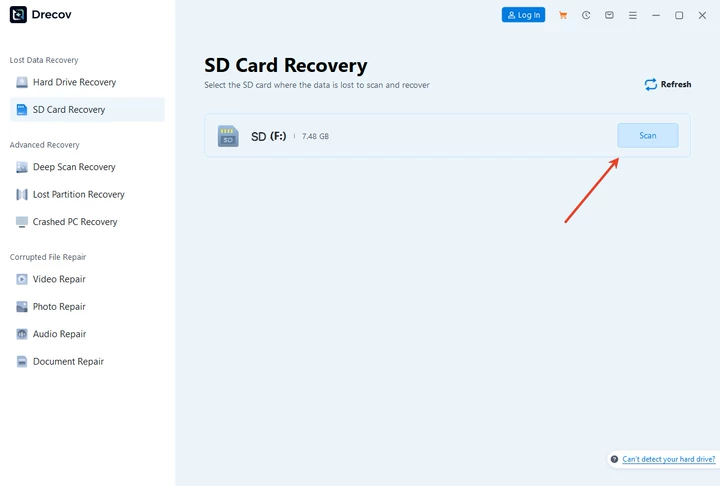
The process begins by connecting the SD card to your Mac and launching Pandaoffice Drecov. The software offers a simple, intuitive interface suitable for both beginners and advanced users. After selecting your SD card, initiate a scan. The scan process analyzes the card’s file system, locating recoverable images, videos, documents, and other data types.
Once the scan is complete, preview the recoverable files before restoring them. Pandaoffice Drecov allows selective recovery, so you can choose exactly which files to restore. This approach is especially useful for large SD cards where you may only need specific content. With proper recovery software, even files lost due to accidental formatting can be successfully restored, ensuring your SD card data remains intact.
Step-by-Step Guide: How to Reformat SD Card on Mac Safely
Reformatting an SD card may be necessary for various reasons, including device compatibility, performance issues, or preparing a card for new use. To safely reformat your SD card on Mac, follow these steps:
- Backup Important Data – Before any formatting, use sd card data recovery Mac tools to recover and save important files. Pandaoffice Drecov ensures deleted files or corrupted data are safely restored.
- Insert SD Card – Connect your SD card to the Mac via an SD slot or adapter.
- Launch Disk Utility – Navigate to Applications > Utilities > Disk Utility.
- Select the SD Card – Identify your card in the list of drives.
- Choose Format Type – Select a file system such as exFAT for cross-device compatibility or Mac OS Extended for Mac-only use.
- Erase and Format – Click Erase to reformat the SD card.
- Verify Card Functionality – After formatting, test the SD card in your intended device to ensure proper operation.
Following these steps ensures a safe reformat while preserving your ability to recover deleted files if needed. Using sd card recovery software Mac like Pandaoffice Drecov adds a safety net in case accidental deletion occurs during the process.
Recover SD Card Mac Free: Is It Possible?
Many users wonder if it’s possible to recover deleted SD card files on Mac for free. While some software offers limited free recovery, full functionality typically requires a reliable tool like Pandaoffice Drecov. This software allows a free scan and preview of recoverable files, so you can determine which files are retrievable before committing to recovery.
Free recovery attempts can often restore small files or partially recover data, but professional sd card recovery software Mac provides higher success rates. With Pandaoffice Drecov, even large SD cards with complex file systems can be scanned, and files lost due to accidental deletion, corruption, or formatting can be restored efficiently.
For users seeking recover deleted files SD card Mac free, the first step is to perform a free scan to evaluate recoverable content. Pandaoffice Drecov supports this process, making it easy to identify which files can be saved. Once the scan is complete, users can choose to recover the files selectively, avoiding unnecessary restoration of unwanted content.
Advanced SD Card Recovery Scenarios on Mac
Sometimes, SD card issues on Mac go beyond simple deletion or formatting. Problems such as partial corruption, damaged partitions, or SD cards showing errors when accessed can be challenging. While professional recovery tools like Pandaoffice Drecov are powerful, it currently only supports Windows. Mac users will need to rely on Mac-compatible recovery strategies and software for sd card recovery Mac.
For partially corrupted SD cards, the first step is to stop using the card immediately. Continued use can overwrite lost data, reducing the chance of recovery. Mac users can try built-in utilities such as Disk Utility’s First Aid feature to repair minor file system errors. This can help resolve issues where the card fails to mount or displays as unreadable.
If deleted files or accidental formatting is involved, Mac users should use dedicated sd card recovery software Mac. These tools scan the SD card thoroughly to locate recoverable files and restore them safely. For example, some Mac software can perform mac SD memory card recovery, recovering photos, videos, and documents lost due to corruption or deletion.
Additionally, users should regularly back up important SD card data and avoid using the card across multiple devices without proper formatting. By following these practices, you minimize the risk of permanent data loss and ensure that SD cards remain functional on Mac devices.


Tips for Maintaining SD Card Health on Mac
Preventing SD card issues is just as important as recovery. Regular maintenance and careful handling reduce the risk of data loss. Start by ejecting SD cards safely using Mac’s built-in options instead of removing them abruptly. This prevents file system corruption and potential data loss.
Another tip is to periodically reformat SD cards to refresh their file system, which can improve stability and performance. When performing reformatting, always back up important files and consider using sd card data recovery Mac software like Pandaoffice Drecov as a precautionary measure.
Additionally, avoid using the same SD card across multiple devices without reformatting, as differences in file systems may cause compatibility issues. Keeping cards clean, avoiding physical damage, and regularly scanning for errors ensures longevity and reliable performance. Following these guidelines helps Mac users maintain optimal SD card functionality and minimizes the need for emergency data recovery.
Choosing the Right SD Card Recovery Software for Mac
Selecting reliable sd card recovery software Mac is essential for successful data restoration. Many factors influence recovery success, including software compatibility, scanning algorithms, and ease of use. Pandaoffice Drecov is specifically designed for Mac users, supporting a wide range of SD card types and file systems.
Key features include the ability to recover lost or deleted files from formatted SD cards, preview files before recovery, and restore data without overwriting existing content. Its intuitive interface ensures even beginners can perform sd card recovery Mac efficiently. For professional users, advanced settings provide control over deep scans and specific file type recovery.
When choosing recovery software, consider factors like scanning speed, file type support, and safety. Pandaoffice Drecov balances all these aspects, making it a top choice for users who want reliable SD card recovery on Mac without unnecessary complexity.
Conclusion: Safe Formatting and Recovery of SD Cards on Mac
Properly formatting an SD card on Mac ensures optimal performance and compatibility with your devices. Before formatting, always back up important data or use sd card recovery software Mac like Pandaoffice Drecov to restore deleted files. Whether you are using Disk Utility or Terminal, careful preparation prevents data loss and maintains SD card longevity.
In the event of accidental deletion, corruption, or formatting, Pandaoffice Drecov offers a reliable solution for restore SD card Mac and sd card data recovery Mac. From free scans to selective recovery, it empowers users to retrieve their files efficiently. Regular maintenance, careful handling, and the use of professional recovery software make SD card management on Mac simple and safe.
By combining proper formatting techniques with advanced recovery options, Mac users can enjoy the full potential of their SD cards without worrying about data loss. Pandaoffice Drecov ensures that lost files are never permanently gone, providing peace of mind and robust recovery capabilities for every SD card owner.





