







Micro SD cards are widely used in smartphones, cameras, drones, and other portable devices due to their compact size and storage capacity. Over time, a micro SD card may need to be formatted for various reasons, including clearing old data, fixing errors, or changing the file system format. Knowing how to format micro SD cards properly ensures the card performs optimally and prevents potential data loss. This guide will walk you through everything you need to know about formatting a micro SD card safely, whether you are using a PC, an Android device, or a camera.
Ok I am not techy at all and need help. I bought a Sandisk 128 GB micro SD card for my Reolink security camera on my RV and I need to format it to FAT32 to get it to work. My camera doesn’t even recognize the card so should I uninstall card and turn camera off to first see if it will recognize the card or should I just put it in my laptop and reformat it? How do I reformat it lol? Is there steps to do this? Please help this un techy girl out lol. Thanks so much!—from Reddit
Why You Should Format a Micro SD Card
Formatting a micro SD card is more than just erasing files. It resets the card, removes hidden files, and prepares it for new data. Regular formatting can help maintain the card’s health and prevent corruption. Some of the main reasons to format a micro SD card include:
- Fixing corrupted cards: If your micro SD card is malfunctioning or showing read/write errors, formatting can often restore it to working condition.
- Freeing up storage space: Over time, cached data and hidden files can accumulate, reducing available space. A proper format clears everything.
- Changing the file system format: Micro SD cards can use FAT32, exFAT, or NTFS formats. Choosing the right one ensures compatibility with your device and optimizes performance.
It is important to note that formatting erases all existing files, so backing up essential data beforehand is crucial. If files are lost due to accidental formatting, recovery software like Pandaoffice Drecov can restore formatted documents quickly and efficiently.
Understanding File System Formats
Before formatting a micro SD card, it’s essential to understand the file system format options. The file system determines how data is stored and accessed on the card. Common formats include:
- FAT32: Compatible with most devices but has a 4GB file size limit. Ideal for cameras and older smartphones.
- exFAT: Supports larger files and is widely used in modern devices. It is perfect for high-definition video storage.
- NTFS: Mostly used in Windows environments. Not ideal for mobile devices but suitable for PC-based storage.
Choosing the correct file system format ensures compatibility and prevents errors when transferring files. For example, high-resolution videos may require exFAT, while a micro SD card used in older cameras should remain FAT32.
Preparing Your Micro SD Card for Formatting
Before starting the formatting process, there are a few important steps:
- Backup your data: Since formatting erases all content, save important files on your computer or cloud storage. Pandaoffice Drecov can help recover files if you forget to back them up.
- Check card compatibility: Ensure your device supports the card’s capacity and intended file system format.
- Inspect the card for damage: Physically damaged cards may fail during formatting. In such cases, data recovery software can help retrieve important documents.
Taking these precautions will reduce the risk of data loss and help the formatting process proceed smoothly.
How to Format a Micro SD Card on Windows PC
Formatting a micro SD card on a Windows PC is straightforward and provides several file system format options:
- Insert the micro SD card into the card reader and connect it to your computer.
- Open File Explorer, right-click the micro SD card, and select Format.
- Choose the desired file system format (FAT32, exFAT, or NTFS) from the drop-down menu.
- Set the Allocation unit size (default is recommended) and check the Quick Format option for faster processing.
- Click Start to begin formatting.
The process will erase all existing data. If you accidentally format the wrong card, Pandaoffice Drecov can recover documents even after a full format.
Formatting a Micro SD Card Using Command Prompt
For users comfortable with advanced tools, the Command Prompt allows precise control over formatting:
- Press Windows + R, type
cmd, and press Enter. - Type
diskpartand hit Enter. This opens the Disk Partition tool. - Enter
list diskto see all connected drives and identify your micro SD card. - Type
select disk X(replace X with your card’s number). - Enter
cleanto remove all partitions. - Type
create partition primary, thenformat fs=exFAT quick(or your chosen file system format). - Finally, assign a drive letter using
assign.
This method is efficient but requires caution to avoid formatting the wrong disk.
How to Format a Micro SD Card on Android Devices
Many smartphones allow formatting micro SD cards directly through device settings:
- Insert the card into the device and go to Settings > Storage.
- Select the micro SD card, then tap Format.
- Choose whether to format as portable storage or internal storage.
- Confirm the process. The device will erase all files and apply the default file system format.
If you accidentally delete files during this process, Pandaoffice Drecov can help restore formatted documents safely.
Formatting a Micro SD Card in Cameras and Other Devices
Many digital cameras, action cams, and drones allow you to format micro SD cards directly from their menus. This method is convenient and ensures the card is properly configured for that device’s storage requirements. Typically, you navigate to the camera’s Settings or Setup menu, select Format Card, and confirm the process. This erases all files and sets the appropriate file system format for optimal device performance.
It’s important to note that formatting in a device may differ slightly depending on the brand or model. Some devices default to FAT32, while others may choose exFAT for larger storage cards. Before formatting, ensure that important photos or videos are backed up. If something is accidentally deleted, Pandaoffice Drecov can recover formatted documents efficiently.
Regularly formatting the micro SD card in the device helps maintain its health, improves reading and writing speeds, and reduces the risk of corrupted files. Additionally, if the card has been used in multiple devices, reformatting ensures compatibility by resetting the file system format to match the new device.
Common Issues During Micro SD Formatting
Formatting a micro SD card is usually straightforward, but users may encounter errors such as “Card is write-protected” or “Windows was unable to complete the format.” These issues often arise from physical locks, corrupted sectors, or device compatibility problems.
To resolve a write-protection error, check the card adapter if used or ensure the card’s physical lock switch is not engaged. For corrupted cards, using the device’s built-in formatting tool or a computer with administrative privileges usually works. In severe cases, software like Pandaoffice Drecov can recover data from a card that seems unreadable or fails during formatting.
Understanding how to format micro SD properly can prevent data loss and maximize card lifespan. Choosing the correct file system format and following recommended steps reduces errors significantly.
Tips for Maintaining Your Micro SD Card
Proper maintenance extends the life of a micro SD card and protects your data. Always avoid removing the card while data is transferring, as abrupt disconnection can corrupt files. Regularly backing up essential files ensures that accidental deletion or formatting does not result in permanent loss.
When using the card in multiple devices, reformatting to the recommended file system format for each device helps maintain compatibility. Additionally, cleaning the contacts gently with a soft cloth reduces read/write errors. If files are accidentally lost during formatting or device malfunction, Pandaoffice Drecov provides reliable recovery of formatted documents, making it an essential tool for micro SD card users.
Best Practices for Using Micro SD Cards After Formatting
After formatting your micro SD card, following some best practices can help maintain its performance and prevent data loss. First, always safely eject the card from your device or computer after use. Abrupt removal during data transfer can corrupt files or even damage the card. Second, avoid filling the card to maximum capacity. Keeping some free space allows your device to manage files more efficiently and reduces the risk of slow read/write speeds.
It’s also recommended to periodically back up your files, even after formatting. While formatting clears old data, accidental deletion or card corruption can still happen. Using a recovery solution like Pandaoffice Drecov ensures you can restore files quickly if anything goes wrong. Additionally, regularly checking the card for errors using your device’s tools can detect issues early, allowing you to format the card safely before major problems occur.
Lastly, when using multiple devices, always format the micro SD card according to each device’s recommended file system format. This ensures full compatibility and reduces read/write errors. Following these practices prolongs the life of your card and keeps your data secure, giving you confidence to store photos, videos, and documents without worry.
Recovering Files After Accidental Formatting
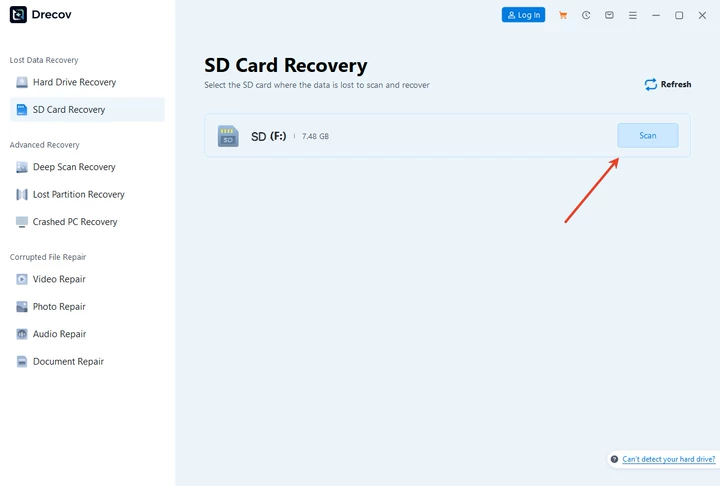
Accidental formatting of a micro SD card can be stressful, but losing your files permanently is not inevitable. Even after formatting, most data remains on the card until overwritten. Pandaoffice Drecov provides a reliable solution to recover your photos, documents, videos, and other important files quickly. Using Drecov is simple, even for beginners, with a clear 3-step process that ensures efficient recovery:
Download Drecov- Scan the Formatted Card – Connect your micro SD card to your computer and launch Drecov. The software automatically detects the card and begins a deep scan to locate all recoverable files, including those deleted or lost during formatting.
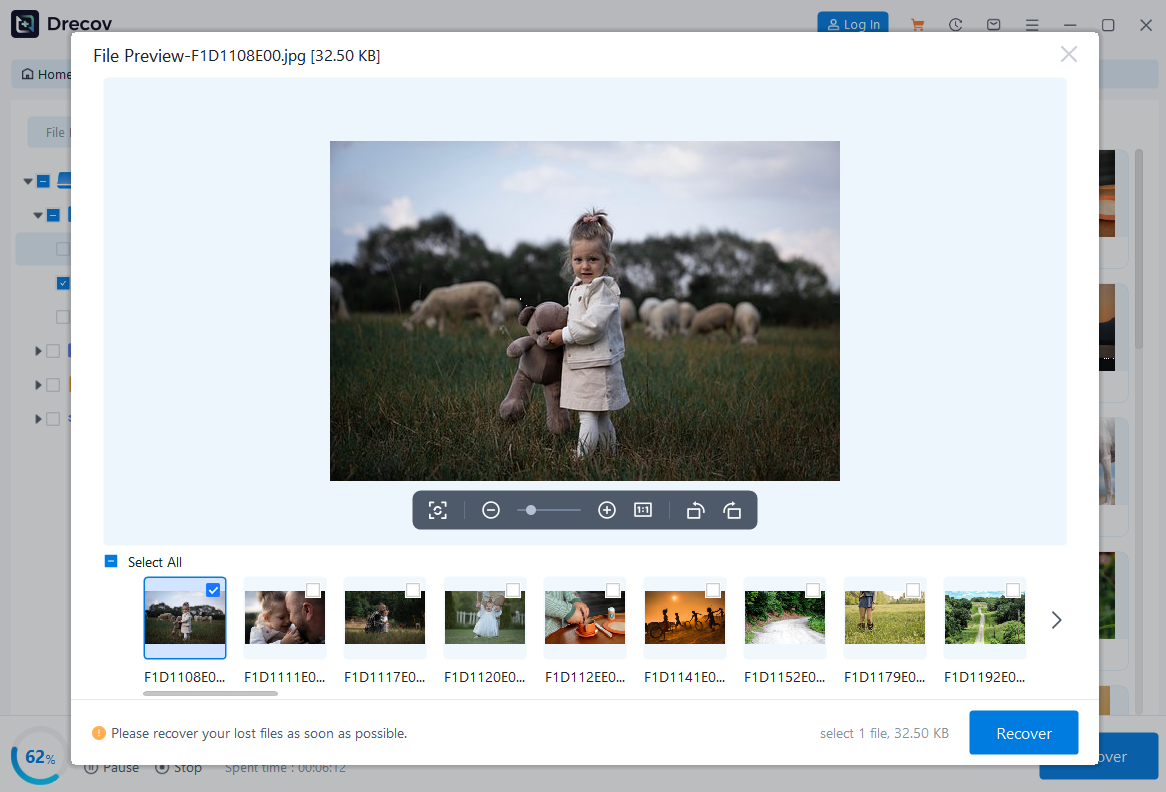
- Preview and Select Files – Once the scan is complete, Drecov displays a full preview of recoverable items. You can selectively choose the documents, photos, or videos you want to restore, ensuring you recover only what you need.
- Recover and Save Safely – Click the recover button, and Drecov restores the selected files to a secure location on your computer. This step guarantees your recovered data is intact and immediately usable, without risking overwriting the original card.

By following these three steps, users can confidently recover files from micro SD cards formatted by mistake, regardless of the file system format used. Regular use of Pandaoffice Drecov as a backup plan provides peace of mind, making it an indispensable tool for anyone relying on micro SD cards for storing valuable files.
Frequently Asked Questions About Formatting Micro SD Cards
How do I choose the right file system format?
FAT32 is widely compatible but has a 4GB file size limit, while exFAT supports larger files. NTFS is mainly for Windows devices. Consider the device and intended file size.
Can I recover files after formatting?
Yes. If you format your micro SD card and later realize files were lost, Pandaoffice Drecov can scan and restore formatted documents efficiently.
Is formatting harmful to micro SD cards?
No, when done properly. Formatting maintains performance and reduces errors. Avoid unnecessary repeated formatting to preserve card health.
What if my card is corrupted?
Try formatting using the device’s tool or a computer. If data is critical, use Pandaoffice Drecov before formatting to recover files safely.
How often should I format my micro SD card?
Formatting once every few months or when switching devices is recommended. Regular formatting prevents hidden files from slowing down performance.
Conclusion
Formatting a micro SD card is essential for maintaining its performance, compatibility, and reliability. Understanding the importance of the file system format and taking proper precautions ensures that formatting is safe and effective. Whether using a PC, Android device, or camera, following step-by-step procedures minimizes errors and protects your data.
In cases of accidental formatting or data loss, Pandaoffice Drecov offers a dependable solution for recovering formatted documents. Its support for multiple file system formats and ease of use make it an indispensable tool for anyone relying on micro SD cards for storing valuable files. By combining proper formatting techniques with reliable recovery software, users can confidently manage and preserve their digital data.





