







Losing photos can be stressful, especially when they capture once-in-a-lifetime moments. Accidental deletion, corrupted memory cards, system crashes, or formatting errors are common reasons people start searching for the best photo data recovery software. Fortunately, modern top photo recovery software tools make it possible to restore deleted images from hard drives, SD cards, cameras, and mobile devices in many situations. The key is understanding why photos are lost, what actions to avoid, and which recovery methods offer the highest success rate.
This guide is written for beginner to intermediate users who want a clear, step-by-step explanation of how photo recovery works. It compares system-level recovery options and dedicated tools, explains what to look for in deleted photo recovery software, and shows how to recover images safely. By the end, you will know how to choose the best photo recovery software for your needs and when a professional solution is the most reliable option.
Why Photos Get Deleted or Lost
Photo loss usually happens due to logical rather than physical problems. In most cases, the image data still exists on the storage device, but the file system no longer knows how to access it. Common causes include accidental deletion, formatting a memory card by mistake, file system corruption, and sudden power interruptions during data transfer. Cameras and smartphones are especially vulnerable because they frequently write and rewrite data.
Memory cards are another major source of photo loss. Removing an SD card without safely ejecting it, using the same card across multiple devices, or filling it close to capacity can lead to corruption. When this happens, the device may ask you to format the card, which often triggers searches for memory card photo recovery software or sd card photo recovery software. Understanding these causes helps users react correctly and avoid actions that reduce recovery success.
What Happens After You Delete a Photo
When a photo is deleted, the operating system usually removes the file reference rather than the data itself. The space is marked as available, but the image remains until it is overwritten by new files. This is why immediate action is critical. Continued use of the device increases the risk of overwriting recoverable photos.
This principle applies to computers, cameras, and SD cards alike. Whether you are using sd photo recovery software or a desktop solution, the success rate depends heavily on how much the storage device was used after deletion. That is also why installing recovery software directly onto the same drive is risky. Knowing how deletion works allows users to understand why top photo recovery software can retrieve files that seem permanently lost.
Early Signs You Need Photo Recovery Software
Sometimes photo loss is obvious, such as when an entire folder disappears. In other cases, warning signs appear gradually. Images may fail to open, show corrupted previews, or disappear after reconnecting a memory card. Cameras may display errors stating that the card needs to be formatted.
On macOS systems, users often search for photo recovery software for Mac after emptying the Trash or encountering disk errors. On Windows, photos may vanish after a system update or disk check. Recognizing these early signs and stopping further use of the device significantly improves the effectiveness of best photo data recovery software solutions.
What Not to Do After Losing Photos
One of the most common mistakes is immediately formatting the storage device. While formatting can restore access, it reduces the chances of a full recovery. Another mistake is repeatedly attempting different repair tools without understanding their impact. Some system utilities repair file structures by deleting damaged entries, which can make recovery harder.
Avoid copying new photos or files to the affected device. Do not reinstall the operating system or reset the device before attempting recovery. These actions can overwrite deleted data. The safest approach is to stop using the device, remove the storage media if possible, and prepare a recovery plan using reliable deleted photo recovery software.
Built-In System Recovery Options
Before using third-party tools, some users try built-in recovery features. On Windows, File History or Previous Versions may restore photos if backups were enabled. macOS users can rely on Time Machine backups. These methods are effective only if backups were created before the photos were lost.
System tools are limited because they cannot scan raw storage sectors. Once backups are unavailable, system options usually fail. At this point, users turn to best photo recovery software solutions designed to scan storage at a deeper level. Built-in tools are useful as a first check but should not be relied on for serious photo loss.
How Photo Data Recovery Software Works
Dedicated recovery tools scan storage devices at a low level to locate image files based on file signatures and remaining directory information. This approach allows top photo recovery software to recover photos even after deletion, formatting, or corruption. Most tools offer quick scans for recently deleted files and deep scans for complex cases.
Deep scans are essential when dealing with formatted SD cards or corrupted partitions. They take longer but offer better results. Understanding scan types helps users choose the right mode and set realistic expectations when using sd card photo recovery software or hard drive recovery solutions.
Key Features to Look for in Photo Recovery Software
Choosing the right tool requires understanding essential features. The best photo data recovery software should support common image formats such as JPG, PNG, RAW, and HEIC. Preview functionality is critical, as it allows users to verify files before recovery. Compatibility with different storage devices, including SD cards, USB drives, and internal disks, is also important.
Ease of use matters for beginners, while advanced filtering options benefit experienced users. Performance, scan depth, and customer support are additional factors. For users on Apple devices, compatibility with photo recovery software for Mac is a key consideration. Evaluating these features helps narrow down reliable options.
Free vs Paid Photo Recovery Software
Many users look for free SD card photo recovery software, especially after accidental deletion. Free tools can be useful for small recoveries or recent deletions but often limit file size, preview options, or scan depth. Paid tools generally offer deeper scans, better file recognition, and higher recovery success rates.
Free solutions are suitable for testing whether photos are recoverable. For serious cases involving corruption or formatting, paid top photo recovery software provides more consistent results. Understanding these differences helps users make informed decisions without wasting time on ineffective tools.
Step-by-Step: Recover Deleted Photos Safely
- Stop using the affected device immediately.
- Remove the storage device and connect it to a computer using a reader.
- Install photo recovery software on a separate drive.
- Select the correct storage device and start a scan.
- Preview recoverable photos and choose the files you need.
- Restore photos to a safe, different location.
This process applies to most memory card photo recovery software and desktop tools. Following these steps minimizes data overwriting and improves recovery success.
Recommended Solution: Drecov Photo Recovery Software
When system tools and basic solutions fail, using a professional-grade tool offers the best chance of success. Drecov is designed to handle complex photo loss scenarios, including accidental deletion, formatted memory cards, and corrupted storage devices. It supports SD cards, USB drives, and internal disks, making it suitable as both sd card photo recovery software and general photo recovery software.
Drecov uses a read-only scanning process that protects original data while performing deep analysis. It supports a wide range of photo formats, including RAW files from digital cameras. Its guided interface makes it accessible for beginners while still offering powerful recovery capabilities for advanced users.
How to Recover Photos Using Drecov (3 Steps)
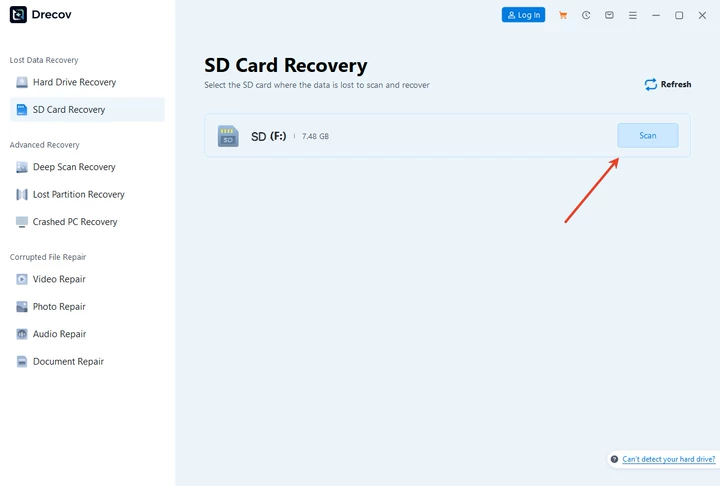
Step 1: Scan the Storage Device
Connect the device containing lost photos to your computer and launch Drecov. Select the target disk or memory card and start a deep scan for best results.
Step 2: Preview and Select Photos
After scanning, preview recoverable images to confirm quality. Use filters to locate specific photo types or folders quickly.

Step 3: Recover to a Safe Location
Restore selected photos to a different drive or external storage device. Avoid saving them back to the original location.

Advantages of Using Drecov
- Deep scan technology for formatted or corrupted storage
- Support for multiple photo formats and devices
- Simple interface suitable for beginners
- Preview function to verify photos before recovery
- Safe, read-only recovery process
These advantages make Drecov a reliable choice among top photo recovery software solutions.
Tips to Prevent Future Photo Loss
Regular backups are the most effective prevention method. Use cloud storage or external drives to store important photos. Safely eject memory cards before removal and avoid using the same card across multiple devices. Replace aging storage devices and format memory cards in the original camera after backing up photos.
These habits reduce the likelihood of needing best photo recovery software in the future.
Conclusion
Choosing the best photo data recovery software depends on understanding the cause of photo loss and selecting a tool that matches the situation. While free and system-level options can help in limited cases, dedicated tools provide higher success rates for serious photo loss. With its deep scanning capabilities, wide format support, and user-friendly design, Drecov stands out as a practical solution for users who need reliable results. Acting quickly, avoiding risky actions, and using trusted top photo recovery software greatly improves the chances of recovering valuable photos safely.





