

Recover the script before rerunning the analysis
To recover lost RStudio scripts, first preserve any surviving source editor and inspect command history before restarting or resetting the IDE. A script file, console history, and an R workspace contain different information. Therefore, identify which source can supply the missing code instead of assuming that a saved dataset or a restored Environment pane recreates the original analysis script.
A source file can disappear while useful commands remain in the History pane. Conversely, unexecuted comments and prose may exist only in a surviving editor buffer or saved file version. This guide combines those distinct native sources with existing version control and reconstruction references. It also explains how to verify recovered code without blindly executing commands that may overwrite your inputs or outputs.
Preserve the live editor first
If the missing script remains visible in an open Source tab, save a separate copy to a known recovery location before closing the tab. Then inspect the file from that location to confirm the actual text. Record the project path and a distinctive function or comment. This helps distinguish the recovered script from another file with the same basename in a different analysis directory.
Avoid resetting RStudio state as the first response to a missing document. That can remove useful session context. Also preserve the project directory and existing hidden state before experimenting with troubleshooting instructions. Internal session files are not a guaranteed public backup format, so use a surviving editor and documented History or Git interfaces first whenever they can supply the required code.
Free route 1: save a surviving source buffer
- Select the Source tab that still contains the missing work.
- Use Save As to create a new script in a separate recovery folder.
- Reopen that saved copy and compare the beginning, ending, and distinctive recent function.
- Preserve the original project and record any unresolved file or encoding issue.
This route can preserve text that has not reached the expected script path. However, confirm that you are saving the correct tab and project context. Two scripts with similar names can contain different analyses. Also inspect the file’s encoding when non-ASCII labels or comments matter. A successful save is useful only if the recovered text remains readable and complete.
Check more than the visible screen
Scroll through the entire document and inspect the final lines. An apparently intact top section can conceal a truncated ending or an older function definition lower down. Also compare comments, configuration values, and data paths. Those elements may not appear in console history, yet they can explain how the analysis was intended to run.
If the editor contains several unsaved documents, preserve each separately before reorganizing them. Give recovery copies descriptive names and record their original tab labels. Do not combine all buffers into one file merely to simplify the folder. Separate scripts may depend on a particular execution order or serve different analysis stages, and preserving that structure helps later verification.
Free route 2: insert selected History commands into source
- Open RStudio’s History pane and search for a distinctive command or object name.
- Inspect nearby history context to identify the relevant analysis session.
- Select useful commands and use Insert into Source rather than executing them immediately.
- Save the resulting draft as a new script and review its order and dependencies.
Command history can preserve executed code even when a source file is missing. However, it is a record of interactive activity, not necessarily a clean final script. It can contain failed attempts, exploratory commands, repeated imports, and temporary values. Therefore, review the sequence and identify the intended operations before treating the recovered text as a reproducible analysis.
Search by distinctive analysis content
Use a specific function name, column name, or dataset identifier rather than a broad term that appears in many projects. Then inspect neighboring commands for context. A useful match can reveal the relevant session block, but it may also belong to an earlier experiment. Compare data paths and parameter values before adding the commands to the recovery draft.
Do not send a large unknown history selection straight to the Console. Some commands can write files, modify a database, or delete intermediate results. Inserting into source lets you inspect those actions first. Keep the recovered sequence as evidence, then build a separate reviewed script that uses safe test outputs and clearly identified inputs.
Free route 3: inspect an existing history file
- Preserve any existing .Rhistory file in the relevant project or known history location.
- Open a copy as text and search for the missing function or analysis stage.
- Copy useful commands into a new source draft without running them automatically.
- Compare the draft with other surviving references and document any gaps.
An existing history file contains commands that were actually recorded according to the session’s settings and saves. It does not guarantee all code from every source tab. Comments, unexecuted branches, and Markdown prose may be absent. Therefore, use it as one recovery source and retain its original order while you determine which commands belong to the intended analysis.
Keep history and source roles separate
For example, history may show a model fit and a plot call while omitting the helper function definition that lived in a script. Identify that missing dependency rather than assuming the visible commands are self-contained. Search surviving scripts or a Git revision for the helper. If no source remains, record the need to reconstruct it from the intended behavior.
Also compare parameter values across repeated commands. An interactive analysis can test several thresholds before choosing one. The last command is not automatically the approved decision. Use notes, outputs, or a documented milestone to identify the intended setting. This prevents a recovered script from silently encoding an exploratory value simply because it appeared near the end of history.
Free route 4: inspect an existing Git revision
- Preserve current files and uncommitted changes before using version control.
- Use the project’s existing Git history to identify a relevant script revision.
- Extract or open the candidate in a separate working copy or branch.
- Compare the code, configuration, and project dependencies before adopting it as the baseline.
Git can recover content that a surviving repository actually recorded. It cannot recreate an uncommitted editor buffer merely because the project uses version control. Also inspect whether the missing file was tracked at all. A data-processing script in an ignored directory may never have entered the repository, while a committed report source can remain available even after its working copy disappears.
Reconcile committed and later interactive work
A useful recovery may start with a committed script and add verified commands from History. Keep those sources explicit. Compare each added command with the script’s existing object definitions and execution order. A command that worked in an interactive session may depend on objects created by experiments that you do not want in the final reproducible analysis.
Save the combined result as a new recovery revision and review its differences before executing it. This makes deliberate reconstruction visible and gives you a way to return to the original committed baseline. Avoid discarding the current working directory simply to obtain an old script, since later valid files may still be useful for completing the analysis.
Use reports and notebooks as reconstruction references
An existing R Markdown or Quarto source can contain code chunks that overlap with the missing script. Preserve those source files and compare their chunks with the intended analysis. A rendered HTML or PDF can also provide equations, output values, or printed code, but it may omit hidden chunks and setup details. Keep those limits clear when using a report to rebuild source.
Do not mistake an R workspace for a script archive
An RData or RDS file can preserve objects, but it does not generally recreate the full sequence of code, comments, and decisions that produced them. A saved function object may provide some useful code, while a fitted model object can provide parameters or results. These are specific reconstruction clues, not a guarantee that the original script can be recovered in full.
Inspect saved objects cautiously in a separate environment appropriate to their source. Then compare their information with the recovered code draft. Do not use a populated Environment pane as proof that the analysis is reproducible. A script needs to create its required objects from identified inputs, and that is a separate verification task from recovering a saved session state.
Separate local and remote execution locations
If you used RStudio through a browser or a remote service, the script and history may live on that server rather than on your desktop. Identify the actual project location and use the normal authorized file interface there. A desktop file scan cannot recover a server-side document that never existed on the local drive.
Check the intended project before broad searches
Open the correct project and inspect its Files pane, recent documents, and known source directories. Then compare the actual path with your notes. A project switch can make a script appear missing when you are simply viewing another working directory. Finding the existing file at its correct location is a path correction, not a deleted-file recovery.
Also inspect existing output folders for source copies that a reporting or packaging process intentionally retained. Treat each as a candidate whose revision needs comparison. A script included in an older analysis bundle may preserve a stable milestone while lacking later edits. Record that age instead of silently promoting it to the current source.
A worked recovery for a lost data-cleaning script
Suppose the script disappears after a crash, but History still contains the last import and transformation commands. Preserve the project and search for a distinctive derived column. Insert the relevant history block into a new source draft. Then compare it with the most recent committed script, which may preserve helper functions and comments missing from History.
Rebuild a clean execution sequence
Start with input paths and required packages, then define helpers before the transformations that call them. Remove exploratory commands only after preserving the original recovered sequence elsewhere. Also identify writes to output files and redirect tests into a new directory. This turns a useful history fragment into a reviewable reconstruction without risking the original analysis products.
Next inspect a known intermediate result, such as row count, column types, and a representative derived value. Then compare the final output with a reliable prior report where available. A script that runs without errors can still use the wrong input or an exploratory threshold. Content checks establish whether the recovered logic matches the intended analysis.
Validate code before running the entire analysis
Read the recovered draft for missing definitions, duplicate transformations, absolute paths, and destructive side effects. Then test it in a clean session using copies or appropriate non-production inputs. Avoid relying on objects left over from the previous session. Those objects can hide missing setup code and make an incomplete recovery appear reproducible.
Check data and environment assumptions
Record the input dataset revision, package requirements, and any important configuration. A recovered script can produce different results when those dependencies change. Existing dependency files can help recreate the environment, but they do not replace the missing code. Keep source recovery, environment restoration, and result validation as related checks with separate evidence.
Inspect warnings and intermediate dimensions as well as the final figure. A warning about a failed join or changed type can explain a result difference even when the plot looks familiar. Use a few deliberate acceptance checks that match the analysis, such as expected identifiers or known totals, rather than adding arbitrary checks that say little about correctness.
Diagnose an R Markdown or Quarto source gap
A missing prose section differs from a missing executed code chunk. Console history may supply the latter while containing none of the former. Compare surviving report sources, existing rendered outputs, and version history accordingly. If you reconstruct prose from a rendered report, preserve its meaning and identify any source-specific controls that the rendered document cannot reveal.
Preserve chunk order and options
Review setup chunks, labels, dependencies, and output options in the recovered document. A code fragment can run in isolation yet behave differently during a full render. Then render a test into a separate output directory and compare the relevant tables and figures. This checks the recovered document’s workflow rather than only the syntax of individual commands.
If a report output omits source code, do not claim that the underlying analysis can be fully recovered from its visible figures. You may reconstruct parts from the intended method, but that is new analytical work. Keep the recovered evidence and reconstructed decisions explicit so that another analyst can review what remains uncertain.
Reconstruct an R script as a dependency sequence
A History selection is usually a useful draft rather than a finished script. Identify the inputs, package loading, helper definitions, transformations, and outputs that belong to the intended analysis. Then arrange the reviewed commands so each object exists before use. Preserve the original history fragment separately. This lets you build a reproducible source without losing evidence of the interactive session from which it came.
A model call can depend on an object created much earlier, while a plot can rely on a temporary factor ordering or label vector. Inspect those dependencies explicitly. Search history and surviving files for their definitions, then compare the values with the intended analysis. A command that succeeds in the old session may fail in a clean one because the session contains objects the recovered script never creates.
Also inspect whether a transformation was applied more than once during experimentation. Replaying the entire history can duplicate a filter, append records twice, or overwrite an intermediate object with an exploratory version. Keep the raw sequence, but create a reviewed source that expresses the intended operation once. Then test it against known intermediate results rather than judging correctness solely by the absence of an error.
Recover comments and analytical intent from other sources
Console history can preserve executed commands while omitting comments, explanations, and unexecuted alternatives. Inspect surviving report sources, analysis notes, and versioned scripts for that context. A rendered report may explain the chosen method without revealing every setup step. Use those sources to guide reconstruction, and identify which decisions you inferred rather than directly recovered from saved code.
Separate an approved parameter from an experiment
Suppose history contains several filtering thresholds followed by similar plots. Compare the final report, notes, or known output to identify the intended choice. Do not simply adopt the last visible value, since it may belong to a later exploratory session. Record the evidence for the selected parameter in the recovered source or acceptance note so another analyst can review the decision.
If the intended value remains uncertain, preserve the alternatives and state the gap. You can still recover most of the code while leaving one analytical choice unresolved. This is more useful than silently selecting a convenient setting and producing a confident-looking output whose relationship to the original analysis is unclear.
Test recovered code with isolated outputs
Before executing the reconstructed script, inspect every command that writes files or changes external state. Redirect ordinary test outputs into a new recovery directory and use appropriate copies of inputs. Then run the script in a clean session with the required environment identified. This makes missing definitions visible and protects the original results while you compare the recovered workflow.
Compare meaningful intermediate results
Choose checks that reflect the analysis, such as expected row counts after a join, known identifiers, missing-value patterns, or a representative calculated value. Inspect them at the stage where the corresponding transformation occurs. A final plot can look familiar while an earlier data-cleaning difference changes the underlying sample. Intermediate checks help locate the source of that difference rather than encouraging cosmetic adjustments to the output.
Also compare column types and ordering assumptions where they affect the analysis. A date imported as text or a changed factor level can alter downstream behavior without causing an immediate error. Record the relevant input revision and package environment. Source recovery is only one part of reproducing an analytical result; the accepted script needs the data and context that make its commands meaningful.
Keep report reconstruction distinct from ordinary script recovery
For an R Markdown or Quarto document, inspect prose, chunk labels, options, setup code, and execution order. A collection of console commands may supply the calculations while leaving the document structure missing. Rebuild those parts in a new source and compare a test render with the intended report. Preserve the original rendered output as a reference rather than treating it as a complete source archive.
A report can hide setup or data-cleaning chunks from its visible output. Consequently, copying printed code from HTML or PDF may leave important dependencies absent. Search surviving source files and version history for those chunks. If none remain, document their reconstruction and test the full render from a clean session. This establishes whether the recovered document actually creates its results independently.
Finish with an acceptance note covering source completeness, reconstructed decisions, input identity, environment, and validated outputs. Preserve the reviewed script separately from raw history fragments and rejected candidates. If some comments or unexecuted branches remain missing, say so. This gives the next analyst a trustworthy working baseline and makes the remaining reconstruction work visible.
Preserve the reconstructed analysis before further exploration
Once the reviewed script runs in a clean session and passes its content checks, save a stable recovery milestone. Then begin new experiments in another version. This creates a clear boundary between the recovered analysis and later analytical decisions. Also preserve the raw history and source candidates separately, so a newly found definition or comment can still be compared with the accepted reconstruction.
Make the handover reproducible
Provide the accepted source with identified input revisions, environment information, and a short description of the checks performed. Then reopen the project from its saved location and run the intended workflow with suitable isolated outputs. This verifies that the result does not depend on objects left in your previous session or an accidental working directory on your machine.
State any remaining gaps in prose, unexecuted branches, or uncertain parameters. A script can be useful and mostly complete while still requiring one methodological decision. Keeping that uncertainty visible lets another analyst review it properly and prevents an apparently successful run from being mistaken for proof that the original analytical intent survived in full.
When deleted-file recovery can help RStudio work
PandaOffice Drecov can be considered for saved scripts, report sources, or existing history files deleted from readable local storage. It cannot retrieve server-only files from a desktop scan or recreate an unrecorded buffer. Use surviving editors, History, and Git first, and reduce writes to the affected storage while evaluating deleted-file recovery.
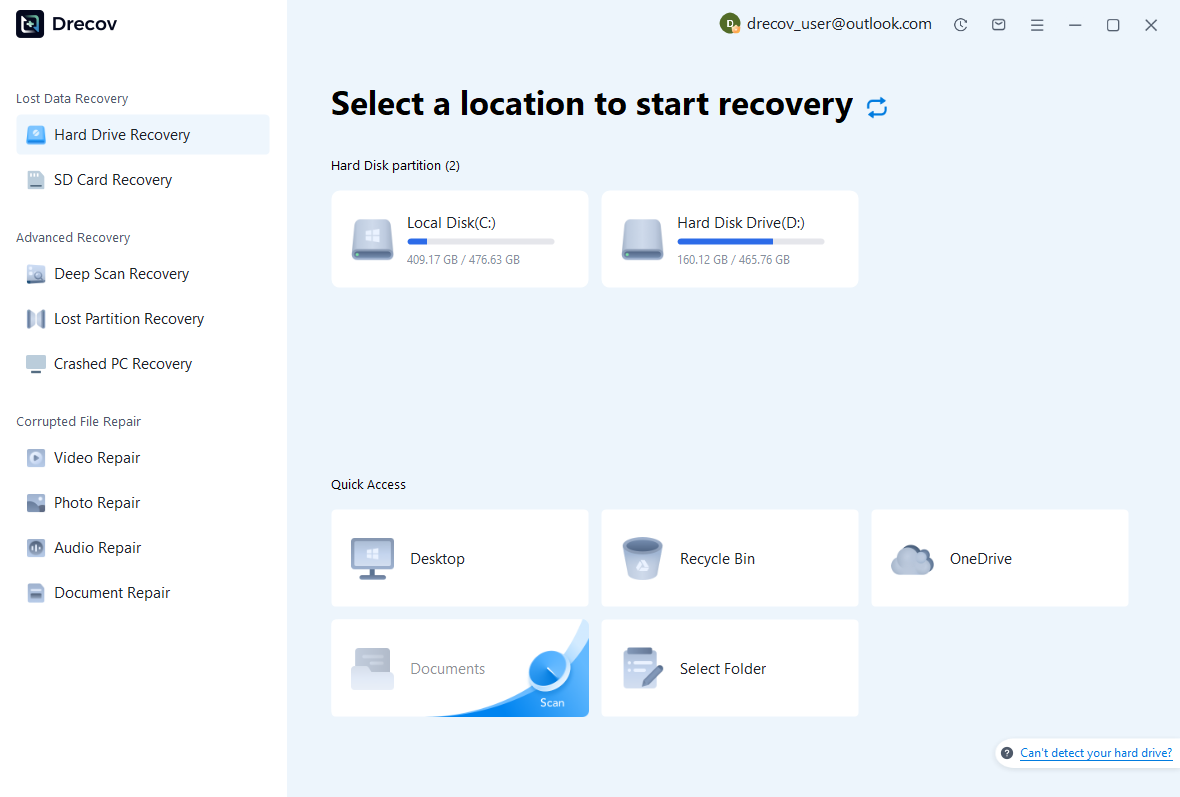
Step 1: choose the real source location
Select the drive or partition that held the local script, report source, or history file. Record the original project path and whether execution occurred locally or remotely. Use other healthy storage for recovered output. Repeated disconnections or hardware read failures need assessment before you proceed with a routine software scan.
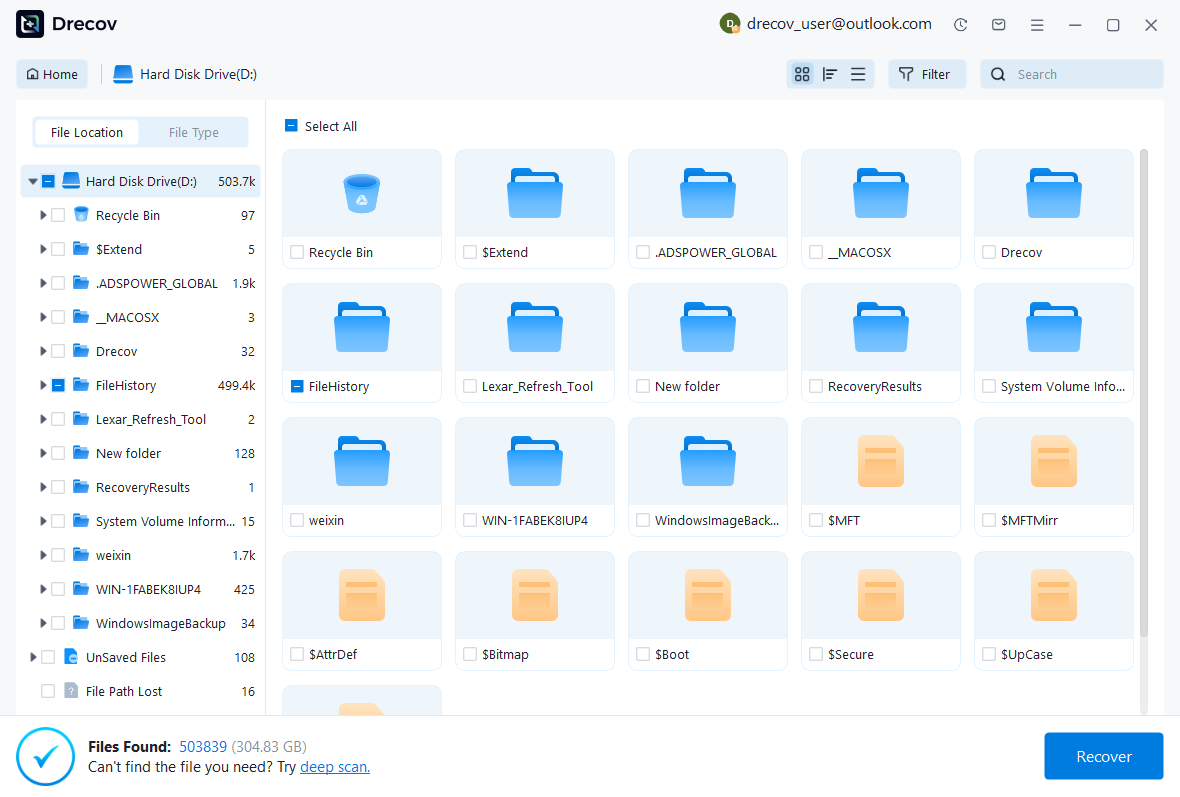
Step 2: compare source and history candidates
Review available paths, names, sizes, dates, and supported text previews. Preserve plausible R, Rmd, Qmd, and history candidates where relevant. A recognizable function name helps identify a file but does not prove that its ending and setup survived. Keep several useful revisions when necessary, then compare them in a text editor after recovery.
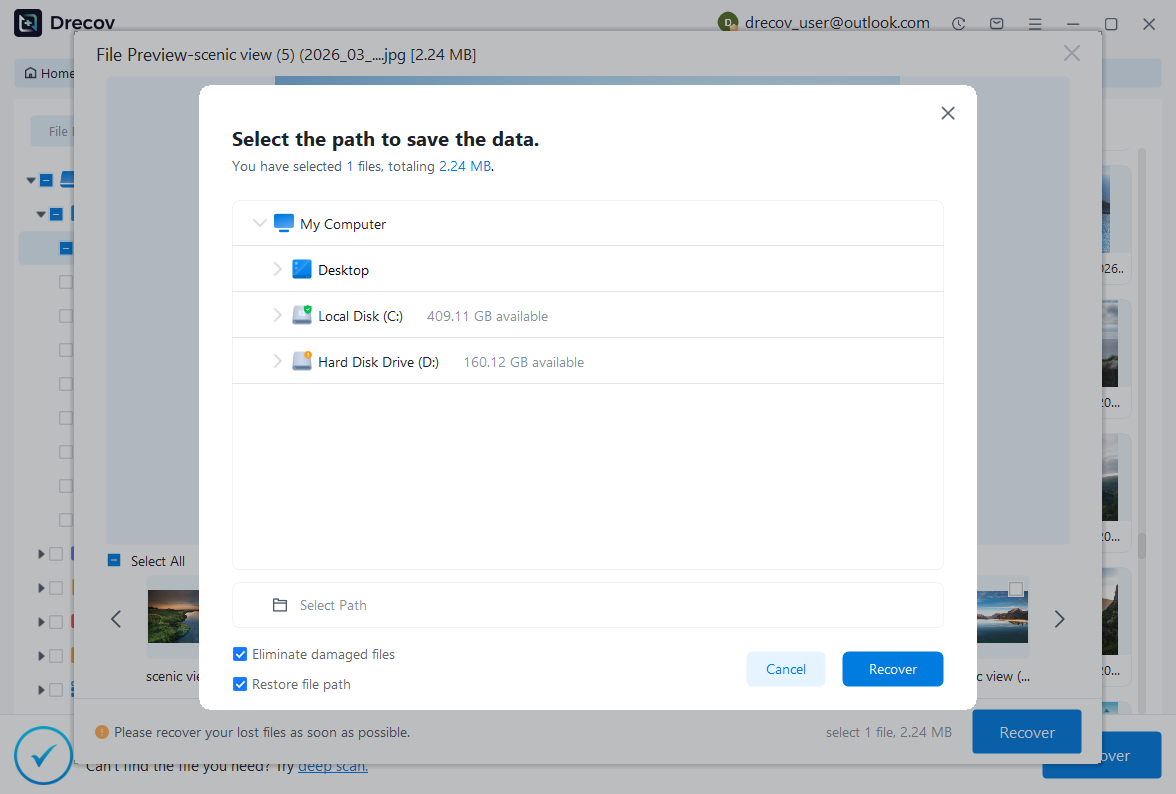
Step 3: restore elsewhere and review before execution
Recover selected files to a separate destination and inspect working copies before running any code. Check definitions, input paths, parameters, output writes, and dependency assumptions. Then test the accepted draft in a clean environment with suitable inputs. Keep uncertain fragments separate from the reviewed script so they cannot silently enter the analysis workflow.
Preserve a reproducible recovered milestone
Save the accepted source under a clear name and record which parts came from a live buffer, History, Git, or reconstruction. Then preserve its identified inputs, dependency information, and a small set of validated outputs. This makes the result useful for continued analysis rather than merely a collection of code fragments that worked in an old interactive session.
Test future source protection deliberately
Use a disposable project to verify where scripts and history are saved and how your version-control workflow records changes. Reopen the files from disk and inspect a historical revision. Also confirm the actual storage location after switching between local and remote environments. These practical checks expose assumptions before they become the next recovery problem.
If comments, prose, or unexecuted branches remain missing, list those gaps. A recovered command sequence can still save substantial work while requiring careful reconstruction. Clear limits help another analyst review the result and prevent a partially restored interactive session from being mistaken for a complete, reproducible source archive.
Related recovery resources
Explore the relevant recovery options: Hard drive recovery, External hard drive recovery.
For another recovery case and its practical checks, read the related recovery guide.
Check the vendor guidance for the installed version: official recovery documentation 1, official recovery documentation 2, official recovery documentation 3.