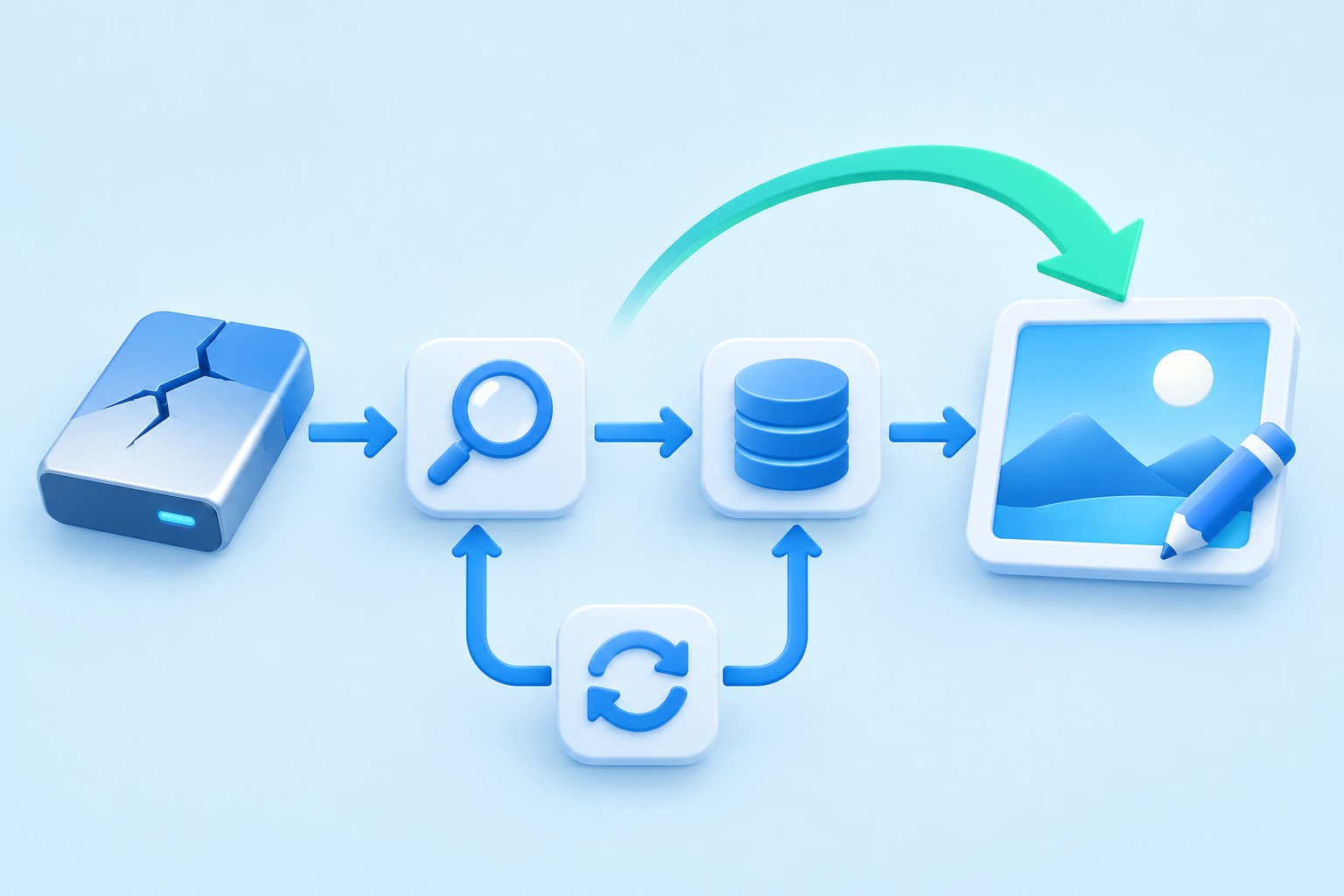
Recover an editable draw.io diagram rather than only its picture
To recover draw.io diagrams, identify where the diagram was stored and whether a surviving image contains embedded diagram data. A native .drawio or XML file can preserve editable shapes and connections. Some exported images can also carry that data. However, a screenshot that merely looks like the diagram does not automatically contain its editable structure.
Record the diagram title, storage choice, browser profile, and a distinctive label or connection. Also check whether the original editing tab remains open. If useful content is still visible, preserve it immediately through a separate save or export. A browser refresh or cache cleanup can remove your easiest route to content that has not reached the intended destination.
Keep the live tab available
Do not close a working tab simply to test whether reopening helps. First use the editor’s supported Save As or export workflow to create a native diagram copy on a healthy local destination. Then reopen that saved copy in another controlled editor view and compare the important page. This tests persistence without sacrificing the only visible source.
If the normal save target reports a permission or connection problem, choose an alternative authorized destination for the recovery copy. Restoring storage access can happen afterward. The immediate priority is to preserve the visible diagram data before browser state changes, rather than repeatedly retrying the same failing destination while the only copy remains in memory.
Native route 1: save from a surviving editor session
- Leave the original editing tab open while inspecting its content.
- Use Save As or an appropriate native diagram export.
- Save to a separate destination under a clear recovery name.
- Reopen the saved file and test editable shapes and connections.
This route preserves the current diagram when the editor still holds it. It is not recovery of an earlier historical state. Compare the saved copy with the visible original, including pages and labels. A successful download can still contain only a selected page or a different file if you chose the wrong export option.
Test editability without changing the reference
In the copied diagram, select a shape and inspect its text and connection points. Then undo any harmless test change or close without replacing the accepted file. A diagram displayed as one flat image may look correct but lack native shapes. Verify the kind of object you actually recovered before promising that the document is ready for continued editing.
Also inspect page tabs, hidden layers, and important links. A first-page preview does not establish that a multi-page technical diagram survived. Record any page or layer that differs from the live source. If the source has unsaved late edits, retain the original tab until you have confirmed that the separate native save includes them.
Native route 2: reopen the correct browser-stored diagram
- Use the same browser profile and normal browsing context as the original session.
- Open the editor’s supported browser storage selection.
- Locate the intended diagram and compare its distinctive content.
- Save an additional native file outside browser-only storage.
A browser-stored diagram belongs to that browser context. Opening a different profile, a private window, or another device may show a different collection. An empty list there does not prove the original diagram was deleted. Check the original environment before recreating the file or clearing site data as a troubleshooting step.
Avoid treating browser cleanup as recovery
Cache and site-data changes can affect information the web application relies on. Preserve any accessible diagram first. If browser storage no longer contains it, move to other surviving sources such as native exports, original attachments, or provider history. Reinstalling the browser or clearing data cannot recreate an earlier diagram that no surviving source retains.
When you find a browser-stored candidate, compare its actual nodes and last meaningful change rather than trusting the title. A similarly named diagram may be an older draft. Save useful alternatives separately and record their scope before deciding which one represents the accepted recovery milestone.
Native route 3: open an image with embedded diagram data
- Locate the original exported PNG, SVG, or other supported candidate.
- Preserve the original file rather than using a screenshot of it.
- Open the copied candidate in draw.io through a supported import or open workflow.
- Check whether shapes, labels, layers, and pages remain editable.
Draw.io can embed diagram data in supported export formats when the relevant option is selected. That makes an original exported image a potentially useful source. However, not every image has this data. A messaging service, image optimizer, or screenshot operation may retain the visible picture while removing the embedded information needed for native editing.
Compare the actual file, not its appearance
An exported PNG and a screenshot can look identical at ordinary zoom while preserving very different information. Test the original file directly. If the editor imports it as a single picture, do not claim that the diagram structure returned. Preserve the picture as a visual reference and continue searching for a native or embedded-data source.
If the data does reopen as editable content, inspect a complex connection and a secondary page. Embedded recovery can still represent an older export milestone. Save the recovered diagram as a new native file and record the original export date, so later users understand which edits it can and cannot contain.
Native route 4: restore an existing native file or provider version
- Locate a surviving .drawio or XML file, attachment, or authorized storage version.
- Preserve the current file and the chosen older candidate separately.
- Open the candidate through draw.io and compare the missing content.
- Save the accepted recovery as a distinct native document before replacing anything.
A provider’s version history can be useful when it actually retained the desired earlier state and your account has access. Draw.io itself does not become a universal backup of every storage destination. Check the provider that held the diagram, the specific file identity, and the available versions. Do not assume the editor can retrieve a deleted file from any account.
Distinguish native XML from a generic XML file
A .xml extension alone does not identify a draw.io diagram. Open a copied candidate with the supported editor and inspect its contents. Conversely, a native diagram may use the .drawio extension while storing XML internally. Preserve the original filename and avoid converting text encodings or rewriting the file before you know what it contains.
For a diagram attached to another platform, obtain the original diagram attachment where available. A generated preview image may be separate from the editable source. Compare attachment names and file contents rather than downloading the first visible thumbnail. Keep access within the storage and account you are authorized to use.
Diagnose a blank page before restoring an older file
Check the page tabs, layer visibility, zoom, and drawing position. Shapes can exist outside the current viewport or on another page. Select the intended page and use appropriate navigation or fit controls. A blank-looking canvas is not proof that the document contains no objects, so inspect the actual structure before replacing it.
A layer can be hidden while its objects remain in the diagram. Inspect layer state in the recovery copy and compare with a reference. Locked objects may resist editing without being damaged. Record what you changed to reveal the content, and avoid interpreting a display setting as evidence that storage recovery restored missing shapes.
If the page truly lacks objects, compare another native candidate from before the incident. Keep the current file because it may contain useful changes on other pages. A selective reconstruction can preserve those later additions while bringing back the missing page, provided you verify references and connections afterward.
Recover connections as relationships, not just lines
A restored diagram should preserve which shapes its connectors actually attach to. Move a copied test shape slightly and observe whether the intended connection follows. Then revert the test. A line positioned near a shape can look correct while lacking the attachment relationship needed for reliable editing and layout changes.
Inspect labels and direction together
For a process or architecture diagram, compare arrow direction, connection labels, and the meaning of each endpoint. A reversed arrow can change the diagram’s message even when all shapes survived. Use a known workflow example to trace the intended path through the recovered diagram, rather than checking only the total number of objects.
Also test links and any important object data. A recovered visual can omit metadata that an integrated workflow relies on. Record whether your acceptance check covers only presentation, continued editing, or those external relationships too. This prevents a diagram that looks complete from silently failing its original operational purpose.
Handle fonts and images after structural recovery
A diagram can reopen with substituted fonts or unavailable external images. Compare text wrapping, labels, and important icons with an earlier reference. A font change can make a label appear missing because it no longer fits its shape. Fix presentation on a working copy after preserving the recovered native structure.
Preserve source images separately
If the diagram references external image URLs, availability can change independently of the diagram file. Locate the legitimate original image or a preserved embedded version. Do not replace it with an unrelated icon merely to remove a broken preview. If substitution is necessary, document it as a post-recovery change and verify that the new image conveys the intended meaning.
Inspect the final diagram in the environment where it will be used. A file may look correct in the editor while a browser viewer or exported PDF handles fonts differently. Export a fresh reference from the accepted recovery and check the affected labels. Structural recovery and reliable presentation deserve separate tests.
Reconstruct from a flat image with explicit limits
If only a screenshot survives, preserve it at original resolution and create a new diagram for reconstruction. Rebuild shapes, text, and relationships using the image as evidence. Mark unreadable labels and hidden areas as unknown. Automated tracing or visual resemblance does not prove that the original object metadata and relationships returned.
Recover meaning before matching decoration
Start with the workflow or system relationships that matter to the diagram’s purpose. Confirm labels and arrow direction from another authoritative reference where possible. Then refine layout and styling. This approach produces a useful working document while keeping clear which elements came from evidence and which you rebuilt manually.
For a multi-page diagram, do not infer missing pages from the first screenshot. Search for other exports, presentation copies, or original attachments. A partial reconstruction can still support discussion, but its scope should remain visible. Keep the image source and reconstruction notes alongside the new native file until a reviewer accepts the result.
Work through a failed-save example
Suppose the editor displays a complete network diagram, but the cloud destination reports a save error. Keep the tab open and save a separate native copy to an authorized local destination. Reopen that copy and inspect pages, key labels, and a complex connection. Only after those checks should you troubleshoot the original storage permission or network issue.
Compare the repaired destination with the recovery copy
When the original destination works again, compare its file with the verified local recovery. The cloud copy may represent an earlier successful save. Do not overwrite your newer recovery merely because the provider reports a recent access time. Decide which version contains the intended final content, then save deliberately and verify the result again.
If the browser session has already disappeared, inspect original exports for embedded data and review actual provider versions. These sources may preserve an earlier milestone. Record any late edits you must reconstruct from memory, rather than presenting the older candidate as an exact restoration of the lost session.
Validate the accepted diagram for its next use
Check each relevant page, hidden layer, important connector, hyperlink, and source image. Then export the intended deliverable and inspect it independently. An editable native file and a readable PDF serve different needs. Keep both when the next person needs to review the diagram now and continue editing it later.
Test a second open from the saved location
Close a copied test view and reopen the accepted native file from its planned location. This catches reliance on a browser-only session or temporary download. Compare the distinctive incident label again and confirm that the diagram remains editable. Keep the original candidate untouched until this persistence check passes.
Map the draw.io recovery source before opening candidates
Write down where the diagram was saved: browser storage, a local file, a cloud provider, or an attachment in another platform. Then list the surviving sources you can actually access. This prevents you from searching the wrong system. An empty browser storage list cannot establish that a cloud file disappeared, and a local preview image may be unrelated to the native attachment.
Identify the exact browser context
If browser storage was the original destination, compare browser profile, site address, and ordinary versus private browsing context. The same editor opened in another context may not see the same stored diagrams. Return to the original context before creating a new document with the same title. That simple check can recover access without importing or rebuilding anything.
If the original browser context no longer exists, preserve any available profile backup through an appropriate supported process. Do not experiment by copying individual browser database files into the live profile. Continue with native diagram exports and original attachments while you investigate browser restoration separately. A fragile profile repair should not endanger a still-usable diagram source.
Distinguish a preview download from the original attachment
A collaboration platform can display a PNG preview while storing an editable diagram file separately. Inspect the attachment list and download the original source when your access permits it. Keep the preview too as a visual reference. Compare the source by opening it in draw.io rather than assuming the largest attachment is automatically the native document.
Test a multi-page attachment completely
Open each relevant page and compare a distinctive label or relationship. A preview may show only the first page, while the native source contains several others. Conversely, an attachment can be an older version with fewer pages. Record its actual scope and date before you use it to replace the live document.
For diagrams with external images or links, inspect those dependencies after opening the attachment. A platform preview can preserve appearance even when the source file still references an unavailable resource. Saving a new native copy should therefore follow a content and dependency check, not merely a successful initial display.
Assess whether an image retained embedded data
Use the original exported file where possible, not an image copied from a document or captured from the screen. Open it through draw.io and inspect the resulting objects. If you can select individual shapes and edit their labels, the embedded data may provide a useful native recovery. If you can select only one picture, treat it as a flat reference.
Compare processing steps in the image’s history
An image sent through an optimizer or messaging system may lose nonvisual information. Search for the original download or export before concluding that all embedded data is gone. A second copy with identical visible pixels can preserve a different internal payload. Testing the actual original file is more informative than comparing screenshots of its appearance.
When a recovered image opens as a diagram, save a new .drawio copy and inspect complex features. Check layers, pages, connection labels, and object data important to the workflow. An embedded export can be an excellent source while still representing only the milestone or selection that was exported at the time.
Preserve architecture meaning during selective recovery
For a system diagram, identify the relationships that express trust boundaries, data flow, or ownership. Compare those relationships after recovering a page or group of objects. A visually similar diagram can communicate a different system if an arrow points the wrong way or a component belongs to the wrong boundary. Acceptance needs a semantic check as well as an editing check.
Trace a representative path
Choose one real process, such as a request entering a service and reaching a database. Follow every connection in the recovered diagram and read its labels. Compare the path with a trusted reference or an informed reviewer. This small exercise can reveal missing connectors and mislabeled relationships that an object-count comparison will not detect.
If you reconstruct an unreadable label, preserve the original uncertainty and record who or what confirmed the replacement. A guessed technical label should not silently become authoritative documentation. Keep the reconstruction separate until it passes review, even when the diagram’s layout looks polished enough to publish.
Recover content from version history with a comparison plan
When a provider offers earlier versions, inspect the actual diagram state around the incident. Preserve the current version first, then download or restore a separate candidate where the provider supports it. Compare the missing page and a known later edit. This shows whether a full rollback would discard useful work elsewhere in the document.
Use selective reconstruction when versions diverge
An earlier version may retain a deleted branch while the current version contains newer system components. Preserve both and combine only verified material in a working copy. Test connector endpoints and layers after the transfer. A group pasted into another diagram can look correct while failing to preserve the intended relationship with existing objects.
Record the source version for each significant recovered section. This makes a combined diagram understandable to a reviewer and helps resolve later disagreements about which architecture milestone it represents. Without that record, a hybrid diagram can accidentally imply that all components coexisted at one historical moment when they came from different versions.
Check export settings after the native diagram returns
A readable diagram in the editor can produce a cropped or incomplete export if selection, page, layer, or scale choices differ. Export the actual deliverable and inspect it independently. Check text wrapping, arrowheads, margins, and the page range. This is a presentation validation step, separate from proving that the editable native document survived.
Retain editability in future reference exports
If you choose an export option that embeds diagram data, test a copied output by reopening it in the editor. Confirm individual shapes and a secondary page where relevant. The practical test shows whether that specific export can serve as a recovery source. A checked option alone does not prove that a later platform or image-processing step preserves the embedded information.
Keep the native .drawio file as the primary editable source even when an embedded image works. The image can provide a useful additional route and a readable reference, but it should not become the only assumed archive. Record which storage location holds the tested native milestone and how you verified its contents.
Define a clear stopping condition for partial diagrams
If only one page or a flat image survives, identify the immediate need. A meeting may require a readable reference, while engineering work may require editable objects and reliable metadata. Those goals justify different outcomes. State whether the accepted result is a native recovery, an editable reconstruction, or a partial visual salvage.
Keep unresolved pages visible in the handoff
List missing pages, unreadable labels, external resources, and uncertain relationships. Include the original source references and the accepted working file. This allows continued work without overstating completeness and prevents a later reviewer from assuming that every polished page came from the original native diagram.
After the handoff, test one fresh saved copy from the planned location. Reopen it, select representative objects, follow an important connection, and inspect the exported reference. These repeatable checks give the recovered diagram a practical acceptance standard that remains useful beyond the first successful browser session.
When storage recovery can help diagram files
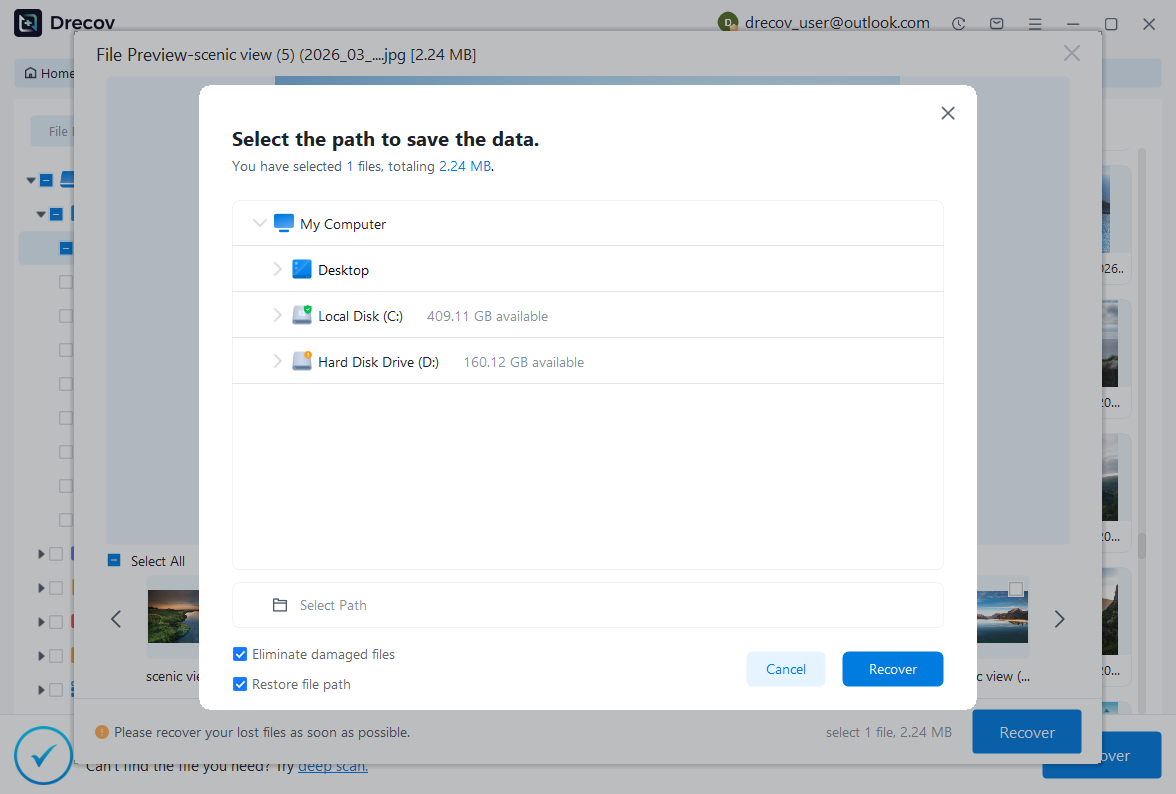
PandaOffice Drecov may help retrieve deleted local native diagrams, XML files, original embedded-data exports, or attachments from readable storage. It cannot guarantee recovery of cleared browser state or turn every flat screenshot into the original editable document. Prefer surviving editor sessions and native sources, and minimize new writes where deleted local files may remain.
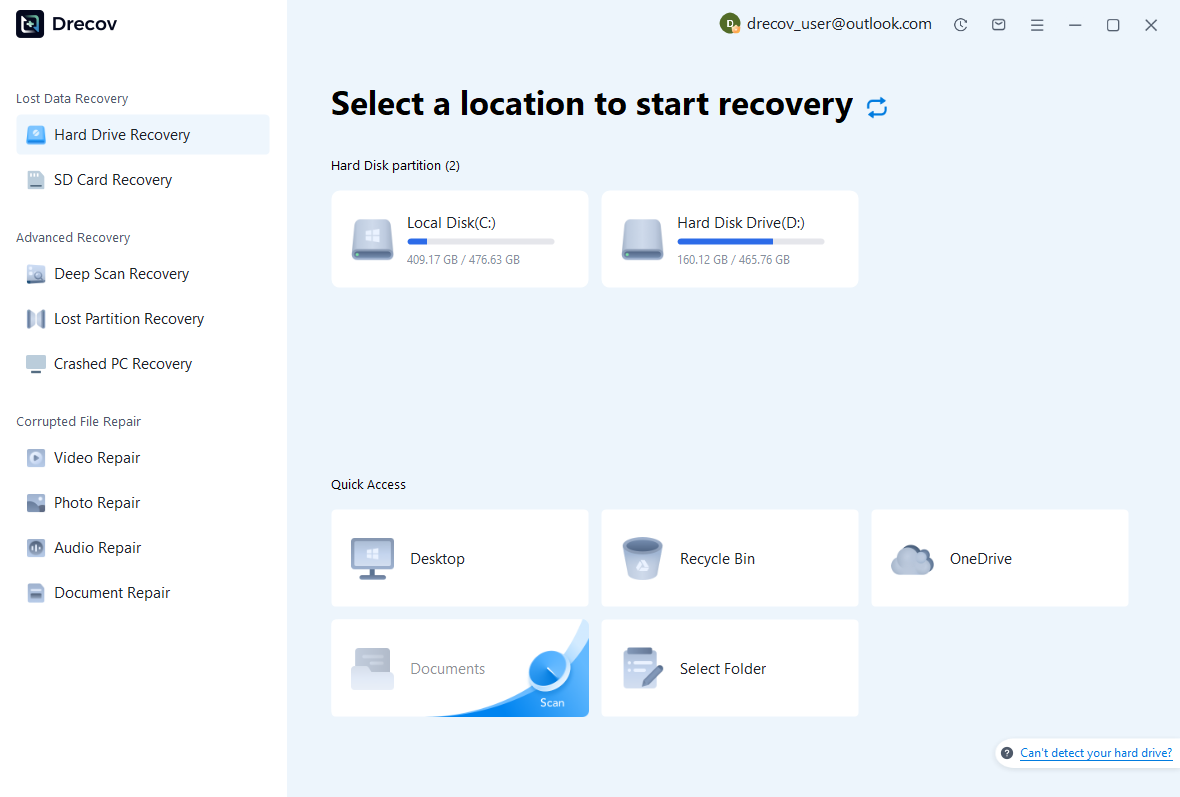
Step 1: identify the diagram’s local storage source
Choose the drive or partition that held the native file, downloaded attachment, or original export. Distinguish it from a preview cache that may contain only a flattened picture. Keep recovered output on other healthy storage. Assess repeated disconnections or hardware read errors before proceeding with a routine software scan.
Step 2: inspect native and embedded-data candidates
Compare available paths, names, sizes, dates, and supported previews. Preserve original PNG or SVG candidates alongside native diagram files without modifying them. A readable picture does not establish that embedded diagram data survived. Keep plausible alternatives until the editor can test their structure and content.
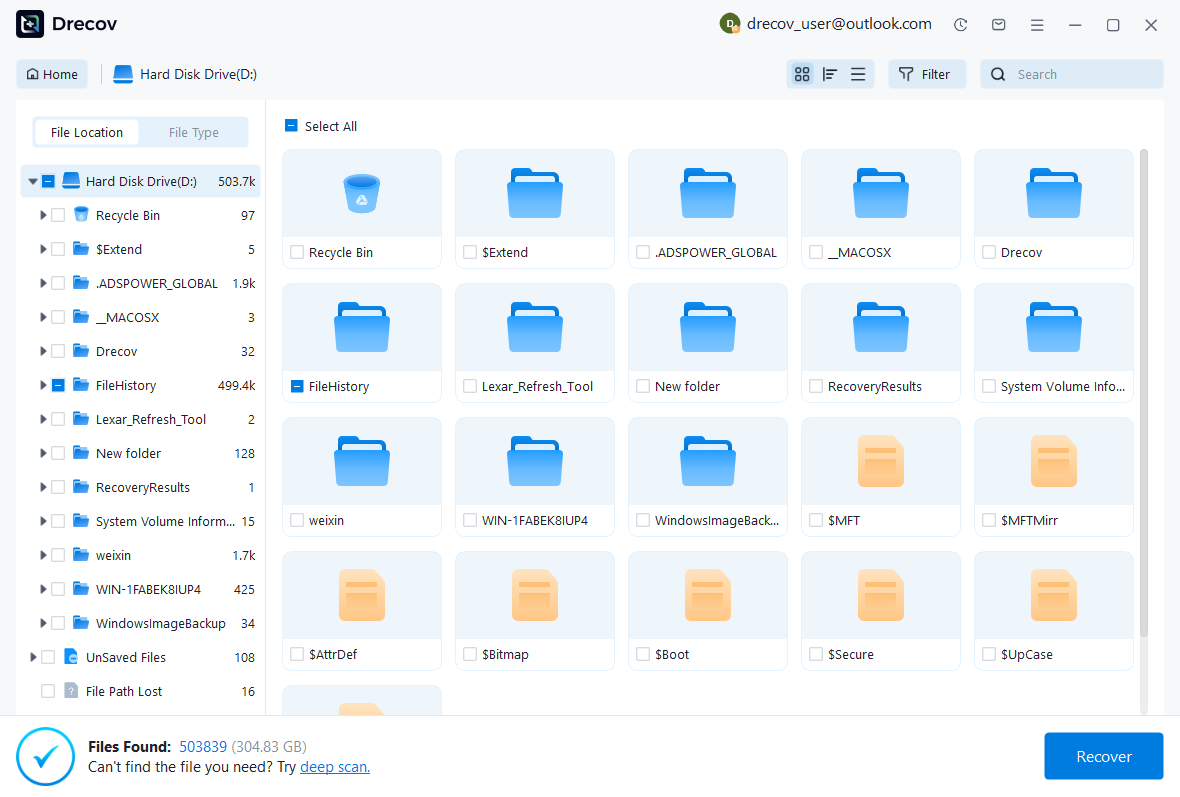
Step 3: restore elsewhere and verify editability
Recover selected files to a separate destination and retain an untouched set. Open working copies in draw.io, inspect pages and layers, and test representative shapes and connectors. Save the accepted recovery as a native diagram and export a fresh reference. Record any manually reconstructed labels or relationships before handing the file back for continued work.
Preserve both the diagram and its recovery evidence
Keep the accepted native file, a readable reference export, and a brief record of the source milestone. Note whether the recovery came from a live session, browser storage, an embedded export, or a historical version. This makes the result understandable and provides a tested route back to an editable diagram.
Related recovery resources
Explore the relevant recovery options: Hard drive recovery, External hard drive recovery.
For another recovery case and its practical checks, read the related recovery guide.
Check the vendor guidance for the installed version: official recovery documentation 1, official recovery documentation 2, official recovery documentation 3, official recovery documentation 4.