







Operating system errors, corrupted hard drives, and system crashes can halt your gaming experience on the PlayStation 4. When your console encounters severe performance issues or refuses to boot beyond a blank screen, downloading a fresh ps4 reinstallation file becomes your primary option to restore functionality. However, applying this system software package wipes out your entire storage drive, including save files, downloaded games, and personal configurations.
This comprehensive guide covers everything about acquiring the correct ps4 reinstallation file, executing the reinstallation safely, and leveraging modern utilities to handle data loss. If you forgot to create a backup before the crash or experienced file corruption during a manual update, specialized data recovery programs like PandaOffice Drecov data recovery software can help extract lost files from external storage devices or underlying computer drives used to manage your gaming data.
Understanding the Basics of ps4 reinstallation file
A ps4 reinstallation file is a full system operating firmware package provided by Sony Interactive Entertainment. Unlike a standard system software update that simply patches existing files, the reinstallation file reinstalls the entire system architecture from scratch. This file is distributed under the name PS4UPDATE.PUP and is typically around 1 GB in size, compared to smaller update patches.
Gamers generally need a ps4 update file for reinstallation when encountering severe system corruption, replacing an internal hard drive with an upgraded Solid State Drive, or fixing a console stuck in an infinite Safe Mode loop. The most prominent challenges during this process include:
- Complete Data Loss: Selecting the full ps4 reinstall system software option reformats the storage drive, wiping out all game progress and screenshots.
- Update Failures and Error Codes: Issues like error SU-42118-6 or CE-34788-0 frequently arise if the console fails to read the file structure from a USB flash drive.
- Accidental Storage Formatting: Users sometimes accidentally wipe the wrong external hard drive or flash drive on their computers while preparing the installation media.
This is where PandaOffice Drecov data recovery software plays a crucial role. This desktop application is designed to scan and recover deleted, formatted, or corrupted partitions from external hard drives, USB flash drives, and computer storage. If you accidentally formatted the wrong drive while preparing your manual update or lost data on an external extended storage drive connected to your console, PandaOffice Drecov data recovery software can scan the sector blocks to salvage lost media files and data configurations before they are permanently overwritten.
⚠ Warning: Install it on a drive different from the one where your data was lost to prevent overwriting.
Solutions to ps4 reinstallation file Issues
Method 1: The Official Sony Firmware Deployment
The standard approach to resolve system crashes involves downloading the official ps4 reinstallation update file and applying it via Safe Mode using an external USB drive.
Step 1: Format the USB Drive
Connect a USB flash drive with at least 1 GB of free space to your PC or Mac. Open the disk management tool of your operating system and format the drive to FAT32 or exFAT file systems.
Step 2: Establish the Directory Hierarchy
Open the root directory of the formatted USB drive. Create a new folder and name it PS4 using all uppercase letters. Open the PS4 folder and create a subfolder named UPDATE using uppercase letters.
Step 3: Download the Core Package
Visit the official PlayStation System Software Support Page using a web browser. Locate the section dedicated to console reinstallation, download the ps4 update file reinstallation package, and save it directly into the UPDATE folder as PS4UPDATE.PUP.
Step 4: Execute Safe Mode on the Console
Ensure your console is fully turned off. Insert the prepared USB drive into one of the front USB ports on the console. Press and hold down the physical power button on the front panel, releasing it only after you hear a second distinct beep sound, which takes approximately seven seconds.
Step 5: Initialize the Firmware Reinstallation
Connect your DUALSHOCK 4 controller to the console using a structural USB data cable and press the central PS button. Use the directional pad to navigate down to option 7, labeled Initialize PS4 Reinstall System Software. Select this option and follow the on-screen prompts to confirm the operating system wipe.
Method 2: Restoring Lost Files with PandaOffice Drecov Data Recovery Software
If you lost access to critical backups on your computer or mistakenly wiped an external storage drive while preparing the ps4 software download, utilizing PandaOffice Drecov data recovery software can help restore your files. Furthermore, this advanced tool can scan deeply into formatted storage blocks to salvage lost gaming media and system configurations before they are permanently overwritten.
⚠ Warning: Install it on a drive different from the one where your data was lost to prevent overwriting.
Step 1: Connect the Target Storage Device
Insert the affected USB drive or external hard disk into an available port on your Windows or macOS computer. Launch the installed PandaOffice Drecov data recovery software application from your desktop interface.

Step 2: Select the Target Location for Scanning
Within the main software dashboard, locate the drive selection area. Identify the drive letter or storage volume associated with your external media device, select it, and click on the Scan button.

Step 3: Analyze and Filter Discovered Files
Allow the scanning engine to run a deep analysis of the storage sectors. You can monitor the progress bar at the top of the interface. Use the file type filters on the left panel to isolate specific extensions or lost folders once the scan concludes.
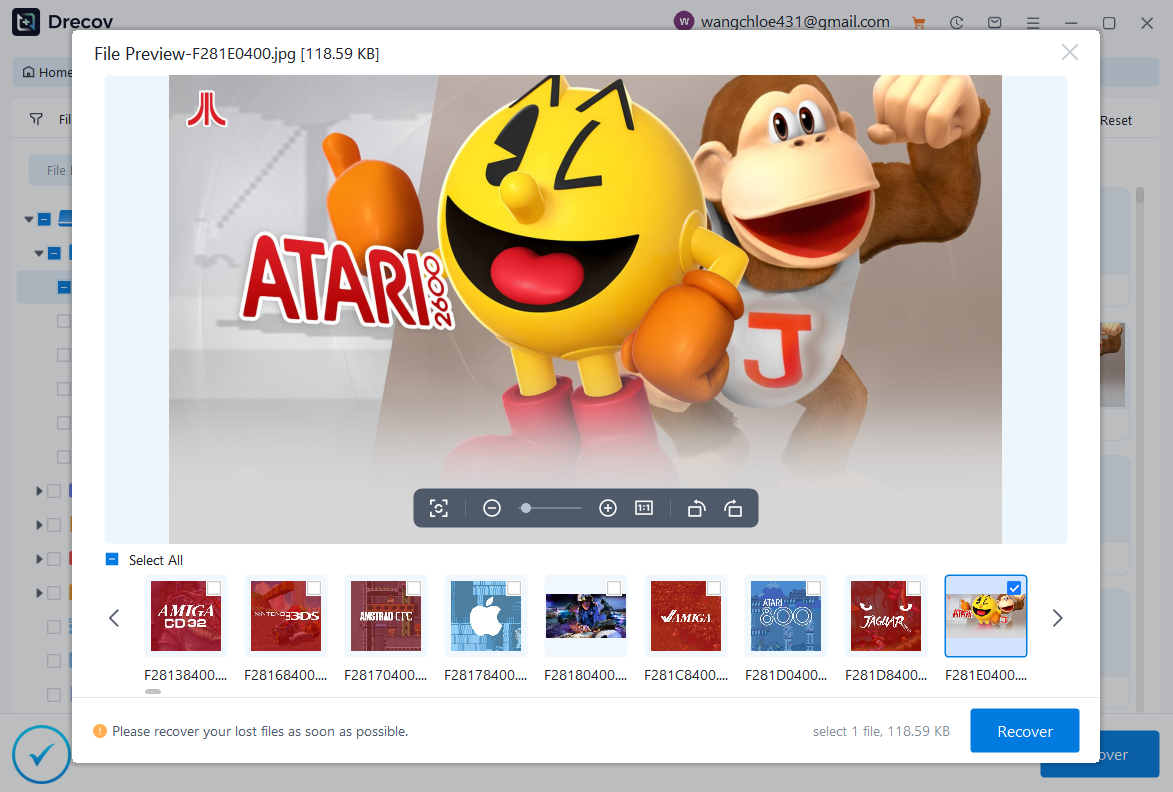
Step 4: Preview and Execute Data Restoration
Double-click files within the results list to view an integrity preview. Mark the checkboxes next to the items you want to save, click the Recover button, and select a secure storage directory on your local computer hard drive rather than saving them back onto the same external drive.
Alternative or Complementary Methods
When deploying a ps4 system software update or carrying out a complete system refresh, alternative troubleshooting pathways can address minor system glitches without resorting to a destructive factory initialization.
| Troubleshooting Method | Best Used For | Impact on Data | Success Rate |
| Rebuild Database | Fixing file fragmentation, corrupted game icons, and minor performance stutters. | Retains all user data | High for software glitches |
| Standard Update | Resolving minor firmware boot loops using a standard ps4 system update file. | Retains all user data | Moderate |
| Manual Hard Drive Replacement | Resolving hardware mechanical failures indicated by clicking noises or repeated errors. | Destructive (Requires a fresh ps4 reinstallation file) | High for hardware faults |
If you attempt a standard ps4 system update via Safe Mode Option 3 using a flash drive, remember that the folder structure remains identical, but the file size is much smaller. Meanwhile, if your console drive is physically failing, no amount of reinstalling ps4 operating files will fix the issue, and a physical hard drive replacement will be necessary. For related data recovery tasks on your computer, you can review helpful guides such as managing Firefox bookmarks storage to keep your PC applications organized.
Tips & Best Practices
Maximizing your success rate when reinstalling ps4 operating systems requires attention to technical details and drive maintenance.
- Verify File Extensions and Character Case: The console will fail to read your installation media if the folder names or filenames contain lowercase letters. Ensure the path is exactly
USB:\PS4\UPDATE\PS4UPDATE.PUP. Furthermore, make sure your operating system has not appended a hidden duplicate extension like.PUP.txtor.PUP (1)during download. - Preserve Uninterrupted Power: Never shut off your console or unplug the power cord while the system is writing data. A sudden power loss during a firmware flash can permanently brick the motherboard components.
- Maintain USB Drive Integrity: Avoid using old, unstable flash drives that suffer from structural connectivity drops. If your drive displays reading errors, learn how to repair a corrupted USB flash drive without losing data to keep your installation media working properly.
- Isolate Mechanical Drive Faults: If you use a mechanical external drive for your media or computer backups, refer to a complete guide to Toshiba hard disk data recovery to spot early signs of hardware wear before a critical system crash occurs.
Frequently Asked Questions
What is the difference between a PS4 update file and a reinstallation file?
The standard update file only patches operational bugs and brings an existing system up to date without removing personal data. Conversely, the full reinstallation package formats the internal drive entirely and reinstalls the operating system from scratch.
Why is my console showing the error CE-34788-0 when using a USB drive?
This error means the update file cannot be used by the system. It typically indicates that you downloaded the smaller update patch instead of the larger console reinstallation file, or the file was saved with incorrect lowercase folder names.
Can I use an external hard drive to apply the ps4 reinstallation firmware?
Yes, you can use any external hard drive or USB flash drive, provided it is formatted to FAT32 or exFAT file systems and has sufficient free space to accommodate the folder hierarchy.
How do I get my console out of a Safe Mode loop?
First, try option 1 to restart the system normally. If that fails, try updating the firmware via the internet or a USB drive using option 3. If the loop continues, a complete initialization using option 7 is required.
Is it possible to recover game saves after reinstalling ps4 system software?
Once option 7 is executed, all data on the internal drive is permanently erased and cannot be recovered directly from the console. However, you can restore your progress if you regularly upload save files to PlayStation Plus cloud storage or have a separate backup on an external drive.
Conclusion
Managing a system failure requires a clear, methodical approach to restore your console to working order. Downloading the proper ps4 reinstallation file and setting up your USB directory correctly will help you resolve deep firmware corruptions and get your system back online.
While a full reinstallation wipes the internal storage, proactive data management—such as using automated cloud saves and utilizing PandaOffice Drecov data recovery software to protect your peripheral computer drives—ensures your critical data remains secure. Maintain clean installation paths, monitor your storage health regularly, and follow these technical steps to keep your gaming setup running smoothly.






