







A corrupted USB flash drive can feel like a locked suitcase with all your valuables trapped inside. One minute it works flawlessly; the next, it refuses to open, repeatedly asks to be formatted, or simply fails to show up in your file explorer. Annoying? Absolutely. Hopeless? Not at all. I will walk you through exactly how to repair corrupted USB flash drive units step-by-step.
In this extensive guide, we will explore practical methods that range from simple software tweaks to advanced command-line repairs. No fluff, no tech-overload—just clear, actionable solutions you can implement right now to rescue your data and your hardware.
Understanding USB Flash Drive Corruption
Before diving into the “how-to,” it is essential to understand what is actually happening under the hood. Understanding the nature of the damage will help you choose the most effective strategy for how to repair corrupted USB flash drive issues without causing further data loss.
What Does a Corrupted USB Flash Drive Mean?
When we say a USB flash drive is corrupted, it usually means the digital “map” or data structure inside it has been compromised. Think of it like a massive library where all the books are still sitting on the shelves, but the catalog system has been scrambled. Your files physically exist on the flash memory chips, but your operating system cannot find the correct path to read or display them.
Common Symptoms of USB Flash Drive Corruption
Identifying the problem early is half the battle. You might be dealing with a corruption issue if you encounter the following red flags:
- The system prompts: “You need to format the disk in drive X: before you can use it.”
- Files appear as strange shortcuts or have unreadable, “alien” file names.
- The drive shows the wrong storage capacity (e.g., a 64GB drive showing only 123MB).
- The USB isn’t detected by Windows or shows up as “RAW” in Disk Management.
- Persistent error messages appear stating the “File or directory is corrupted and unreadable.”
Logical vs. Physical USB Drive Corruption
Distinguishing between these two is vital for your success.
- Logical Corruption: This involves file system errors, software glitches, or virus interference. This type of damage is typically fixable using the software methods described in this guide.
- Physical Corruption: This involves broken USB connectors, burnt-out NAND flash chips, or severe water damage. If the hardware itself is snapped or fried, software-based tutorials on how to repair corrupted USB flash drive problems will unfortunately not suffice.
Why USB Flash Drives Get Corrupted
To prevent future headaches, we must examine the culprits behind data degradation. Most users find that corruption occurs due to a few common, avoidable behaviors.
Unsafe Removal and Sudden Power Loss
Pulling out a USB drive while it is still writing data is the leading cause of corruption. It is like yanking a cake out of the oven halfway through the baking process. When the electrical flow is interrupted during a critical “write” cycle, the file system becomes inconsistent, leading to immediate errors.
Virus and Malware Attacks
Plugging your thumb drive into infected public computers or downloading untrusted files can introduce malware. Some viruses specifically target the Master Boot Record (MBR) or the Partition Table of the drive, making it appear corrupted to any computer you plug it into later.
File System Errors
Sometimes, the software environment itself is to blame. Incompatible file systems or interrupted operations during a move/copy command often trigger internal logic errors. When the OS loses the “handshake” with the drive, the structure collapses.
Bad Sectors and Wear Over Time
USB flash drives do not last forever. They have a limited number of write/erase cycles. Over years of heavy use, individual memory cells wear out and become “bad sectors.” When the drive tries to store data on these dead spots, corruption occurs.
Formatting Errors and Incompatible Devices
Formatting a USB on a specialized device (like a camera or a Linux server) and then trying to use it on a standard Windows PC can cause “unsupported file system” errors. This isn’t always true corruption, but it requires a repair process to make the drive usable again.
First Things to Do When a USB Flash Drive Is Corrupted
If you just realized your drive is acting up, don’t panic. Your first actions will determine whether you recover your files or lose them forever.
Stop Using the USB Immediately
This is the golden rule. Every new read or write operation—especially trying to save new files to the “broken” drive—reduces your chances of a successful repair. If the drive is struggling, give it a rest until you are ready to follow a repair protocol.
Check the USB on Another Computer
Before assuming the drive is dead, rule out your computer as the problem. Sometimes a faulty USB port or a glitchy driver on your laptop is the real villain. Plug the drive into a different machine. If it works there, you simply need to fix your PC’s drivers.
Identify the Type of Corruption
Check if the drive appears in “Disk Management” (right-click the Start button and select it). If the drive is listed but labeled as “RAW” or “Unallocated,” you are dealing with logical corruption. This is excellent news because logical errors are highly recoverable.
Method 1 – Repair Corrupted USB Flash Drive Using CHKDSK
The most powerful tool in your Windows arsenal for this task is CHKDSK (Check Disk). It is a command-line utility that scans the file system and metadata of a volume for logical and physical errors.
What Is CHKDSK and How It Works
CHKDSK examines the connectivity of the file system. It verifies that the “indexes” match the actual files on the disk. If it finds a discrepancy, it attempts to fix the relationship, effectively rebuilding the library catalog we discussed earlier.
Step-by-Step Guide to Run CHKDSK
- 1. Connect the corrupted USB flash drive to your PC.
- 2. Press Win + X on your keyboard and choose Command Prompt (Admin) or Windows Terminal (Admin).
- 3. In the black window, type the following command: chkdsk X: /f /r
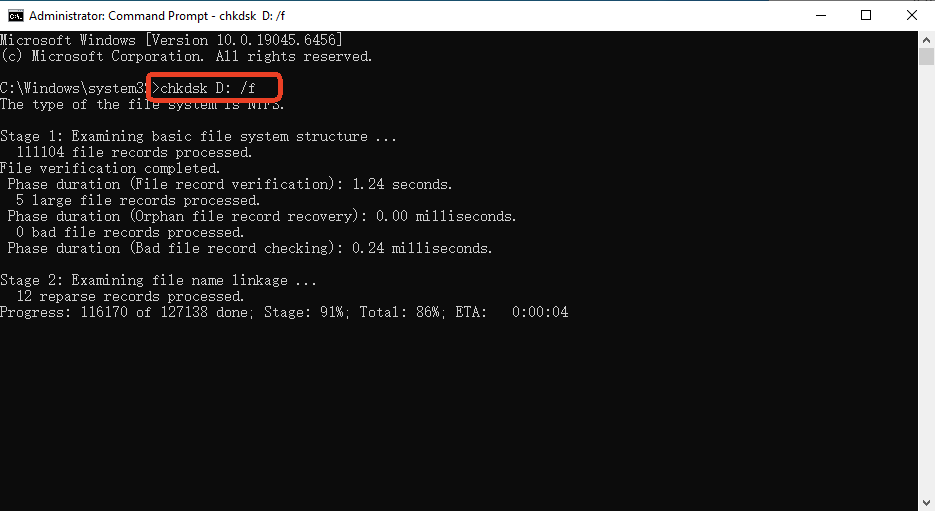
Crucial: Replace X with the actual drive letter assigned to your USB, such as D: or E:
- 4. Press Enter. The
/fparameter tells it to fix errors, and/rtells it to locate bad sectors and recover readable information. - 5. Wait for the process to finish. It may take anywhere from two minutes to an hour depending on the drive size and speed.
What to Do If CHKDSK Fails
If you see an error message saying “CHKDSK is not available for RAW drives,” it means the file system is too far gone for this tool to understand it. In this case, you should skip to Method 4 or Method 5.
Method 2 – Repair USB Flash Drive via Disk Management
Sometimes the drive isn’t “corrupted” in a traditional sense; it just doesn’t have a proper path to communicate with Windows. Disk Management is the best place to fix drive-pathing issues.
Accessing Disk Management
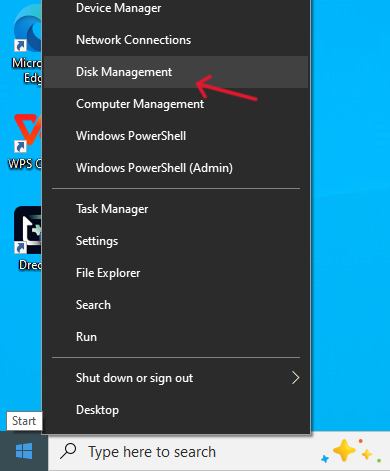
Right-click the Start button and select Disk Management from the list. You will see a visual map of all connected storage devices.
Assigning a New Drive Letter
If your USB shows up as a “Healthy” partition but doesn’t appear in “This PC,” it might just be missing a drive letter.
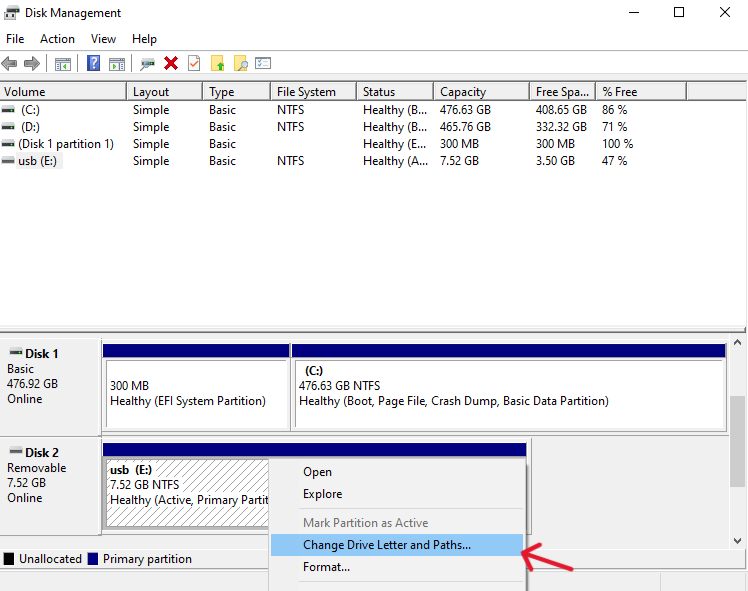
- Right-click the USB partition block.
- Select Change Drive Letter and Paths.
- Click Add or Change and assign a new letter (like Z:).
- Check if the drive is now accessible.
Creating a New Volume
If the drive appears as “Unallocated” (indicated by a black bar), the partition table has been wiped.
- Right-click the black unallocated area.
- Select New Simple Volume.
- Follow the wizard to recreate the partition. Note that this will likely result in a blank drive, so ensure data is backed up first.
Formatting the USB Drive Safely
If the drive is “RAW,” you can right-click it and select Format. This is often the final step in learning how to repair corrupted USB flash drive hardware when software fixes fail. Choose FAT32 for drives under 32GB or exFAT for larger ones.
Method 3 – Use Windows Error Checking Tool
If you are uncomfortable with command lines, Windows provides a graphical user interface (GUI) version of CHKDSK.
When to Use Error Checking
This method is perfect for minor corruption when the USB is still recognized by the system and you can see the drive icon in your folders, but files refuse to open.
Steps to Scan and Repair USB Errors
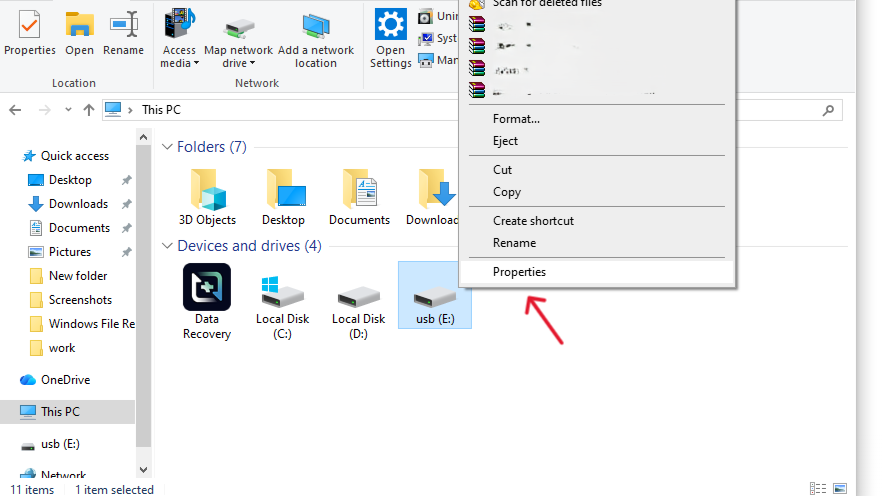
- 1. Open This PC or File Explorer.
- 2. Right-click the problematic USB drive and select Properties.
- 3. Click on the Tools tab at the top.
- 4. Under the “Error checking” section, click the Check button.
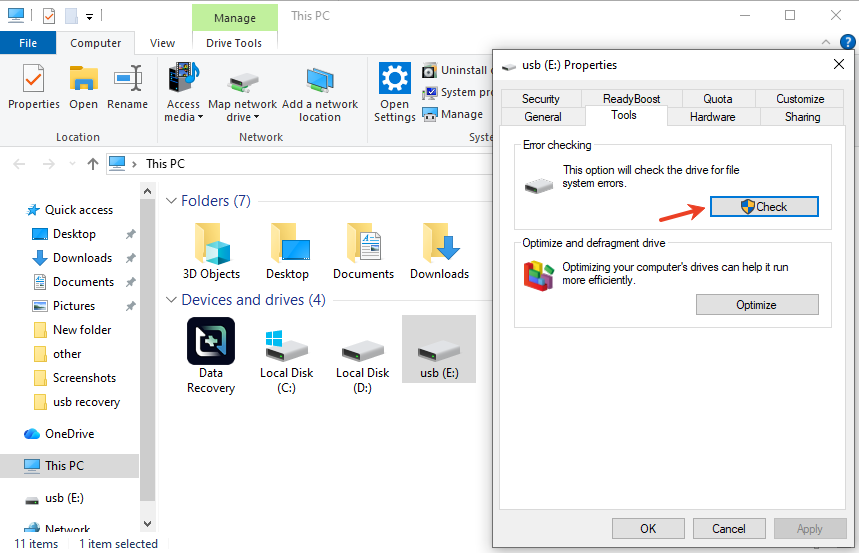
- 5. Even if Windows says it hasn’t found any errors, click Scan and repair drive.
- 6. Once finished, Windows will provide a report of any fixed issues.
Method 4 – Repair Corrupted USB Flash Drive Using CMD
When standard tools fail, the Diskpart command is the “nuclear option.” This utility allows you to manage objects (disks, partitions, or volumes) at a very low level.
CMD Commands That Can Fix USB Errors
Using Diskpart allows you to completely wipe the internal structure of the USB drive and start from scratch. This is the most effective way to solve “Write Protected” or “RAW” errors that other tools can’t touch.
Step-by-Step CMD Repair Process
Warning: This process will erase every single file on the USB. Ensure you have tried data recovery first!
- Open Command Prompt as Administrator.
- Type
diskpartand press Enter. - Type
list diskto see all connected drives. Note the disk number of your USB (usually Disk 1 or Disk 2—do not pick your hard drive!). - Type
select disk X(Replace X with your USB’s number). - Type
clean. This removes all partition and volume information. - Type
create partition primary. - Type
format fs=exfat quick. - Type
assign. - Type
exit.
Your drive should now be refreshed and fully functional.
Method 5 – Repair USB Flash Drive with PandaOffice Drecov
If the files on your drive are more important than the hardware itself, you must prioritize data preservation. Repairing a drive through formatting or command-line tools can sometimes overwrite the very files you are trying to save. This is where PandaOffice Drecov becomes essential.
Why Recover Data Before Repairing?
Many repair methods, especially Method 4 and Method 6, involve re-initializing the file system. While this makes the drive “work” again, it wipes the digital remains of your documents. Recovering files first ensures that even if the repair fails or the hardware finally gives out, your photos and work projects are safely stored on your computer’s primary hard drive.
The Three-Step Recovery Process
PandaOffice DRecov is designed for efficiency and high success rates, especially with RAW or unreadable partitions. Follow this streamlined workflow to get your data back:
- Step 1: Select the Corrupted USB Drive Launch the software and connect your flash drive to the computer. On the main interface, you will see a list of available storage devices. Identify your corrupted USB drive (often labeled as “Removable Disk” or showing a “RAW” file system) and click the Scan button.

- Step 2: Scan and Preview Recoverable Files PandaOffice DRecov will perform a deep scan of the drive’s sectors to find traces of lost data. Once the scan is complete, you can browse through the results. Use the Preview feature to open images, documents, or videos within the software to ensure the files are intact and not physically damaged.

- Step 3: Recover and Save to a Secure Location Select the checkboxes next to the files you wish to rescue. Click the Recover button. Important: When prompted for a destination, choose a folder on your computer’s internal hard drive or a different external disk. Never save recovered data back onto the corrupted USB drive while you are still in the process of repairing it.
Method 6 – Reformatting a Corrupted USB Flash Drive
Formatting is essentially the process of “reinstalling the OS” for your thumb drive. It clears out the old, broken structure and lays down a fresh, clean grid for data.
When Formatting Is the Only Option
If you have tried CHKDSK and Error Checking and the drive still refuses to open, the file system is likely too damaged to be patched. At this point, a full reset is the only way to make the hardware usable again.
Best File Systems for USB Drives
- FAT32: Great for compatibility (works on old TVs, printers, and consoles) but cannot hold files larger than 4GB.
- exFAT: The modern standard for USBs. It works on both Windows and Mac and has no practical file size limits.
- NTFS: Best for Windows-only environments, but it can be harder on flash memory due to constant “journaling” (logging changes).
Quick Format vs. Full Format
When formatting, you will see a “Quick Format” checkbox.
- Quick Format: Only deletes the file pointers. It’s fast but doesn’t check for physical errors.
- Full Format: Scans every single sector on the drive for health. If your drive was corrupted, I highly recommend unchecking “Quick Format” and doing a Full Format once. It takes longer, but it confirms the drive is actually safe to use.
Advanced Fixes for Stubborn USB Corruption
If the drive still isn’t working after a format, we need to look at the communication layer between the hardware and your operating system.
Updating or Reinstalling USB Drivers
Sometimes the “corruption” is just a confused driver.
- Right-click Start and open Device Manager.
- Expand Universal Serial Bus controllers.
- Right-click your USB Mass Storage Device and select Uninstall device.
- Unplug the USB and plug it back in. Windows will automatically reinstall the fresh driver.
Using Manufacturer Repair Tools
Major brands like SanDisk, Kingston, Samsung, and Transcend often provide proprietary repair utilities on their websites. These tools are designed to communicate directly with the specific controller chip inside your drive and can often fix “locked” or “unrecognized” issues that generic Windows tools cannot.
Low-Level Formatting Explained
Low-level formatting (LLF) is a process that clears all the data and the partitions but also hides bad sectors by marking them as unusable at the hardware level. This should be a last-resort effort, as it can be stressful on the hardware, but it is a powerful answer to how to repair corrupted USB flash drive units that seem totally dead.
How to Prevent USB Flash Drive Corruption
Once you have successfully repaired your drive, you certainly don’t want to go through this process again. Prevention is much easier than recovery.
Safe Removal Practices
I know it’s tempting to just pull it out, but clicking “Safely Remove Hardware” is vital. This command ensures that all “cached” data has been physically written to the chips before the power is cut. This five-second habit can save you hours of repair work.
Avoiding Virus Infections
Never plug your drive into public kiosks or library computers without running a virus scan immediately afterward. Modern antivirus software can be set to automatically scan any USB device the moment it is plugged in.
Proper Storage and Handling
USB drives are surprisingly fragile. Extreme heat (like leaving it in a car), moisture, and static electricity can corrupt the data stored on the NAND chips. Keep your drive in a cool, dry place and always put the cap back on to protect the connector.
Regular Backups Are Non-Negotiable
The only way to 100% “fix” a data loss situation is to have a backup. If the files on your USB are important, they should also exist on your computer’s hard drive or in a cloud storage service like Google Drive or OneDrive. A USB drive should be a vehicle for moving data, not a permanent warehouse for it.
When a USB Flash Drive Cannot Be Repaired
Despite our best efforts, some drives are simply beyond saving. It is important to know when to stop trying and either move on or call in the experts.
Signs of Permanent Physical Damage
- The drive gets extremely hot to the touch within seconds of being plugged in.
- The metal connector is bent, loose, or shows signs of green corrosion.
- The drive is not detected in Disk Management or Device Manager on multiple different computers.
- You hear a faint high-pitched whining sound or “clicking” (though this is rare for flash memory).
When Professional Data Recovery Is Needed
If your drive contains the only copy of your wedding photos or a multi-million dollar business contract, do not attempt the DIY methods above. Every “clean” or “format” command makes professional recovery harder. In these cases, companies like DriveSavers or Ontrack can physically desolder the memory chips and read the data using specialized hardware. Be prepared, however, as this service often costs hundreds or thousands of dollars.
How to fix corrupted usb drive FAQs
1. Can a corrupted USB flash drive be fully repaired?
Yes. If the corruption is “logical” (file system errors), it can usually be restored to 100% functionality. If the corruption is “physical” (damaged chips), the drive usually needs to be replaced.
2. Will formatting fix a corrupted USB drive?
Formatting is the most reliable way to fix corruption because it creates a completely new file system. However, it will delete all files currently on the drive.
3. Why does my USB keep getting corrupted repeatedly?
This usually points to a physical hardware failure or a “fake” flash drive that reports more capacity than it actually has. If a drive fails twice in a month after being repaired, it is time to throw it away.
4. Is CHKDSK safe for USB flash drives?
It is generally safe, but if the drive has many bad sectors, CHKDSK might result in some files being turned into .chk fragments. Always try to copy what you can off the drive before running it.
5. How long do USB flash drives usually last?
A high-quality USB drive typically lasts between 5 to 10 years, or about 10,000 to 100,000 write/erase cycles. Cheap, unbranded drives may fail much sooner.
Conclusion
Learning how to repair corrupted USB flash drive devices is a vital skill in our digital age. It’s like knowing basic first aid for your data. In most cases, the “corruption” is just a minor logical glitch that a quick CHKDSK or a new drive letter can solve.
By staying calm and following a methodical approach—recovering data first, then attempting logical repairs, and finally formatting—you can save your hardware and your sanity. Remember, technology is fallible, but with the right tools, you are usually just a few clicks away from a solution.






