







Losing photos on an iPhone can feel devastating, especially when those images capture irreplaceable moments. As a result, many users turn to an iphone photo recovery app hoping for a quick fix. But a common and important question comes up almost immediately: is photo recovery app safe? The short answer is: it depends on the method, the app, and how you use it. This article takes a practical, step-by-step look at iphone photo recovery, explains why photos get lost, evaluates safety risks, and walks you through free and reliable recovery options. You’ll learn how iOS recovery really works, what free methods are worth trying first, and when a more advanced iphone photo recovery tool becomes necessary. By the end, you’ll know how to recover photos safely and avoid making mistakes that permanently overwrite your data.
Why iPhone Photos Get Lost in the First Place
Photo loss on iPhone is more common than many users realize, and it often happens without warning. Understanding the causes is the first step toward safe and effective iphone photo recovery. In most cases, photos are not immediately erased from storage. Instead, iOS marks the space as available for reuse, which means recovery may still be possible if you act quickly.
Common causes include accidental deletion, iOS updates gone wrong, failed device restores, factory resets, and syncing issues with iCloud. Users often delete photos thinking they are backed up, only to find iCloud Photos was disabled. Others lose images after switching devices or restoring from an outdated backup. Third-party apps can also trigger photo loss if they request improper permissions or crash during sync.
⚠️ Warning: Continuing to use your iPhone normally—taking new photos, installing apps, or recording videos—can overwrite deleted photo data. This drastically reduces recovery success.
At this stage, many users search for a photo recovery app for iphone, but not all apps work the same way. Some only scan cached thumbnails, while others rely on backups. Knowing the cause of data loss helps you choose the safest and most effective recovery path before downloading any software.
Is Photo Recovery App Safe? What You Should Know
Before installing any iphone photo recovery app, it’s essential to understand the safety implications. iOS is a closed system with strict sandboxing rules, which means apps cannot directly access raw storage like they can on Android or a computer. This limitation makes many users skeptical and leads to the question: is photo recovery app safe?
In general, apps from the App Store are reviewed by Apple and are not malicious by default. However, safety concerns still exist. Some apps request excessive permissions, upload photos to cloud servers, or use misleading “scan” results to push paid upgrades. Others simply restore photos from existing backups rather than performing true recovery.
⚠️ Warning: No iOS app can magically recover photos that were permanently deleted and overwritten without a backup.
Safe use guidelines include:
- Only download apps from the official App Store
- Read privacy policies carefully
- Avoid apps that require unnecessary account creation
- Do not grant full photo access unless required
For users who understand these limits, an iphone photo recovery tool can still be helpful—especially for restoring recently deleted photos, cached images, or backup-based data. The key is choosing the right method in the right order, starting with free system options first.
Free iPhone Photo Recovery Methods (Step-by-Step)
Recover from “Recently Deleted” Album in Photos App
The safest and most effective free method for iphone photo recovery is built directly into iOS. When you delete photos, they are moved to the “Recently Deleted” album for up to 30 days.
Steps:
- Open the Photos app
- Go to Albums → Recently Deleted
- Select the photos you want
- Tap Recover
Usage Tips:
- Sort by date to find photos faster
- Recover photos as soon as possible
Precautions:
- After 30 days, photos are permanently removed
- Manually deleting from this folder makes recovery impossible
This method involves no third-party iphone photo recovery app, making it the safest starting point.
Recover from Trash or Cached Photos Using Free Apps
Some free apps labeled as photo recovery app for iphone, such as “Photo Recovery” or “Photo Recovery: Deleted Files,” attempt to restore cached images or thumbnails stored temporarily by iOS.
Steps:
- Install the app from the App Store
- Allow limited photo access
- Run a scan
- Preview and restore available images
Usage Tips:
- Use preview mode before restoring
- Focus on recently deleted items
Precautions:
⚠️ Warning: These apps do not perform deep recovery. Results vary, and full recovery may require payment.
They are best viewed as supplemental tools rather than complete solutions.
Recover Photos Using iCloud Backup
If you had iCloud Backup enabled, this is one of the most reliable free options for iphone photo recovery.
Steps:
- Go to Settings → General → Transfer or Reset iPhone
- Erase All Content and Settings
- Restore from iCloud Backup during setup
Usage Tips:
- Check backup date before restoring
- Use Wi-Fi and sufficient battery power
Precautions:
⚠️ Warning: Current data will be replaced by backup data.
Recover Photos Using iTunes / Finder Backup
For users who back up their iPhone to a computer, iTunes or Finder offers another free recovery path.
Steps:
- Connect iPhone to computer
- Open iTunes or Finder
- Select Restore Backup
Usage Tips:
- Choose the most recent backup
- Disable auto-sync afterward
Precautions:
- Backup restoration overwrites existing data
Comparing Free Methods vs Recovery Software
Free methods are always the safest first choice, but they come with clear limitations. System-based recovery relies on backups or temporary storage. Once data is overwritten, free iOS-only solutions usually fail.
| Method | Pros | Cons |
|---|---|---|
| Recently Deleted | Safe, fast, free | 30-day limit |
| iCloud Backup | Reliable | Data overwrite |
| iTunes Backup | Offline control | Requires prior backup |
| Free Apps | Easy to use | Limited recovery depth |
When these options fail, users often look beyond an iphone photo recovery app and turn to desktop-based recovery solutions.
Best iPhone Photo Recovery Tool for Advanced Scenarios
When photos are lost due to formatted storage, corrupted SD cards, USB drives, or external hard drives used with iPhone workflows, a desktop solution is often required. This is where a professional iphone photo recovery tool becomes the most effective option.
Drecov by PandaOffice is designed for advanced recovery scenarios. While iOS apps are limited, Drecov works at the storage level and supports recovery from SD cards, USB drives, hard drives, recycle bins, and more—without naming or relying on competing software.
Recover Photos with Drecov in 3 Steps
Download Drecov- Connect the storage device to your computer
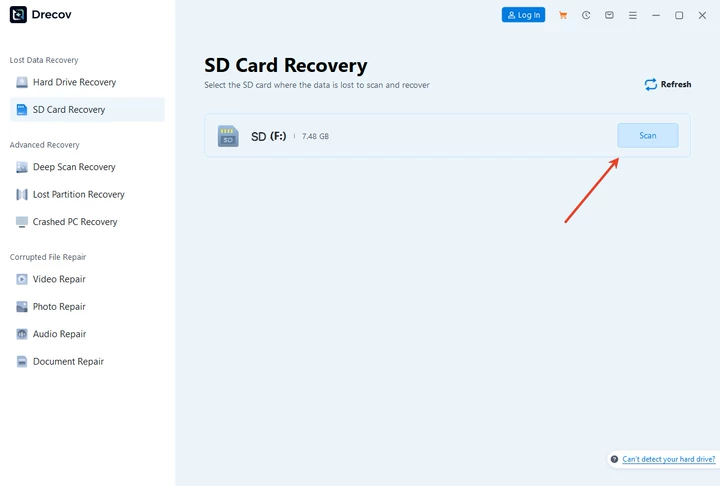
2. Launch Drecov and scan the device

3. Preview and recover photos to a safe location

Why it works:
- Deep scan technology
- Supports multiple file systems
- Read-only recovery process
⚠️ Warning: Always recover files to a different drive to avoid overwriting.
This method is ideal when free iphone photo recovery options are no longer effective.
FAQs About iPhone Photo Recovery
Is photo recovery app safe for iPhone?
Yes, if downloaded from the App Store and used correctly, but results are limited by iOS restrictions.
What is the best iphone photo recovery software?
The best solution depends on data loss type. Free system methods first, then advanced desktop tools for formatted storage.
Can free iphone photo recovery software restore permanently deleted photos?
Only if backups exist. Otherwise, success is unlikely.
Which photo recovery app for iphone works without backup?
Most apps rely on cached data and cannot recover overwritten files.
Conclusion
So, is photo recovery app safe? In most cases, yes—but safety does not always equal effectiveness. Built-in iOS options should always be your first step for iphone photo recovery, followed by cautious use of free apps. When photos are lost due to formatting or external storage issues, a professional iphone photo recovery tool like PandaOffice Drecov provides the most reliable results. Used correctly, it offers a safe and powerful way to recover photos when free methods fall short.






