







Maintaining your web browser is a critical aspect of digital hygiene. When you learn how to update firefox browser, you are doing more than just adding new buttons or changing the interface; you are fortifying your digital gateway against external threats. Firefox, developed by Mozilla, remains one of the most popular choices for users who value privacy and open-source transparency. However, even the most secure browser requires regular maintenance to stay effective.
In this extensive guide, we will explore every facet of browser management. We will move from basic maintenance to advanced troubleshooting and even touch upon professional data recovery methods using tools like PandaOffice Drecov. By the time you finish reading, you will possess a master-level understanding of how to keep your browsing environment optimized and your data safe.
Understanding Firefox Browser Updates
Keeping your browser updated might sound like a small technical task, but it actually plays a huge role in keeping your internet experience safe and smooth. The Firefox browser regularly releases updates to improve performance, fix bugs, and protect users from newly discovered security threats. Think of updates like maintenance for a car. You wouldn’t drive thousands of miles without an oil change, right? Browsers work the same way—they need regular updates to keep everything running properly.
Firefox updates usually include improvements to website compatibility, faster browsing speeds, and stronger protection against malware or phishing attacks. According to Mozilla’s official support documentation, Firefox automatically checks for updates and installs them in the background in most cases, ensuring users receive the latest security patches and features.
What a Firefox Update Actually Does
When Firefox releases a new version, it’s not just cosmetic changes or minor tweaks behind the scenes. Browser updates can include hundreds of improvements, ranging from security patches to new technologies that help websites load faster and function better. Developers constantly monitor how the browser interacts with modern web standards, and updates ensure compatibility with the latest web technologies.
One of the most critical aspects of updates is security enhancement. Cybersecurity researchers frequently discover vulnerabilities in browsers that could potentially allow attackers to steal data or install malicious software. Firefox updates patch these vulnerabilities so that hackers can’t exploit them. Without these fixes, your browsing activity could be exposed to threats like malware downloads, phishing attacks, or malicious extensions.
Why Firefox Releases Frequent Updates
Some users wonder why Firefox updates appear so often. It might feel inconvenient to restart your browser every few weeks, but these frequent updates actually reflect the rapidly changing nature of the internet. Web browsers sit at the front line of online security and functionality, which means developers must continuously adapt to new threats and technologies.
Mozilla releases updates frequently to address vulnerabilities quickly. In fact, cybersecurity experts strongly recommend installing browser updates immediately when they become available. Even a small security flaw could potentially allow attackers to bypass protections or gain access to sensitive information. Rapid updates ensure those vulnerabilities are patched as soon as they’re discovered.
Why You Should Always Update Firefox
Many people ignore browser updates simply because everything seems to be working fine. But the truth is that outdated browsers can expose users to serious risks. Hackers constantly search for weaknesses in older software versions. When developers discover those vulnerabilities, they release updates that fix them. If you delay updating, you essentially leave your browser running with open security holes.
Security Protection and Bug Fixes
One of the main reasons updates exist is to fix bugs and vulnerabilities discovered in previous versions. No software is perfect. Even carefully designed programs can contain hidden flaws that only appear after millions of users begin interacting with them.
Security researchers around the world actively analyze browsers like Firefox to uncover weaknesses before criminals exploit them. When a vulnerability is discovered, developers release a patch and distribute it through an update. Installing that update effectively closes the door on potential attacks. You can find detailed information on these fixes at the Mozilla Security Advisories page.
Access to New Features and Performance Improvements
Updates aren’t just about fixing problems—they also bring new features that enhance how you browse the internet. Firefox frequently introduces tools designed to make browsing easier, faster, and more secure. These features often arrive quietly through updates, which means users who skip updates may miss out on useful improvements.
Performance upgrades are among the most noticeable changes. Developers constantly refine how Firefox handles heavy websites, multimedia content, and complex scripts. Over time, these improvements can significantly reduce page loading times and memory usage.
How Firefox Automatic Updates Work
One of the reasons Firefox remains popular is its automatic update system. Unlike older software that required manual downloads for every update, Firefox usually updates itself automatically. This ensures most users receive security patches and feature improvements without needing to take any action.
Default Auto-Update System
By default, Firefox is configured to automatically check for and install updates. When a new version becomes available, the browser quietly downloads the update while you continue browsing. The update is applied when you restart the browser. This system ensures that users always benefit from the latest security patches. Since cyber threats evolve constantly, this automated system is crucial for maintaining online safety.
Background Updates When Firefox Is Closed
Firefox also supports background updates, which means updates can sometimes be installed even when the browser isn’t running. On Windows systems, for example, Firefox may download updates and prepare them for installation before you open the browser again. This feature helps ensure the browser stays up to date without interrupting your browsing session.
How to Update Firefox Manually on Desktop
If you are wondering how do you update firefox browser when the automatic system seems slow, the manual method is the most reliable path. Sometimes, a network glitch or a specific system setting might prevent the background service from completing its task.
Method 1 – Update Using the About Firefox Menu
This is the standard manual method that most power users prefer. It forces the browser to ping the Mozilla servers immediately.
Step-by-Step Instructions
- Step 1: Open your Firefox browser on your desktop.
- Step 2: Click the Menu button (represented by three horizontal lines) located in the top-right corner of the window.
- Step 3: Navigate to the bottom of the list and select Help.
- Step 4: From the secondary menu, click on About Firefox.
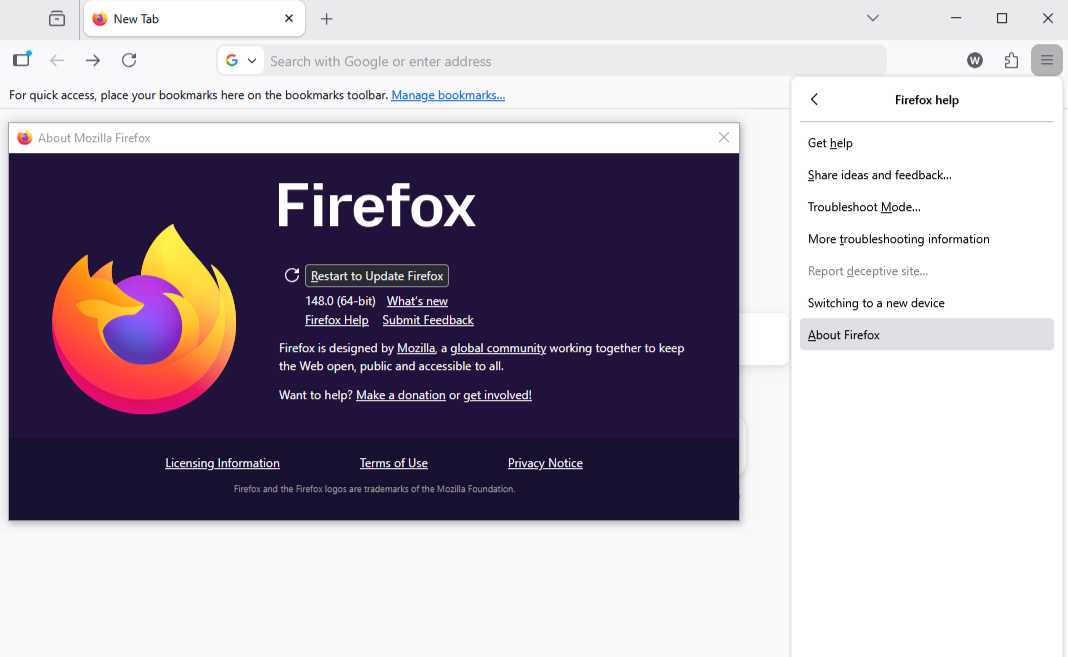
- Step 5: A new window will appear. Firefox will automatically begin checking for updates. If an update is found, it will start downloading.
- Step 6: Once the download finishes, you will see a button labeled Restart to Update Firefox. Click it to finalize the installation.
Method 2 – Update Firefox by Reinstalling the Latest Version
Sometimes the internal update mechanism encounters a “Software Update Failed” error. When this happens, you might need to know how to update firefox browser by performing a clean overlay installation.
- Step 1: Visit the official Firefox Download Page.
- Step 2: Download the installer for your specific operating system (Windows, macOS, or Linux).
- Step 3: Close your current Firefox browser completely.
- Step 4: Run the downloaded installer. It will detect your existing installation and update the core files to the newest version while keeping your profile data (bookmarks and passwords) intact.
How to Update Firefox Browser on Mobile Devices
Mobile versions of Firefox update through app stores rather than inside the browser itself. This means updates are managed through Google Play on Android devices and the Apple App Store on iPhones.
Updating Firefox on Android
- Step 1: Open the Google Play Store.
- Step 2: Tap your profile icon and select Manage apps & device.
- Step 3: Find Firefox in the list. If an update is available, tap Update.
Updating Firefox on iPhone
- Step 1: Open the App Store.
- Step 2: Search for “Firefox” or check the Updates section.
- Step 3: Tap the Update button next to the Firefox icon.
Advanced Control: How to Disable Automatic Firefox ESR Updates
In corporate environments or for users who require a highly stable environment, the Extended Support Release (ESR) is often used. You might need to know how to disable automatic firefox esr updates to prevent unexpected changes to a workflow.
Warning: Disabling updates can lead to significant security risks. Only do this if you have an alternative method for patching vulnerabilities.
- Step 1: Open Firefox and type
about:configin the address bar. Press Enter. - Step 2: Click “Accept the Risk and Continue.”
- Step 3: Search for
app.update.auto. - Step 4: Double-click the result to set it to False.
- Step 5: To further lock it down, search for
app.update.enabledand set it to False.
For enterprise users, this is often handled via the Windows Registry or Policies.json. In the Registry, the path is HKEY_LOCAL_MACHINE\SOFTWARE\Policies\Mozilla\Firefox. Creating a DWORD named DisableAppUpdate with a value of 1 will effectively stop updates.
Data Recovery: Protecting Your Browser Information
As an expert in data recovery, I know that software updates—while generally safe—can sometimes lead to data corruption or accidental loss of profile information. If you find that your bookmarks or history have vanished after an update, you need a professional-grade solution. This is where PandaOffice Drecov becomes your most valuable asset.
⚠ Warning: Install it on a drive different from the one where your data was lost to prevent overwriting.
Using PandaOffice Drecov for Browser Data Recovery
If you lose your Firefox profile folder during an update or a system crash, PandaOffice Drecov can scan your hard drive to retrieve those specific files.
- Step 1: Select Location. Choose the drive where Firefox was installed (usually the C: Drive). Navigate to the path
C:\Users\[YourUsername]\AppData\Roaming\Mozilla\Firefox\Profiles\.

- Step 2: Deep Scan. Initiate the “Deep Scan” mode. This allows the tool to look for file signatures even if the directory structure is damaged.

- Step 3: Filter and Preview. Use the filter tool to search for
.sqlitefiles (where Firefox stores history and bookmarks) or.jsonlz4files (backups). PandaOffice Drecov allows you to preview these files before recovery.

- Step 4: Recover. Select the files you need and click Recover. Save them to an external USB drive for safety.
More Data Recovery and Internal Resources
If you have successfully recovered your files or want to ensure you never lose them again, check out these specialized guides:
- Managing Media: If you want to save content locally before an update, learn how to download video from browser firefox 2026 guide.
- File Locations: For manual backups, you must know where are firefox bookmarks stored on your pc.
- Cleanup and Recovery: If you made a mistake during cleanup, here is how to spend 5 minutes to delete bookmarks from firefox recovery.
Troubleshooting Firefox Update Problems
Sometimes Firefox updates may fail due to system permissions, network interruptions, or software conflicts. If the update process doesn’t work, try restarting your computer and attempting the update again. Closing all Firefox windows completely before updating can also resolve many problems.
- Check Firewall Settings: Ensure your firewall isn’t blocking
firefox.exeor theupdater.exefrom accessing the internet. - Run as Administrator: In some Windows environments, you may need to right-click the Firefox icon and select Run as Administrator to allow the update to write to the
Program Filesfolder. - Clear Update Cache: Navigate to
C:\Users\[YourName]\AppData\Local\Mozilla\updatesand delete the contents of this folder to clear any corrupted partial downloads.
How to Upgrade Firefox FAQs
1. Does updating Firefox delete bookmarks?
No. Updating Firefox does not remove bookmarks, passwords, or browsing history. These are stored in a separate profile folder.
2. How often does Firefox release updates?
Firefox typically releases major updates every 4 weeks, with minor security patches released as needed in between.
3. Is it safe to update Firefox?
Yes. Updates come directly from Mozilla and are designed to improve security and browser performance.
4. Why is my Firefox not updating?
Common reasons include lack of disk space, interference from antivirus software, or restricted user permissions on a work computer.
5. How do I know if I have the latest version?
Go to Help > About Firefox. If it says “Firefox is up to date,” you are running the latest version.
Conclusion
Mastering how to update firefox browser is a foundational skill for anyone navigating the modern web. Whether you rely on the seamless default auto-update system or prefer the precision of a manual update via the Help menu, staying current is your best defense against cyber threats.
We have covered the spectrum from simple mobile updates to complex enterprise configurations like how to disable automatic firefox esr updates. Furthermore, by understanding how tools like PandaOffice Drecov function, you can browse with the confidence that your data is recoverable even in the event of a software failure. Keep your browser sharp, your data backed up, and your security settings tight.






