







Experiencing frequent system crashes, corrupted software, or preparing to sell your console? Learning how to restore ps4 to factory settings is the most effective way to breathe new life into your PlayStation 4. However, a factory reset completely wipes your hard drive, erasing games, saves, and personal settings. If you did not back up your data beforehand, this process can feel catastrophic.
Fortunately, professional data recovery solutions like PandaOffice Drecov data recovery software can help retrieve lost files. In this comprehensive guide, we will walk you through the precise steps to safely factory reset your console. Furthermore, we will demonstrate how to protect your gaming history using advanced recovery techniques.
Understanding the Basics of How to Restore PS4
Before diving into the technical steps, it is essential to understand what happens during a factory reset. When you initiate a plan to restore ps4 to factory defaults, the console undergoes a process called initialization. This process deletes all user data and restores the system software to its original, out-of-the-box state.
Common Issues and Challenges
- Total Data Loss: All unbacked-up save files, captured media, and user profiles are permanently erased from the internal HDD.
- System Freezes: If the console crashes midway through initialization, it can result in a soft-brick state.
- External Drive Corruption: Extended storage devices can sometimes become unreadable if disconnected improperly during the reset.
If you find yourself facing accidental data loss after trying to how to restore ps4, a specialized tool is required. PandaOffice Drecov data recovery software is an industry-leading data retrieval tool designed to scan deeply into storage media. It can piece together fragmented files even after a drive formatting event. Whether your system suffered a sudden power outage or you accidentally clicked “Initialize PS4,” this software provides a reliable safety net for your digital assets.
How to Restore PS4 and Recover Your Lost Data
Depending on the state of your console, choose the appropriate method below to format your system or recover lost files.
Method 1: The Standard Dashboard Reset
If your console boots up normally, you can learn how to factory restore ps4 directly through the PlayStation Dynamic Menu.
- Turn on your PS4 and log into your primary user account.
- Navigate upward to the function menu and select Settings.
- Scroll down to the bottom of the menu and click on Initialization.
- Select Initialize PS4.
- Choose Full.
- Click Initialize and then confirm by selecting Yes.
Warning: This process can take several hours. Do not turn off your PS4 console under any circumstances during this phase, as doing so will permanently damage the hard drive firmware.
Method 2: Data Recovery via PandaOffice Drecov
PandaOffice Drecov data recovery software is a premier data retrieval utility engineered with advanced deep-scanning algorithms that can parse through unallocated, RAW, and unrecognized file systems. When you initiate a process to restore ps4 to factory settings, the console alters the drive’s file allocation table, making the files invisible to standard operating systems. Consequently, standard file explorers cannot read the drive. PandaOffice Drecov data recovery software bypasses these system restrictions by reading the raw storage blocks directly, allowing it to reconstruct lost gaming profiles, media captures, and save files that would otherwise be permanently lost.
Follow these steps to recover your data:
- Step 1: Remove the PS4 HDD: Turn off your PS4 entirely. Unplug all cables, slide off the HDD bay cover, remove the retention screw, and slide out the 2.5-inch SATA drive.
- Step 2: Connect to PC: Use a SATA-to-USB adapter cable or an external hard drive enclosure to connect the PS4 drive to your computer.
- Step 3: Launch the Software: Open PandaOffice Drecov data recovery software on your PC.

- Step 4: Select Target Location: Identify the connected PS4 drive from the drive selection menu. It may appear as an unallocated or RAW file system because windows cannot natively read the PlayStation file structure.

- Step 5: Execute Deep Scan: Click Scan. The algorithm will bypass standard file tables to locate lost partitions.
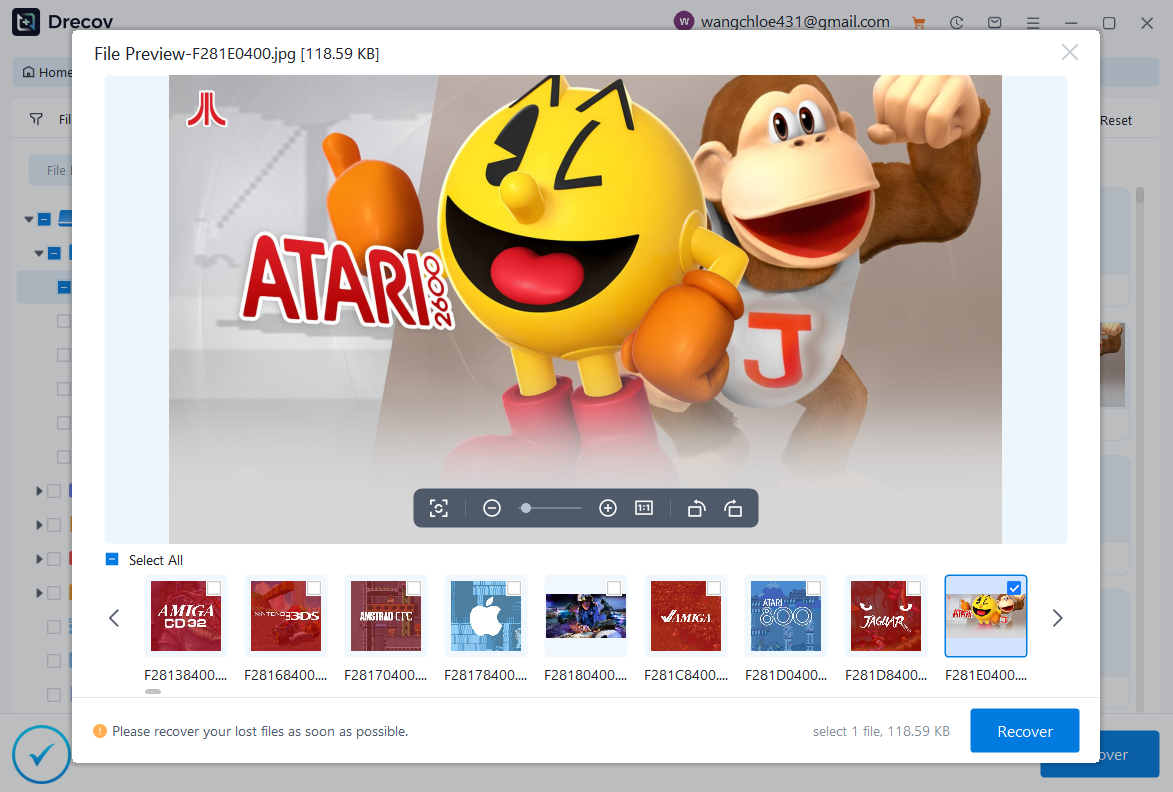
- Step 6: Preview and Retrieve: Once the scan finishes, browse through the categorized folders. Select your desired
.datfiles, game captures, or media profiles, then click Recover to save them to your local PC storage.
For those tracking software-specific configurations on their PCs alongside console management, tracking app data paths is a great skill to develop. Read more about locating vital browser parameters in where are firefox bookmarks stored on your pc.
Method 3: Safe Mode System Reinstallation
When your console experiences severe system loop errors or won’t boot, you must learn how to factory restore a ps4 using the hardware Safe Mode menu.
[PS4 Completely Off] -> Hold Power Button (7 Seconds/2 Beeps) -> Safe Mode Menu -> Option 7 (Initialize)
- Turn off the PS4 completely by holding the power button for three seconds.
- Hold down the power drive button again. Release it only after you hear a second beep, which occurs roughly seven seconds after the first.
- Connect a DualShock 4 controller to the console using a physical USB data sync cable, then press the PS button.
- From the Safe Mode screen, select Option 6 [Initialize PS4] for a standard factory wipe.
- Alternatively, if your system software is completely broken, select Option 7 [Initialize PS4 (Reinstall System Software)].
- If Option 7 is chosen, insert a USB drive containing the latest official firmware file downloaded from the PlayStation Support Official Site. The path on your USB must be exactly formatted as
USB Drive -> PS4 -> UPDATE -> PS4UPDATE.PUP.
Alternative or Complementary Methods
While a hardware factory reset solves OS errors, alternative software routes can address drive corruption without resorting to total deletion.
| Method | Pros | Cons | Ideal Scenario |
| Rebuild Database (Safe Mode Option 5) | Fixes file corruption; does not delete games or saves. | Does not fix deep OS firmware issues. | Games stuttering or menu lag. |
| PandaOffice Drecov Clone Drive | Secures a sector-by-sector copy before wiping. | Requires a secondary empty storage drive. | Preventive safety before a major system wipe. |
| Manual Cloud Synchronization | Safe, official cloud storage backup strategy. | Requires active PlayStation Plus subscription. | Routine data safety automation. |
Tips & Best Practices
Maximizing your data security when you restore ps4 to factory configurations requires adherence to strict technical standards.
- Deactivate Primary Console Status: Before initializing, navigate to
Settings > Account Management > Activate as Your Primary PS4and select Deactivate. This prevents licensing headaches on your replacement systems. - Avoid Overwriting Sectors: If you realize you lost files after a reset, stop using the hard drive immediately. Writing new game data to the drive will overwrite the old sectors, making it impossible for PandaOffice Drecov data recovery software to rebuild the lost file nodes.
- Keep Storage Defaults Optimized: Ensure your connected computer does not automatically attempt to reformat or initialize the drive via Windows Disk Management, as this complicates partition structural analysis.
If you encounter issues managing your Windows storage configurations while recovering your console files, learn to fix common cloud syncing problems by reviewing fixed windows save as default location stuck on onedrive.
Frequently Asked Questions
Does factory resetting a PS4 delete everything?
Yes, choosing to how to factory restore ps4 using the Full initialization mode completely clears the internal hard drive. This removes games, saves, trophies, and user profiles.
How long does a full PS4 factory restore take?
A full initialization typically takes between 1 to 3 hours depending on the size of your internal drive (500GB vs 1TB). Do not interrupt this process.
Can I recover game saves after a factory reset without a cloud backup?
Yes. When a drive is initialized, the system removes the pointer tables but leaves raw data intact. Connecting the drive to a PC and scanning it with PandaOffice Drecov data recovery software allows you to reconstruct those lost data blocks.
What should I do if my PS4 gets stuck in a Safe Mode loop?
This usually indicates corrupted system files. You will need to use Safe Mode Option 7 and load a clean system software installation file from a FAT32/exFAT formatted USB flash drive.
Conclusion
Knowing how to restore ps4 to factory settings is an essential troubleshooting capability that fixes persistent software glitches and system performance issues. However, because this process completely cleans your local storage, data preservation must always remain your top priority.
Whenever unexpected data losses occur due to an accidental system initialization or system crash, deploying PandaOffice Drecov data recovery software ensures you have the tools needed to pull back critical files from the brink. Always maintain a regular backup schedule to the cloud or an external drive to keep your gaming adventures completely secure.






