







Have you ever experienced that sudden wave of panic when your browser crashes, or when you accidentally click the “Close” button on a window packed with crucial research? Losing your active browsing session is incredibly frustrating, especially when working on time-sensitive tasks. Fortunately, mastering how to restore pages on chrome can save you hours of re-searching and minimize workflow disruptions.
While Google Chrome features several built-in safety nets, complex data corruption or operating system crashes can occasionally wipe out your local session states entirely. In these severe scenarios, traditional browser shortcuts will not suffice. That is why professional recovery solutions, such as PandaOffice Drecov data recovery software, are vital for extracting cached browser infrastructure files directly from your storage drive.In this comprehensive guide, you will discover multiple strategies to safely salvage your lost web sessions, ranging from simple hotkeys to advanced filesystem data recovery.
Understanding the Basics of How to Restore Pages on Chrome
When you surf the web, Google Chrome actively writes tracking parameters and session snapshots to temporary database structures on your local storage drive. Understanding how to restore chrome pages depends entirely on the state of these underlying background files.
Common Issues and Hurdles in Tab Retention
- Accidental Closures: Misclicking a tab’s close icon or terminating an active window group by mistake.
- Sudden Browser Crashes: High RAM saturation or faulty extensions causing the browser engine to force-quit.
- Unscheduled System Reboots: Windows Updates or power losses that prevent Chrome from executing a clean cache save.
- Volatile In-Memory Profiles: Incognito windows do not log session history to disk, meaning they vanish permanently upon closure.
When Local Chrome Diagnostics Fail
Standard built-in recovery pathways fail if your browser profile folder undergoes deep data corruption, or if local temporary files are overwritten. In addition, manual system cleanups or storage optimizations often erase the vital cache files needed to reconstruct your sessions.
When standard restoration mechanisms fail to recover your critical session state files, utilizing a specialized tool like PandaOffice Drecov data recovery software becomes necessary. This application scans your local storage sectors to recover deleted or overwritten Chrome metadata files, ensuring you do not lose critical access pipelines. For instance, if you are looking to fix systemic storage issues, you can learn about where is recycle bin in windows 10 3 quick ways to find it to locate lost shortcuts. Alternatively, users frequently need to investigate the structural database directly by analyzing where is the firefox bookmarks location find your data instantly for secondary profile comparisons. Furthermore, for broader emergencies where an unexpected crash deleted associated media items along with browser sessions, implementing a quick routine on how to get recently deleted photos back a 5-minute fix will ensure full data integrity across your workspace.
Solutions to Keyword-Related Issues
Depending on the severity of your data loss, you can implement the following step-by-step methods grouped by technical complexity.
Method 1: The Native Shortcut Fix
If you just accidentally closed a tab, Chrome keeps a short-term memory log of your active session. You can immediately invoke how to restore web pages in chrome using native system hotkeys.
- Step 1: Open a fresh, active Google Chrome window.
- Step 2: Press
Ctrl + Shift + Ton Windows/ChromeOS, orCmd + Shift + Ton macOS. - Step 3: Repeat the hotkey sequence up to 10-15 times to step backward chronologically through your recently closed tab stack.
Warning: This built-in stack is highly volatile. If you close a completely separate window before initiating this hotkey, the previous tab history stack may be overwritten.
Method 2: Sector Scanning via PandaOffice Drecov Data Recovery Software
When a hard system crash completely wipes your profile cache directory, Chrome’s history UI will appear blank. Consequently, you must deploy PandaOffice Drecov data recovery software to extract raw Current Session or Tabs states directly from your drive’s storage sectors before they are permanently overwritten by your OS.
⚠ Warning: Install it on a drive different from the one where your data was lost to prevent overwriting.
- Step 1: Launch the software program and select your system drive (typically
C:).

- Step 2: Click Scan to trigger a deep deep-sector assessment of deleted system files. Navigate the file tree sidebar or use the search field to locate your Chrome data profile paths.

- Step 3: Select the historical
Session_*orTabs_*binary state files, then click Recover to extract them safely to an external storage media drive.
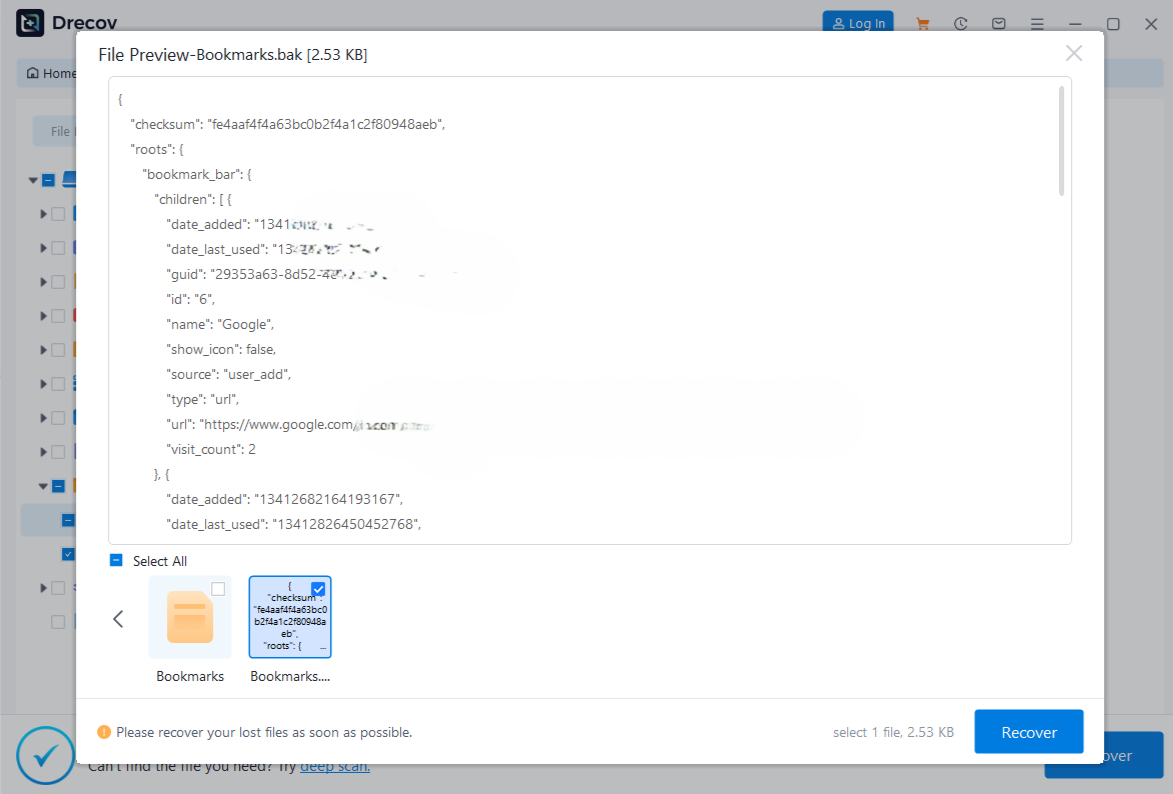
- Step 4: Copy these recovered session files back into your active Chrome user profile directory with the browser closed, then restart Chrome to auto-populate your old workspaces.
For more official guidelines and deep-dive browser troubleshooting steps, you can check out the comprehensive Google Chrome Help Documentation.
Method 3: Deep Local Database Reconstruction
If you are operating on a Chromebook or prefer manual file manipulation, you can explore how to restore pages on chromebook or desktop platforms using the hidden internal LevelDB database systems.
- Step 1: Fully terminate all background Google Chrome processes via the Task Manager (
Shift + Escinside Chrome, orCtrl + Shift + Escin Windows). - Step 2: Open your platform file browser and type the following navigation path:
- Windows OS:
C:\Users\<Username>\AppData\Local\Google\Chrome\User Data\Default\ - macOS:
~/Library/Application Support/Google/Chrome/Default/ - ChromeOS / Chromebook: Navigate to your Linux development container sandbox or developer shell to view the primary
~/.config/google-chrome/Default/directory.
- Windows OS:
- Step 3: Locate files named
Current SessionandCurrent Tabs. If these files are empty or zeroed out due to a crash, look forLast SessionandLast Tabs. - Step 4: Rename
Last SessiontoCurrent SessionandLast TabstoCurrent Tabs. - Step 5: Relaunch your Chrome application to force the engine to parse the swapped backup metadata files.
Alternative or Complementary Methods
If the core technical procedures do not fit your workflow, you can compare native interface routes against automated browser add-ons.
Native History UI vs. Dedicated Session Extensions
The table below compares manual native recovery strategies with external browser control solutions:
| Recovery Approach | Target Use Case | Pros | Cons |
Chrome History Panel (Ctrl + H) | Finding pages closed hours or days ago. | Safe, native, and fully searchable. | Cannot preserve exact real-time form data or page states. |
| Session Buddy / Tab Session Manager | Automated, continuous background snapshots. | Saves tabs into permanent databases. | Third-party extension; cannot recover tabs lost before installation. |
| PandaOffice Drecov Recovery | Severe system crashes and corrupted file paths. | Recovers deleted session files from the drive level. | Requires a system scan step. |
Tips & Best Practices for Session Safety
Maintaining proper software configuration structures will drastically reduce your risk of unexpected data loss.
Optimizing Recovery Success Rates
- Configure Startup Actions: Navigate to Chrome Settings (
chrome://settings/onStartup) and explicitly mark the checkbox for Continue where you left off. This ensures your tabs auto-restore after planned restarts. - Isolate High-Risk Environments: Avoid running heavy processing tasks alongside vital research tabs, which can trigger memory management crashes.
- Enable Chrome Cloud Sync: Toggle sync options to active status under your Google Account settings, which lets you access your desktop tabs from other synchronized devices via
chrome://history/syncedTabs.
Critical Pitfalls to Avoid
Never execute intensive file installations or disk defragmentation loops immediately after noticing that your pages are missing. Doing so causes new bits to overwrite deleted blocks, eliminating the possibility of a successful sector recovery with PandaOffice Drecov data recovery software.
Frequently Asked Questions
How do I use the hotkey to restore pages on Chrome?
You can press Ctrl + Shift + T on Windows or ChromeOS, or Cmd + Shift + T on macOS. This action immediately instructs the browser engine to reopen your last closed tab.
Can I deploy these techniques for how to restore pages on chromebook?
Yes. Chromebooks utilize the same foundational Chrome architecture. You can use the standard history panels or sync functions. For deep filesystem errors on ChromeOS, manual data extractions require entering developer mode or utilizing dedicated software extraction suites.
Why is my “Recently Closed” list grayed out after a crash?
This happens when Chrome writes a blank state file over your previous workspace metrics during an improper shutdown sequence. In these scenarios, native recovery options are lost, making raw drive sector recovery tools necessary.
How does PandaOffice Drecov restore web sessions?
The application reads raw partition data blocks to find old copies of your User Data\Default\Sessions folder. By extracting these files, you can restore historical tab databases that Chrome has forgotten.
Conclusion
Losing critical browser pages does not have to ruin your productivity. By leveraging the standard Ctrl + Shift + T hotkey or exploring your local history panels, you can resolve minor profile slip-ups in seconds. However, when complex data corruption or operating system crashes clear your temporary local files, standard shortcuts are no longer enough.
Implementing professional file scanning utilities like PandaOffice Drecov data recovery software provides an essential fallback, allowing you to bypass application errors and pull critical configuration data straight from your hard drive storage blocks. To protect your data going forward, ensure you enable the “Continue where you left off” setting in Chrome, and back up your system files regularly.






