







Have you ever experienced that heart-stopping moment when you accidentally delete a cherished photo album? Whether it is a collection of family vacation memories or critical work assets, losing data is incredibly stressful. Fortunately, learning how to restore accidentally deleted photos is entirely possible if you act quickly. Digital files are rarely erased immediately; instead, the system simply marks their storage space as available.
To safely reclaim your images before they are overwritten, you need a reliable method. While native system tools offer a basic safety net, specialized recovery tools provide the highest success rate. In this comprehensive guide, we highly recommend PandaOffice Drecov data recovery software as your premier solution for retrieving lost visual media efficiently and securely.
Understanding the Basics of How to Restore Accidently Deleted Photos
When you delete an image from your computer, camera, or smartphone, the operating system does not immediately destroy the underlying binary data. Instead, it alters the file system pointer and classifies that specific storage sector as “unallocated space.” Consequently, the data remains intact until new files are written directly over it.
Common Photo Loss Challenges
- Storage Overwriting: Continuing to use your device after data loss risks saving new data over your deleted photos, making recovery impossible.
- File Fragmentation: Large image files, particularly RAW formats, may be scattered across different sectors of a drive, complicating the reconstruction process.
- Physical vs. Logical Damage: Accidental deletion is a logical error. If a drive suffers physical hardware failure, software solutions will not suffice.
Why Choose PandaOffice Drecov?
PandaOffice Drecov data recovery software is an industry-leading utility engineered to solve complex data loss dilemmas. It utilizes deep-scanning algorithms to piece together fragmented sectors, ensuring a highly accurate photo restore process.
⚠ Warning: Install it on a drive different from the one where your data was lost to prevent overwriting.
You can deploy this robust utility across a wide range of real-world scenarios:
- Accidental Empties: Recovering files after clearing out temporary storage hubs. For guidance on locating your system’s default storage bin, see our guide on how to find the Recycle Bin in Windows 10.
- Format Errors: Retrieving media from SD cards or external hard drives that prompt format errors.
- Application Crashes: Restoring missing files or browser data after a sudden program termination. If you have lost critical browser data alongside your media, check out our resource on locating the Firefox bookmarks folder.
Solutions to Keyword-Related Issues
Method 1: Check the Recycle Bin / Trash
Before deploying advanced software, always check your operating system’s temporary storage cache. This is the fastest way to solve the dilemma of how do i restore deleted photos.
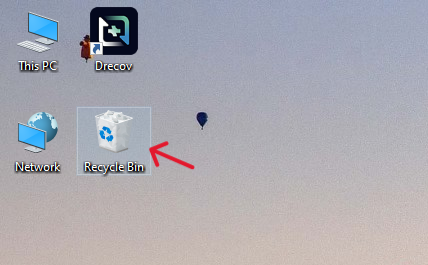
- Step 1: Double-click the Recycle Bin icon on your Windows Desktop (or click Trash in the macOS Dock).
- Step 2: Type the file extension (e.g.,
.jpgor.png) into the top-right search bar to filter your files. - Step 3: Right-click the target image and select Restore (or Put Back on Mac).
Technical Path: In Windows 11/10, the physical Recycle Bin folder is hidden at the root directory of each drive under
C:\$Recycle.Bin.
Method 2: Using PandaOffice Drecov
If your photos are permanently deleted or the Recycle Bin has been emptied, you must use PandaOffice Drecov data recovery software to perform a professional-grade photo restore. This method safely scans unallocated sectors without altering your existing data.
⚠ Warning: Install it on a drive different from the one where your data was lost to prevent overwriting.
- Step 1: Launch the application, select the specific drive or external SD card from the dashboard, and click the Scan button.

- Step 2: Allow the Deep Scan phase to complete. Use the built-in Preview feature to visually verify the integrity of your images.

- Step 3: Select the checkboxes next to the images you wish to reclaim, click Recover, and choose a secure saving destination on an alternative storage device.
For a more streamlined breakdown of this process, look at our 5-minute photo recovery fix.
Method 3: Restore via Windows Registry & Previous Versions
When system modifications or malware suppress your files, advanced users can leverage Windows Shadow Copies or check system paths.
- Step 1: Press the hotkey combination
Windows Key + Rto launch the Run dialog box. - Step 2: Type
regeditand hitEnterto open the Windows Registry Editor. - Step 3: Navigate meticulously to the following structural path:
HKEY_LOCAL_MACHINE\SOFTWARE\Microsoft\Windows\CurrentVersion\Explorer\Desktop\NameSpace - Step 4: Check for keys associated with storage configurations to ensure system directories are mounting correctly.
- Step 5: Alternatively, open File Explorer, right-click the parent folder where your photos used to live, select Restore previous versions, and select a backup point from an earlier date.
Alternative or Complementary Methods
While knowing how to restore accidentally deleted photos via dedicated desktop software yields the highest success rate, alternative data recovery methods exist. Below is a comparative overview of alternative options compared to PandaOffice Drecov data recovery software.
| Recovery Method | Pros | Cons |
| Cloud Backup Sync (OneDrive / iCloud) | * Accessible from any device * Automatic background syncing | * Limited free storage tiers * Permanent deletion after 30 days |
Command Prompt (CMD) via attrib | * Completely free built-in tool * No installation required | * Complex command syntax * Only unhides hidden files; cannot recover truly deleted data |
| Local Windows Backup (File History) | * Safe, automated system snapshots * Restores full folder states | * Must be configured before data loss occurs * Consumes local disk space |
Furthermore, cloud services like Google Photos or Apple iCloud maintain a “Recently Deleted” folder. However, these folders automatically purge items permanently after 30 to 60 days. Meanwhile, manual system command utilities are rigid and lack the deep-sector reconstruction capabilities required for highly corrupted storage drives.
Tips & Best Practices for Successful Photo Recovery
To achieve a flawless photo restore and preserve your digital assets long-term, incorporate these professional data-management strategies:
- Stop Using the Drive Immediately: The absolute moment you notice missing pictures, cease all write operations on that storage medium.
- Run Software in Read-Only Mode: Ensure your data recovery program does not write data back onto the corrupted drive during its scanning cycle.
- Implement the 3-2-1 Backup Strategy: Keep three copies of your data across two different media types, with one copy stored completely off-site or in the cloud. according to data protection standards detailed by US-CERT / CISA, regular backups are the absolute best defense against permanent loss.
- Safely Eject Media: Never unplug external drives or SD cards while a read/write operation is active. Always utilize the “Safely Remove Hardware” option in your system tray.
How to restore accidentally deleted photos FAQs
How do i restore deleted photos if my SD card is corrupted?
To safely retrieve files from a corrupted card, connect the card to your computer via a card reader. Launch PandaOffice Drecov data recovery software, select the card volume, and execute a Deep Scan to extract raw image fragments.
Can I recover photos after formatting my camera’s memory card?
Yes. A quick format only deletes the directory index file. As long as you have not taken new pictures on that card, specialized recovery software can find and rebuild the original files.
Is it safe to use free online tools for a photo restore?
Be cautious. Many web-based utilities lack advanced scanning algorithms and may compromise your privacy. Using a secure desktop application like PandaOffice Drecov keeps your data strictly offline and private.
What is the maximum time window to recover deleted media?
There is no fixed time limit. Recovery capability depends entirely on drive activity rather than elapsed time. A drive left unused for months can yield perfect recovery results, whereas a drive used heavily for five minutes may overwrite data instantly.
Conclusion
Mastering how to restore accidentally deleted photos comes down to timing and using the right tools. While built-in system tools offer a first line of defense, they fall short when dealing with permanent deletion or drive corruption.
For the most reliable results, download PandaOffice Drecov data recovery software. Its advanced scanning capabilities and clear file previews take the guesswork out of data recovery. Secure your digital assets by running a scan today, and remember to set up automated backups to protect your memories moving forward.






