







Email archives are supposed to help organize your inbox, not create panic. Yet countless users experience the same heart-dropping moment every day: an important email suddenly disappears, and no matter how many times they refresh the inbox, it is nowhere to be found. In many cases, the message is not deleted at all—it has simply been archived. The good news is that how to recover archived emails is a straightforward process once you understand how email archiving works.
This complete guide explains exactly how to recover archived emails across all major email platforms, including Gmail, Outlook, Yahoo, Apple Mail, and mobile apps. You will also learn why emails become archived accidentally, how to search archived messages efficiently, and how to prevent important emails from disappearing into hidden folders again.
What Are Archived Emails?
Before recovering archived emails, it helps to understand what archiving actually does. Archived emails are messages removed from your inbox without being deleted. Unlike deleted emails, archived messages remain fully accessible and searchable inside your email account.
| Action | Result |
| Delete | Moves email to Trash/Bin |
| Archive | Removes email from Inbox only; stays in “All Mail” or “Archive” |
| Spam | Moves email to Spam folder for security |
Archived emails:
- Still exist in your mailbox database.
- Continue receiving replies (which often brings them back to the inbox).
- Appear in global searches.
- Can be restored anytime.
Many users accidentally archive emails while trying to delete or organize messages quickly. Mobile apps especially make this mistake common because swipe gestures often archive messages automatically.
How to Recover Archived Emails in Gmail
Gmail uses one of the most seamless archive systems available. When users archive emails, Gmail removes them from the Inbox folder but keeps them inside a master folder called All Mail.
Recover Archived Emails in Gmail Desktop
Follow these steps to find your missing messages:
- Step 1: Open Gmail in your web browser.
- Step 2: Click All Mail in the left sidebar. If you don’t see it, click More to expand the list.
- Step 3: Locate the archived email by scrolling or using the search bar.
- Step 4: Open the message and click the Move to Inbox icon at the top.
How to Search for Archived Emails in Gmail
Sometimes finding archived emails feels like searching for a needle in a haystack. Try using specific search operators to filter out the clutter:
in:all– Searches everything including archives.-in:inbox– Specifically looks for emails that are NOT in your inbox (usually archives).has:attachment– Narrows it down if you remember the email had a file.
How to Move Archived Emails Back to Inbox in Outlook
Microsoft Outlook handles archives slightly differently than Gmail. Depending on your version, emails might be in a dedicated folder or a local data file. Knowing how to move archived emails back to inbox is crucial for maintaining your workflow.
Step-by-Step Recovery for Outlook Desktop
- Step 1: Open the Outlook application.
- Step 2: In the folder pane on the left, locate and click the Archive folder.
- Step 3: Select the emails you wish to restore. You can hold
Ctrlto select multiple messages. - Step 4: Right-click the selected messages, choose Move, and then select Inbox.
- Step 5: Alternatively, you can simply drag and drop the messages from the Archive folder back to the Inbox folder.
Using the Online Archive (Enterprise Accounts)
If you are using a corporate Microsoft 365 account, your emails might be moved to an “In-Place Archive” or “Online Archive” to save space. Look for a separate mailbox entry at the bottom of your folder list named Online Archive – [Your Email].
How to Download Emails from Outlook for Safety
If you frequently lose track of messages, learning how to download emails from outlook can provide an extra layer of security by creating a local backup.
- Step 1: Click on File in the top left corner of Outlook.
- Step 2: Select Open & Export > Import/Export.
- Step 3: Choose Export to a file and click Next.
- Step 4: Select Outlook Data File (.pst).
- Step 5: Choose the folders you want to save (including Archive and Inbox).
- Step 6: Select a destination on your computer and click Finish.
Warning: Keep your
.pstfiles in a secure location. If you lose this file and delete the emails from the server, the data may be unrecoverable without professional software.
How to Recover Deleted Archived Emails Using Professional Software
Sometimes, the situation is more dire. You might have archived an email and then accidentally emptied your trash, or perhaps a software glitch caused the archive folder to sync incorrectly and disappear. When standard methods fail, you need a specialized tool like PandaOffice Drecov data recovery software.
⚠ Warning: Install it on a drive different from the one where your data was lost to prevent overwriting.
If you are wondering how to recover deleted archived emails that are no longer in your “Deleted Items” folder or your “Archive” folder, following these steps with PandaOffice Drecov can help retrieve local PST or OST files that contain your history.
Using PandaOffice Drecov for Email Recovery
- Step 1: Select Location. Launch the software and select the drive where your Outlook or email client data was stored (usually the
C:drive).

- Step 2: Scan for Files. Click “Scan.” The software will perform a deep dive into the file system to find fragmented or deleted email database files.

- Step 3: Filter by File Type. Use the filter sidebar to look for
.pst,.ost, or.emlfiles.
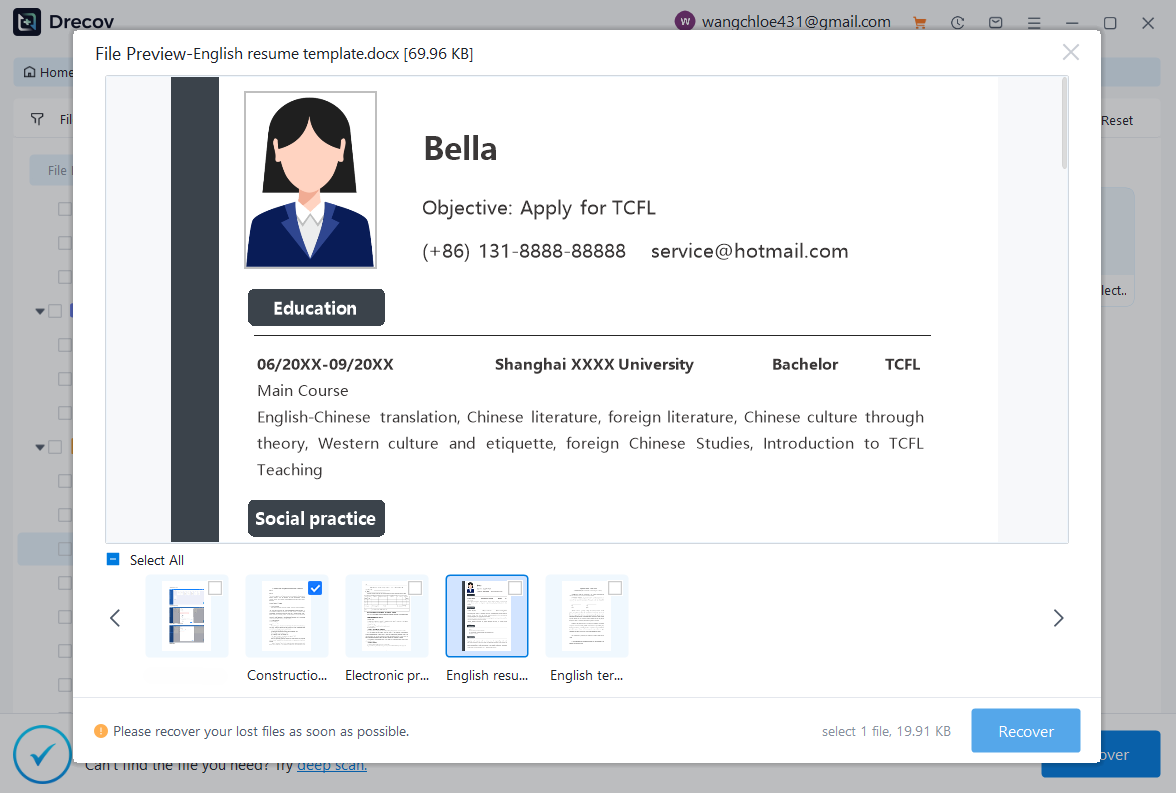
- Step 4: Preview and Recover. Select the found files and click Recover. Save them to an external drive.
Key Operation Point: Once you recover the .pst file, you can re-import it into Outlook using the “Import/Export” wizard to regain access to your messages.
If you have followed all the steps above and still cannot find your messages, there may be deeper technical issues at play. Here are some related resources to help you manage your digital environment and recover other types of lost data:
- If your browser settings or bookmarks have also disappeared along with your webmail access, check out: Where is the Firefox bookmarks location? Find your data instantly.
- If a recent software update caused your email client to malfunction, you might need to revert your system: How to restore computer to an earlier date on Windows.
- Sometimes, cloud synchronization conflicts with OneDrive can hide local email files. Learn how to completely remove OneDrive Personal from my computer to simplify your file structure.
Advanced Solutions: Recovering Archived Emails on Mobile Devices
Most people check email primarily through smartphones now, which makes mobile recovery especially important. Accidental swipes are the #1 cause of “missing” emails on mobile.
Recover Archived Emails in Gmail App (iOS/Android)
- Step 1: Open the Gmail app and tap the three horizontal lines (Menu) in the top left.
- Step 2: Tap All Mail.
- Step 3: Find the email, long-press it to select, and tap the three dots in the top right.
- Step 4: Select Move to Inbox.
Adjusting Swipe Actions to Prevent Future Archiving
To stop this from happening again, you should change your settings:
- Go to Settings > Mail > Swipe Options (on iPhone).
- In Gmail App: Settings > General settings > Mail swipe actions.
- Change the action from “Archive” to “Trash” or “None” so a slip of the finger doesn’t hide your mail.
To wrap up, knowing how to recover archived emails depends largely on the platform you use.
- Gmail: Look in the All Mail folder.
- Outlook Desktop: Check the Archive folder or use the Import/Export tool for PST files.
- Outlook Mobile: Look for the dedicated Archive folder in the menu.
- Accidental Deletion: Use PandaOffice Drecov data recovery software to scan for lost local email databases.
- Prevention: Disable swipe-to-archive gestures in your mobile app settings.
Conclusion
Archiving is a powerful tool for productivity, but only when you know how to reverse it. By keeping a regular backup of your emails and knowing where the “hidden” folders are located, you can ensure that no important communication ever stays lost for long.
Whether you are a business professional or a casual user, mastering these recovery techniques ensures your digital life remains organized and stress-free. Always remember: if the email isn’t in the trash, it’s likely just one click away in the archive!






