







Bookmarks act like digital shortcuts to your favorite corners of the internet. Over time, your Chrome browser becomes filled with saved websites, research pages, work tools, shopping links, videos, and articles you don’t want to lose. Then one day, you buy a new computer, switch browsers, reinstall Windows, or sign into another account—and suddenly you realize you need to know how to move Chrome bookmarks safely.
This complete guide will show you exactly how to move Chrome bookmarks using exports, imports, syncing, cloud accounts, and manual backup methods. Whether you use Windows, Mac, Android, or iPhone, you’ll find the easiest solution here. Additionally, we will cover advanced disaster recovery methods just in case you lose your data along the way.
What Are Chrome Bookmarks?
Chrome bookmarks are saved website links stored inside the Google Chrome browser. Instead of typing a website address every time, bookmarks let you instantly access pages with one click. When you master how to move Chrome bookmarks, you can take these links with you anywhere.
Bookmarks can include:
- Favorite websites
- Online tools
- Work dashboards
- Research pages
- Shopping sites
- Entertainment links
Chrome also allows users to organize bookmarks into folders and subfolders, making it easier to manage large collections. For many people, bookmarks become an important part of daily productivity. Losing them can feel like losing an organized map of your internet life, which is why knowing how to move Chrome bookmarks remains so essential.
Why People Need to Move Chrome Bookmarks
There are many situations where transferring bookmarks becomes necessary. If you do not understand how to move Chrome bookmarks, you risk losing all your organized data during system transitions.
Common Reasons
| Reason | Explanation |
| New Computer | Moving bookmarks to a new device seamlessly. |
| Browser Reinstallation | Preventing bookmark loss before a fresh install. |
| Switching Browsers | Importing bookmarks elsewhere like Firefox or Edge. |
| Multiple Devices | Sharing bookmarks across systems like desktop and mobile. |
| Backup Purposes | Protecting saved links from sudden system crashes. |
Imagine buying a brand-new laptop but losing years of saved websites during the transition. That’s exactly why bookmark migration matters. Once you figure out how to move Chrome bookmarks, you will never have to worry about rebuilding your browsing collection from scratch.
How Chrome Stores Bookmarks
Before exploring how to move Chrome bookmarks, it helps to understand how Chrome stores them. Chrome keeps bookmark data in three primary ways:
- Inside your Google account (if syncing is enabled)
- Locally on your computer as a database file
- In exportable HTML files created by the user
The HTML export method is one of the safest ways to move bookmarks because it creates a portable backup file that works across different browsers and devices. Think of the HTML file as a suitcase containing your entire bookmark collection. When you look at how to move Chrome bookmarks through this lens, the entire process becomes straightforward.
How to Move Chrome Bookmarks Using Google Sync
The easiest method for users who want a hands-off approach is using Chrome Sync. This native cloud feature handles the work automatically across all your logged-in devices.
What Is Chrome Sync?
Chrome Sync connects your browser data to your Google account. This includes:
- Bookmarks
- Passwords
- History
- Extensions
- Settings
Once sync is enabled, bookmarks automatically appear on any device signed into the same Google account. If you want to know how to move Chrome bookmarks with the least amount of effort, this is your best option.
How to Enable Chrome Sync
To execute this method smoothly, follow these precise chronological instructions:
- Step 1: Open Google Chrome on your computer and locate the profile icon in the upper-right corner of the window.
- Step 2: Click your profile icon and select the Turn on sync… button from the drop-down menu.
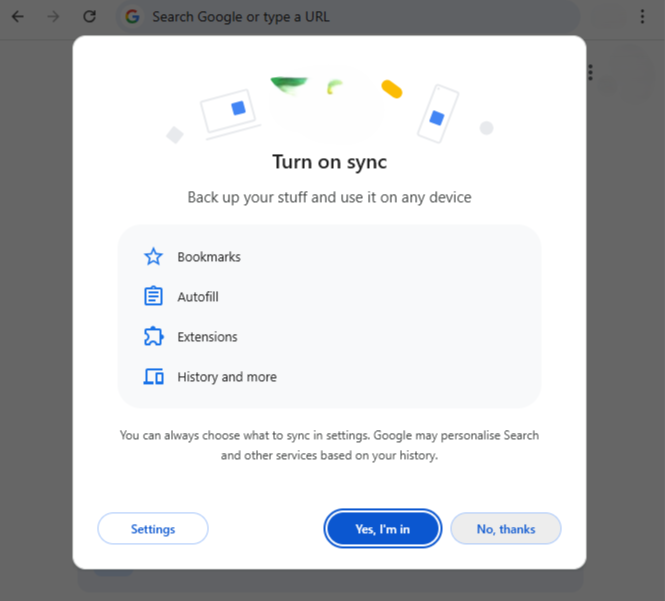
- Step 3: Sign into your primary Google account by entering your email address and password.
- Step 4: A dialog box will appear asking you to confirm synchronization. Click the blue Yes, I’m in button.
- Step 5: Wait a few moments for Chrome to upload your local data to the cloud.
That’s it! Now your bookmarks will automatically transfer between PCs, Macs, Android phones, iPhones, and tablets. This method feels almost magical because everything updates automatically behind the scenes. Whenever you add a link on one device, it appears on the other instantly because you configured how to move Chrome bookmarks through the cloud.
How to Move Chrome Bookmarks Using Export and Import
If you don’t want to use sync or prefer not to log into a Google account, manual export and import works extremely well. This technique relies on generating a universal HTML file.
How to Export Chrome Bookmarks
Follow these steps to extract your bookmarks from the source browser:
- Step 1: Open Google Chrome on your current computer.
- Step 2: Click the three-dot menu icon in the top-right corner, then hover over Bookmarks and lists and select Bookmark manager. Alternatively, you can use the hotkey combination Ctrl + Shift + O on Windows or Cmd + Option + B on Mac.
- Step 3: Inside the Bookmark Manager interface, look for the secondary three-dot menu button located next to the search bookmarks bar at the top right of the screen.
- Step 4: Click that menu button and select Export bookmarks from the drop-down options.
- Step 5: A file explorer window will pop up. Choose a recognizable destination folder, name the file (such as
chrome_bookmarks.html), and click Save.
Chrome creates an HTML file containing all your bookmarks and folders. You can save this file somewhere safe, such as a USB flash drive, an external hard drive, a cloud storage service like Google Drive, or your local desktop. This file acts as your ultimate backup tool when studying how to move Chrome bookmarks.
How to Import Chrome Bookmarks
Once you have the exported file, importing it into the target browser takes less than a minute.
- Step 1: Open Google Chrome on the new device or the newly reinstalled system.
- Step 2: Click the three-dot menu icon in the top-right corner, navigate to Bookmarks and lists, and choose Import bookmarks and settings.
- Step 3: In the drop-down menu that appears within the settings overlay, change the source option to Bookmarks HTML File.
- Step 4: Click the Choose File button, navigate through your local folders to find the
chrome_bookmarks.htmlfile you previously saved, and select it. - Step 5: Click Open to complete the process. A success message will appear saying “Your bookmarks and settings are ready.” Click Done.
Your bookmarks will instantly appear inside Chrome under a new folder titled “Imported.” This process completely preserves your folder structure, bookmark names, and saved links. It’s like unpacking boxes after moving houses—everything returns to its original place seamlessly.
How to Retrieve Lost Bookmarks Using PandaOffice Drecov Data Recovery Software
What happens if your system crashes, you accidentally delete your bookmarks folder, or you format your hard drive before learning how to move Chrome bookmarks properly? In these critical situations, standard browser options will fail because the physical data files are missing from your drive. This is where advanced file recovery tools become necessary.
Why Choose Dedicated Recovery Tools?
When files are deleted from a storage drive, the operating system marks that space as available but does not immediately erase the actual bits of data. Using a professional tool allows you to scan the drive architecture and piece those files back together before they get overwritten by new data.
⚠ Warning: Install it on a drive different from the one where your data was lost to prevent overwriting.
Using PandaOffice Drecov Data Recovery Software to Salvage Chrome Files
If your local Bookmarks files were erased due to accidental deletion, a corrupted Windows profile, or sudden storage failure, you can recover them using the following systematic workflow.
- Step 1: Launch the application and click the Scan button. PandaOffice Drecov data recovery software will run a fast scan followed automatically by a deep storage scan to find deleted file fragments across your hard drive structure.

- Step 2: Once the scan concludes, use the built-in search filter or folder tree on the left side of the screen. Navigate to the path
Users > YourUsername > AppData > Local > Google > Chrome > User Data > Defaultor simply typeBookmarksinto the file search bar.

- Step 3: Identify the deleted
BookmarksorBookmarks.bakfile from the scan results list. Mark the checkbox next to the files you wish to reclaim.

- Step 4: Click the Recover button at the bottom right corner of the window.
Key Operation Point: Always save your recovered bookmark files to an external storage device or an alternative drive partition (like an external USB drive). Never restore files directly back onto the same drive partition where they were lost, as this can overwrite other critical data fragments.
Once saved, take the recovered
Bookmarksfile, rename it if necessary, and copy it back into your active Chrome user profile directory to restore your browser data completely. For additional recovery insights and solutions regarding browser data management, check out these helpful guides:
- To learn more about restoring missing data points inside your browser, check out how to recover deleted bookmarks in chrome.
- If you are facing challenges with multimedia links or content downloads across different applications, explore our how to download video from browser firefox 2026 guide.
- For alternative step-by-step methods to reclaim your links after unexpected browser corruption events, see how to get your google chrome bookmarks back.
Common Problems When Moving Chrome Bookmarks
Even simple processes sometimes hit unexpected obstacles. Knowing how to troubleshoot these hiccups will save you a lot of time.
1. Missing Bookmarks After a Transfer
This issue is usually caused by sync delays, logging into an incorrect secondary Google account, or selecting the wrong old HTML file during the manual import phase. Always verify your account email address by clicking your profile icon to ensure it matches your main account.
2. Duplicate Bookmarks After Syncing
This happens when users import a manual HTML file and turn on Chrome Sync simultaneously on the same system. The browser combines both data streams, resulting in double entries. You can fix this by clearing your browser data or using a bookmark cleanup extension from the official Chrome Web Store.
3. Import Option Missing or Greyed Out
Older legacy versions of Google Chrome may display menus differently or block local file imports due to administrative security policies. Updating Chrome to the latest version via Help > About Google Chrome typically resolves these interface display issues immediately.
How to Backup Chrome Bookmarks Automatically
Losing bookmarks unexpectedly due to a power outage or hardware failure can be incredibly frustrating. Setting up a reliable routine ensures your links remain safe forever.
Best Backup Methods Compared
| Method | Reliability | Automated? | Setup Effort |
| Google Sync | High | Yes | Very Low |
| Manual HTML Export | Very High | No | Low |
| Cloud Storage Backup | Excellent | Yes | Medium |
| External Hard Drive | Excellent | No | Low |
Data recovery experts recommend combining multiple layers: use Chrome Sync for daily convenience, and export manual HTML files once a month for long-term security. That way, even if cloud sync fails or syncs a deletion error, you still possess an independent local file backup.
Moving Bookmarks on Mobile Devices
Mobile variations of Google Chrome do not offer a native menu choice to export or import standalone HTML files directly. Instead, mobile devices depend entirely on cloud account integration.
Android Devices
Open Chrome on your Android phone, tap the three dots in the top corner, go to Settings, and tap Sync. Ensure that the toggle switch next to Bookmarks is enabled.
iPhone and iPad Devices
Install Chrome from the official Apple App Store. Open the app, tap the three-dot menu icon in the bottom corner, select Settings, and sign into the identical Google profile used on your desktop machine.
Bookmarks will automatically appear within your mobile browser view after synchronization finishes. This creates a highly integrated, seamless browsing experience across all your personal devices.
Security Tips When Moving Bookmarks
Bookmarks may seem harmless, but they often contain sensitive private links. These can include hidden login pages, internal work dashboards, or unlisted personal links that you don’t want others to access.
Stay Safe By Following These Rules:
- Protect your Google account with robust Two-Factor Authentication (2FA).
- Avoid using Chrome Sync on shared public library computers or internet cafes.
- Encrypt external USB storage drives where you keep your manual HTML bookmark backups.
- Verify file origins before importing an HTML file received via email or downloaded from unknown sources.
Your bookmarks reveal your browsing habits, shopping choices, and personal interests, so treat them with the same security caution you apply to regular personal data files.
Best Practices for Managing Bookmarks
To maintain a high-performing browser interface that supports your daily digital life, follow these three simple habits:
Use Clear Folder Names
Avoid naming folders vague words like “Stuff,” “Misc,” or “New Folder.” Instead, use descriptive tags like “Tax Docs 2026” or “Kitchen Remodel Ideas” so you can locate resources immediately.
Clean Bookmarks Regularly
Set a reminder to delete outdated, dead, or unused links once every month. This keeps your bookmark manager lightweight and fast.
Use the Bookmark Bar Frequently
Keep your top ten most frequently accessed web destinations on the primary Bookmark Bar (Ctrl + Shift + B). This keeps your most critical digital assets just one single click away at all times. A clean bookmark system feels like a well-organized office instead of a cluttered storage room.
FAQs
1. Can I move Chrome bookmarks to another computer?
Yes, you can transfer them effortlessly by enabling Chrome Sync via your Google account or by manually exporting your bookmarks as a portable HTML file and moving it over with a USB drive.
2. Where are Chrome bookmarks stored locally?
On Windows devices, they reside within the local application folder path: AppData\Local\Google\Chrome\User Data\Default. On macOS systems, they are placed inside Library/Application Support/Google/Chrome/Default.
3. Does exporting bookmarks save my folder structure too?
Yes, the exported universal HTML file saves your entire layout, retaining all nested folders, custom names, and specific link arrangements exactly as you built them.
4. Can I transfer bookmarks without signing into a Google account?
Yes. You can use the local export and import features within Chrome’s built-in Bookmark Manager to transfer your files manually without logging into any cloud accounts.
5. What is the easiest way to move Chrome bookmarks quickly?
Using Chrome Sync is the fastest and simplest method for most people. It runs automatically in the background and updates your data instantly across all your desktop and mobile devices.
Conclusion
Learning how to move Chrome bookmarks is one of the easiest ways to protect your browsing history, productivity workflow, and favorite web destinations. Whether you choose Chrome Sync for automatic cloud transfers or choose to export bookmarks manually using HTML files, Google Chrome provides flexible solutions for nearly every user situation.
If an unexpected emergency occurs and your data disappears, utilizing robust tools like PandaOffice Drecov data recovery software ensures that your digital library is never truly lost.






