







Artificial intelligence tools have become an essential part of modern digital life, and ChatGPT is one of the most widely used AI platforms worldwide. Millions of users rely on ChatGPT for writing, coding, research, learning, and business tasks. However, users sometimes experience technical problems commonly referred to as a chatgpt error or ChatGPT errors. These errors can interrupt workflows, prevent responses, or cause loading problems. Whether you are seeing a network error, login issue, server problem, or message generation failure, understanding the causes and solutions can save time and reduce frustration. When a system crash or sudden chatgpt error causes you to lose critical prompts, generated code, or project notes, knowing how to execute proper data recovery becomes incredibly valuable.
In this complete guide, you will learn what chatgpt error means, why it happens, the most common error messages, practical fixes, prevention tips, and how AI platforms are improving reliability in 2026. Furthermore, we will dive deep into advanced data recovery methods to ensure your valuable AI-generated data is never permanently lost.
What Does “ChatGPT Error” Mean?
A chatgpt errore refers to any technical issue or malfunction users encounter while using ChatGPT. Since many users search for support in different languages, the word “errore” is often associated with general ChatGPT problems.
These errors may include:
- ChatGPT not loading
- Failed response generation
- Network connection problems
- Login failures
- Internal server errors
- Session expiration
- Slow performance
- Browser compatibility issues
- API connection failures
Some errors originate from the user’s device or internet connection, while others are caused by server-side issues. If a browser crashes unexpectedly due to a severe chatgpt error, it can result in the loss of open tabs and unsaved local clipboard data.
Common Types of ChatGPT Errors
Understanding the exact type of error helps users solve problems faster and prevents data corruption.
1. Network Error
One of the most common ChatGPT issues is the network error message.
- Causes: Weak internet connection, VPN interference, firewall restrictions, browser instability, or large prompts causing a timeout.
- Fixes: Refresh the page, restart the router, disable your VPN temporarily, use a stable browser, or shorten long prompts.
2. Internal Server Error
This error usually indicates server-side problems.
- Causes: High traffic volume, temporary maintenance, AI processing overload, or cloud server disruptions.
- Solutions: Wait a few minutes, reload the conversation, try again later, or check official server status pages. Server issues are often temporary and resolve automatically.
3. Login Error
Some users cannot access their accounts due to authentication problems.
- Possible Reasons: Incorrect password, expired session, browser cookie issues, or two-factor authentication problems.
- Fixes: Reset your password, clear the browser cache, enable cookies, or re-login using the correct verification method.
4. ChatGPT Not Loading
Sometimes the interface remains blank or stuck while loading.
- Common Causes: Corrupted cache, conflicting browser extensions, slow internet speed, or device compatibility issues.
- Solutions: Clear cache and cookies, disable third-party extensions, use another browser, or restart the device.
5. Response Generation Error
This issue occurs when ChatGPT fails to complete a reply.
- Why It Happens: Overloaded servers, overly complex prompts, system interruptions, or API request timeouts.
- How to Fix It: Simplify the prompt, retry the request, break long requests into smaller parts, or refresh the chat session.
Why ChatGPT Errors Happen
There are several technical reasons behind chatgpt error problems.
- Heavy User Traffic: Millions of people use AI systems daily. High demand can overload servers during peak hours.
- Internet Connectivity Problems: Unstable local internet is one of the biggest causes of AI platform interruptions.
- Browser Incompatibility: Older browser builds may not fully support advanced, real-time AI streaming interfaces.
- Security Restrictions: Corporate firewalls and strict anti-malware setups sometimes block AI web sockets.
- Temporary Platform Maintenance: Regular background updates can briefly affect system availability.
How to Fix ChatGPT Error Quickly
If you experience problems, follow these basic troubleshooting steps to resolve the chatgpt error before attempting deep data recovery.
Refresh the Browser
A simple refresh often resolves temporary script glitches.
Check Internet Connection
Ensure you have a stable and fast connection by testing other websites.
Restart Your Browser
Closing and reopening the browser can clear temporary memory leaks.
Clear Cache and Cookies
Corrupted browser data may interfere with ChatGPT.
- Step 1: Open your browser settings.
- Step 2: Find the privacy and security options.
- Step 3: Select “Clear browsing data”, check cache and cookies, and confirm.
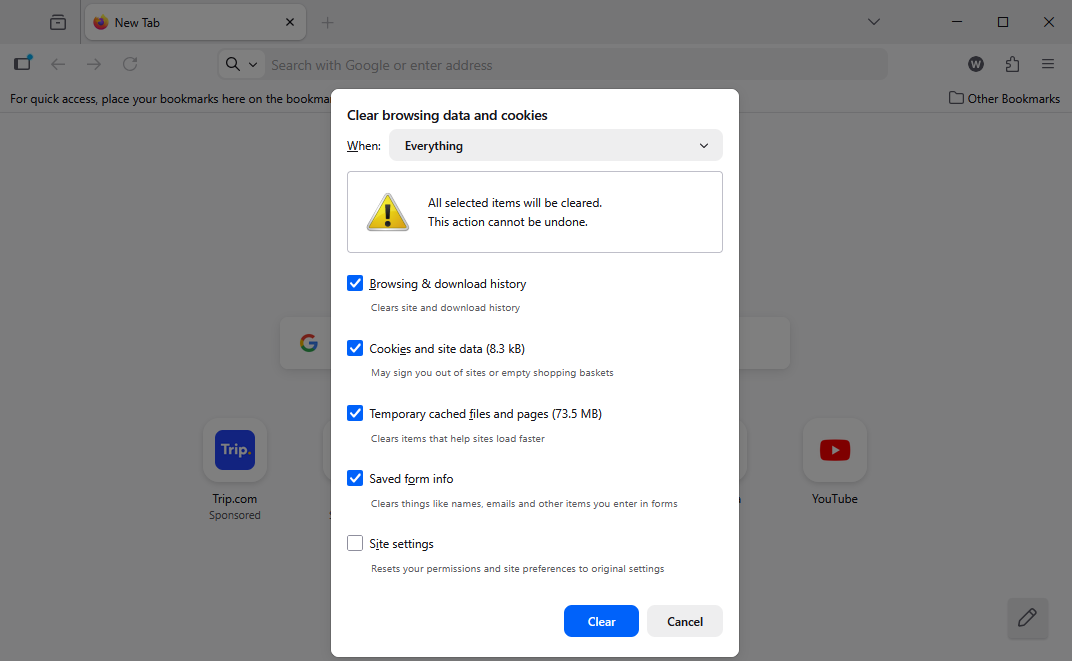
- Step 4: Restart the browser and log in again.
Use a Different Browser
Some browsers perform better with AI platforms. Recommended browsers include Google Chrome, Mozilla Firefox, Microsoft Edge, and Safari. Keeping your browsers updated improves compatibility.
Disable Browser Extensions
Certain extensions interfere with AI websites. Examples include ad blockers, privacy tools, script blockers, and aggressive security plugins. Temporarily disabling them may solve the chatgpt error.
How VPNs Affect ChatGPT
VPN services can occasionally create connection problems, resulting in an unannounced chatgpt error.
- Potential Issues: IP address restrictions, slower response times, and security verification failures (like endless CAPTCHAs).
- Solution: Try temporarily disabling the VPN and reconnecting to a local server.
Mobile vs Desktop Errors
The nature of a chatgpt error may vary depending on the device you use.
- Mobile Problems: App crashes, slow loading over cellular networks, keyboard rendering issues, and app update conflicts.
- Desktop Problems: Browser compatibility, extension conflicts, cache corruption, and local storage limits.
Keeping apps and browsers updated reduces these technical issues significantly.
ChatGPT API Errors
Developers using the ChatGPT API may encounter specialized error codes rather than a standard UI chatgpt error.
Indicates invalid or expired API credentials. Check your API key configuration.
429 Too Many Requests
Occurs when request limits or rate limits are exceeded. Implement request throttling.
500 Internal Server Error
Usually caused by server-side disruptions at OpenAI.
Timeout Errors
Requests may take too long to process when the payload is too large.
How Developers Can Prevent API Errors
- Optimize Requests: Smaller and cleaner prompts improve performance.
- Monitor Usage Limits: Track your API quotas regularly.
- Implement Retry Logic: Automatic retries help handle temporary failures seamlessly.
- Use Error Logging: Tracking issues helps identify recurring problems.
Advanced Methods: chatgpt data recovery
When a sudden chatgpt error crashes your system, it can cause data loss. For example, local browser histories can corrupt, web-app cache files might get wiped, or documents containing copied AI responses might be deleted due to a sudden system crash. In this section, we will explore comprehensive chatgpt data recovery strategies ranging from simple browser tricks to deep system-level recovery.
Level 1: Browser Cache and Local Storage Retrieval
If a chatgpt error causes your browser to close unexpectedly, your text might still reside in the browser’s temporary cache.
- Step 1: Do not close the browser if it is still open. Press
Ctrl + Shift + T(Windows) orCmd + Shift + T(Mac) to restore closed tabs. - Step 2: If the page is blank, press
F12or right-click and select Inspect to open Developer Tools. - Step 3: Navigate to the Application or Storage tab.
- Step 4: Click on Local Storage or Session Storage and look for URLs related to ChatGPT to find cached text strings.
Level 2: Restoring Unsaved Documents via AutoRecover
If you copied your ChatGPT results into Microsoft Word or Notepad++ and your PC crashed due to a system-wide chatgpt error, you can retrieve it via AutoRecover.
- Step 1: Reopen your text editor (e.g., Microsoft Word).
- Step 2: Look for the Document Recovery pane on the left side.
- Step 3: If it does not appear, manually navigate to the path:
C:\Users\YourUsername\AppData\Roaming\Microsoft\Word\ - Step 4: Locate files with the
.asdextension, open them, and save your recovered content.
Level 3: Registry and System Log Checks
Sometimes, a severe script error triggers a system-level crash. You can inspect Windows logs to see if the clipboard data can be traced.
- Step 1: Press
Win + R, typeregedit, and press Enter to open the Registry Editor. - Step 2: Navigate to
HKEY_CURRENT_USER\Software\Microsoft\Clipboard. Ensure clipboard history is enabled. - Step 3: Press
Win + Vto view your clipboard history and check if your lost ChatGPT data is still saved in the system memory.
Using PandaOffice Drecov data recovery software
If a crash caused by a chatgpt error leads to a hard drive corruption, or if you accidentally deleted local text files, HTML archives, or databases containing your AI research, specialized recovery software is required. Utilizing the PandaOffice Drecov data recovery software is the most reliable way to retrieve permanently deleted files from your storage drives.
⚠ Warning: Install it on a drive different from the one where your data was lost to prevent overwriting.
Below is the step-by-step process for using this professional tool to recover your lost files:
Step 1: Select the Target Location
Launch the application. On the main interface, you will see a list of available hard drives, external devices, and common locations like the Desktop or Recycle Bin. Select the exact drive where your ChatGPT logs or documents were stored (usually the C: drive) and click Scan.

Step 2: Run a Deep Scan
The software will automatically begin a quick scan, followed by a deep scan. This process scans the sector blocks of your storage drive to locate fragmented files. You can monitor the real-time progress bar at the top of the interface.

Step 3: Filter and Preview Your Data
Once the scan completes, use the left-hand category tree or the search bar at the top right to filter files. Type keywords like .txt, .docx, or .html to locate files that contain your saved AI data. Double-click on a file to view a live preview of its contents before finalizing the recovery.

Step 4: Recover and Save Safely
Check the boxes next to the documents or logs you wish to restore. Click the Recover button at the bottom right. Choose a safe storage location on an external drive or a different partition, and confirm the operation to complete your data recovery process.
Useful Resources for System Maintenance
After successfully completing your data recovery steps, you can ensure your operating system and web browsers are fully optimized to prevent future crashes. Check out these highly relevant articles for managing your local storage and files:
- If you need to check if your deleted local text files are still sitting in your system’s temporary dump, read about where is recycle bin in windows 10 3 quick ways to find it.
- If a browser crash caused you to lose all your research references, learn how to get your google chrome bookmarks back.
- If background cloud syncing processes are locking up your system and triggering internet timeouts, find out how to disable onedrive stop the sync in 3 easy steps.
Security and Privacy Concerns
Some users worry when errors appear during highly sensitive conversations.
Is ChatGPT Safe During Errors?
Most errors are strictly technical and entirely unrelated to security breaches or account hacks. However, to stay safe, users should:
- Avoid sharing sensitive information like passwords, APIs, or credit card numbers with the AI model.
- Use secure, unique passwords for your OpenAI account.
- Enable multi-factor authentication (MFA) to protect account access.
Best Practices to Avoid ChatGPT Errors
Taking preventive steps improves overall performance and reduces the chance of facing a chatgpt errors.
- Keep Software Updated: Regularly update your web browsers, operating systems, and official mobile applications to patch bugs.
- Maintain Stable Internet: Use a wired Ethernet connection or a high-quality 5GHz Wi-Fi band to minimize connection drops.
- Avoid Extremely Long Prompts: Split major tasks into smaller questions to prevent processing timeouts.
- Log Out Occasionally: Refreshing your user token by logging out and back in can prevent session expiration glitches.
ChatGPT Errors Messages Explained
| Errors Message | Meaning | Quick Solution |
| Network Error | Connection stability issue | Check internet connection or shorten the prompt |
| Internal Server Error | Server overload or bug | Wait a few minutes and refresh the page |
| Access Denied | Permission or security block | Check VPN settings or re-login |
| Session Expired | Login credentials timed out | Log out and log back in |
| Too Many Requests | Exceeded the usage limit | Wait before sending more requests |
Tips for Beginners Using ChatGPT
New users should follow these basic best practices to minimize issues:
- Start with Short Prompts: Smaller requests reduce system processing load.
- Save Important Conversations: Periodically copy critical information into local text documents.
- Learn Basic Troubleshooting: Familiarize yourself with browser cache clearing and hotkeys.
- Stay Patient During High Traffic: Give the platform a few minutes if servers are momentarily unresponsive.
Conclusion
A chatgpt error can be inconvenient, but it is usually easy to resolve using the right troubleshooting methods. Whether the problem involves network drops, authentication failures, server overloads, or response generation issues, most solutions require only simple actions like browser refreshes, adjusting network settings, or clearing cookies.
When errors lead to deeper issues like system crashes or lost documents, employing advanced data recovery tactics—and utilizing dedicated tools like PandaOffice Drecov data recovery software—ensures your critical text assets remain safe. By following the tips, solutions, and data recovery frameworks detailed in this guide, you can minimize interruptions and confidently navigate the world of AI productivity.






