







The moment you realize you are locked out of your device or that your ChromeOS is stuttering, the first solution that comes to mind is how to factory reset chromebook. It is a powerful fix, often referred to by Google as a “Powerwash.” However, there is a massive hidden cost that most tutorials ignore: a factory reset is an irreversible process for your local data. Everything in your “Downloads” folder, your custom Linux files, and your offline cache will vanish in seconds.
In this guide, we will explore how to factory reset chromebook efficiently while prioritizing the safety of your digital assets. We will also introduce professional tools like PandaOffice Drecov to help you manage the data risks associated with a system wipe.
The Reality of a Chromebook Factory Reset
Before we dive into the “how-to,” you must understand what happens during the process. When you perform a factory reset, the device clears all user accounts and resets the state of the SSD to its original ship-out condition.
While Google encourages users to save everything to Google Drive, many professionals and students keep critical PDFs, school projects, or temporary video recordings in the local storage. If you follow a standard guide on how to factory reset chromebook without a backup plan, those files are as good as gone.
Phase 1: The Essential Pre-Reset Checklist
You should never ask how to factory reset chromebook without first asking “Is my data safe?”
1. Sync Your Google Account
Ensure your settings, apps, and browser data are synced. This includes your passwords and themes. However, note that syncing does not include local files.
2. Handle Your Browser Data
Bookmarks are often the most missed item during a reset. If you find that your bookmarks didn’t sync properly after a previous reset, you might need a specialized Chrome Bookmarks Recovery strategy to extract them from the sync cloud or old local caches.
3. Use PandaOffice Drecov for Local Backup
If your Chromebook is still accessible but buggy, use PandaOffice Drecov to scan your local folders. It can identify fragmented files that might not show up in the standard File Manager, ensuring you copy everything important to an external USB drive before the wipe.
Phase 2: How to Factory Reset Chromebook Without a Password
This is the most common “emergency” scenario. You forgot your login PIN, and now you are stuck at the login screen. Here is how to factory reset chromebook using hardware shortcuts.
Method: The “R-Key” Shortcut (Powerwash)
- Step 1: Turn on your Chromebook but do not log in. Stay on the main login screen where it asks for your password.
- Step 2: On your keyboard, press and hold Ctrl + Alt + Shift + R simultaneously. If your hardware keys does not trigger the restart option on this Chromebook.
- Step 3: A window titled “Reset this Chrome device” will appear on the screen.
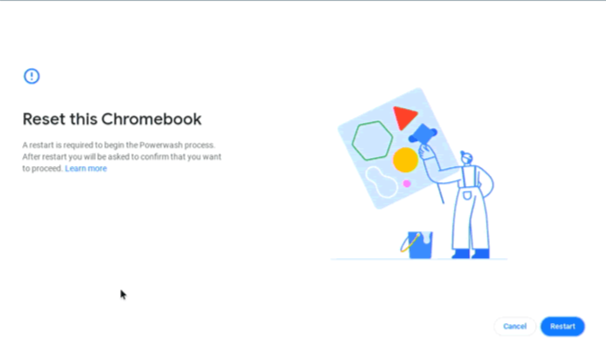
- Step 4: Click the Restart button. The Chromebook will reboot.
- Step 5: After the reboot, a new prompt will ask if you want to “Powerwash” the device. Click Powerwash.
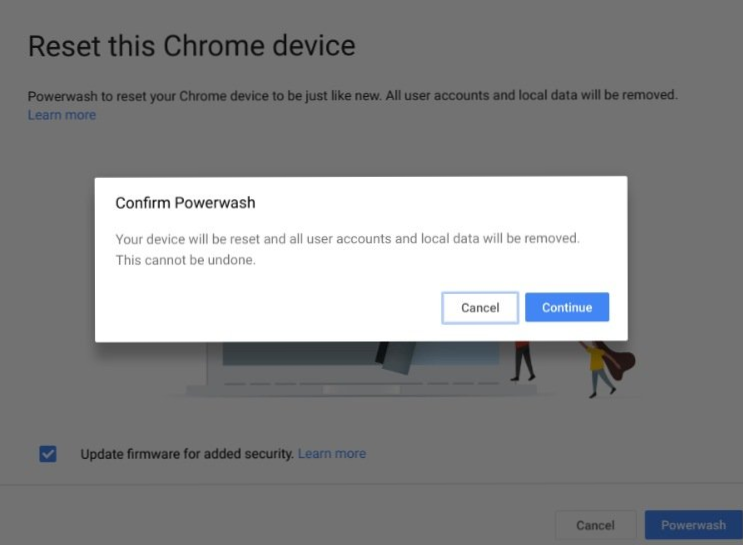
- Step 6: A final confirmation box will appear. Click Continue.
CRITICAL WARNING: Once you click “Continue” in Step 6, the system will begin erasing the encryption keys. This makes data recovery significantly harder. If you have any doubt about your backup, stop here and consult a data recovery expert.
Phase 3: How to Factory Reset Chromebook from the Settings Menu
If you can still log in but want to reset the device to give it to a new owner or fix performance lag, this is the standard path for how to factory reset chromebook.
- Step 1: Log in to your Chromebook.
- Step 2: Click on the time area in the bottom-right corner of the shelf to open the Quick Settings panel.
- Step 3: Click the Settings (gear icon).
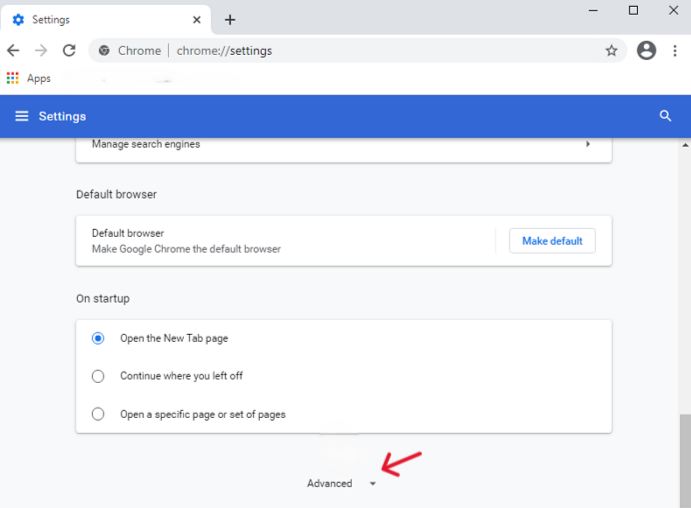
- Step 4: On the left-hand sidebar, click Advanced to expand the menu, then select Reset settings.
- Step 5: Locate the Powerwash section and click the Reset button.
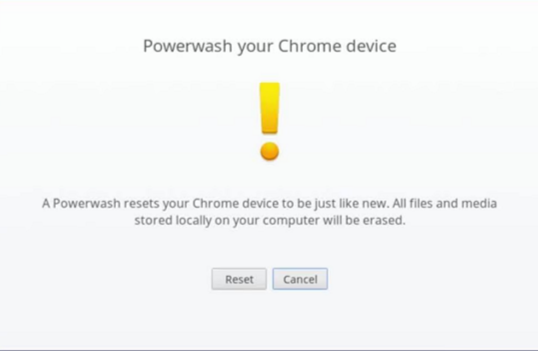
- Step 6: A prompt will ask you to restart the device. Click Restart.
- Step 7: After the reboot, the system will present the Powerwash confirmation screen. Click Powerwash and then Continue.
Phase 4: The “Hard Reset” via Recovery Mode
Sometimes, the software is so corrupted that the keyboard shortcuts won’t work. In this case, here is how to factory reset chromebook using the hardware Recovery Mode. This is often necessary for HP, Dell, and Samsung Chromebooks that are stuck in a boot loop.
- Step 1: Completely power off the Chromebook.
- Step 2: Press and hold the Esc key and the Refresh key (usually the 4th key from the left on the top row, looking like a circular arrow).
- Step 3: While holding Esc and Refresh, tap the Power button.
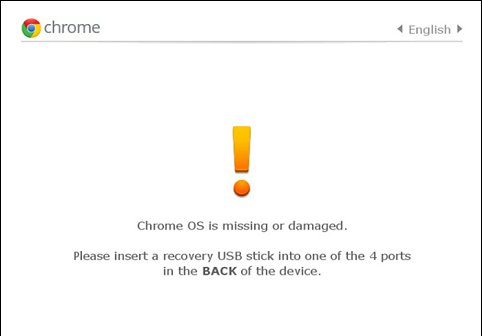
- Step 4: Release the keys when you see a screen with a yellow exclamation point or a message saying “ChromeOS is missing or damaged.”
- Step 5: Press Ctrl + D to enter Developer Mode (this initiates a wipe).
- Step 6: Follow the on-screen prompts to “Disable OS Verification.” This process effectively factory resets the device.
Phase 5: How to Recover Data After a Factory Reset
Many users realize they forgot a folder only after the Powerwash is finished. If you are in this situation, do not lose hope. While ChromeOS uses encryption, PandaOffice Drecov employs advanced algorithms to scan the unallocated space of the SSD.
Using PandaOffice Drecov for Post-Reset Recovery
- Step 1: Immediately stop using the Chromebook. Every minute of web browsing creates new cache files that could overwrite your deleted data.
- Step 2: If possible, put the Chromebook into “Guest Mode” or connect the storage to a technician’s PC.
- Step 3: Launch PandaOffice Drecov and select the drive associated with your Chromebook storage.

- Step 4: Run a Deep Scan. Drecov will look for file signatures like .pdf, .docx, and .jpg that survived the quick format of the Powerwash.

- Step 5: Preview the found files. If you see your lost “Downloads” folder contents, select them and click Recover to save them to an external drive.
Advanced Troubleshooting: Why Your Reset Might Fail
Knowing how to factory reset chromebook isn’t always enough if the hardware is failing. Here are three common issues:
- Admin Managed Devices: If your Chromebook was issued by a school or company, you might find that the Powerwash option is greyed out. You cannot factory reset a managed device without the administrator’s permission.
- Write-Protect Screw: Older Chromebook models have a physical screw on the motherboard that prevents system changes. If you are trying to install a new OS or do a deep reset, you might need to remove this.
- TPM Errors: If you see a “Trusted Platform Module” error during the reset, your hardware encryption chip might be failing.
how do you factory reset a chromebook FAQs
1. Will I lose my Google Photos after I follow the steps for how to factory reset chromebook?
Your photos remain safe in the cloud as long as the backup process finished successfully before the reset. However, any photos sitting in your “Camera” folder that failed to upload due to sync errors will disappear forever. We suggest running a quick scan with PandaOffice Drecov before the reset to ensure no media files remain stuck in the local queue.
2. Can I get my Linux (Crostini) data back after a Powerwash?
ChromeOS stores Linux data in a complex virtual disk image (.vmdk). Standard recovery tools usually fail to read these files. PandaOffice Drecov features a “Virtual Disk Pass-through” mode that penetrates these images to find your lost Linux scripts, projects, and configurations.
3. Why is the “Powerwash” option greyed out in my settings?
This usually happens if a school or company manages your device. Administrators often block the ability to how to factory reset chromebook to prevent unauthorized OS changes. You must contact your IT department or unenroll the device from management before you can proceed with a reset.
4. My sync didn’t work and all my bookmarks are gone. What is the fastest fix?
This is a classic sync conflict. Stop using the browser immediately to prevent overwriting. Use PandaOffice Drecov to search for a file named Bookmarks (with no extension) or Bookmarks.bak. Once found, you can manually replace the empty file in your new profile to restore your links.
5. Is a “Hard Reset” different from a “Powerwash”?
Yes. A Hard Reset (using Refresh + Power) only restarts the hardware (keyboard, touchpad, etc.) and does not delete your data. A Powerwash is a full software wipe. Always try a Hard Reset first before you commit to the data-erasing steps of how to factory reset chromebook.
Conclusion
Learning how to factory reset chromebook is an essential skill for any ChromeOS user. Whether you use the Ctrl + Alt + Shift + R shortcut or the Settings menu, the process is straightforward but destructive.
To maintain a healthy device:
- Backup Weekly: Use cloud services, but keep a local “snapshot” using PandaOffice Drecov.
- Sync Bookmarks: Always verify your sync status.
- Stay Updated: Ensure you are on the latest version of ChromeOS before performing a reset to ensure the recovery image is valid.
By following this guide, you now know exactly how to factory reset chromebook while keeping your data recovery options open. Don’t let a simple system wipe turn into a data disaster—keep PandaOffice Drecov in your digital toolkit for peace of mind.






