







Chromebooks are known for being fast, lightweight, and incredibly easy to use. But even the smoothest devices sometimes hit a bump in the road. Maybe your Chromebook is running painfully slow, acting glitchy, or you’re getting ready to sell or give it away. That’s when knowing how to factory reset a Chromebook becomes a lifesaver.
A factory reset on a Chromebook, often called a Powerwash, wipes the device clean and restores it to its original out-of-the-box state. Sounds simple, right? It is—but only if you know exactly what you’re doing. This guide walks you through everything step by step, explains why and when you should reset, and helps you avoid common mistakes that can cost you data or time.
Think of this guide as your Chromebook reset safety net. Let’s dive in.
Understanding What a Factory Reset on a Chromebook Means
Factory resetting a Chromebook isn’t the same as resetting a Windows laptop or Mac. ChromeOS is cloud-based, which changes how data, apps, and settings behave during a reset.
What “Powerwash” Really Does
When you learn how to factory reset a Chromebook, you are essentially performing a Powerwash. This process:
- Deletes all locally stored data.
- Removes all Google accounts from the device.
- Resets system settings to default.
- Clears downloaded files and installed apps.
What it doesn’t delete is anything stored in your Google account. Files in Google Drive, synced bookmarks, extensions, and settings tied to your account will reappear once you sign back in. In simple terms, Powerwash cleans the Chromebook itself—not your cloud life.
When a Factory Reset Is Necessary
A factory reset is recommended if:
- Your Chromebook is extremely slow or freezing.
- You’re facing repeated ChromeOS errors.
- Apps crash constantly.
- You forgot your login password.
- You’re selling, donating, or handing it to someone else.
- Malware-like behavior appears (rare, but possible).
If your Chromebook feels “off,” a Powerwash often fixes it in minutes.
Things to Know Before Factory Resetting a Chromebook
Before you jump into the steps of how to factory reset a Chromebook, pause for a moment. A little preparation can save you a lot of regret later.
Data Backup Essentials
Even though Chromebooks rely heavily on cloud storage, not everything is always synced automatically. Before resetting:
- Upload important files from the Downloads folder to Google Drive.
- Back up photos, videos, or documents stored locally on an SD card or USB drive.
- Export data from offline apps if needed.
If you skip this step, local files are gone forever after the reset. If you find yourself in a situation where you forgot to back up and accidentally wiped important data, you might need professional recovery solutions.
Google Account and Sync Considerations
Make sure you know the Google account email and password used on the device. After the reset, you’ll need to sign in again, and two-factor authentication may be required.
The Nightmare Scenario: Recovering Lost Data After a Reset
Sometimes, despite our best efforts, we realize too late that critical files were stored locally in the “Downloads” folder and were wiped during the process of how to factory reset a Chromebook. Because ChromeOS uses an encrypted file system, standard undelete tools often fail.
This is where specialized tools like PandanOffice Drecov come into play. While it is difficult to run recovery software directly on ChromeOS, you can pull the SD card or use a secondary PC to recover synced data or external drives that were accidentally formatted.
Step-by-Step Recovery with PandanOffice Drecov
If you’ve lost data during your quest to how to factory reset a Chromebook, follow these steps using the PandanOffice Drecov tool:
- Step 1: If the files were on an SD card or external USB that was wiped during the Chromebook reset, connect that media to your computer.
- Step 2: Launch the software and select the drive letter corresponding to your device.

- Step 3: Click “Deep Scan” to allow the tool to look for file signatures like
.pdf,.jpg, or.docx.

- Step 4: Preview the found files in the results window. Select the ones you need and click “Recover” to save them to a safe location on your computer (not the original drive).
Pro Tip: Never install recovery software on the same drive you are trying to recover from, as this can overwrite the deleted data.
Method 1: Factory Reset a Chromebook Using Settings
This is the most common and user-friendly way to handle how to factory reset a Chromebook.
- Sign in to your Chromebook.
- Click the Time in the bottom-right corner of the screen.
- Select the Settings gear icon.
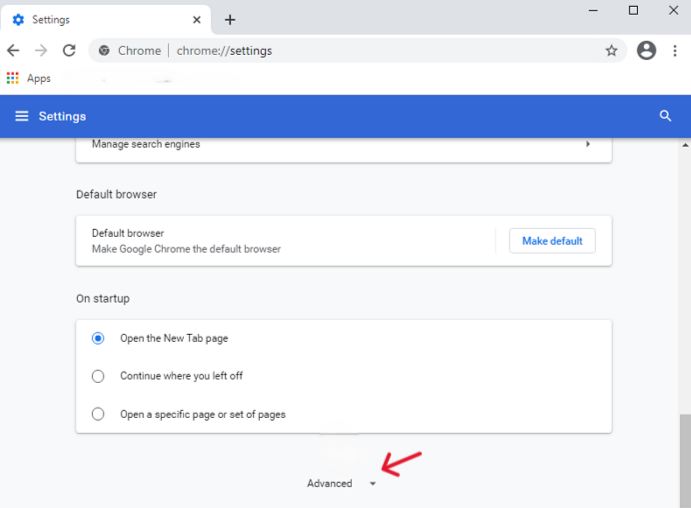
- On the left sidebar, click Advanced to expand the menu.
- Find the Reset settings section at the bottom.
Step 2: Completing the Powerwash Process
- You’ll see an option labeled Powerwash. Click the Reset button next to it.
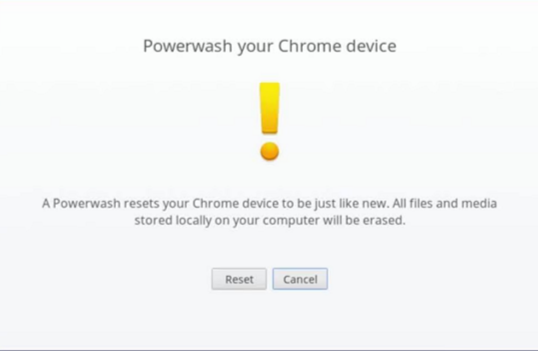
- A prompt will appear asking for a restart. Select Restart.
- When the Chromebook reboots, a final confirmation box appears. Click Powerwash and then Continue.
Your Chromebook will restart and begin resetting. The process usually takes less than five minutes. Once complete, the welcome screen appears, just like when the device was brand new.
Method 2: Factory Reset a Chromebook from the Login Screen
Can’t access settings? No problem. This method for how to factory reset a Chromebook works even if you’re locked out or your profile is corrupted.
Step 1: Keyboard Shortcut Method
- Turn on your Chromebook but do not sign in.
- On the login screen, press and hold: Ctrl + Alt + Shift + R.
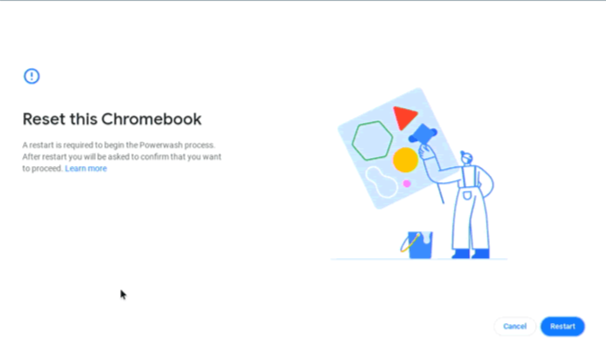
- A window titled “Reset this Chromebook” will appear on the screen.
Step 2: Confirming the Reset
- Click Powerwash (or Restart first if the button suggests it).
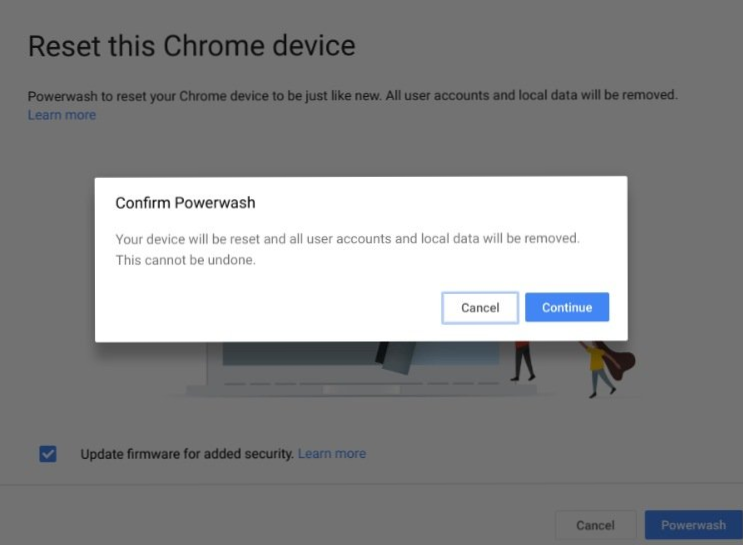
- The system will prompt you to confirm that you want to wipe all accounts and local data.
- Click Continue.
This method is perfect if your Chromebook won’t sign in properly or if you are helping a friend who forgot their local password.
Method 3: Factory Reset a Chromebook Using Recovery Mode
Sometimes a standard reset just won’t cut it. If your operating system is damaged, you need to know how to factory reset a Chromebook using the “Recovery Mode.”
Step-by-Step Recovery Reset
- Step 1: Turn off the Chromebook completely.
- Step 2: Press and hold the Esc key and the Refresh key (usually the fourth key from the left on the top row).
- Step 3: While holding those two, tap the Power button.
- Step 4: Release the keys when you see a screen with a yellow exclamation point or the message “ChromeOS is missing or damaged.”
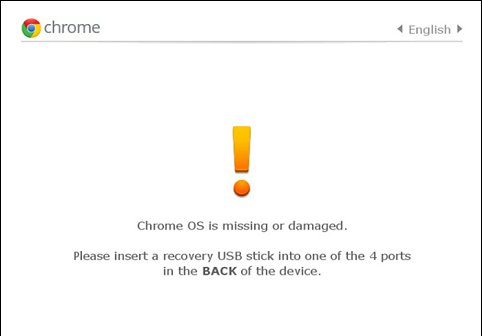
- Step 5: Press Ctrl + D to open the developer options, or follow the on-screen instructions to insert a recovery USB if the OS is truly gone.
This method is more advanced but extremely effective for fixing “bricked” devices.
Admin and School-Managed Chromebooks
If your Chromebook is managed by a school or company, the process of how to factory reset a Chromebook might be restricted.
- Admin Restrictions: Managed Chromebooks often reinstall policies automatically after a reset.
- What You Can Do: You can clear your personal local files.
- What You Cannot Do: You cannot remove management controls or bypass the “Enrollment” screen without admin credentials.
If you are stuck on an enrollment screen after a reset, you must contact the IT department of the organization that owns the device.
What Happens After You Factory Reset a Chromebook
Once the reset is complete, the real setup begins. It feels just like opening a new Chromebook.
- First Boot: You’ll select your language and connect to Wi-Fi.
- Sign In: Use your Google account credentials.
- Syncing: Your extensions will reinstall automatically, and your bookmarks will reappear. If you’ve previously looked up How to Recover Bookmarks from Chrome, you’ll find that as long as sync was on, they return instantly.
Factory Reset vs Hard Reset on Chromebook
It is important not to confuse how to factory reset a Chromebook with a Hard Reset.
| Feature | Factory Reset (Powerwash) | Hard Reset (Hardware) |
| Deletes Data | Yes | No |
| Fixes Hardware (Keyboard/Touchpad) | No | Yes |
| Resets OS Settings | Yes | No |
| Fixes Slow Software | Yes | Sometimes |
Tips to Keep Your Chromebook Running Smoothly
Once you have mastered how to factory reset a Chromebook, use these tips to avoid needing a reset in the future:
- Limit Extensions: Too many Chrome extensions can drain RAM and slow down the system.
- Stay Updated: Always allow ChromeOS to update to the latest version for security patches.
- Cloud First: Save your files directly to Google Drive instead of the local “Downloads” folder.
- Regular Reboots: Instead of just closing the lid, shut down your Chromebook once a week to clear system cache.
Conclusion
Knowing how to factory reset a Chromebook puts you in control of your device. Whether you’re fixing stubborn problems, protecting your privacy, or preparing the Chromebook for someone else, a Powerwash is quick, effective, and surprisingly painless.
The beauty of ChromeOS lies in its simplicity. Even a full reset feels less like a disaster and more like a fresh start. Follow the steps carefully, back up your data, and your Chromebook will be back to its best self in minutes. Sometimes, the fastest way forward is to start over






