







Email inboxes can become overwhelming faster than most people realize. One moment your Outlook inbox looks manageable, and the next it feels like a digital junkyard. If you are struggling with a cluttered inbox, learning how to delete multiple emails in Outlook can save you hours of manual work. Instead of clicking messages one by one, you can use built-in tools to clear out newsletters, promotions, and spam in bulk. The good news is that Microsoft Outlook includes several powerful features that allow users to manage their digital space quickly and efficiently.
This complete guide explains exactly the best practices for inbox maintenance using desktop apps, Outlook Web, mobile devices, search filters, conversation cleanup tools, and automatic rules. By the end, you will know how to organize your inbox faster, free up storage space, and keep Outlook running smoothly without drowning in email clutter.
Why Deleting Multiple Emails Matters
Many people ignore inbox clutter until Outlook slows down or storage warnings appear. Large inboxes affect performance more than users expect. Here are some common problems caused by overloaded mailboxes:
| Problem | Impact |
| Slow Outlook performance | Delayed email loading and software lag |
| Storage limits reached | Cannot send or receive new emails |
| Difficult email searches | Important messages get buried in the noise |
| Higher security risks | Old phishing emails remain stored in the system |
| Stress and distraction | Inbox becomes overwhelming and mentally taxing |
An organized inbox improves productivity dramatically. Studies published by productivity experts show cluttered digital environments increase stress levels and reduce efficiency. Email overload creates mental fatigue similar to physical clutter in a workspace. Deleting unnecessary emails regularly helps improve Outlook speed, reduce storage usage, and lower security risks.
How to Delete Multiple Emails in Outlook Desktop App
The Outlook desktop application provides the most powerful bulk email management tools. Consequently, knowing the right shortcuts can save you hours of manual labor.
Select Multiple Emails Manually
The simplest method involves selecting multiple emails at once.
To Select Consecutive Emails:
- Step 1: Open Microsoft Outlook and navigate to the desired folder.
- Step 2: Click the first email in the list you wish to remove.
- Step 3: Hold the Shift key on your keyboard.
- Step 4: Click the last email in the group.
- Step 5: Press Delete or the trash icon.
This selects every message between the first and last clicked email. It works like highlighting a paragraph of text; instead of deleting one sentence at a time, you remove the entire block instantly.
Select Non-Consecutive Emails:
Sometimes you only want specific emails removed without affecting the ones in between.
- Step 1: Hold the Ctrl key (Windows) or Command key (Mac).
- Step 2: Click each email individually that you want to delete.
- Step 3: Press Delete.
How to Delete Entire Folders of Emails
Sometimes inbox clutter becomes so massive that selective cleanup no longer makes sense. Deleting entire folders can instantly remove thousands of emails.
- Step 1: Right-click the folder in the left-hand sidebar.
- Step 2: Select Delete Folder.
- Step 3: Confirm the deletion when prompted.
Be careful with this option because it removes all emails, subfolders, and stored attachments. This approach works best for old newsletter folders or outdated project archives.
Troubleshooting Visibility: Outlook Deleted Items Folder Not Showing Deleted Emails
A common frustration for many users occurs when they perform a mass deletion, only to find the Outlook deleted items folder not showing deleted emails. This can happen due to synchronization errors, view filters, or specific account settings.
Common Causes and Solutions
If your deleted items seem to have vanished into thin air, check the following:
- View Settings: Sometimes a filter is applied to the folder. Go to the View tab, select Reset View to ensure all items are visible.
- Folder Synchronization: If you are using an IMAP or Exchange account, the folder may not have synced with the server. Click Send/Receive All Folders to force an update.
- Auto-Empty Settings: Check if Outlook is configured to empty the Deleted Items folder upon exiting. Navigate to File > Options > Advanced and look under the Outlook start and exit section.
If the emails are truly gone and not just hidden, you may need to move toward more advanced recovery methods discussed later in this guide.
Advanced Deletion Strategies for Large Inboxes
To truly master how to delete multiple emails in Outlook, you must look beyond basic clicking. Utilizing search parameters allows for surgical precision.
How to Delete All Emails from One Sender
Newsletters and promotional emails often flood inboxes repeatedly. Outlook makes it easy to remove them all at once.
- Step 1: Type the sender’s email address or name into the Outlook Search bar.
- Step 3: Press Ctrl + A (Windows) or Command + A (Mac) to select all matching results.
- Step 4: Click Delete.
How to Delete Emails by Date
Old emails often consume huge amounts of storage space unnecessarily. You can use specific search syntax to find them.
- Step 1: Click the Search bar.
- Step 2: Type
received:<=01/01/2023to find everything from before that date. - Step 3: Select all matching emails and delete them.
Accidental Loss: How to Undo Mass Delete in Outlook
We have all been there—you’re on a roll cleaning your inbox, and suddenly you realize you’ve deleted a critical contract or a message from your boss. Knowing how to undo mass delete in Outlook is essential for any power user.
Standard Recovery Steps
- Step 1: Press Ctrl + Z immediately after the deletion if you are still in the same session. This often reverses the last action.
- Step 2: If the shortcut doesn’t work, navigate to the Deleted Items folder.
- Step 3: Select the messages you need, right-click, and choose Move > Inbox.
The “Recover Deleted Items” Tool
If you have already emptied your trash, you may still have a window of opportunity on Exchange accounts.
- Step 1: Go to the Deleted Items folder.
- Step 2: Select the Home tab and click Recover Deleted Items From Server.
- Step 3: Choose the items you want and click Restore Selected Items.
Permanent Deletion: Recover Shift Deleted Emails in Outlook
For many users, “Delete” isn’t enough; they use Shift + Delete to bypass the trash entirely. While this keeps the mailbox clean, it makes recovery significantly more difficult. If you need to recover shift deleted emails in Outlook, standard built-in tools often fall short because the data pointers have been removed from the file system.
When you perform a hard delete, the data isn’t immediately overwritten; rather, the space it occupied is marked as “available.” This is where professional-grade intervention becomes necessary to prevent permanent data loss.
Professional Solution: PandaOffice Drecov Data Recovery Software
When standard Outlook recovery methods fail—whether due to a corrupted PST/OST file or a permanent “Shift + Delete” action—you need a specialized tool. PandaOffice Drecov data recovery software is designed to scan storage devices and reconstruct lost email files with high precision. It supports various formats, including .pst and .ost, ensuring that even “unrecoverable” messages can be brought back.
⚠ Warning: Install it on a drive different from the one where your data was lost to prevent overwriting.
Step-by-Step Recovery with PandaOffice Drecov
Using PandaOffice Drecov data recovery software is a straightforward process, even for those who aren’t tech-savvy. Follow these steps to retrieve your lost Outlook data:
- Step 1: Select the Drive for Scanning. Launch the program and select the local disk (usually C:) where your Outlook profile resides.

- Step 2: Run a Deep Scan. Click the Scan button. The software will perform a deep analysis of the disk sectors to find traces of deleted email databases.

- Step 3: Filter Results. Once the scan is complete, use the search or filter function within the software to look for file extensions like .pst or .ost.
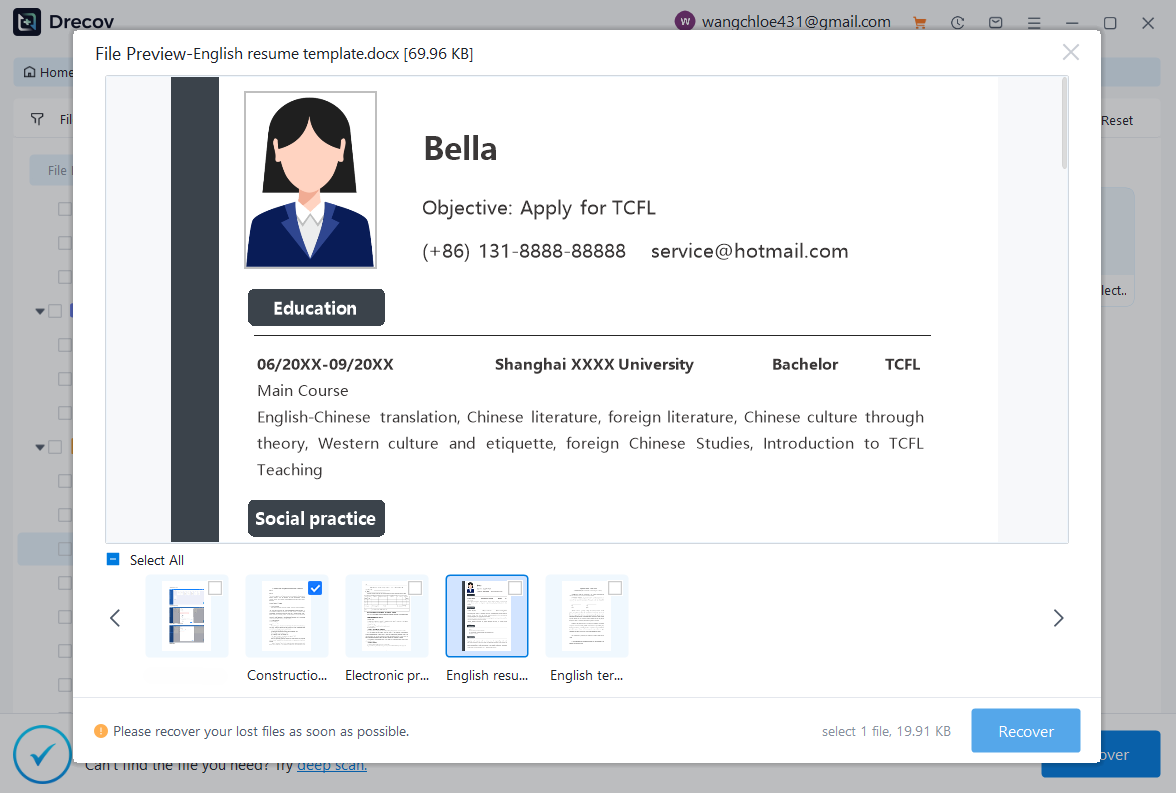
- Step 4: Preview and Recover. Select the files found. PandaOffice Drecov allows you to preview certain data types. Click Recover and choose a safe destination (like an external hard drive) to save the restored files.
Warning Prompt: Never save recovered files back to the same partition where they were lost. This can cause permanent data corruption and make future recovery impossible.
For further reading on digital organization and data management, you might find these guides helpful:
- Easily manage your browser tabs with our guide on how to delete recently closed tabs in seconds.
- Lost your browsing history? Learn how to get your Google Chrome bookmarks back efficiently.
- Hardware issues? Follow our how to fix Lacie hard drive not showing up on Mac complete guide.
For more information on official Microsoft support, you can visit the Outlook Help & Learning center.
Keeping Your Inbox Clean Automatically
Once you have mastered how to delete multiple emails in Outlook, the next goal is to ensure the clutter doesn’t return. Automation is your best friend in this regard.
Use Sweep in Outlook Web
One of Outlook’s most underrated features is Sweep. It acts like a robotic assistant that handles repetitive inbox cleaning automatically.
- Step 1: Select an email from a specific sender.
- Step 2: Click Sweep in the top menu.
- Step 3: Choose “Move all messages from the Inbox folder and any future messages to Deleted Items.”
Create Rules for Automatic Deletion
Rules allow Outlook to automatically organize or delete incoming emails before you even see them.
- Step 1: Right-click an annoying newsletter.
- Step 2: Select Rules > Create Rule.
- Step 3: Check the box for “Sent to” or “Subject contains” and select “Move the item to folder: Deleted Items.”
Summary of Outlook Deletion Methods
| Method | Speed | Best For |
| Shift + Click | Very Fast | Consecutive lists of emails |
| Ctrl + Click | Moderate | Picking specific unwanted emails |
| Search Filter | Fast | Finding specific senders or dates |
| Rules/Sweep | Automated | Preventing future clutter |
| PandaOffice Drecov | Professional | Recovering permanently deleted mail |
Conclusion
Learning how to delete multiple emails in Outlook can completely transform your inbox management experience. Instead of wasting hours removing emails individually, Outlook provides powerful bulk cleanup tools like Select All, Sweep, Rules, AutoArchive, filters, and folder management to simplify the process dramatically.
However, with great power comes the risk of accidental deletion. Whether you encounter the Outlook deleted items folder not showing deleted emails or you need to recover shift deleted emails in Outlook, there are always pathways back to your data. By combining standard recovery steps with professional tools like PandaOffice Drecov data recovery software, you can clean your digital life with confidence, knowing that your important information is never truly out of reach.






