







Losing photos on a Mac can be stressful, especially when those images contain personal memories or important work files. Fortunately, mac photo recovery is often possible if you act quickly and use the right methods. Whether photos were deleted accidentally, lost after formatting an SD card, or removed due to system or iCloud issues, macOS provides several built-in recovery options. When those free methods fail, professional photo recovery software Mac solutions—sometimes used via a Windows environment—can help recover photos that seem permanently lost.
This guide explains how to recover photos on Mac step by step. It covers common causes of photo loss, free macOS recovery methods, precautions to avoid permanent data overwrite, and advanced recovery solutions. Even if you’re a beginner, you’ll learn safe, practical ways to restore photos from Mac internal drives, SD cards, and backups.
Understanding Why Photos Are Lost on Mac
Before starting photo recovery mac os x, it’s important to understand how photo loss happens. On macOS, deleting a file does not immediately erase it from the disk. The system simply marks the storage space as available. Until new data overwrites that space, recovery remains possible.
Common Causes of Photo Loss
- Accidental deletion from Finder or the Photos app
- Emptying the Trash unintentionally
- Formatting an SD card or external drive
- macOS updates or unexpected shutdowns
- iCloud sync conflicts
- Corrupted Photos Library
- File system errors on storage devices
⚠️ Warning: Continuing to use the Mac or storage device after photo loss can overwrite deleted data and drastically reduce recovery success.
Understanding the cause helps you choose the most appropriate mac photo recovery tool or method.
Free Methods for Mac Photo Recovery (Step-by-Step)
Before using any software, always try macOS’s built-in recovery options. These free methods are safe and easy for beginners.
Recover from Trash
Steps:
- Open Trash from the Dock
- Locate deleted photos
- Right-click and choose Put Back
Usage Tips:
- Sort by “Date Deleted”
- Restore files immediately
Precautions:
- Does not work if Trash has been emptied
Recover from Photos App (Recently Deleted)
Steps:
- Open Photos
- Go to Recently Deleted
- Select photos → Click Recover
Usage Tips:
- Photos remain here for up to 30 days
Precautions:
- After 30 days, photos are permanently removed
Restore Photos Using Time Machine
Steps:
- Open the original photo folder
- Enter Time Machine
- Browse older backups
- Select photos → Click Restore
Usage Tips:
- Restore to a different folder if possible
Precautions:
- Requires Time Machine to be enabled before deletion
Recover from iCloud Photos
Steps:
- Visit iCloud.com
- Log in → Open Photos
- Go to Recently Deleted
- Recover selected photos
Usage Tips:
- Works best if iCloud sync was enabled
Precautions:
- Deleted photos are removed after 30 days
Recover from External Backups
Photos stored on SD cards, USB drives, or external hard disks may still be recoverable.
Steps:
- Stop using the storage device
- Connect it to your Mac
- Check for backups or original folders
Usage Tips:
- Use card readers instead of cameras
Precautions:
- Avoid formatting or copying new data
Advanced Recovery: When Free Methods Are Not Enough
If photos are permanently deleted, storage is formatted, or the Photos Library is corrupted, free macOS methods may fail. In these cases, professional mac photo recovery software solutions are required. Some powerful recovery tools operate on Windows systems but can still recover photos from Mac-related storage.
Important Note About Cross-Platform Recovery
Some recovery tools, including Drecov, currently support Windows only. However, they can still be used to recover photos lost from Mac environments by scanning:
- SD cards used in Mac or cameras
- External hard drives originally connected to Mac
- USB flash drives containing Mac photo data
⚠️ Warning: Do not write new data to the affected SD card or drive before recovery.
Recommended Solution: Recover Mac Photos Using Drecov on Windows
Although Drecov does not support macOS directly, it can still be an effective solution for recovering photos lost from Mac-related storage devices by using a Windows PC. This makes it especially useful for SD card photo recovery free mac alternatives when formatting or deletion occurs.
How to Recover Photos with Drecov (3 Steps)
Download Drecov- Connect the Storage Device
Remove the SD card or external drive from your Mac and connect it to a Windows computer.
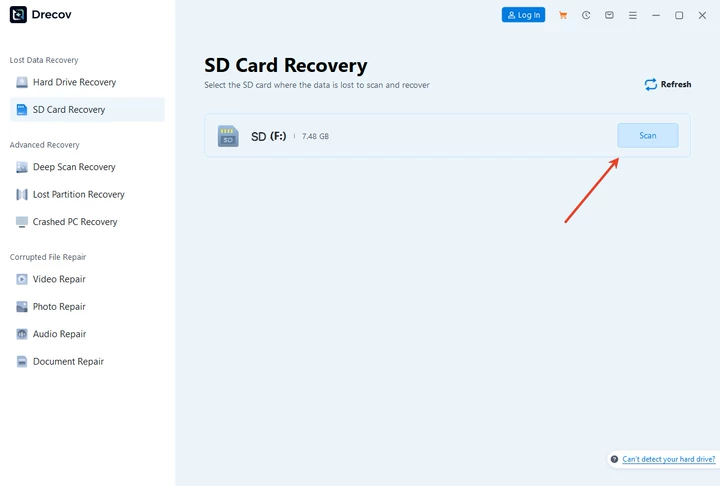
2. Scan with Drecov
Launch Drecov and select the connected device. Start a deep scan to locate lost photo files.

3. Preview and Recover
Preview recoverable photos and save them to a safe location on the Windows PC.

Pros
- Effective for formatted SD cards
- Supports multiple photo formats (JPG, PNG, RAW)
- Simple workflow for beginners
Cons
- Requires access to a Windows system
- Cannot scan Mac internal drives directly
Comparing Mac Photo Recovery Options
| Method | Platform | Cost | Success Rate |
|---|---|---|---|
| Trash / Photos App | macOS | Free | Low–Medium |
| Time Machine | macOS | Free | Medium |
| iCloud Recovery | macOS | Free | Medium |
| Drecov (SD Card / External) | Windows | Paid | High |
FAQs About Mac Photo Recovery
Is there free photo recovery software mac sd card users can rely on?
macOS built-in tools are free, but SD card recovery after formatting usually requires professional tools.
Can icloud photo recovery software restore photos deleted long ago?
No. iCloud only stores deleted photos for a limited time before permanent removal.
Is sd card photo recovery free mac possible after formatting?
Free methods rarely work after formatting. Professional recovery tools provide higher success rates.
What is the best photo recovery software for mac users if tools are Windows-only?
Using Windows-based recovery software to scan Mac SD cards or external drives is a practical workaround.
Conclusion: How Can I Recovery Mac Photos Effectively?
So, How Can I Recovery Mac Photos? Start with macOS’s free recovery options such as Trash, Photos app, Time Machine, and iCloud. These methods work well for recent deletions and synced photos. When photos are lost due to formatting or permanent deletion—especially on SD cards or external drives—advanced recovery tools become necessary.
Even though Drecov is a Windows-only solution, it can still play a valuable role in mac photo recovery by recovering photos from Mac-used storage devices via a Windows PC. Acting quickly, avoiding data overwrite, and choosing the right recovery method will give you the best chance of restoring your lost photos safely.






