







You may ask can chatgpt create videos after planning a script, making a visual concept, or using AI tools to build a short clip. ChatGPT can help with video workflows when the available tools support that task, but your final files still live on your device, browser, cloud folder, camera card, or external drive. If a video disappears, stop saving new files to the same location. Then check built in recovery options, backups, and PandaOffice Drecov.
This guide focuses on the practical recovery problem. It does not promise that every file can return. Deleted and formatted data may recover in many cases, but overwritten data may be unrecoverable. The safest first move is to pause, identify the storage location, and avoid anything that writes new data.
Quick Answer for Can ChatGPT Create Videos Recovery
First, confirm whether the missing clip was ever saved. Search Downloads, Videos, Desktop, project folders, browser download history, and any cloud folder linked to your device.
Next, check Recycle Bin or Trash if the file was deleted. If the file came from a USB drive, SD card, external disk, or a formatted folder, use recovery software before you run repair tools.
This matters because can chatgpt create videos questions often mix two issues. One issue is whether AI can help create video content. The other is whether the finished file still exists on storage. Recovery depends on the second issue.
Choose the Right Recovery Path for Missing Video Files
Next, match the situation to the safest method. A video project can be lost during download, export, transfer, cleanup, or storage failure.
| Situation | Best method | Difficulty | Recovery chance |
|---|---|---|---|
| Video was deleted from a computer | Recycle Bin or Trash | Easy | High if not emptied |
| Browser download failed | Browser download history | Easy | Medium |
| Video was on USB or SD card | PandaOffice Drecov scan | Medium | Medium to high |
| Drive asks to format | Deep Scan before formatting | Medium | Medium |
| Cloud folder removed the file | Cloud version history | Easy | Medium |
| Video project exports are missing | Search project folders | Easy | Medium |
Use the table as a starting point, not a final answer. If the storage device is unstable, avoid repeated attempts to open, copy, or repair it.
Method 1 Start With Built In Recovery Options
To begin, use the lowest risk checks. They are fast, free, and often enough for ordinary deleted or misplaced videos.
Search Common Video Locations
Open the places where video files usually land. Check Downloads, Videos, Desktop, Documents, browser folders, editing app export folders, and cloud sync folders.
Search for MP4, MOV, AVI, M4V, MKV, and WebM. Sort by date modified. If you created the clip today, date sorting can reveal files with generic names.
If the file came from an AI video tool, the name may not match your prompt. It may use a default download name. Search by file type before searching by title.
Check Recycle Bin or Trash
If the clip was deleted, open Recycle Bin on Windows or Trash on macOS. Restore the video to its original folder if it appears.
For Windows users who cannot find the bin, this Recycle Bin Recovery guide explains quick ways to locate it.
This method has limits. Files deleted from some removable devices may skip Recycle Bin. Files removed with permanent deletion may also need a deeper scan.
Review Browser and App Downloads
Open the download list in your browser. If the download was interrupted, the browser may show the failed item. If the source still allows access, try saving a fresh copy to a safe drive.
Do not keep retrying downloads to the same drive where files were lost. New files can overwrite deleted video data.
Method 2 Recover Files with PandaOffice Drecov
Meanwhile, use PandaOffice Drecov when built in methods fail. It can help with deleted videos, formatted storage, RAW drives, USB drives, SD cards, and hard drives.
⚠ Warning: Install it on a drive different from the one where your data was lost to prevent overwriting.
If you need the app, download or install it on a healthy drive. Do not place it on the storage device where the missing video was lost.
- Step 1. Open PandaOffice Drecov and choose the location or path where the files were lost. Start scanning that location.

- Step 2. Wait for Quick Scan and Deep Scan to find recoverable files.

- Step 3. Filter, search, and preview the files you want to restore.
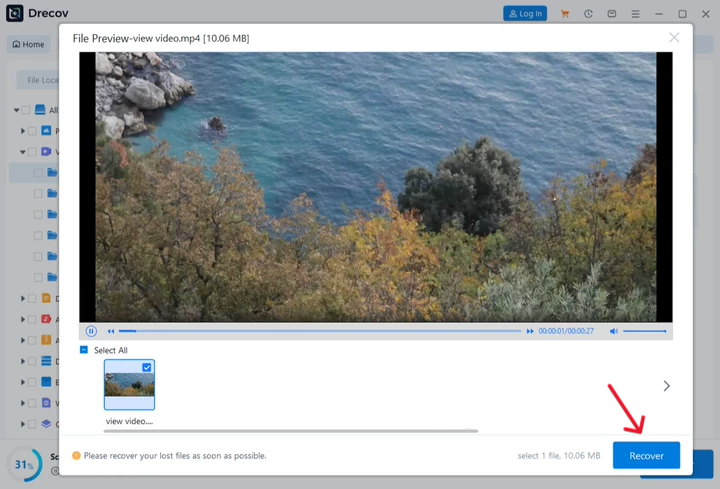
- Step 4. Click Recover and save files to a different drive.
Do not save recovered files back to the original drive. Saving to the same drive can overwrite video fragments that are still recoverable.
After recovery, if the files are not restored to the original lost folder, open the selected recovery location. Look for a folder named Drecov or Recovery to find the recovered files.
If the issue began with a failed ChatGPT download, this ChatGPT download fix can help you reduce repeat failures.
How to Verify Recovered Video Files Before Reuse
After the scan, do not assume every recovered clip is complete. Video files can be large, and a partial recovery may open only for a few seconds.
Test Playback in Several Places
Open the recovered clip in a local media player. Watch the beginning, jump to the middle, and check the end. If playback stops, freezes, or shows missing frames, look for another recovered copy.
Also check the file size. A long clip with a very small size may be incomplete. A normal looking thumbnail does not prove that the full video is healthy.
Keep an Untouched Recovery Copy
Make one safe copy before you edit, compress, or upload the video. Keep the original recovered file unchanged until the project ends.
This is especially important when can chatgpt create videos is part of client work. If one edited copy fails, you still have the recovered source.
Use Clear File Names
Rename verified clips with clear details. Include the project, date, and recovery status. Clear names help you avoid uploading the wrong version.
Avoid overwriting old names until you are sure which file is the best copy. If several recovered clips look similar, compare duration, quality, and size.
Alternative Methods for AI Video File Recovery
In addition, try other practical paths when the video might still exist outside the damaged location.
Cloud Version History
Use this if the project folder syncs with OneDrive, Google Drive, iCloud, Dropbox, or another cloud service.
Pros: It can restore a previous copy without scanning the drive.
Cons: It only works if sync or backup captured the video.
Editing App Export Folders
Use this when the final video came from an editor or AI tool. Check export folders, autosave folders, temporary render folders, and recent project paths.
Pros: It may find another version quickly.
Cons: Temporary folders can be cleaned automatically.
Original Source Device
Use this if the video was transferred from a phone, camera, action camera, or drone. The source device may still hold the original clip.
Pros: It may provide the cleanest file.
Cons: Recording new videos can overwrite older data on cards.
File Recovery Scan for Removable Media
Use PandaOffice Drecov when the video was deleted from USB, SD card, or external storage.
Pros: It can find files that are no longer visible.
Cons: Recovery depends on overwrite status and storage health.
Tips to Improve Video Recovery Success
Finally, small choices can decide whether a lost video comes back cleanly. Treat the original storage as evidence until recovery is complete.
- Stop using the affected drive, card, or USB device.
- Avoid formatting prompts, repair prompts, and CHKDSK before recovery.
- Do not download new AI videos to the same drive.
- Save recovered clips to a separate healthy drive.
- Keep the Drecov or Recovery folder until every file is verified.
- Tip: Check the full duration before using a recovered clip.
- Tip: Keep one untouched copy before editing or compressing.
- Tip: Record the source device and recovery date in a note.
- Tip: Back up final videos before uploading them anywhere.
A media recovery example shows why fast action matters after photo or video loss.
If you work with many AI video drafts, create a simple folder system. Use one folder for prompts and scripts, one for exports, one for final clips, and one for backups. This makes recovery easier because you know where each file should be.
When can chatgpt create videos leads to many experiments, do not leave everything in Downloads. Downloads is easy to clean by mistake. Move approved clips into a project folder before deleting drafts.
Extra Recovery Checklist for Video Projects
Before you close the recovery task, do one more review. Video files are easy to misjudge because a thumbnail may appear even when the file is incomplete.
First, compare the recovered file with your project notes. Check the expected topic, date, length, and file type. If the file does not match the work session, keep searching.
Second, test the clip on the device where you plan to use it. A file may play on one media player but fail in an editor, browser, or upload form. Testing early prevents another round of troubleshooting.
Third, keep the recovery output folder unchanged for a few days. When several versions exist, the file you need may not be obvious at first. A later review may reveal a better copy.
Avoid Common Video Recovery Mistakes
Do not run random repair tools before saving a clean recovered copy. Some tools rewrite the file and remove useful evidence.
Do not convert the only recovered video to another format. Make a duplicate, then convert the duplicate. Keep the original recovered file as your reference.
Do not assume a smaller file is useless. It may be a shorter export or a preview clip. Check playback before deleting it.
Make Future AI Video Work Easier to Rank and Recover
For ongoing content work, keep one folder per article, campaign, or video idea. Store prompts, scripts, source files, exports, and final clips together.
This habit supports SEO work too. When files are organized, you can add accurate screenshots, video references, and examples to future posts without hunting through old downloads.
Use simple names that describe intent. Names like ai-video-demo-final and product-video-draft-two are easier to search than random strings.
FAQ About Can ChatGPT Create Videos
Can chatgpt create videos that I can recover after deletion
You may recover the saved video if it was downloaded or exported and not overwritten. Start with Recycle Bin or Trash, then scan the original location.
Can ChatGPT generate videos from text and save them safely
Available features can vary, but the file safety rule stays the same. Save finished clips to a stable folder and back them up.
Does ChatGPT make videos directly on every account
Capabilities can vary by account, plan, region, and current product access. Check the tools visible in your ChatGPT interface.
Can I recover videos from a formatted SD card
In many cases, yes. Stop using the card, avoid formatting again, and scan it with recovery software.
Why does can chatgpt create videos matter for recovery
The keyword usually means the user is trying to create or use a video. Recovery matters when the finished clip disappears before upload, editing, or sharing.
Conclusion
Can chatgpt create videos is useful only when the final file is safe, readable, and easy to find. Start recovery with simple checks, including Downloads, project folders, Recycle Bin, Trash, and cloud version history. If those methods fail, PandaOffice Drecov may recover deleted, formatted, RAW, USB, SD card, or hard drive videos.
The most important rule is simple. Stop using the affected storage, recover to a different drive, and verify every restored video before editing or uploading it.






