







Accidentally Deleted Bookmark Folder Chrome? Losing your bookmarks in Chrome can be frustrating, especially when you realize all of my bookmarks are gone Chrome. Bookmarks store valuable websites, reference materials, and frequently visited pages, making their loss disruptive to daily browsing. Users searching for ways to chrome restore deleted bookmarks or recover Google Chrome bookmarks need practical, step-by-step solutions to regain their lost favorites.
Whether bookmarks disappeared due to accidental deletion, browser crashes, failed sync, or corrupted profile data, most of them can be restored using several methods. Some approaches are built directly into Chrome, while others require professional tools. Pandaoffice drecov offers a reliable way to recover bookmarks that are lost, deleted, or corrupted, ensuring you regain access to critical online resources safely.
This guide provides six proven methods for accidentally deleted bookmark folder Chrome recovery. By following these instructions, you can restore missing favorites quickly and protect your bookmarks from future loss.
⚠️Warning: Avoid creating new bookmarks or making changes in Chrome before attempting recovery, as this may overwrite recoverable data.
I accidentally deleted a folder of bookmarks, can I recover it?—from Quora
Common Reasons Why Bookmarks Disappear
Understanding why bookmarks disappear helps determine the correct recovery approach. Common causes include:
Accidental Deletion: Users sometimes delete folders or individual bookmarks unknowingly. Once removed, bookmarks are not sent to a system trash bin and cannot be recovered without proper tools.
Chrome Sync Errors: Chrome bookmarks synced across devices can be lost if sync malfunctions or if the browser overwrites data from another device.
Profile Corruption: Chrome stores bookmarks in the user profile. Corrupt profiles due to crashes, updates, or malware can make bookmarks inaccessible.
Software or System Errors: Malware, sudden shutdowns, or file system errors can corrupt bookmark files.
By identifying the cause, you can choose an appropriate solution. For most logical issues, recovery software like Pandaoffice drecov can locate deleted or corrupted bookmark files and restore them safely.
⚠️Warning: Do not install extensions or additional software directly on the Chrome profile before attempting recovery, as this may overwrite lost bookmarks.
Method 1: Restore Bookmarks Using Chrome Backup File
Chrome automatically maintains a backup of bookmarks in your profile folder. These files can be used to chrome restore deleted bookmarks manually if a folder or favorites disappear.
Steps to Recover Using Backup Files:
- Close Chrome completely to prevent conflicts.
- Navigate to your profile folder:
C:\Users\[Your Username]\AppData\Local\Google\Chrome\User Data\Default\
- Look for Bookmarks and Bookmarks.bak files.
- Rename Bookmarks to Bookmarks.old to preserve the current file.
- Rename Bookmarks.bak to Bookmarks.
- Reopen Chrome and check if your bookmarks have been restored.
This method works if the backup is intact. If the .bak file is missing, outdated, or corrupted, professional software such as Pandaoffice drecov can scan and restore lost or damaged bookmark files efficiently.
⚠️Warning: Always back up current files before renaming or replacing them to avoid permanent loss.
Method 2: Restore Bookmarks via Google Account Sync
If Chrome syncing is enabled, bookmarks can be recovered from the cloud. This method is particularly useful if you lost my bookmarks in Chrome after reinstalling the browser or signing in on a new device.
Steps:
- Open Chrome and log into your Google account.
- Go to Settings → Sync and Google Services → Manage Sync.
- Ensure Bookmarks syncing is turned on.
- Wait several minutes for Chrome to restore synced bookmarks.
You can also check the Google Dashboard online to verify synced bookmarks. Using this approach, you can restore bookmarks across multiple devices and even recover an entire deleted folder.
⚠️Warning: If syncing has been disabled for a long period, some bookmarks may not be available. Combining this with Pandaoffice drecov ensures maximum recovery.
Method 3: Recover Bookmarks Using System Restore
Windows users can revert the system to an earlier point when bookmarks were intact. System Restore does not affect personal files but restores system files, including Chrome’s profile folder.
Steps:
- Press Windows + R, type rstrui, and hit Enter.
- Choose a restore point from a date when bookmarks were present.
- Follow instructions to complete the restoration.
- Open Chrome and verify bookmarks.
While System Restore can retrieve lost bookmarks, it may not recover files from corrupted or heavily damaged profiles. For comprehensive recovery, Pandaoffice drecov can scan Chrome’s profile folder and restore missing or corrupted bookmark files.
⚠️Warning: Avoid creating new restore points before recovery, as this may overwrite older backups needed for restoring bookmarks.
Method 4: Recover Bookmarks from a Deleted or Corrupted Chrome Profile
When all of my bookmarks are gone Chrome, the issue may be linked to a damaged or deleted Chrome user profile. Chrome stores bookmarks inside the user profile folder, so if the profile becomes corrupted, bookmarks may disappear even though the data still exists on your drive.
To check this:
- Close Chrome completely.
- Press Windows + R, type:
%LOCALAPPDATA%\Google\Chrome\User Data\ - Look for folders named Default, Profile 1, Profile 2, etc.
- Open each profile folder and check for a file named Bookmarks.
If the original profile is corrupted, you can:
- Create a new Chrome profile.
- Copy the Bookmarks file from the old profile folder into the new one.
- Restart Chrome and verify if bookmarks return.
If the profile folder itself was deleted or emptied, manual restoration may not work. In that case, using professional broken data recovery software such as Pandaoffice drecov can help scan the system drive and recover the deleted bookmark files.
⚠️Warning: Do not uninstall Chrome before checking profile folders. Uninstallation may permanently remove recoverable profile data.
Method 5: Use Pandaoffice drecov to Recover Google Chrome Bookmarks
If backup files are missing and sync fails, a dedicated recovery tool is often the most effective way to recover Google Chrome bookmarks. When bookmarks are deleted, the underlying file remains on the drive until overwritten. Pandaoffice drecov can scan and retrieve those lost files safely.
Download DrecovWhy Choose Pandaoffice drecov?
- Deep scan technology to locate deleted Chrome bookmark files
- Supports recovery after accidental deletion or profile corruption
- Preview feature to verify recovered data
- Easy interface for beginners
Steps to Recover Lost Chrome Bookmarks
- Download and install Pandaoffice drecov on your PC.
- Launch the program and select the drive where Chrome is installed (usually C:).
- Run a deep scan.
- Search for files named Bookmarks or filter by Chrome-related files.
- Preview the recoverable file and click Recover.
- Save the recovered file to a different location.
- Replace the current Chrome bookmark file with the recovered version.

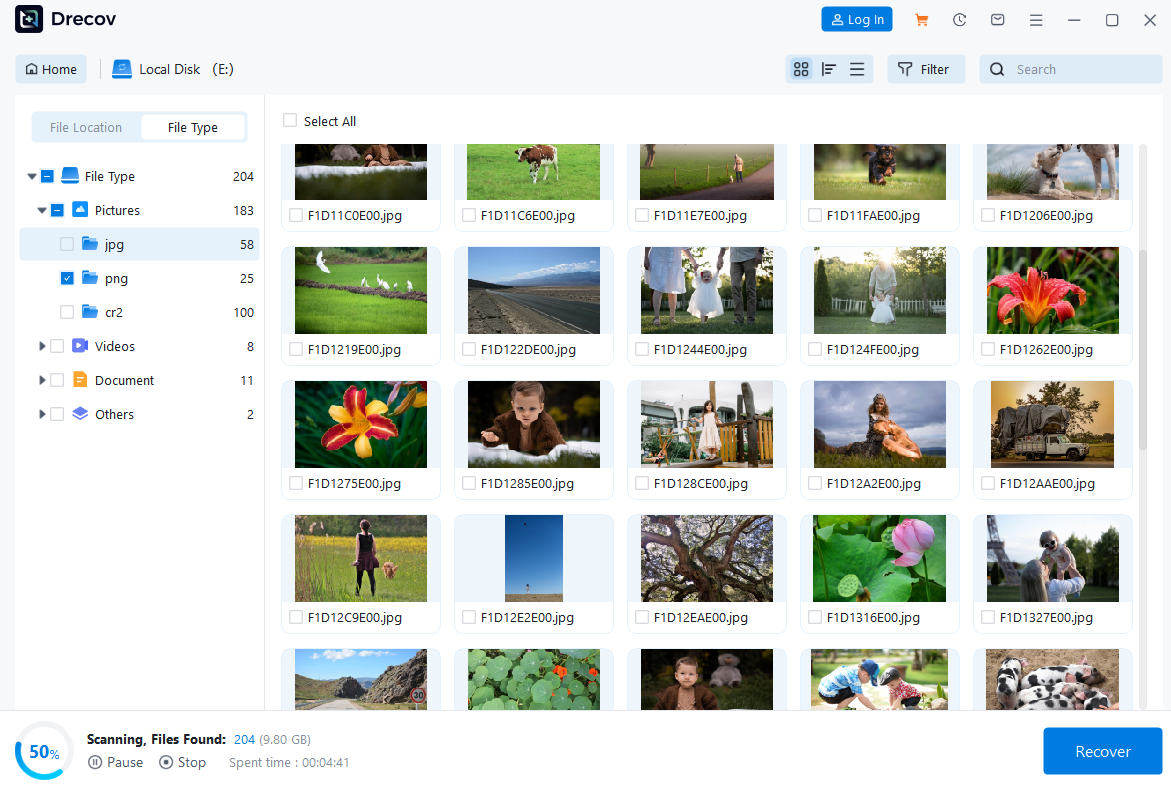

This method is especially useful if you accidentally deleted bookmark folder Chrome and cannot find the backup file.
⚠️Warning: Always save recovered files to a different drive to prevent overwriting remaining data.
Method 6: Restore Bookmarks from File History or Backup
If Windows File History or another backup system was enabled, you may be able to chrome restore deleted bookmarks using previous file versions.
Using File History
- Navigate to:
%LOCALAPPDATA%\Google\Chrome\User Data\Default\ - Right-click the folder and select Restore previous versions.
- Choose a version dated before bookmarks disappeared.
- Click Restore.
If File History was active, this method can quickly bring back the original bookmark file.
Alternatively, if you exported bookmarks previously (HTML file), you can restore them by:
- Opening Chrome
- Going to Bookmarks Manager → Import Bookmarks
- Selecting the saved HTML file
This is one of the easiest ways to recover chrome bookmarks if you had created manual backups earlier.
⚠️Warning: Restoring a previous version may overwrite current bookmarks. Back up existing data before proceeding.
What to Do If Sync Caused Bookmark Loss
Sometimes users report: lost my bookmarks in chrome immediately after signing into a different device. This usually happens when sync overwrites data.
To fix this:
- Go to Google Dashboard.
- Temporarily turn off sync on all devices.
- Sign out of Chrome on every device.
- Re-enable sync only on the device that still has correct bookmarks.
If none of the devices retain the correct data, you may need to rely on local file recovery using Pandaoffice drecov.
If you’re wondering how to get my bookmarks back on chrome after sync errors, checking local profile folders before re-enabling sync is critical.
⚠️Warning: Re-enabling sync too quickly can permanently overwrite correct bookmark data across all devices.
How to Prevent Bookmark Loss in the Future
After successfully performing chrome restore deleted bookmarks, prevention becomes essential. Bookmark loss often happens unexpectedly, so proactive backup strategies are highly recommended.
Enable Chrome Sync
Keep bookmark syncing active under your Google account.
Export Bookmarks Regularly
Go to Bookmarks Manager → Export Bookmarks and save the HTML file to an external drive.
Enable Windows File History
This provides versioned backups of your Chrome profile folder.
Use Reliable Recovery Software
Keeping Pandaoffice drecov installed ensures you can quickly recover google chrome bookmarks if future accidents occur.
If you’re ever asking, how to get my bookmarks back google chrome, having backups already in place will make recovery effortless.
⚠️Warning: Never store your only backup on the same system drive. External or cloud storage is safer.
Final Thoughts
Losing bookmarks can be stressful, especially when an accidentally deleted bookmark folder Chrome scenario leaves your browser empty. Fortunately, there are multiple solutions available. From restoring backup files and using sync features to professional recovery tools like Pandaoffice drecov, you can successfully recover google chrome bookmarks in most cases.
Whether you need to chrome restore deleted bookmarks, fix sync problems, or address profile corruption, acting quickly significantly increases recovery success. If manual methods fail, a dedicated recovery solution ensures you regain access to important saved websites safely and efficiently.
By following the six methods above, you can restore missing bookmarks and protect them from future loss.





