







Over the past 25 years, more than 12 billion SD and micro SD cards have been sold worldwide.SD cards are widely used in cameras, smartphones, drones, and dash cams to store photos.However, accidental deletion, formatting errors, or SD card damage can easily lead to photo loss. Understanding how to recover photos from SD Card can help you retrieve important images at critical moments and prevent valuable memories from being lost forever.
Common Reasons for Photo Loss on SD Cards
Understanding the causes of photo loss helps determine the best recovery method and reduces the risk of future data loss.
1. Accidental Deletion
Photos are often deleted unintentionally while managing files on a camera or computer.
2. SD Card Formatting
Whether done by mistake or prompted by a device, formatting removes file system references, but the photo data often remains recoverable.
3. SD Card Corruption
Improper ejection, power interruptions, virus infections, or file system errors can corrupt an SD card and make photos inaccessible.
4. Using the SD Card Across Multiple Devices
Frequently using the same SD card on different devices can lead to compatibility issues or file system conflicts.
5. Wear and Tear of the Storage Media
Long-term use can lead to bad sectors or read/write errors, resulting in photo loss.
Recovery Methods: How to Recover Photos from SD Card
In most cases, the system does not immediately erase photos lost from an SD card.Instead, the data remains recoverable until new data overwrites it.Acting quickly and using the right recovery method is essential.
Method 1:Check Device Backups
If you have used the SD card in a smartphone or a synced device before:
Check cloud backups (Google Photos, iCloud, OneDrive)
Review local camera backups on your computer
This method works only if backups were enabled before the data loss occurred.
Method 2: Using PandaOffice Drecov
For common scenarios such as accidental deletion, formatting, or logical SD card damage, professional data recovery software is the safest and most effective solution. PandaOffice Drecov is designed specifically to handle photo and file loss and can perform deep scans on SD cards to locate lost images.
Basic steps to recover photos from an SD card with PandaOffice:
Step 1 Download and Install PandaOffice Drecov
Begin by downloading the software from the PandaOffice website and installing it on your computer.
Step 2 Choose the SD Card and Search for Lost Data

Connect the SD card to your computer and launch PandaOffice Drecov card recovery software on your PC.
Select the SD card and click “Scan”. The software will analyze the selected hard drive and search for deleted or lost video files.
3.Preview Scanned Files

After the scanning process, you can find deleted items from the tree-view panel on the left.
Then, click “Filter” if you are looking for a specific file type, like Pictures, Videos or Document.
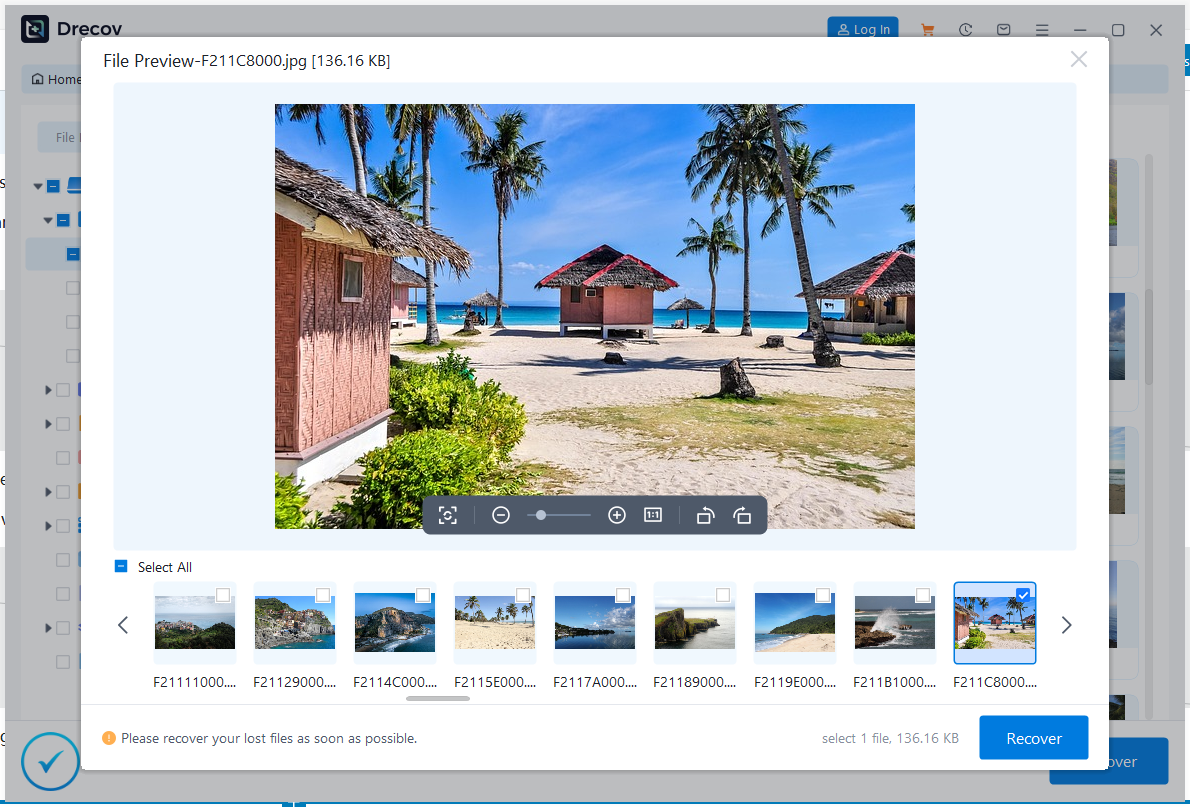
Afterward, preview the photos you want to recover and restore them to another storage device.
Best SD card photo recovery software
Key advantages of PandaOffice for SD card photo recovery include:
Support for SD and micro SD cards
Recovery of popular photo formats such as JPG, PNG, RAW, and HEIC
Deep scan technology to recover photos after formatting
Photo preview before recovery to verify results
Read-only scanning process to avoid secondary damage
User-friendly interface suitable for non-technical users
How to Prevent Data Loss from SD Cards?
1. Choose quality products.
When purchasing SD cards, try to choose products from well-known brands and buy them from officially recognized platforms to ensure the quality of the memory card.
2. Good usage habits.
Use the “safe eject/safe removal” function when removing the SD card from the device after use. Also, for cameras or mobile phones, insert or remove the SD card while the device is powered off. Avoid frequently using the same SD card with multiple devices.
3. Store SD cards safely.
Store SD cards in a cool, dry place, away from heavy objects, water, and fire to avoid physical damage.
4. Back up data regularly.
You should back up important data on the SD card to external storage devices—such as external hard drives or USB flash drives—in a timely manner, so that you can effectively prevent many data loss problems.
How to recover photos from SD Cards FAQs
1.How to increase SD card photo recovery chances?
Stop taking new photos or videos
Do not format the SD card again
Avoid writing any new data to the card
These steps help prevent data overwriting and significantly improve recovery success rates.
2.How to Recover photos from formatted SD card?
Recovering photos from a formatted SD card is more challenging than if the card had been accidentally deleted.
Quick formatting usually doesn’t immediately erase photo data. PandaOffice Drecov supports deep scanning and can still retrieve photos through the underlying data structure.
3. My SD card prompts “Formatting required” or “Unreadable,” can I still recover photos?
Yes, this is a very typical recovery scenario.
When the SD card’s file system is corrupted, the operating system may require formatting, but do not format it directly.
The correct procedure is:
Do not perform any repair or formatting operations.
Use data recovery software to directly scan the SD card.
Recover the photos first, then consider reformatting the card.
4. Will the recovered photos be corrupted or unopenable?
If PandaOffice Drecov can fully read the photo data, then the software usually restores images that open normally; however, in certain situations, photos may still be partially corrupted, such as:
The original photo data has been partially overwritten.
The SD card has many bad sectors.
Power outage or forced interruption of the scan process.
It is recommended to use the preview function before recovery to determine if the photos are intact.
5. Will using data recovery software cause secondary damage to the SD card?
Regular, read-only software will not.
PandaOffice Drecov uses a read-only mechanism during the scanning and recovery process and will not write any data to the SD card, avoiding secondary damage.
However, please note:
- Do not use multiple software programs to scan repeatedly at the same time.
- Do not save the recovered photos back to the original SD card.
6. Can photos still be recovered after the SD card is physically damaged?
If the SD card has any of the following conditions:
Cracked chip
Severely bent card
Completely unrecognizable by any device
The success rate of recovery will be relatively low. If it’s just logical damage or a faulty unlock, it’s still recommended to try using PandaOffice Drecov to recover the photos first.
7. How long does it take to recover photos from an SD card?
Recovery time depends on:
SD card capacity
Scanning mode used (Fast Scan/Deep Scan)
SD card health condition
Conclusion
SD cards remain one of the most widely used storage solutions for photos, but photo loss can happen due to accidental deletion, formatting, or card damage. Fortunately, in most cases, lost photos are not permanently erased.
By stopping SD card usage immediately and using the right recovery solution, users can successfully recover photos from SD Card. With its powerful scanning capabilities, broad format support, and intuitive design, PandaOffice Drecov provides a reliable and efficient way to retrieve lost photos and protect irreplaceable memories.






